Prepare interviews so search results lead back to the right media
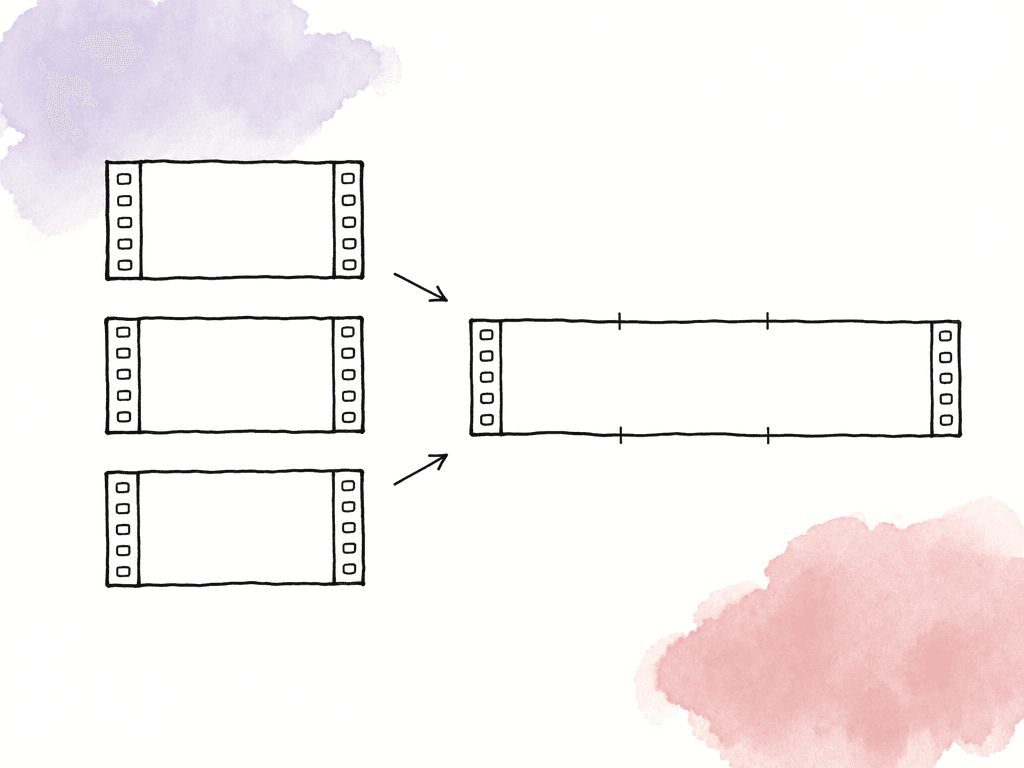
Before transcription, decide which recording the producer will review. A camera file with usable dialogue can be a straightforward reference. When the camera has only scratch audio, a synchronized viewing copy may be easier to understand, but it needs a record of the camera files and production sound used to create it. A transcript generated from a separate audio recording inherits that recording's timing, which may differ from the picture. Keep the originals and their filenames intact. Add an interview identifier, speaker name, shoot date, and recording part in your logging system so two files namedC0001.mov can't be mistaken for each other. The same identifier should appear in the transcript notes and the selects log. If an interview spans several camera files, preserve the boundaries or document how the combined viewing copy maps to them.
Search across interviews, then narrow within the recording
The first search depends on what you remember. If you know the interview and recall a distinctive phrase, open that file and search its transcript. If you remember only the subject, search the library first so you don't have to open every recording individually. Aspect's AI Search can find spoken content across a project using an exact phrase or a description of the topic. It also searches other information, including visual content and metadata. Phrase the request around speech when that's what you need:interviews where someone talks about missing the last bus after an evening shift asks for an interview answer more clearly than buses at night.
For the bus-route story, start with the question the film needs to explore: how the new timetable affected people getting home from work. Search for that idea, then examine the filters Aspect created. A date filter or folder restriction may exclude an older interview that's still relevant, while a broad project search may include promotional videos unrelated to the reporting.
Your first matches can help you learn the words people actually used. One passenger might say “evening shift,” another “closing,” and another “the last service.” Search those phrases as well. Once a likely file is open, transcript search helps locate repeated mentions and compare the first explanation with a later, more specific answer.
If a search returns no matches, check that the interview has finished indexing and is included in the selected folders. Try a nearby word if a proper name was transcribed incorrectly, then listen to the likely section manually. A missed search result doesn't mean the subject was never discussed.
Use Aspect's asset intelligence features to search across the interview library, and keep a note of which folders and topics you reviewed. When several producers divide the work, that note shows what each person covered and which recordings still need attention.
Review the whole answer before accepting a quote
Play the interviewer's question, the answer, and the passage that follows. A speaker may qualify an apparent claim a few seconds later, or use “they” to refer to a different group from the one the producer expects.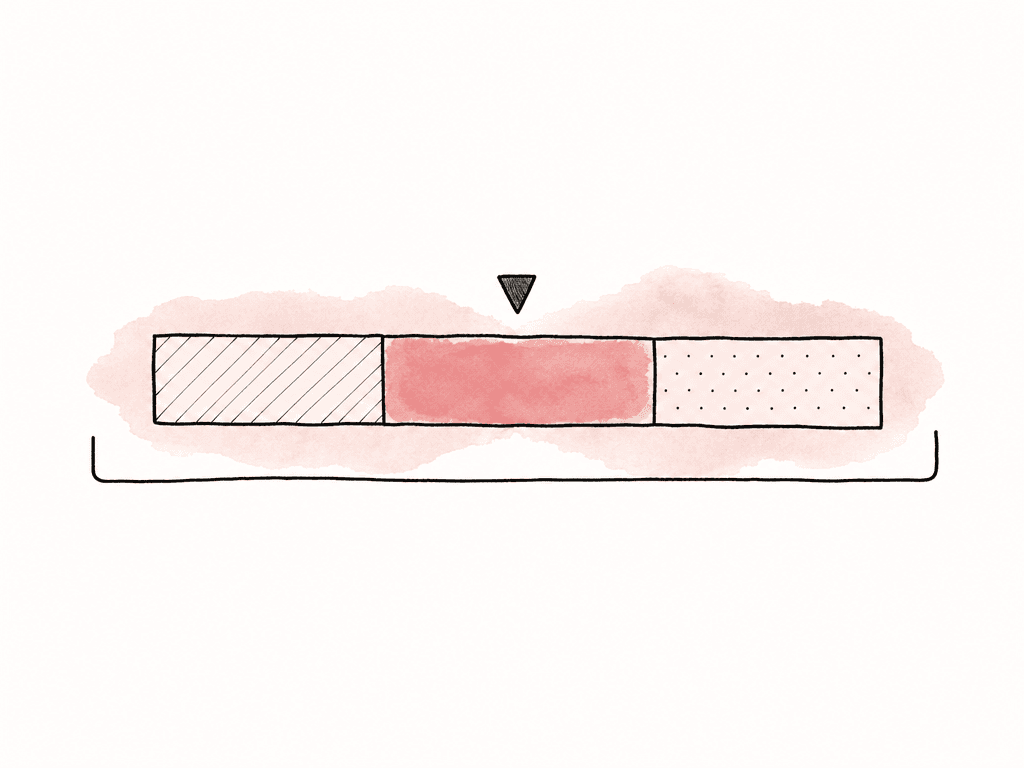
Give every select a source reference and an explicit time basis
You can keep the selects log in a shared document or spreadsheet. Include enough detail for another editor to recover the same moment without repeating your search. Use one entry per selected passage, including when several passages come from the same asset. A quote-log entry for the bus-route story could look like this:| Field | Example entry |
|---|---|
| Select identifier | ROUTE_014 |
| Speaker | Maya, interviewed about the evening service |
| Verbatim quote | “Before the timetable changed, I waited outside the depot after every late shift. Now I can get home before midnight, but only if I leave work ten minutes early.” |
| Source | INT_MAYA_A_003.mov, original uploaded version |
| Location | RouteFilm / Interviews / Maya / CameraA and the asset link |
| Transcript reference | Elapsed playback from 00:12:18.400 to approximately 00:12:33.800 |
| Source timing | Constant 25 fps; first source frame is 01:00:00:00 |
| Source start reference | Expected 01:12:18:10; verify in the editing application |
| Context note | Answer concerns late shifts; keep the qualification about leaving work early |
| Selection status | Selected for review; editor still needs to set final In and Out points |
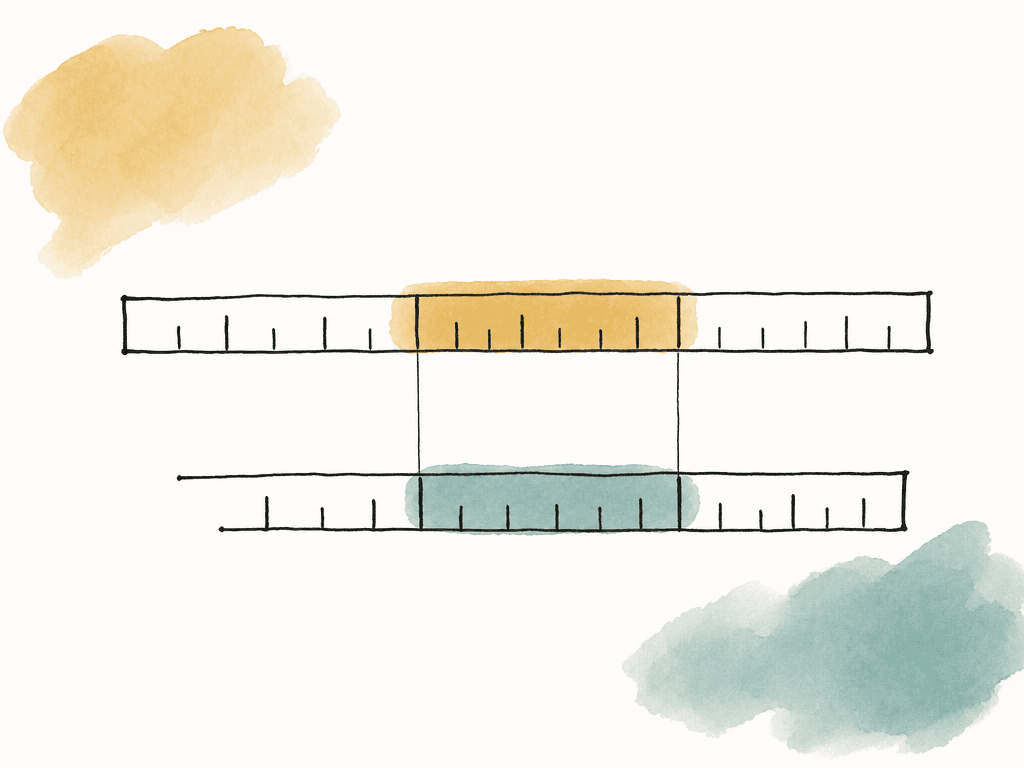
01:00:00:00, and the media runs continuously at exactly 25 frames per second. Twelve minutes, eighteen seconds, and 400 milliseconds after that first frame corresponds to 01:12:18:10, because 400 milliseconds contains ten frames at that rate. This arithmetic applies to the stated example, not automatically to every interview.
A transcript generated from a trimmed export, a joined interview, or an independently recorded audio file needs its own verified mapping. Frame-rate conversions, variable frame rates, and timecode discontinuities also require care. Use the transcript to reach the passage, then set the final boundaries while listening in the editing application. Leave enough material around the words to preserve breaths, the question where needed, and room for an edit.
Gather the source assets while keeping the quote ranges separate
After choosing passages, group the relevant files so the editor can browse the source material together. Aspect collections reference existing assets and folders without moving or duplicating them. A collection namedRoute film — interview selects can therefore contain recordings from several shoot folders while their original organization stays intact.
Keep the selected time ranges in the quote log alongside the collection. If Maya has three useful answers in one recording, add the recording to the collection once and create three log entries. The editor can then set the In and Out points for each passage in the editing application.
Use time-range comments to attach a select identifier and context note to a passage when that helps the team review it. Check the asset version as well: a replacement upload may change the content and trigger new transcription. The quote log must continue to identify the version on which the selection was based.
Build a selects sequence in the editing application
When you hand over the selects, include access to the media and notes on how to use the selected passages. Send the collection or source links with the selects log, and make sure the editor can open the referenced files. A transcript export alone doesn't supply the camera media, synchronized sound, or decisions about where each passage should begin and end. On macOS or Windows, mount the Aspect project and use Open in mount on a search result to reveal its original file. Open that file in the editing application, then use the quote log to reach the passage you selected. Compare the spoken words with the log entry before adding the passage to the sequence. If the production uses synchronized clips or a multicamera setup, edit with those prepared sources to preserve the correct audio relationship. Aspect's Premiere workflow guide covers accessing shared media, while Premiere handles the edit itself. Export the Aspect transcript when you want the full text beside the quote log or need to share it with someone preparing the story. Include the source filename and timing reference with the export so the text remains useful if it's separated from the handoff folder. To assemble the edit by selecting words in Premiere, transcribe selected source clips, highlight transcript text, and use Insert to add the corresponding content to a sequence. Adobe also documents Paper Edit, which previews selected transcript passages and creates a new sequence from them. Both tools use Premiere's transcript and the source clips open in the project. Before handing over all the selects, have the receiving editor recover one entry from each source type, such as a camera clip and a synchronized interview. Confirm the picture, speaker, words, timing, and audio, then resolve any mismatch before repeating the process across dozens of selects. The editor can then build documentary string-outs and selects sequences. The source references and context notes remain useful as the story changes, because the team can revisit an answer or find an alternative without repeating the original search.FAQ
Create a transcript linked to the video, search for a distinctive word or phrase, and play the matching passage. If you do not know which interview contains the quote, use a library search that indexes spoken content across files. In Aspect, transcript search works within the open asset, while AI Search can find spoken content across the project.
Record a unique select identifier, the exact source file and version, the speaker, the quote, and a start and end reference. Label whether those references are elapsed playback times, source timecode, or sequence timecode. Add the surrounding question, any important qualification, and enough information to find the synchronized production audio when it is separate.
Export the Aspect transcript for your notes and quote log, keeping the source filenames and time references with each selection. Open those source clips in Premiere to build the sequence. If you want to insert clips by selecting transcript text, Premiere can transcribe the source media and add passages through its Text-Based Editing tools.
It may be a different reference. An elapsed timestamp measures position from the beginning of a file, while source timecode labels frames in the source media and may start at an hour or a recording time. Confirm the reference, frame rate, and media version before converting. A transcript from a combined interview or a different audio recording also needs a verified relationship to the camera clips.
Aspect collections group existing files and folders without moving or copying the originals. Adding a recording keeps the whole source available to the editor. Keep the selected time ranges in a quote log or time-range comments, then create the required subclips or sequence in your editing application.