Start with Blackmagic's official server
Install the Studio edition from Blackmagic Design's support center. Use Studio 21.1 or a later version that includes the MCP integration. Blackmagic describes it in “Using DaVinci Resolve with AI Assistants” in the Resolve 21.1 reference manual. Search results also surface community projects named “Resolve MCP” or “DaVinci MCP.” Their installation steps may ask for Python environments, extra packages, or a cloned repository. Those instructions describe a different server. For the bundled Blackmagic integration, begin inside Resolve:- Install the local AI client you want to use.
- Open Resolve and choose File → Setup AI Assistants.
- Read the result to see which installed clients were configured.
- Restart the assistant or its MCP connection.
- Ask it to report Resolve's status before requesting an edit.
Connect Claude, ChatGPT, or Codex
Choose the instructions for the application you actually use. The official server runs on the computer with Resolve. Its native executable communicates through standard input and output, usually abbreviated STDIO.Claude Desktop
Try Resolve's setup command first. For a manual installation, use Blackmagic's included desktop extension. In Claude, open Settings → Extensions → Advanced settings → Install Extension, then chooseDaVinciResolve.mcpb. This follows Claude's custom-extension installation workflow.
On a standard Mac installation, the bundle is here:
/Applications/DaVinci Resolve/DaVinci Resolve.app/Contents/Resources/DaVinciResolve.mcpb
Codex
On macOS, add the native executable as a local server:codex mcp add davinci_resolve -- "/Applications/DaVinci Resolve/DaVinci Resolve.app/Contents/Applications/ResolveMCP"
codex mcp list
ChatGPT desktop
Open Settings → MCP servers → Add server. Name itdavinci_resolve, choose STDIO, and use the executable path below as the command. Leave server arguments empty, save, and restart the connection.
Use a conversation with access to this computer's MCP tools. ChatGPT web does not read local Codex configuration files. OpenAI documents the desktop setup and web distinction; a cloud-only chat cannot launch Resolve from a local path.
Claude Code
For Claude Code on macOS:claude mcp add --transport stdio --scope user davinci_resolve -- "/Applications/DaVinci Resolve/DaVinci Resolve.app/Contents/Applications/ResolveMCP"
claude mcp list
-- separates Claude's options from the executable it starts. See Claude Code's local MCP setup, then start a fresh session.
Native executable paths
For manual setup on another operating system, substitute the matching installation path. These are local commands, so do not enter them into a field that expects an HTTP URL.| Operating system | Default Resolve MCP executable |
|---|---|
| macOS | /Applications/DaVinci Resolve/DaVinci Resolve.app/Contents/Applications/ResolveMCP |
| Windows | C:\Program Files\Blackmagic Design\DaVinci Resolve\ResolveMCP.exe |
| Linux | /opt/resolve/bin/ResolveMCP |
Verify the connection before asking for an edit
A server appearing in settings is only the first check. Give the assistant a small inspection task:Use the Resolve MCP to check whether Resolve is running and report its
version. Read the scripting API for inspecting projects and timelines.
Tell me whether a project is open and how many timelines it contains.
Do not create or change anything yet.
get_resolve_status, launch_resolve, search_scripting_api, get_scripting_api, and get_scripting_docs. If Resolve is closed, the assistant can launch it and wait for the application to finish opening.
The server also provides run_script. It supplies resolve and project to the script and returns the value assigned to result. A short inspection looks like this:
result = {
    "version": resolve.GetVersionString(),
    "project_open": project is not None,
    "timeline_count": project.GetTimelineCount() if project else 0,
}
How the agent actually edits in Resolve
The official MCP exposes general tools rather than a separate button for every editing action. The agent looks up the current scripting API, writes a small script, executes it, and checks the resulting project state. For example, the API includesMediaPool.AppendToTimeline for assembling clips, MediaPoolItem.LinkProxyMedia for linking a proxy, and MediaPool.RelinkClips for updating media locations. Ask the agent to read the current signatures and accepted arguments before using them. A familiar command name is not enough to establish the correct frame ranges or clip identifiers.
Before importing mounted media, have the agent apply the relevant settings from Aspect's Resolve workflow. Then start with a short, named working timeline:
In the current Resolve project, inspect the selected source clips and
report their frame rates, durations, and file paths. Create a new timeline
named Agent assembly v01 at the agreed delivery frame rate. Assemble a
short first pass from the approved selects. Keep existing timelines intact.
Read the relevant API before editing, check each operation's return value,
and then report the resulting clip count, duration, and any offline media.
run_script limits general filesystem, network, and process access, but it can still change the Resolve project. Its name does not imply a read-only operation. The broader run_script_unsafe tool adds system access; ordinary Resolve API work should use the narrower tool when possible. File transfers can stay in the Aspect CLI.
Give Resolve's agent the media context it needs
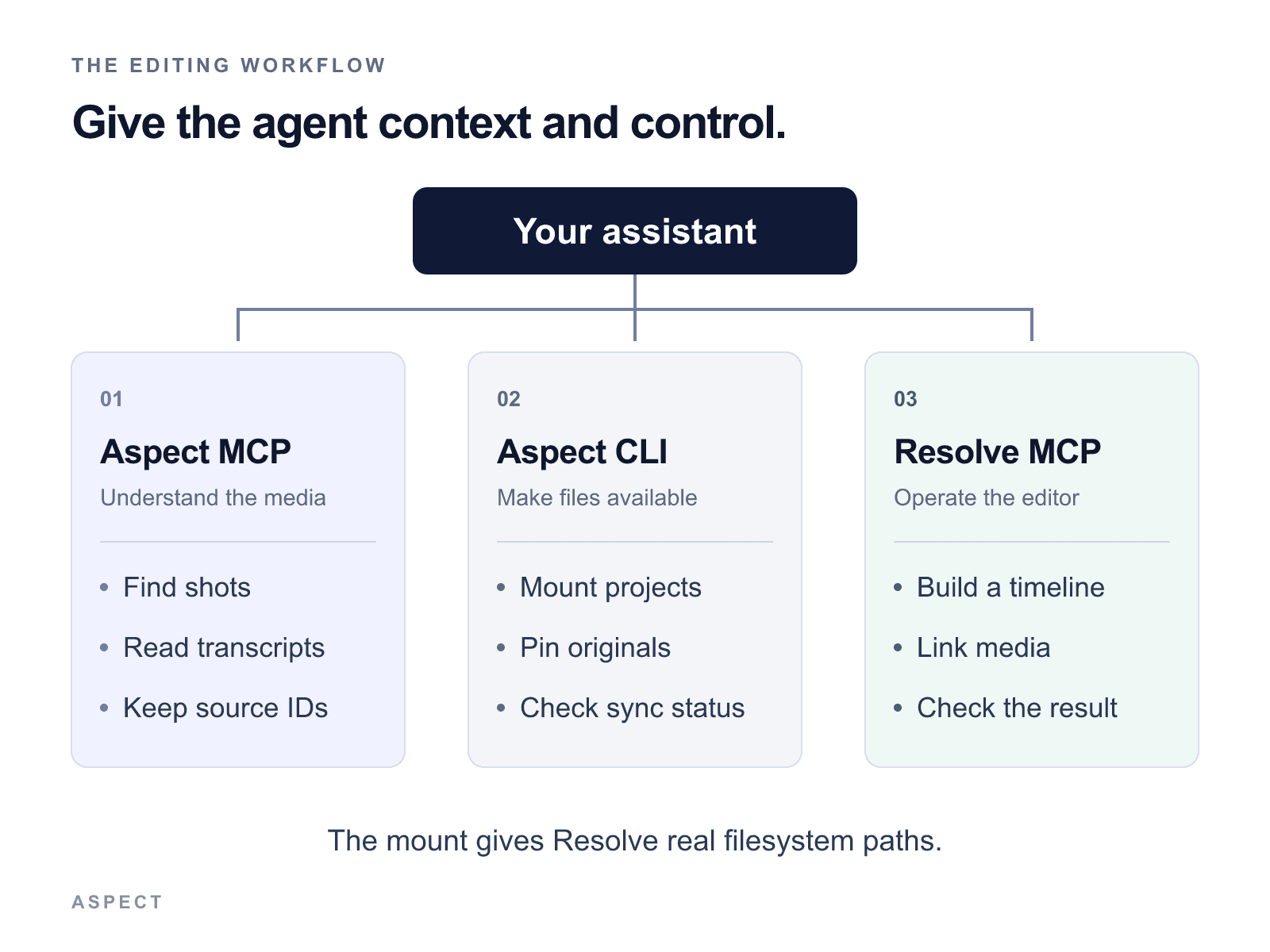
Resolve operates on media in an editing project. Aspect supplies a wider view of the library: which shot matches the brief, what the interviewee said, where the source lives, and which review comment belongs to a time range. Connect Aspect MCP to the same assistant using this remote endpoint:https://api.aspect.inc/mcp
| Tool | Its part in the edit |
|---|---|
| Aspect MCP | Find footage, read transcripts and scene descriptions, organize selects, and retrieve review notes. |
| Aspect CLI | Mount projects, start pins, and report transfer or offline-file status. |
| Resolve MCP | Inspect the editing project and perform supported timeline, media, color, and render operations. |
Edit from proxies while the originals pin
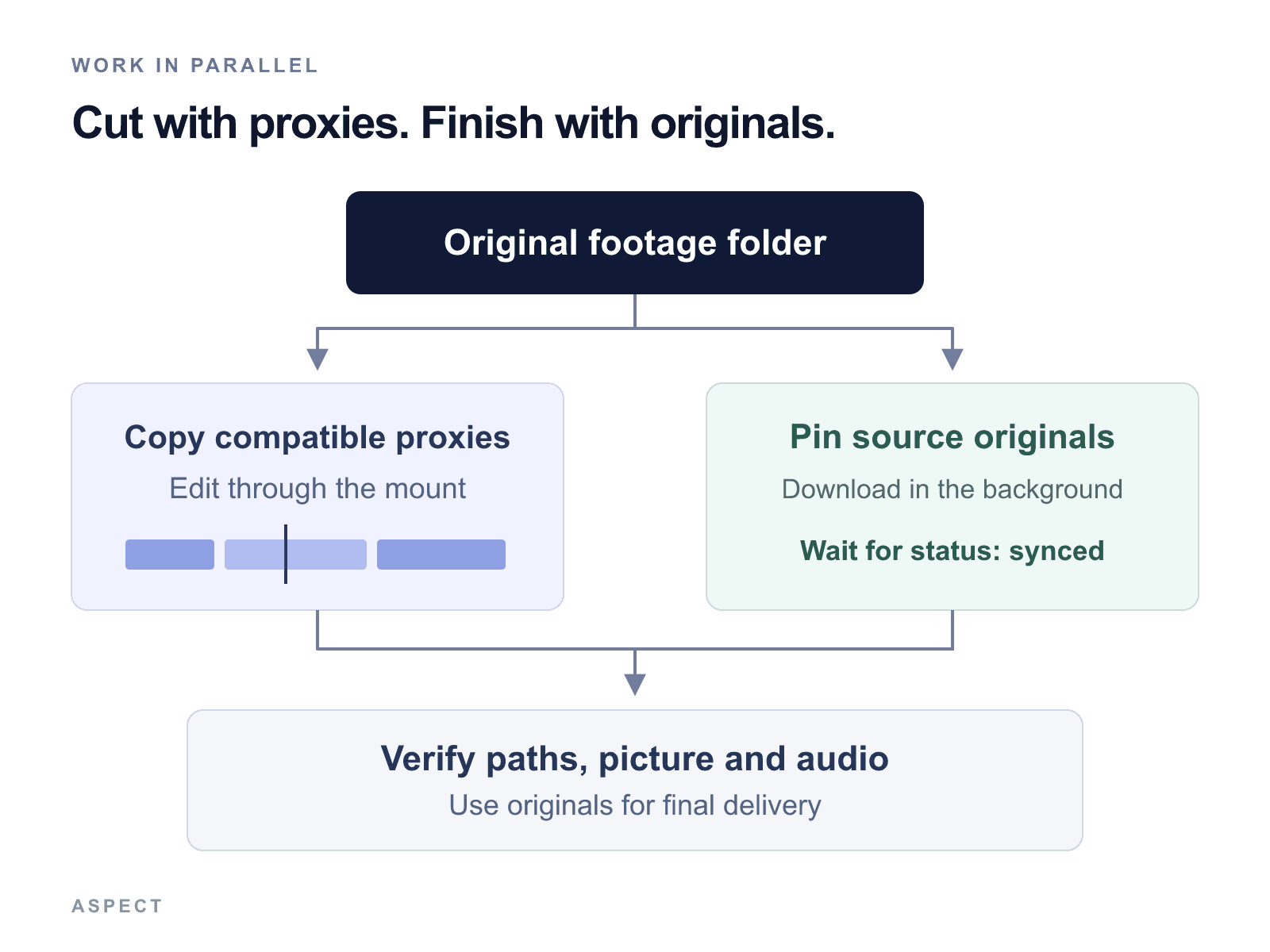
For a large shoot, waiting for every camera original can delay a useful first cut. Prepare a lightweight working set and let the originals download while editing progresses. Keep an explicit relationship between the two so finishing does not become a filename guessing exercise.Configure Resolve before importing the shoot
Have the agent read Aspect's Resolve workflow. Use consistent mounted media paths, keep the render cache on a local SSD, and keep the active Resolve project library local or in Blackmagic Cloud. Agree on timeline frame rate, resolution, and color management before a large import. The agentic editing guide also links the settings for Premiere Pro, Final Cut Pro, After Effects, and Avid Media Composer. If an integration cannot change a setting, the agent should identify the exact manual step.Record the selects and their sources
Ask Aspect MCP to find the footage for the brief. For each select, keep the source asset ID, original path, and chosen time range. Record frame rate, start timecode, and audio layout where available. A filename alone may not distinguish two camera cards. A useful request is: “Find the interview passages about the product launch and matching outdoor B-roll. Return candidate ranges with original asset IDs and paths. Keep the source folders unchanged.”Copy the footage folders as proxies
In Aspect, select the raw-footage folders and choose Copy. Pick a separate working destination such asEdit/Proxies. Under Content, choose Copy videos as proxies.
The resulting videos are separate, smaller MP4 assets. The original source folders remain available. Other file types copy their original content. Wait for the required files to appear and verify that they open; a copy job can still be waiting for proxy processing.
The remote fs_items_copy MCP tool does not currently expose the copy_as_proxy option. Use the Copy dialog, or the documented REST proxy-copy request when the agent has API access. Do not assume an ordinary MCP copy creates proxies.
Mount the project and pin the source originals
Replace the example workspace and project names with your own:aspect mount "aspect://Studio/Campaign" --json
aspect status --json
aspect pin add "aspect://Studio/Campaign/Raw Footage" --json
aspect pin list --json
aspect:// address identifies the cloud location; it is not the local file path the editor opens.
Pin the original source folder you copied from. If it lives in another project, mount and pin that location too. Pinning only Edit/Proxies downloads the lighter copies, not the camera originals. Check that enough pin storage is available and watch for an error or an over-limit status.
Prove the proxy relationship on a few clips
Prefer importing the originals from the mounted folder and linking matching proxies with Link Proxy Media. Use Playback → Proxy Handling → Prefer Proxies during the edit. The original remains the source clip, while the smaller file supplies playback. Aspect's streaming proxies are viewing copies. They are not guaranteed to meet every editorial proxy requirement. Check duration, frame rate, start timecode, audio channels, and picture/audio sync. If Resolve rejects the match, generate an appropriate editorial proxy in Resolve instead of forcing the attachment. You can begin with proxies imported as standalone clips, but test the return to originals first. Keep a source-to-proxy map and conform one representative clip before building the whole timeline. Replacing an MP4 proxy with a camera RAW file may require a replace or conform operation rather than a folder-only relink.Switch to originals and verify a test export
Check the required pins again withaspect pin list --json. Wait until they report synced. Finishing the creative edit does not prove that the original download has finished.
If the source clips already reference originals, switch proxy handling to use the originals and verify the paths. If the timeline was built from standalone proxy assets, relink or conform using the source map. Continue opening pinned files through the mount, rather than pointing Resolve into Aspect's internal cache.
Check for offline clips and compare representative picture and audio. Confirm the source resolution, frame rate, and color interpretation. Inspect render settings so the delivery uses original-quality media, then review a short test export before rendering the full program. For mixed-camera color work, see the Resolve ACES setup guide.
Close the loop with review notes
Save the Resolve project in its supported project library. Export a.drp to Aspect when you need a project snapshot for handoff. A .drp alone does not include the source media.
Upload the review render to Aspect or write it to the mounted project, and wait for synchronization before sharing it. The agent can retrieve review comments, map the relevant times to the edit, and prepare the next named timeline revision. It should confirm which rendered version each note refers to before applying it.
Troubleshoot the point where the workflow stopped
| What you see | What to check next |
|---|---|
| Setup AI Assistants is missing | Confirm the Studio edition and an installed version with the bundled MCP integration. |
| The server is configured but tools are absent | Restart the client or connection. Check its server list and any organization controls for local tools. |
| The server starts but cannot reach Resolve | Open Resolve fully and check the local scripting preference. |
| An API method or argument fails | Have the agent read the installed scripting API instead of reusing an example from another version. |
| Resolve reports offline media | Check the actual mount path on this computer and whether the source files are available. |
| A proxy will not attach or plays out of sync | Compare source properties and make a compatible editorial proxy when required. |
| Pinning has started but originals are unavailable | Check pin status and available storage. A queued pin is not a completed download. |
FAQ
Yes. DaVinci Resolve Studio 21.1 includes Blackmagic Design's native ResolveMCP server. Start with File → Setup AI Assistants in Resolve. Community servers on GitHub are separate implementations and can have different requirements and tools.
This guide covers the MCP server bundled with DaVinci Resolve Studio 21.1. Blackmagic documents that integration as a Studio feature. Having access to some Resolve scripting functions in the free edition does not establish support for the bundled MCP workflow.
The native ResolveMCP executable uses Resolve's bundled runtime. You do not need to install a community Python server or configure legacy Python library paths for this connection. Claude Desktop can use Blackmagic's included DaVinciResolve.mcpb extension.
A cloud-only conversation cannot launch a program from a path on your Mac or PC. Use a supported desktop conversation with access to that computer's MCP tools and verify the connection there.
Resolve MCP operates the editor. Aspect MCP helps the assistant find footage, read transcripts, organize selects, and retrieve review notes. Mounted Aspect projects provide filesystem paths the editor can open, while the Aspect CLI manages mounts and pins.
No. Check duration, frame rate, start timecode, audio channels, and sync before attaching a proxy. A viewing copy can differ from what Resolve expects for editorial. If a match fails, generate a compatible proxy in Resolve and keep the source-to-proxy relationship explicit.
Mounting makes files available through the local filesystem. Pinning requests a complete local copy of selected files or folders. Pin the original source folder, then check that its status is synced; pinning only the proxy folder does not pin the originals.
No. The command can succeed when the pin is registered, while downloading continues. Wait for the required original pins to report synced, check the media paths in Resolve, and verify a short export using originals before rendering the full program.