Give your assistant a repeatable workflow
Save instructions you reuse and queue follow-up requests while the assistant works. New controls also help you see which media it is using and carry workflows between the canvas and connected AI tools.
New features
-
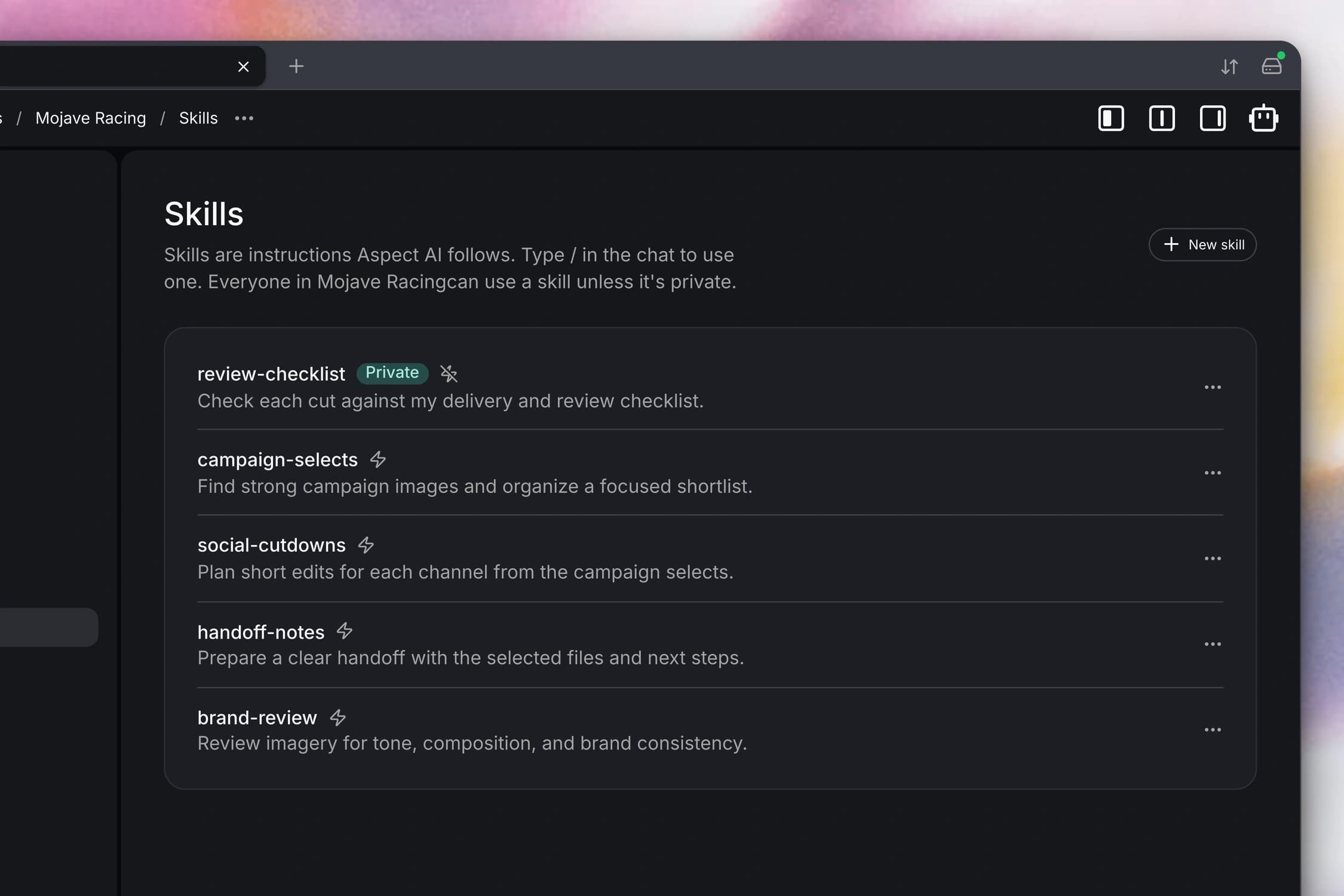
Save repeatable instructions as skills. In the web and desktop apps, you can create a skill in project settings and invoke it by typing
/in the assistant. Keep it private or share it with your project, and attach references to project files so recurring work starts with the right context. Custom skills retain a version history, so you can review earlier instructions and restore them when you have permission to edit the skill. - Reuse project skills from connected AI tools. A connected MCP client can now find and load your project’s skills, including your private skills and shared instructions. It can also create and update custom skills through Aspect, so your preferred workflow can travel between the in-app assistant and your connected tools.
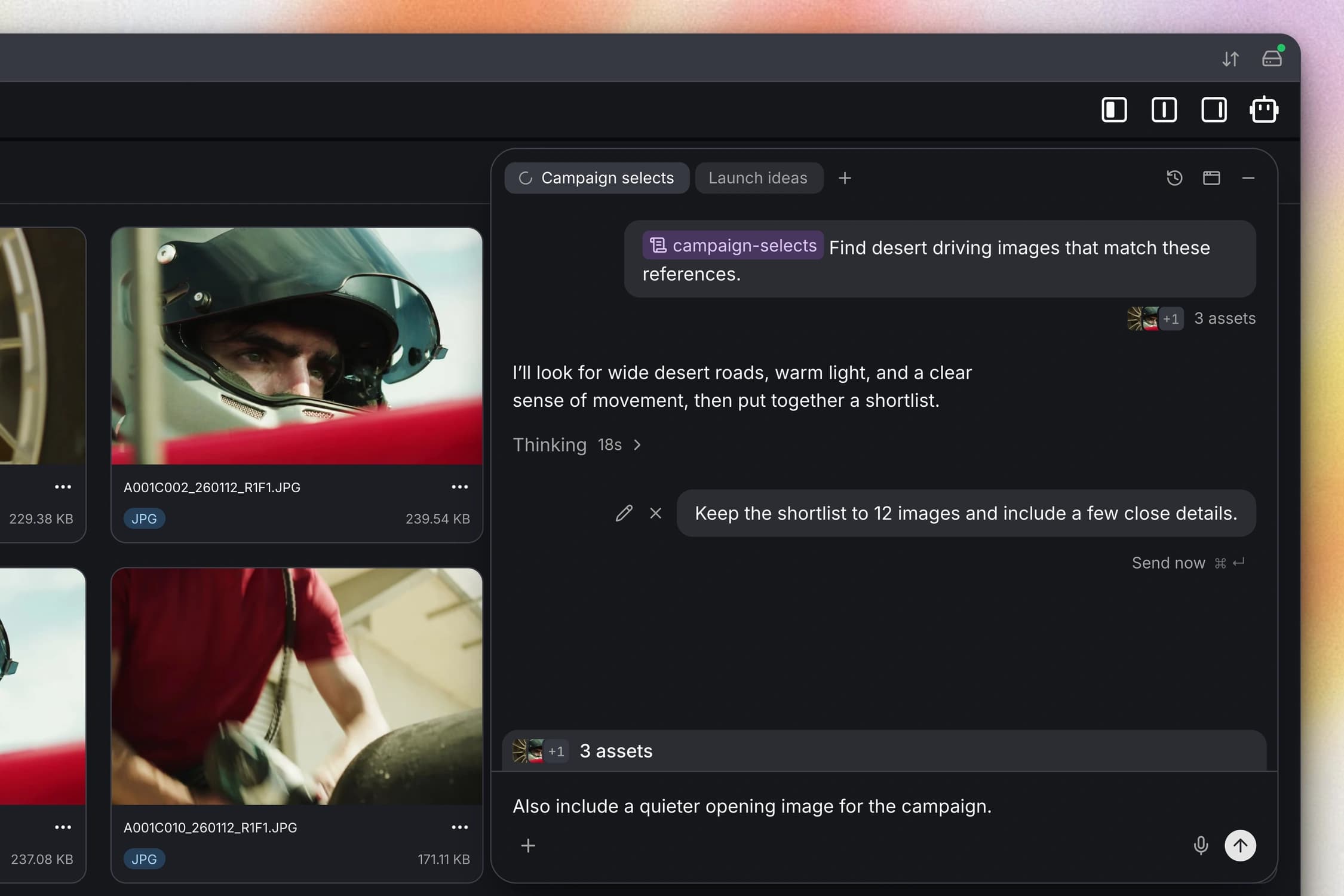
- Queue the next message while the assistant works. In the web and desktop apps, you can send follow-up instructions while the assistant is still responding. They wait for the current work to finish, and you can edit or discard them while they are queued. Choose Send now to stop the current run and move on to your follow-up.
- Give a connected AI tool an Aspect link or a how-to question. You can give a connected MCP client an Aspect link and let it identify the file, folder, collection, or canvas you mean, subject to your access. The assistant and connected clients can also search Aspect’s help documentation and return the relevant instructions with links to the source pages.
- Give AI tools a clearer view of your folders. The assistant and connected AI tools can now inspect several levels of a folder structure together, including the number of files directly inside each folder. They can also continue through longer folder and project lists, making it easier to understand and organize a larger library.
Improvements
- Start with an Aspect skill or control when yours runs. You can use Aspect’s supplied skills for workflows such as product videos, character consistency, and style exploration, then duplicate one to adapt it. For your own skills, choose whether the assistant can use them when relevant or only when you explicitly invoke them.
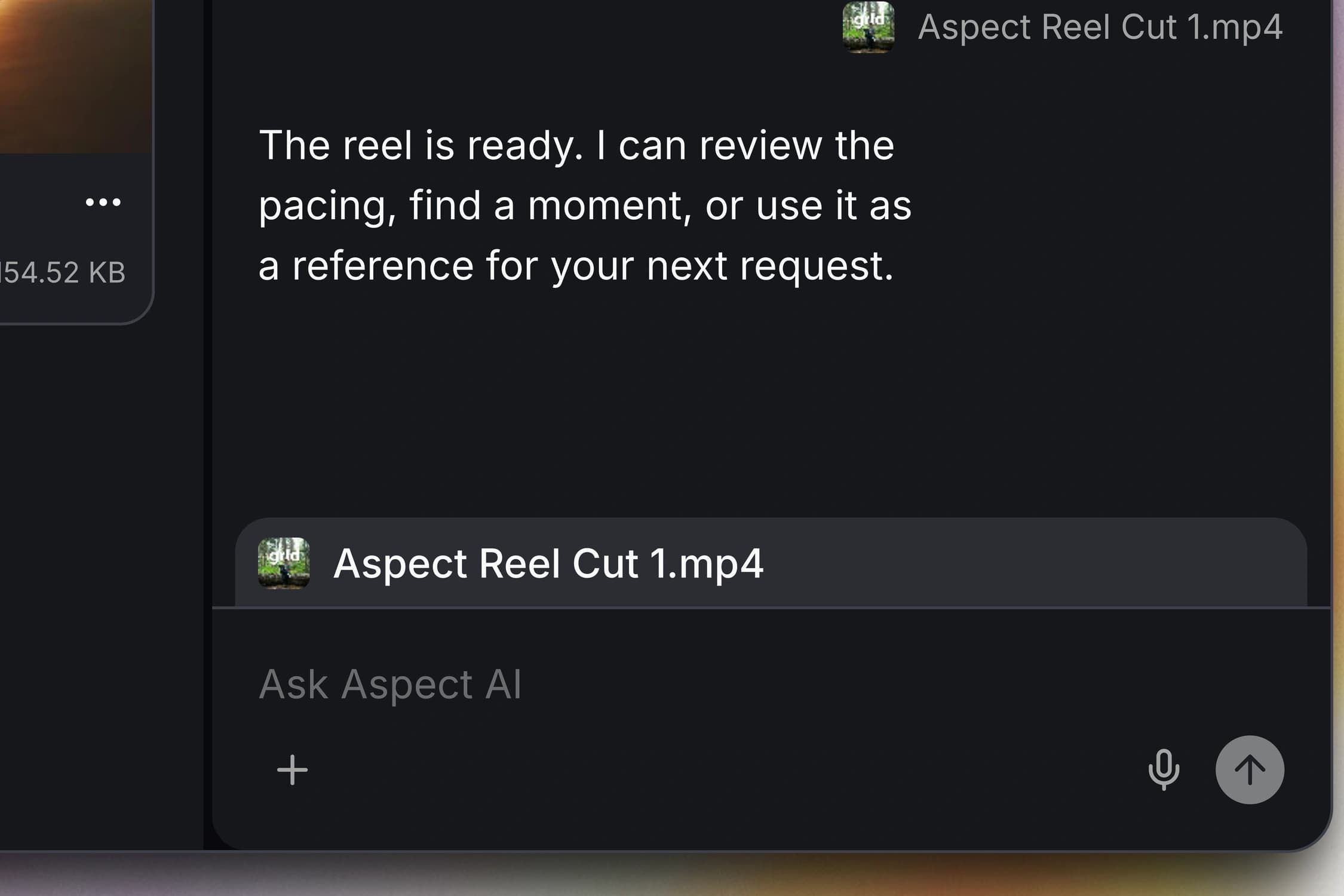
- See the context attached to your message. Before sending a request, you can see the selected files, folders, canvas nodes, or open asset that the assistant will receive. Remove the attached items when they are not relevant. Sent messages retain the same context summary, so you can tell what an earlier request referred to.
- Approve familiar assistant actions with fewer steps. When the assistant asks to run an action, you can accept it with Command–Enter on Mac or Control–Enter on Windows. For actions that support a saved approval preference, Always accept remembers your choice for that tool; you can change it later in settings.
- Follow a response without losing your place. The assistant now summarizes its current activity in a compact row that you can expand for the details. It distinguishes active work from waiting for your approval, and keeps new activity in view while you follow the response. Scrolling back or selecting text lets you read earlier messages without being pulled to the end.
-
Recognize references and follow their progress. In assistant messages, your
@references now show named chips with media thumbnails or recognizable icons. References to canvas generation nodes show their current output or working state, and keep updating even when that canvas is not open. Returning to the canvas also refreshes runs that may have finished while you were away. - Explore more search matches with AI tools. The assistant and connected AI tools can now continue through additional project search results and matches inside a file. When a long recording or document contains more matches than fit in one response, your AI tool can retrieve the next batch instead of stopping at the first set.
- Focus AI edits on the right part of a large canvas. If the canvas is enabled for your workspace, you can ask the assistant or a connected MCP client to find steps by their text, type, model, or generation status. It can also focus on a group or the steps connected to a particular node. When applying the same setting to matching steps together, it checks the expected number of matches before making the change.
- Let the assistant arrange new canvas steps. When you ask the assistant or a connected AI tool to build a canvas workflow, it can place connected steps automatically or add them beside an existing node. Related steps keep space for their connections, and existing nodes stay in place as the board grows.
- Let the assistant continue after a generation finishes. If generation is enabled for your workspace, the assistant can wait for an image, video, audio, or text result before starting a step that needs it. You can request a connected workflow and have it continue as the required outputs become available, without sending another message after every generation.
- Choose from more image, video, and text models. If the canvas is enabled for your workspace, you can now choose FLUX 3 Klein or Krea 3 for images, and Kling 4, FLUX 3 Max Video, or Mischief 1 for supported video workflows. Text generation also adds Claude Haiku 5.5, GPT-6.1 Terra, and Gemini 4 Argon. Each model exposes the references and settings it supports.
- Ask the assistant without losing your place on iPhone. In the updated iPhone app, the assistant opens in a sheet over your current page. You can refer to the open asset or selected items, inspect media references from the conversation, and close the sheet to return to your work. Reopening it preserves the message you were typing and refreshes the conversation, while active requests reconnect after an interruption.
- Queue follow-up requests on iPhone. In the updated iPhone app, you can send another message while the assistant is working. Let it wait for the current response, discard it with a long press, or choose Send now to move on to the queued request. A message that could not be queued offers a retry action.
Bug fixes
- Return to an assistant task after a connection interruption. An accepted assistant request can keep working when you close the chat or temporarily lose the connection. When you return, the conversation catches up with saved progress instead of depending on the original connection remaining open.