Find, organize, and create with your media
Use the content of your media to fill custom fields and bring reference files directly into generation prompts on the canvas. Automatic model selection, clearer recognition results, and expanded tools for connected AI clients help you take the next step with those assets.
New features
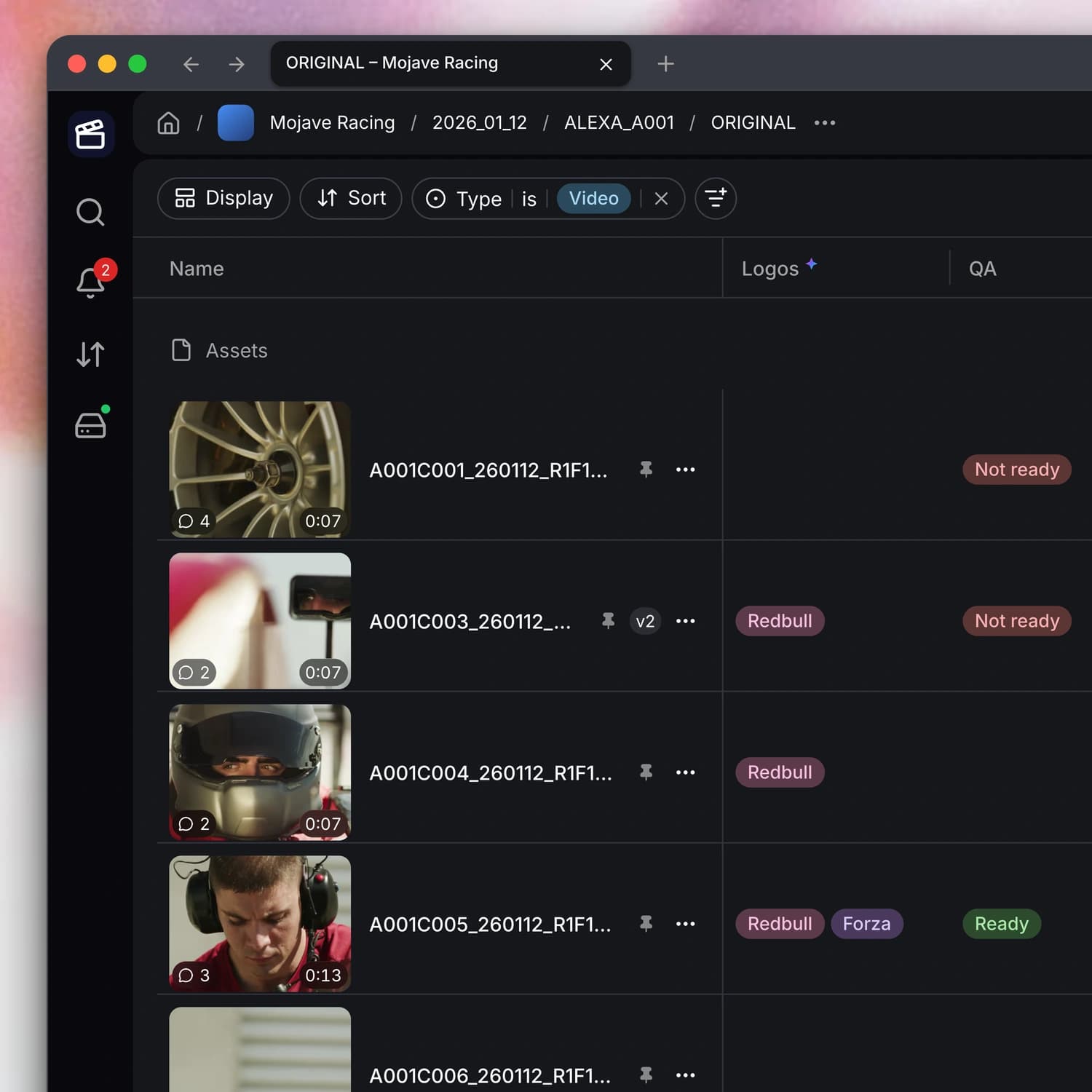
- Let your media fill in the details. If AI metadata is enabled for your workspace, give a custom field written instructions and populate it from visuals, transcripts, or both. Run fields on selected files or folders, choose whether to include subfolders, and stop pending work when needed. Use Watch to generate values automatically for new assets in selected folders and file types, or Run remaining to complete work that has not finished.
-
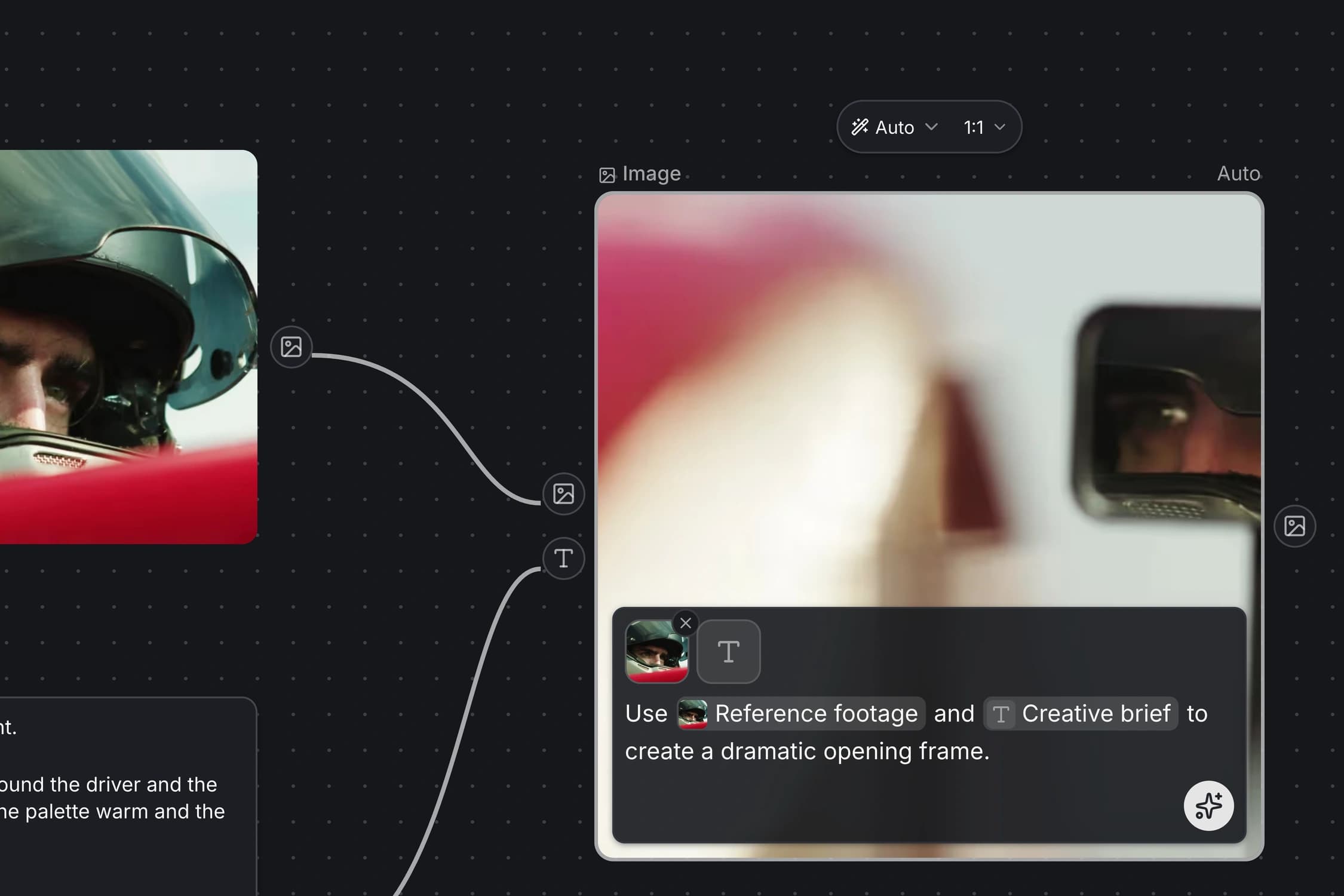
Reference media directly in your prompt. If the canvas is enabled for your workspace, you can type
@in a generation prompt to choose a node on the board or a file from your project library. Named thumbnail chips identify your references, and an input tray lets you inspect connected media, jump to its source, or disconnect it. Missing references are flagged before you run the generation.
- Let Aspect choose a generation model. If the canvas is enabled for your workspace, choose Auto and select Faster or Better for image, video, audio, or text generation. Aspect uses your references and settings to select a supported model. You can still choose a named model yourself, with more options including FLUX 3, LTX 2.5 Pro, Stable Audio 3, and Claude Sonnet 5.5. Earlier results retain their associated model information.
- Finish generation from your connected AI tool. In workspaces with generation enabled, a connected MCP client can start a generation, wait for it to finish, and return the completed media or text. It can run dependent canvas steps in sequence and request a temporary download link when the Aspect CLI is unavailable. The canvas and generation guide walks through the workflow.
Improvements
- Find the right media again. Use Path filters to include or exclude folders and their subfolders, and check a result’s path in its details or list column. Recent text searches are also available from the command palette and search field for your account and selected project. You can collapse the palette’s recent-search, project, and workspace sections separately.
- Keep your manual metadata edits. When you rerun AI metadata across a folder, hand-entered values stay in place by default. The confirmation shows how many values the run covers, and you can choose Replace manual values when you want new AI results to replace those edits.
- Review metadata and recognition results more easily. Metadata groups now open expanded, so you can scan custom fields and technical details immediately. If people or object recognition is enabled for your workspace, clearer statuses distinguish matches, checks that have not run, and failures. You can correct recognition results in a file’s metadata, undo a correction, and follow progress in recognition settings.
- Choose compatible upscaling settings. The canvas upscaling controls explain known file-type, size, or duration incompatibilities and disable incompatible choices. You can also select a single upscale node and press Enter to run it.
- Organize work from the canvas. Copy a link to a specific node, move or copy its underlying media, and right-click empty space to add a node. You can open Share from the canvas title menu when your access allows it. Creating a collection or canvas now asks for a name up front, including when you create one to hold selected files.
- Build with the API reference and get help in the docs. The REST API reference now includes endpoint request and response schemas alongside authentication and integration guidance. You can also open the support messenger directly from the docs when you need help with a workflow.
Bug fixes
- Keep shared-canvas paths focused on the shared work. When you open a file through a shared canvas, its breadcrumb shows the canvas and file name. The file’s original project folders are no longer included in that shared-view path.
- Keep canvas prompts and controls in step. Switching to a previously loaded generation version updates its prompt and settings together with the output. Controls under your pointer also stay visible while you pan or zoom.
- Know what to change after a generation fails. Common generation failures explain whether to adjust your prompt or settings, replace an unsupported input, or try again after a temporary outage. Temporary errors while retrieving an already-completed result are retried before the run is marked as failed.
- Get the beginning of the transcript excerpt you requested. When an assistant or MCP client requests a limited number of transcript passages within a time range, Aspect now keeps the earliest matching passages before applying that limit. Earlier dialogue is no longer skipped in favor of later passages returned out of order.