Find and organize work from one place
You can now jump to files and projects from a command palette, reuse your team’s share permissions, and keep inactive projects out of your everyday view. You also get more ways to describe and find the objects that matter to your workspace.
New features
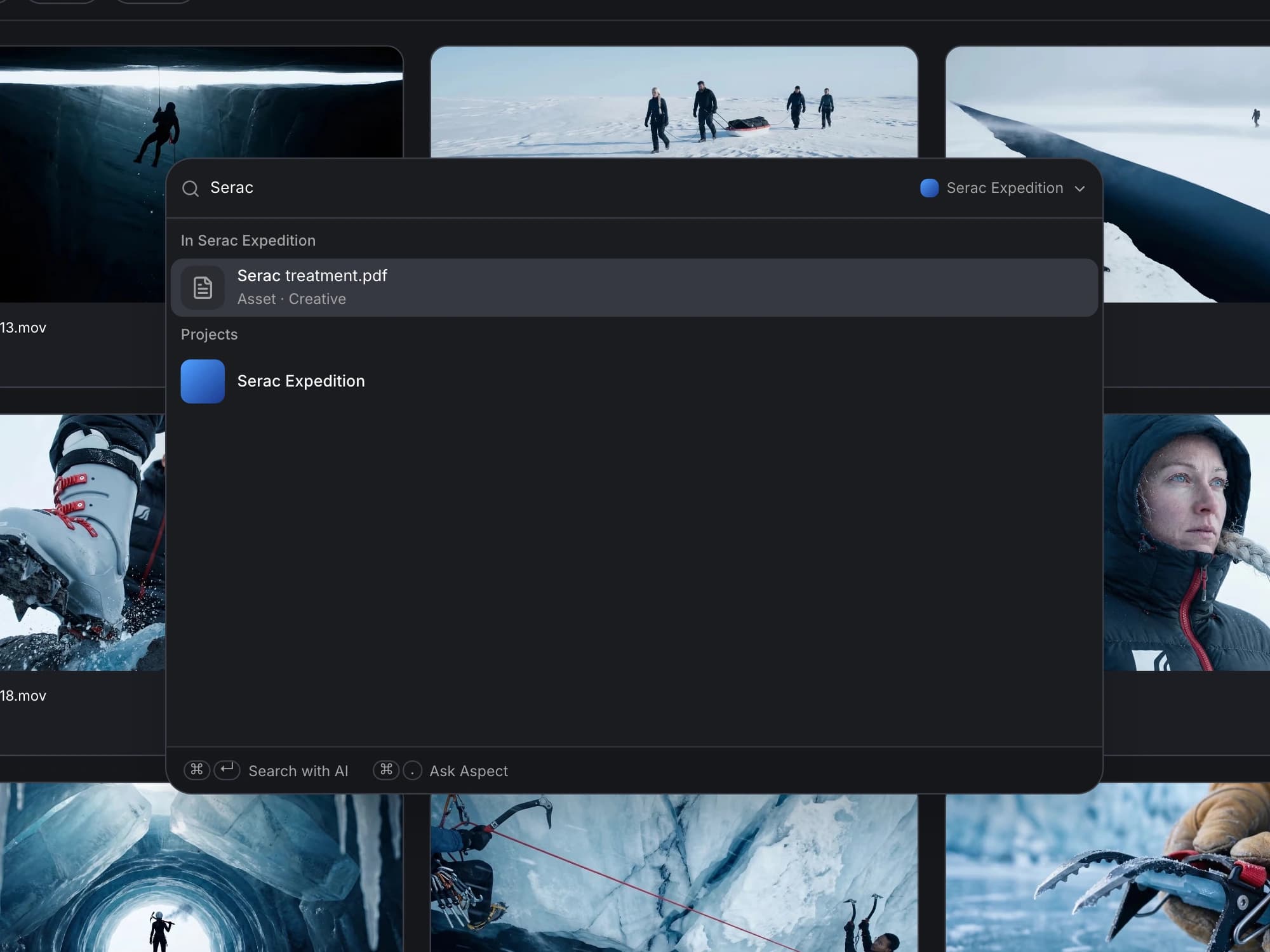
- Open the command palette. You can now press Cmd+K on Mac or Ctrl+K on Windows to search for resources, return to recent work, or move into AI search. You can narrow the scope to a project and open a result without losing your place in the app.
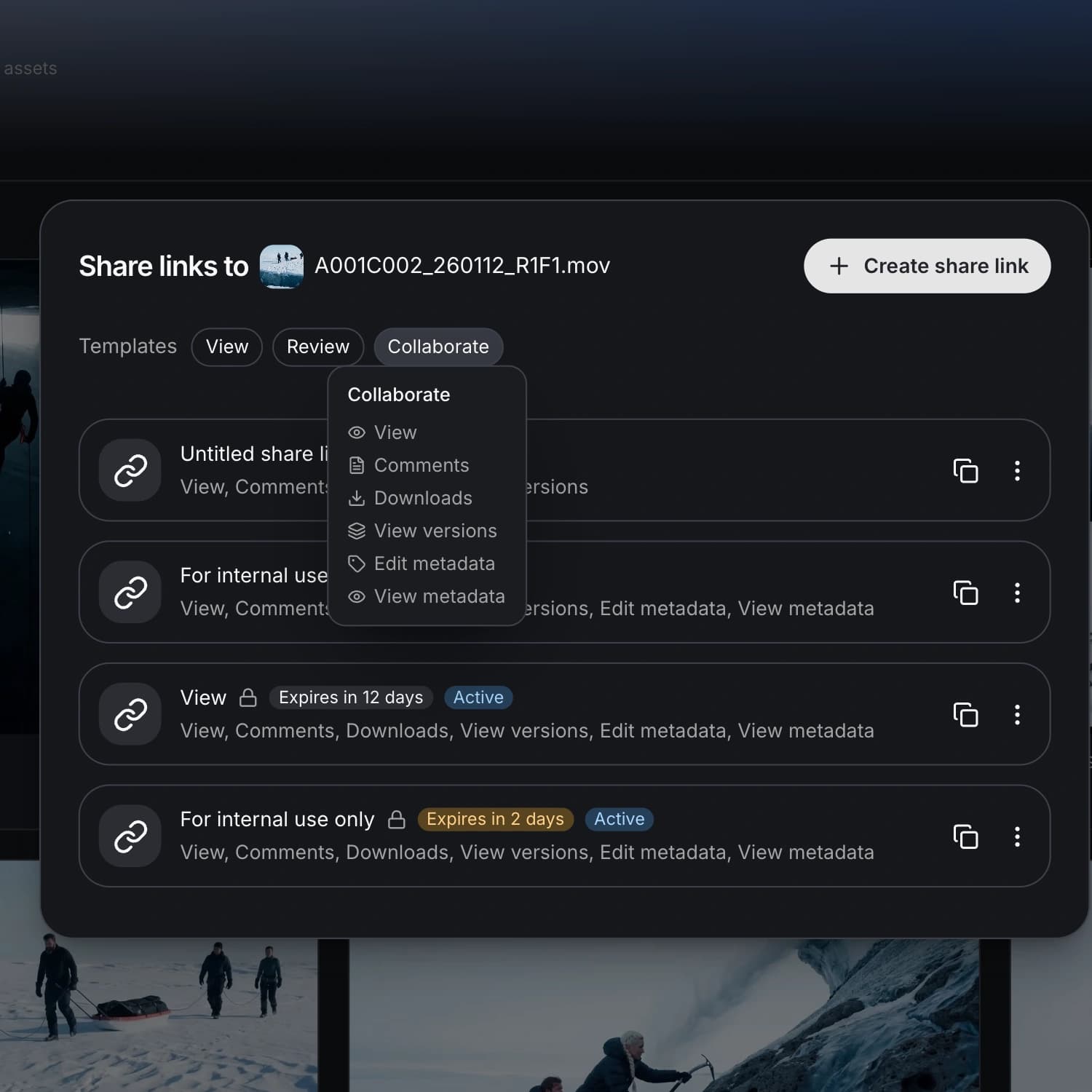
- Reuse share permission templates. You can now save named sets of share permissions for your workspace and apply them when creating a link. Your team can use a consistent starting point for common review or delivery workflows without configuring every permission from scratch.
- Set projects aside without deleting them. You can now mark a project inactive and filter your workspace view by project status. This lets you separate ongoing work from projects you are keeping for later without deleting their contents.
- Define custom objects to recognize. If object recognition is enabled for your workspace, you can now describe an object and add reference images to help Aspect recognize it in your assets. You can control which visual traits matter, then use object fields and filters to work with the matches.
Improvements
- Read mentions naturally in your comments and chats. You can now see mentions inline with the surrounding text across the web and iPhone apps. Names and references take up less visual space while remaining part of the conversation.
- Open folders directly as mounted drives. You can now mount a subfolder directly when you want a smaller part of a project available as a local volume. Open in Mount can also set up the appropriate mount when needed, reducing the setup between finding a file and opening it locally.
Bug fixes
- Keep trashed items out of search and recents. You can now browse search results and recently accessed items without seeing content that has been moved to Trash. When you do open trashed content through an allowed path, the breadcrumbs make its location clearer.
- Retry uploads after access or destination errors. You can now retry an upload more reliably after a failed start caused by an access or missing-destination response. The retry gets a fresh upload identity instead of remaining stuck on the previous failed attempt.
- Keep local renames from being rolled back. Your mounted files are less likely to jump back to an old name after you rename them. Older incoming updates no longer overwrite a newer local rename in the same way.