Choose the media version and its location separately
Use originals to judge focus, noise, fine detail, color, and how much an image can be reframed. A proxy may hide defects or lack the resolution needed for those decisions. Use proxies to select takes, arrange scenes, and trim dialogue when the originals make playback slow.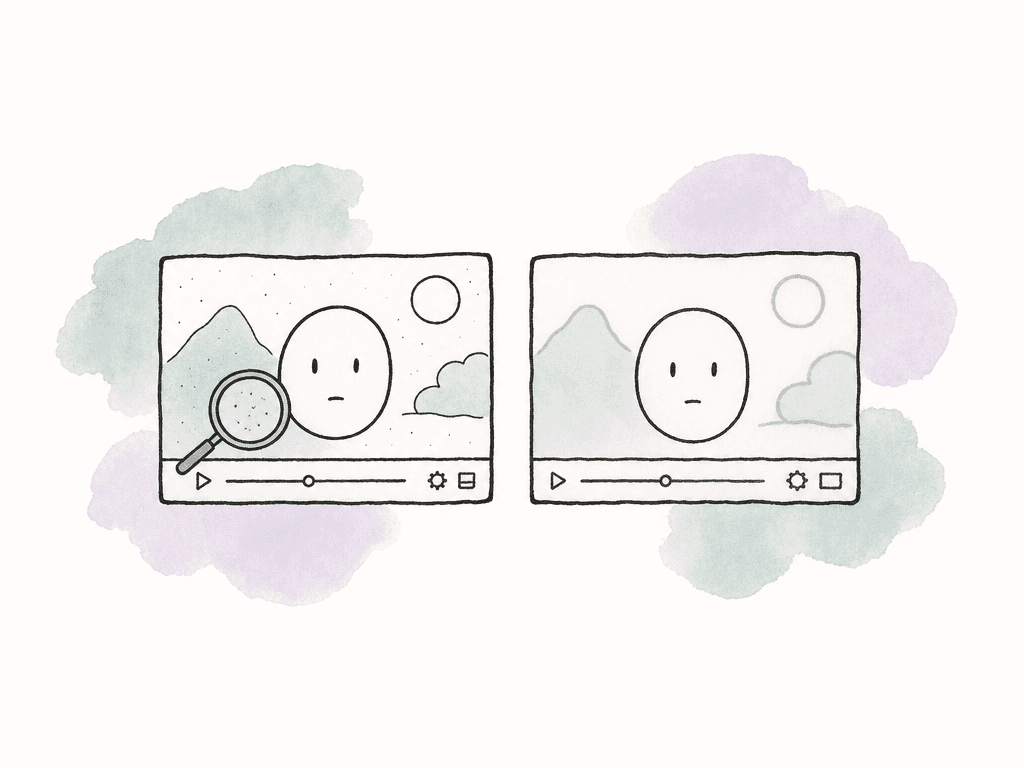
| Project condition | Working choice | What to check |
|---|---|---|
| The original codec plays smoothly and the connection supports the timeline. | Work with originals from shared storage. | Check seeking and the busiest section, including simultaneous camera angles and effects. |
| The originals stutter even when stored locally. | Generate proxies in a codec the editing system handles well. | Test the proxy preset on the editor's actual workstation. A smaller file isn't automatically easier to decode. |
| Several camera angles exceed the available network capacity. | Use proxies during multicamera editing. | Play all active angles together, since one clip uses less bandwidth than a multicamera sequence. |
| The laptop has room for proxies but can't hold the originals. | Keep proxies local and originals in shared storage. | Identify the finishing workstation and how it will access the originals before you start editing. |
| A grading or mastering session needs predictable access to source media. | Download or pin the required originals in advance. | Allow space for complete source files, application caches, renders, and the final export. |
Import the originals, then attach proxies in the editing application
Suppose you're editing a three-minute profile with two interview cameras, separate production audio, and cutaways. Most footage runs at 25 frames per second, with some 50-frame clips intended for slow motion. You'll edit on a laptop and hand the project to a second workstation for the final grade and master. First, copy and verify the originals while preserving the camera-card structures. Import those originals into the editing project, then generate or attach proxies to the imported clips. Place those clips in the timeline and enable proxy playback. The project now records which proxy belongs to each original, so the finishing workstation can return to the original files without replacing the clips in the edit.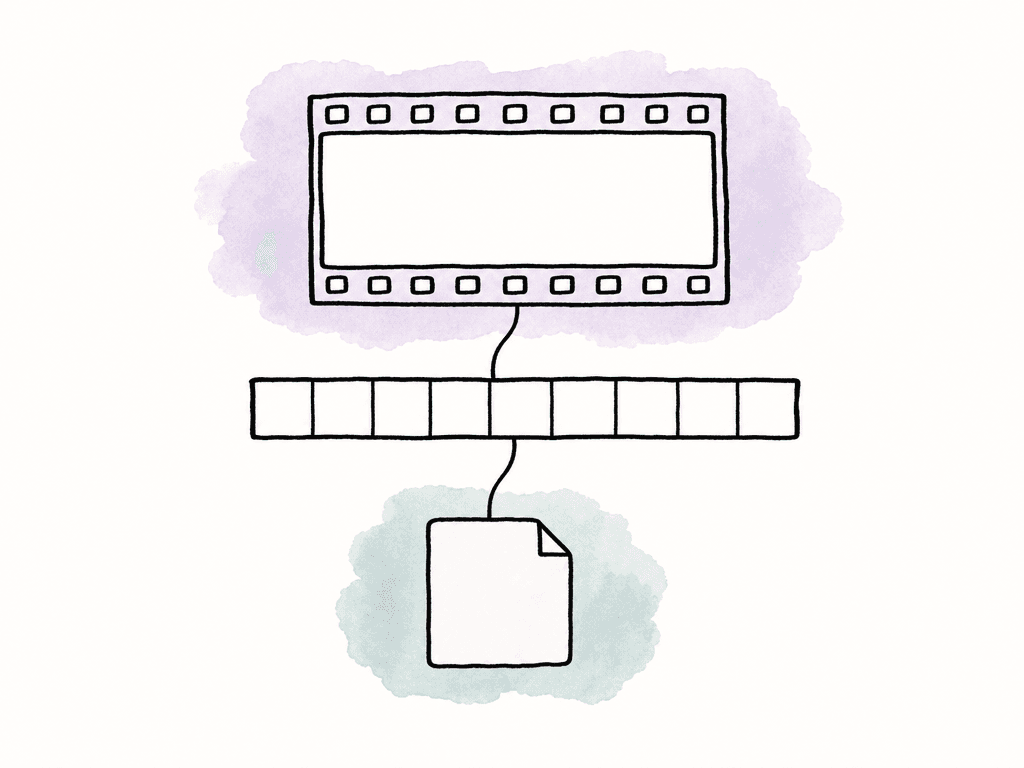
Profile_Film/
  Originals/
    Camera_A/Card_001/
    Camera_B/Card_001/
  Proxies/
    Camera_A/Card_001/
    Camera_B/Card_001/
  Audio/
    Production/
    Music/
  Graphics/
  Projects/
  Handoff/
Proxies helps distinguish recordings with repeated filenames. Keep camera packages intact, and record the source path, proxy path, source timecode, frame rate, and any processing applied to the proxy in a media manifest. This can be a spreadsheet or another agreed inventory.
Follow the naming rules of the application that will use the proxies. Premiere's default proxy generation appends _Proxy, while the Resolve 21 reference manual requires externally generated proxies to share the source filename excluding its extension, as well as identical timecode and frame rate. Confirm those settings before generating the full batch.
When the originals are available, import those files first and attach the proxies through the editing application's proxy controls. Renaming or replacing those files later turns an ordinary proxy switch into a more complicated source-media replacement. Separate production sound, stills, graphics, and linked compositions also need their own accessible source files.
Check clips from each camera and audio setup before generating the full batch
For this profile, choose one clip from each camera and audio configuration, a long interview take, and a 50-frame cutaway. Generate their proxies, attach them, and switch between versions at frames you can recognize. Fix any mismatch before generating the remaining files, so you don't have to repeat the conversion for the whole project. Check the following properties:- Identity and timecode. Confirm the camera, card, filename, and source start timecode. Two cameras can record the same timecode, so timecode alone doesn't establish identity. Inspect a clear action at the beginning and near the end of each sample.
- Frame rate and duration. Keep the source rate and frame correspondence intact. Rates such as 23.976 and 24 are different. Don't convert every proxy to the timeline rate simply because the final sequence uses that rate.
- Audio configuration. Check channel count, channel order, sample rate, and synchronization. A stereo mix from a source with several isolated microphone channels can lose information or fail the application's proxy requirements. Keep the separate production audio available as well.
- Image geometry and viewing treatment. Confirm that scaling preserves the picture, including any intended anamorphic treatment. Record whether a viewing transform or color adjustment is baked into the proxy, so the finishing artist can distinguish that appearance from the original image.
Prepare the return to originals before handing off
Once the profile film's edit is ready, the editor saves a clearly identified project version and exports a reference movie. The reference should show the approved sequence, with timeline timecode if useful for comparing individual edits. The handoff includes the media manifest and notes about speed changes, replacement renders, graphics, and the intended color treatment. The finishing artist mounts the shared media and checks the original paths before the session. If playback or the deadline requires local availability, they pin the source files used by the timeline. A short excerpt can reference a long camera recording, so local capacity planning must account for the complete files being pinned.
.drp after the latest changes and send it with access to the source footage; the .drp contains the project information rather than the media itself.
Return to originals in Premiere Pro
- Open the saved handoff and confirm that original media is online. If an existing original link is broken, use Link Media and locate the correct original, checking its previous path and matching properties. Adobe's relinking instructions explain how to repair these source links.
- If the project began with proxy source clips and originals haven't yet been associated, use Proxy > Reconnect Full Resolution Media. This is different from Attach Proxies, which adds lightweight files to original clips. Inspect matches before allowing an automatic search across repeated filenames.
- Turn off Toggle Proxies for the finishing check. Compare the sequence with the reference, paying particular attention to interview synchronization, slow motion, reframing, and the first and last frames around edits.
- Check export settings separately. Premiere uses originals by default even with proxy playback enabled, but Use Proxies explicitly changes that behavior. Leave it off for the master from originals, and use rendered previews only if their quality and source generation are appropriate for delivery.
Return to originals in DaVinci Resolve
- Open the correct project or import the handed-off
.drp. Check original file paths in the Media Pool and repair missing source links against theOriginalsfolders. Link Proxy Media manages the proxy association; it doesn't establish that the original is online. - Choose Playback > Proxy Handling > Disable All Proxies for verification. Prefer Camera Originals can fall back to proxies if originals are missing, whereas disabling proxies exposes those clips as offline. Resolve documents this distinction in its reference manual.
- Compare the sequence against the reference and check source timecodes, audio synchronization, retiming, image scaling, and the color pipeline. Review any render-in-place files or other replacements that may have become the timeline's source.
- In the Deliver page's advanced video settings, leave Use proxy media off for a master from originals. Review any options that reuse optimized media or render caches, and use them only when they were produced at the required finishing quality.
Finishing checklist
Before you render the master, make sure the editor and finishing artist have confirmed each of these points:- The project and reference movie describe the same approved edit, including its sequence frame rate and duration.
- Every required original resolves to the intended camera and card, with no missing media hidden by proxy fallback.
- Source timecodes, speed changes, and the frames around cuts match the reference.
- Production audio remains synchronized, and the intended microphone channels and final mix are present.
- Reframing, graphics, effects, and color transforms have been checked using the finishing sources.
- Any required pinning or downloading has completed, with room left for caches and exports.
- Export settings use the intended sources, resolution, codec, color settings, and audio layout.
- The completed master has been watched and heard from beginning to end.
FAQ
Use originals when your workstation can decode the actual timeline reliably and the media is available at the required speed. Use proxies when decoding, several simultaneous video streams, transfer time, or local capacity makes editing difficult. You can use proxies for most editing decisions and return to originals for color, image-detail checks, visual effects, and the final master.
Downloading removes dependence on the internet while reading those files, but it does not make their codec easier to decode. A laptop can still struggle with locally stored originals, especially during multicamera playback. Proxies may remain useful even when every original is on a fast local drive.
A small MP4 is suitable only if it preserves the relationship your editing application requires. Check source identity, start timecode, frame rate, duration, frame correspondence, and audio layout. A review copy that changes timing, crops the picture, or mixes several audio channels into stereo may be unsuitable; generate an editing proxy from the original when necessary.
Premiere uses full-resolution media for export by default, even when proxy playback is enabled. Its export settings have a separate Use Proxies option. For a master from originals, confirm that the source files are online, leave Use Proxies off, and check whether any rendered previews or replacement renders will be used.
No. Resolve can fall back to a linked proxy when a camera original is unavailable. Use Disable All Proxies when checking original-media availability, because missing originals then appear offline. Also leave Use proxy media disabled in the Deliver settings when the final render must use originals.
Pin the original video, separate audio, graphics, and other source files required by the timeline, along with the project files needed for the session. Wait for pinning to finish and verify that everything opens from the mounted drive. Pinning a project file does not pin its referenced media, and ordinary cached playback does not prove that a complete file is available offline.