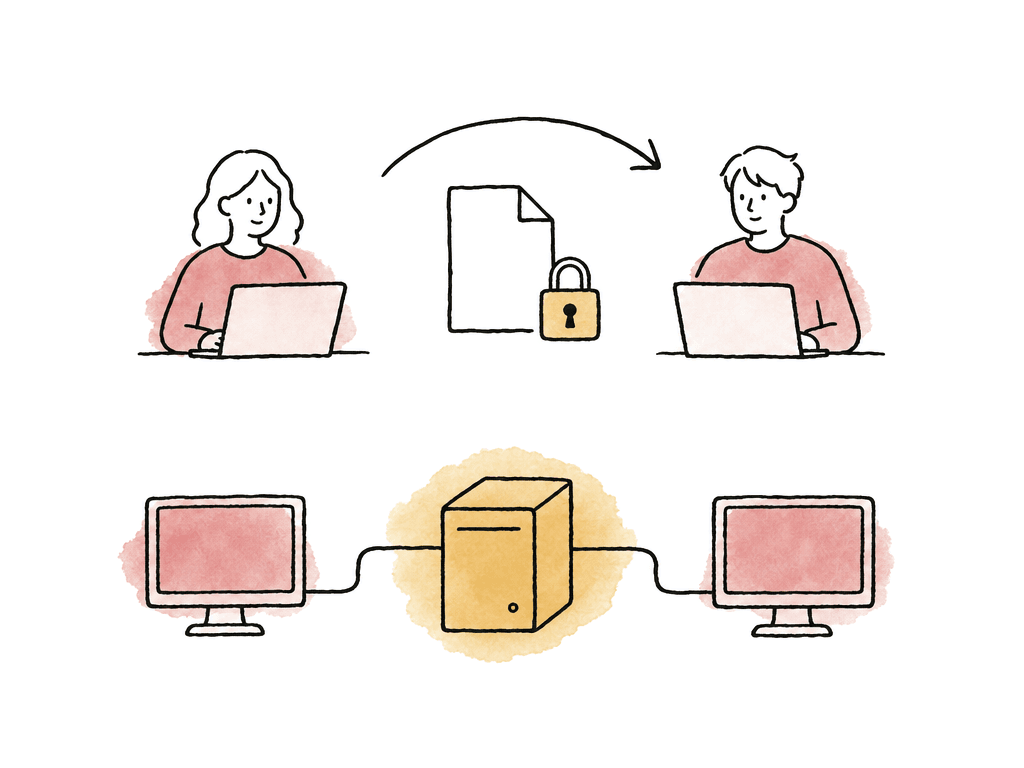
Choose the collaboration model before organizing storage
Use a single project when editors take turns. Use Productions when several editors need to work in different parts of a larger job. Team Projects hosts the shared edit through Adobe and coordinates changes with publishing and sequence locking.| Arrangement | How the edit is coordinated | Where media access is handled |
|---|---|---|
| Single project handoff | One editor owns the project at a time, with a defined save, close, and handoff process. | A shared media location or verified copies must resolve the project's references. |
| Productions | A job is divided into related project files. Premiere locks individual projects for editing. | Editors need access to the relevant media and shared Production files. |
| Team Projects | Adobe hosts the project collaboration service. Editors publish changes and receive updates, with sequence locking. | Each workstation accesses shared media or its own correctly mapped media copy. |
Single projects suit work passed between editors
Use a single.prproj file when one editor builds a cut and another takes over later. Name the current owner in the handoff notes so both editors know who can save changes.
Save the project on the mounted Aspect drive, enable Project Locking in Premiere's Collaboration settings, and give each editor a recognizable username. The Aspect Premiere Pro workflow covers these settings. Before starting production work, open the project on a second workstation while the first editor holds it. Confirm that the second editor receives read-only access.
For each handoff, the outgoing editor saves and closes the project, then waits for synchronization to complete. The incoming editor opens it afterward and confirms the expected sequence and revision. Waiting for synchronization ensures the incoming editor opens the latest save.
Productions divide a larger job into related projects
Productions adds an organizing layer around Premiere project files. A documentary might separate source footage, individual scenes, and assembled episodes into different projects. Editors can work in different projects while referencing media across the Production, reducing the need to duplicate imported assets. The collaboration boundary is the project file. If an editor has one project open for editing, colleagues can read it and copy content from it, but can't change it until its lock is released. Plan those boundaries around work people can own independently. A Production with every active sequence in one project will still concentrate write access in that project. Keep the Production folder and its project files together on the mounted Aspect drive. Enable project locking and check that the second editor sees an open project as read-only; once the first editor saves and closes it, the second editor can take over. Adobe's shared storage guidance explains how Productions handles project files and filesystem updates.Team Projects puts project coordination in Adobe's service
With Team Projects, create the shared edit through Adobe and invite collaborators there. Each editor then accesses the media through a mounted project, local drive, or another agreed storage arrangement. Adobe's Sequence Locking documentation describes a sequence becoming locked when an editor changes it. Other collaborators can view the earlier version while that work remains unpublished. Publishing the changes makes them available and releases the sequence for another editor. Use Adobe's Update and Publish controls to exchange those changes. Aspect synchronization and Adobe publishing are separate operations: a new audio file may have finished uploading while the sequence edit that uses it remains unpublished. Check both states at a handoff.Establish one media structure that every editor can resolve
Upload footage, audio, graphics, and other shared dependencies into an Aspect project. Give collaborators access, install the Aspect desktop app for macOS or Windows, and follow the mounting guide on each workstation. Mount the whole Aspect project consistently before importing media. Use consistent volume names on Macs, drive letters on Windows, and the same folder hierarchy to reduce relinking during project handoffs. Avoid having one editor import from a downloaded copy while another imports from the mounted original unless that difference is deliberate and documented.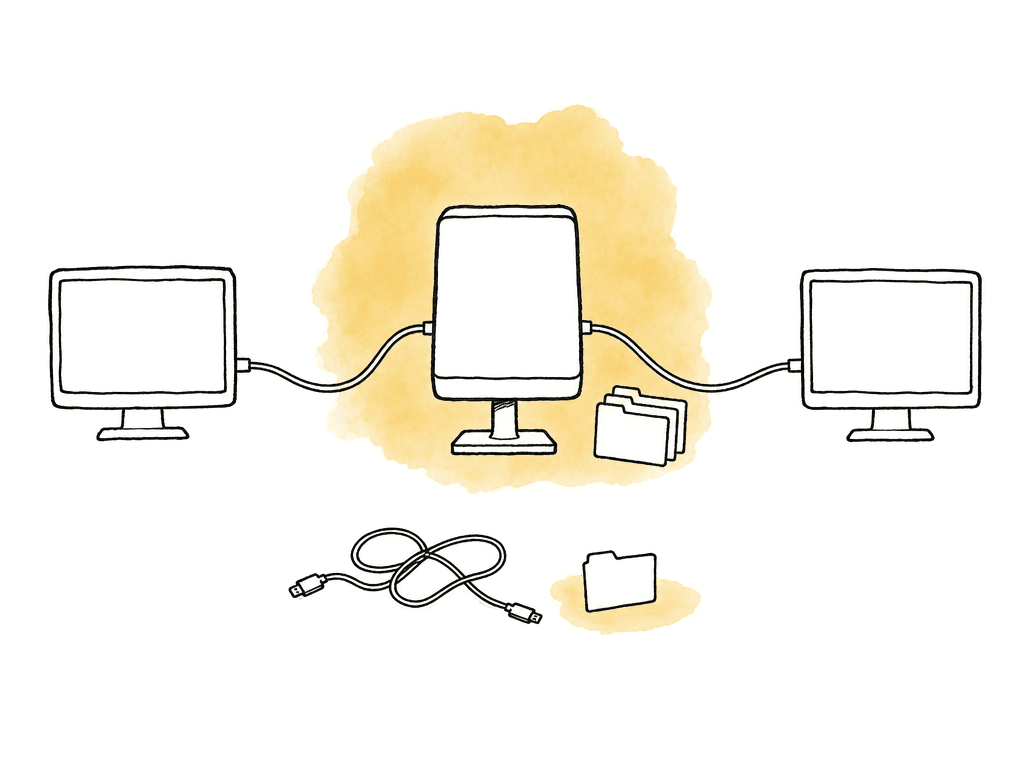
Interview-Series/
  Camera-Originals/
    Shoot-01/
    Shoot-02/
  Production-Audio/
  Graphics/
  Editing-Proxies/
  Editing-Projects/
  Review-Exports/
Prepare the workstation for the media it will actually read
Premiere's media cache and Aspect's streaming cache serve different purposes. Adobe recommends keeping Premiere's media cache files and database on a fast local drive for each workstation. Aspect's cache holds recently accessed media data and can remove older data when it needs space. Leave capacity for both caches, pinned files, previews, and exports. An import can also read more media than the editor immediately intends to play. Aspect's Premiere guide recommends disabling automatic waveform generation, automatic transcription, and analysis of all imported media when setting up mounted media. Generate the results you need for selected clips, pinning those clips first when appropriate. This avoids asking the connection to serve a whole library merely because the project was opened. Plan your bandwidth around the media your sequence needs to read. For example, one video stream encoded at 100 megabits per second reads about 12.5 megabytes per second before overhead. Four simultaneous streams represent about 400 megabits per second of source video data. A connection advertised at 500 megabits per second leaves little headroom for those four streams once you add audio, other traffic, and changes in throughput. Previously cached media can reduce network demand, while new sections of a multicamera edit may require additional reads. Play sequences with the codecs, effects, and number of camera angles you normally edit, including sections that haven't been cached. If that workload is unreliable, use smaller proxies or pin the working media before the session.Attach proxies that preserve the original clip relationships
Proxies reduce the amount of data Premiere reads and can reduce decoding work. Keep the original clips as the project references and attach proxy files to them, so the editor can switch playback modes without rebuilding the sequence.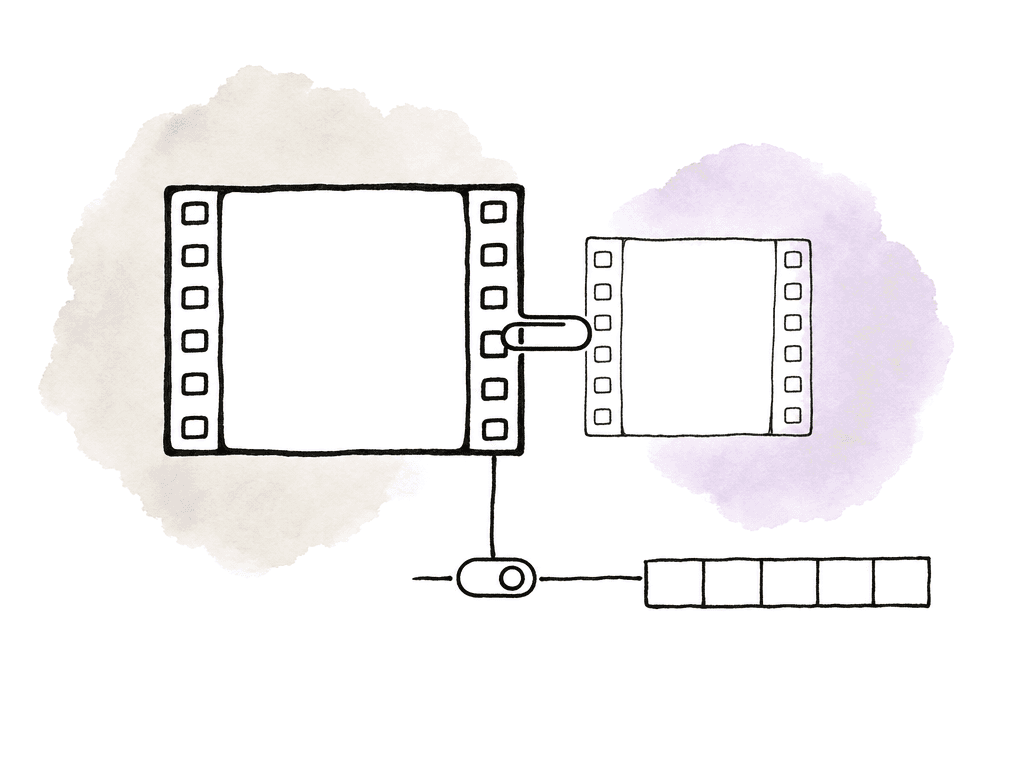
Rehearse a handoff using footage from your weekly work
Choose a project that reflects your weekly work. Build a short sequence with its camera footage, separately recorded audio, graphics, and attached proxies, then pass it between two editors:- Have the first editor import from the agreed mounted location and save the project or publish the Team Project changes. Wait for newly added media to finish uploading.
- Have the second editor open the edit. Check that picture, audio, and graphics resolve without an unexpected download location or missing dependency.
- For a shared project or Production, confirm the read-only state while the first editor owns the file. For Team Projects, confirm sequence ownership and the visibility of published changes.
- Release ownership using the chosen workflow. Have the second editor make a small, recognizable change, then hand it back through the same process.
- Reopen the resulting sequence on the first workstation and confirm that the edit, media references, and proxy associations survived the round trip.
Prepare offline work separately from connected collaboration
An automatic cache may contain only parts of a clip. For disconnected work, pin the required files and wait for the downloads to finish. Include project files, video, production audio, graphics, and attached proxies. Pinning the.prproj file alone doesn't fetch its dependencies.
If you plan to finish the film while offline, pin the original media too. Check fonts, plug-ins, linked compositions, and any other dependencies outside the shared media folder. Open the sequence on the intended workstation and confirm playback in the intended mode before leaving.
Agree ownership before disconnecting. Adobe's offline sequence locking guidance states that Team Projects locking is disabled during a disconnection, allowing another collaborator to edit the same sequence. Offline edits are saved locally, and conflicting changes may need to be retained in a duplicate sequence when the editor reconnects.
Adobe describes Team Projects offline editing as protection for temporary interruptions and doesn't recommend extended disconnected sessions. For a long period away from connectivity, agree a separately owned project handoff and a reintegration step with the lead editor.
On returning, allow Aspect transfers to complete before handing a shared project file to another editor. For Team Projects, inspect Adobe's connection and sync status, reconcile any sequence conflict, and publish the intended changes. The next editor should confirm the revised sequence and its media before taking ownership of the following stage.FAQ
Productions organizes a job into multiple Premiere project files and uses project locking so editors can work in different files. Team Projects stores the shared edit through Adobe's cloud service and uses sequence locking, publishing, and updates to coordinate collaborators. Both workflows still require every editor to have access to the source media or suitable editing proxies.
Shared storage makes files available to the team, but it does not by itself coordinate who can change a Premiere project. For shared project files and Productions, enable Premiere's Project Locking and confirm from a second workstation that the open project is read-only. Team Projects uses Adobe's own collaboration controls instead.
Consistent paths simplify setup, but Team Projects also supports local media mappings. Each editor can relink missing media without changing another collaborator's mapping. Keep the underlying media and folder structure stable, then establish and verify any workstation-specific mapping before editing.
Aspect can copy videos as smaller MP4 proxies, which you can attach to original clips in Premiere. Before using them, verify the clip match, timecode, frame rate, duration, and audio layout. If the copies do not meet the project's requirements, create suitable proxies through Premiere and Adobe Media Encoder, then store them with the shared media.
Adobe supports continuing an existing editing session through temporary disconnections, with changes saved locally. You can't publish or receive updates while offline, and sequence locking is disabled, which can allow conflicting edits. Prepare the project and pin its required media before disconnecting, agree sequence ownership with collaborators, and reconcile changes on reconnecting. Adobe does not recommend extended disconnected Team Projects work.
No. The project file contains references to footage, audio, graphics, and other dependencies. Pin the files needed by the sequence, including attached proxies when using proxy playback, and wait for pinning to finish. Full-quality finishing also requires the original media to be locally available.