
- A Premiere Pro panel that brings review comments into the editor’s workspace, directly against the timeline.
- A mounted shared file space that behaves like a network drive, streaming media on demand with cache and prefetch behavior.
The workflow pressure this solves
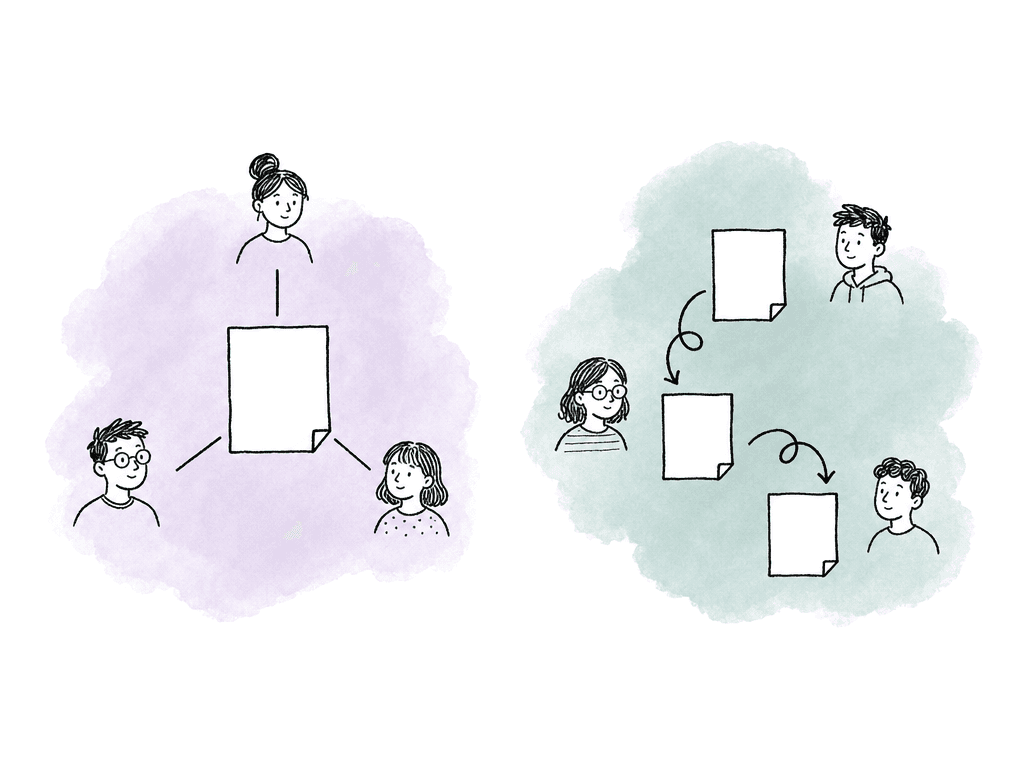
Most Premiere teams have some version of this problem: A client leaves a note at 01:14:08 saying the alternate take feels better. The producer screenshots it into chat. The editor opens the review page, finds the note, and switches back to Premiere. They hunt for the moment, make the change, and export a file. Then they upload it, name it “final_v7_really_final,” and wait for someone to confirm whether the old version should stay visible. That loop works when one person owns everything. It breaks once several editors, assistants, and producers are working alongside remote reviewers on recurring deliverables. The failure modes are familiar:- Editors pass Premiere project files around instead of opening the same shared working file.
- Linked media paths drift because one workstation has a drive mounted differently.
- Review comments are visible in the review tool but not where the editor is cutting.
- Version naming becomes the audit trail.
- Reverting means finding an old project copy, hoping it opens, and relinking media.
- Archive loses everything that made the media findable: approvals, comments, versions, metadata, and previews.
How the mounted Aspect drive fits into Premiere
Aspect mounts a project or folder on the editor’s machine so it appears like a shared network drive in Finder or File Explorer. Premiere can then open project files and linked media from that mounted location. The important behavior is that no editor has to download every source file before starting. Aspect streams the bytes the OS and the NLE request into a local cache. It also prefetches ahead in video playback, so the editor spends less time waiting as the playhead moves through media.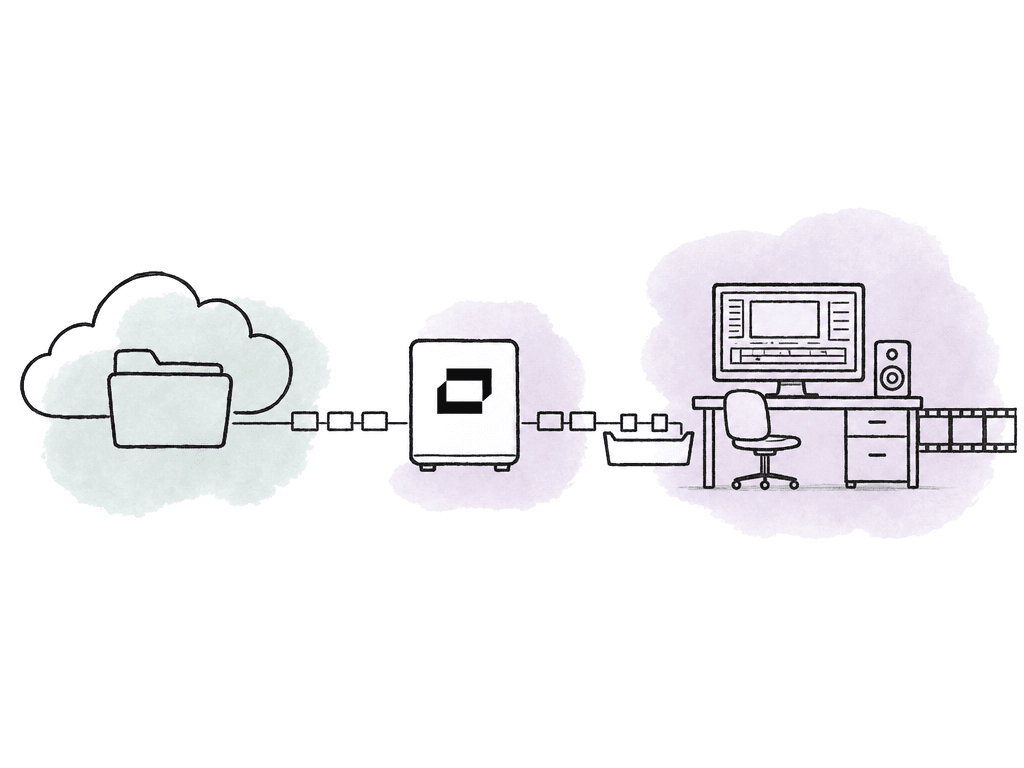
Project_Name/
  Premiere/
    Project_Name.prproj
    Productions/
  Media/
    Camera_Originals/
    Audio/
    Graphics/
    Proxies/
  Exports/
    Review/
    Delivery/
  References/
  Archive/
/Volumes/Show_A/Media and another links to a different local path, you are back in relink territory.
Aspect supports mounting multiple projects at once, and your team can also mount individual folders. That helps when editors need shared access to a current job plus a brand library, music library, or previous campaign. The tradeoff is naming discipline. If two mounted folders expose similar media names, make the pathing obvious enough that an assistant can tell which asset is actually linked.
Cache, prefetch, and when to pin media
Aspect’s streaming mount depends on a local cache. Post supervisors can configure cache location and size. That control matters on edit machines with small internal drives, and on workstations shared between several people. There are three practical modes to think about:| Mode | How it behaves in Premiere | Best use | Operator tradeoff |
|---|---|---|---|
| Streaming through the cache | Premiere reads from the mounted Aspect location, and Aspect fills the local cache as media data is requested. | Normal connected editing and assistant work, plus day-to-day access to shared media. | Depends on network quality, cache location, and cache size. First access to uncached media can still be limited by available bandwidth. |
| Prefetch-assisted playback | Aspect anticipates nearby video data as the editor plays or moves through media, reducing waits around expected playback reads. | Timeline review, selects, and editing sessions where the editor moves through connected media without needing full local copies. | Improves playback behavior, but it is not the same as guaranteed offline access. It still assumes the workstation can reach Aspect. |
| Offline pinning | Selected files or folders are fully downloaded outside the normal cache behavior so they remain available without network access. | Travel edits, field work, and handoffs where specific assets must be present regardless of connectivity. | Uses local storage deliberately. Pinning too much recreates a per workstation copy model and can make cache planning harder. |
Keeping Premiere projects shared instead of passed around
The biggest win is keeping the Premiere project state shared. Editors open the same timeline rather than sending.prproj files through chat or cloud folders.
Premiere setup details that matter
The Aspect workflow is easiest when post supervisors set expectations before the first editor opens the project. These settings and conventions carry most of the weight:- Keep the mounted Aspect location consistent across workstations as much as possible.
- Put the Aspect cache on fast local storage with enough space for active media.
- Set the Aspect cache size limit to match the workstation’s role, not a generic default for everyone.
- Keep Premiere’s own media cache local, not inside the shared project folder.
- Store project files, media, exports, and references in predictable folders.
- Use stable export and sequence naming so stacked versions are obvious in review.
- Pin only the folders needed for travel, field work, or guaranteed playback.
Bringing review comments into the timeline
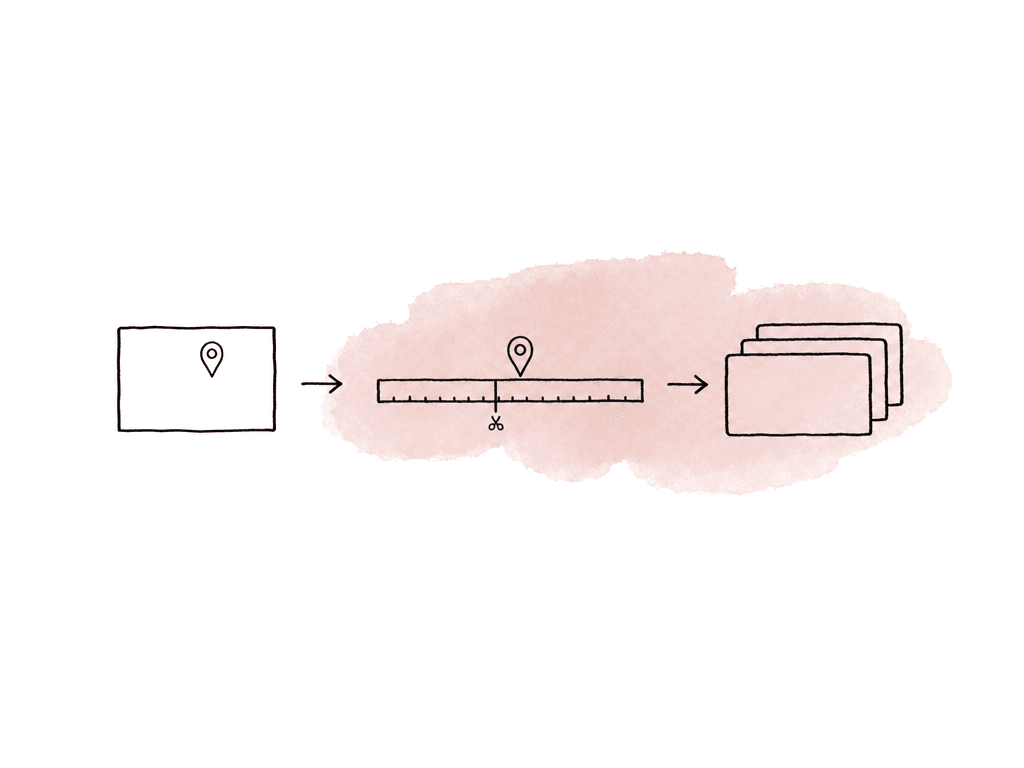
Aspect’s Premiere Pro panel displays comments directly in Premiere, so editors can see and respond to feedback without leaving the NLE. Review notes are only useful if they survive the trip from the client player to the edit decision. In Aspect, reviewers can leave frame-accurate comments on review assets, with annotations and markup, plus replies and approval status. New exports can stack as versions, so reviewers see how one rough cut relates to the next instead of a pile of separate files. The Premiere panel closes the loop by surfacing those notes where the editor is already working. Follow these steps to handle a review round between Aspect and Premiere:- A client or producer reviews a rough cut in Aspect and leaves timestamped notes.
- The editor opens the Premiere project from the mounted Aspect drive.
- The Aspect panel shows the relevant comments against the timeline.
- The editor jumps to the note, makes the change, and replies or resolves as appropriate.
- The editor exports a new review file and uploads it to Aspect as the next stacked version.
Version stacking from rough cut to approval
Version stacking is where review stops being a pile of exports and starts being an actual approval record. Each new rough cut can sit on top of the previous one, so reviewers compare progress without losing the old context. A simple review naming pattern helps:ProjectName_Cut01_InternalReview
ProjectName_Cut02_ClientReview
ProjectName_Cut03_ClientReview
ProjectName_Cut04_Approval
ProjectName_Master_Delivery
Where Frame.io and Adobe-native tools fit
Premiere already has Adobe-native review and collaboration paths. Adobe documentation includes Frame.io workflows for uploading media, adding comments on shared projects, and sharing for review, along with importing comments as markers. Adobe also documents Team Projects features like collaborator management, versions, and publishing changes, plus offline editing status and creating a new Team Project from a version. If your team is already fully standardized on Frame.io inside Adobe, and your main need is review comments flowing into Premiere, that may be the simpler fit. It is especially true if storage, archive, and asset search already live elsewhere, along with shared project file access. Aspect is a better fit when the workflow problem is broader than review:- Editors need a shared cloud file space that mounts like a drive.
- Large media should stream on demand rather than requiring full downloads.
- The same platform needs to handle review, permissions, metadata, versions, and archive.
- Post teams want project files and media in one shared structure instead of separate handoff systems.
- Teams need AI-assisted search, transcription, metadata, previews, or proxies across the media library.
- Your team needs archive to preserve previews, metadata, and searchability instead of becoming cold mystery storage.
Access and permissions for editors, reviewers, and clients
Premiere workflows get messy when everyone has the same level of access. Editors need edit access to working folders. Clients usually need comment access to review cuts. Producers may need download access for reference exports. Assistants may need broader access to media and metadata. Aspect can share a single file, a folder, or a whole collection. Sharing also works at the project level and as workspace access. Permission levels include view, download, and comment, along with edit and full access. Collections are useful when the review set does not match the folder hierarchy. For example, you can share a collection of three cuts, five selects, and a reference deck without moving those files out of the editorial folder structure. That keeps the mounted Premiere workspace clean. Assistant editors do not need to duplicate files into a “client review” folder just because the client should only see certain assets. Share the right subset with the right permissions and leave the source structure intact. For external sharing, password and link expiry controls can help reduce cleanup work after a campaign or delivery window ends.Metadata and archive after the cut ships
A finished Premiere delivery stays useful long after it ships. Six months later, someone will ask for the approved master or a clean textless version. Or they will want the interview clip where a customer said a specific phrase, or the exact campaign edit that legal approved. Aspect extracts EXIF and IPTC metadata by default and supports custom metadata fields across projects. It also supports automatic transcription, AI search, and generated previews and proxies. For archivists, that means archive can remain searchable and reviewable instead of becoming a folder of old drives.
- Approved master exports.
- Textless, split audio, captions, and platform-specific deliverables when relevant.
- The final Premiere project or Production state.
- Linked graphics, audio, fonts, and reference materials that your team is allowed to retain.
- Review versions and approval history.
- Custom metadata such as campaign, client, rights, usage window, deliverable type, and owner.
Signals that the workflow is working
You can tell this workflow is healthy by watching what people stop doing. Editors stop asking for the latest project file. They open the shared Premiere project or Production from the mounted Aspect space. Assistants stop sending media folders around manually. Producers stop translating review notes into chat messages. Clients stop seeing disconnected uploads. Post supervisors stop relying on export filenames as the only history. The technical signals are just as clear:- Premiere opens projects from the shared Aspect mount without repeated relinking.
- The same media paths resolve across editor workstations.
- Playback begins without full-file downloads for normal online work.
- Cache usage grows predictably and doesn't consume the system drive unexpectedly.
- Pinned folders are limited to real offline needs.
- Review comments appear in the Premiere panel at the expected timeline moments.
- Replies, resolved notes, and new exports show up in the review trail.
- New cuts stack as versions instead of separate unrelated assets.
- Your team can restore earlier project states from version history when needed.
- Archive items remain searchable by metadata, transcript, or visual content after the job closes.
FAQ
The panel brings Aspect review comments into Premiere Pro, so editors see timestamped feedback in the NLE instead of switching between a browser, a chat window, and the timeline. The round trip is short. A reviewer leaves a frame-accurate note in Aspect. The editor opens the shared Premiere project, jumps to that timeline moment from the panel, makes the change, and exports a new cut back to Aspect as the next stacked version.
No. Aspect does not replace Premiere Pro’s editing model or Adobe’s collaboration decisions. Team Projects and Productions still govern how editors coordinate sequences, bins, and locking, along with publishing and project segmentation. If a team is already standardized on Frame.io and only needs Adobe-native review comments flowing into Premiere, Frame.io may be the simpler fit. Aspect is positioned for the broader media operations around Premiere. That includes mounted shared storage with on-demand media streaming, plus permissions, metadata, and review versions, along with project file history and archive.
No. The mounted Aspect drive streams media on demand into a local cache, and prefetch behavior helps video playback by fetching likely next data as the editor moves through media. Editors can also pin selected files or folders for offline use. Reserve pinning for travel, field work, or guaranteed playback needs. It is not a sensible default for every camera original on every workstation.
Store the Premiere project or Production structure in the mounted Aspect file space, and have editors open it from the same shared path. Aspect keeps file revision history, so a post supervisor can roll a project file back to an earlier state. That does not mean multiple editors should overwrite the same active project without coordination. Larger teams should still use Premiere collaboration practices such as Productions or Team Projects, based on Adobe’s documented guidance.
Export names help humans identify cuts, but a filename is not a reliable approval record. Version stacking keeps related cuts together, so reviewers can see the progression from rough cut to approval with comments, replies, and approvals preserved. A clear name such as ProjectName_Cut03_ClientReview is still useful. The history itself lives in the stacked review versions rather than in filenames like final_v7_really_final.
Yes. Keep client and producer notes tied to the cut, then surface those notes where the editor is making the change. Aspect’s Premiere Pro panel displays review comments directly in the NLE. The editor can jump to a note, change the timeline, reply or resolve it, and export the next version as part of the same review workflow.