Set the project boundary before inviting the editor
Start by listing the content the assignment requires. For this campaign, that might include selected footage, interview audio, approved graphics, licensed music, the current edit, and review references. Budgets, unrelated client work, and internal planning documents don't need to be in the same shared project. In Aspect, workspace roles and project roles answer different questions. A Limited Member can only see explicitly assigned projects. Their role within each assigned project then controls what they can do. The Editor project role includes viewing, downloading, commenting, and editing; Full Access also includes sharing. The sharing and permissions documentation describes both levels. The Editor role applies throughout its project, so a folder namedInternal doesn't create a private area within it. For this example, create a campaign editing project containing the material the freelancer may work with, and keep restricted agency material in a separate project. If the editor needs read-only access to camera originals and editing access to working files, put those files in separate projects with the corresponding roles.
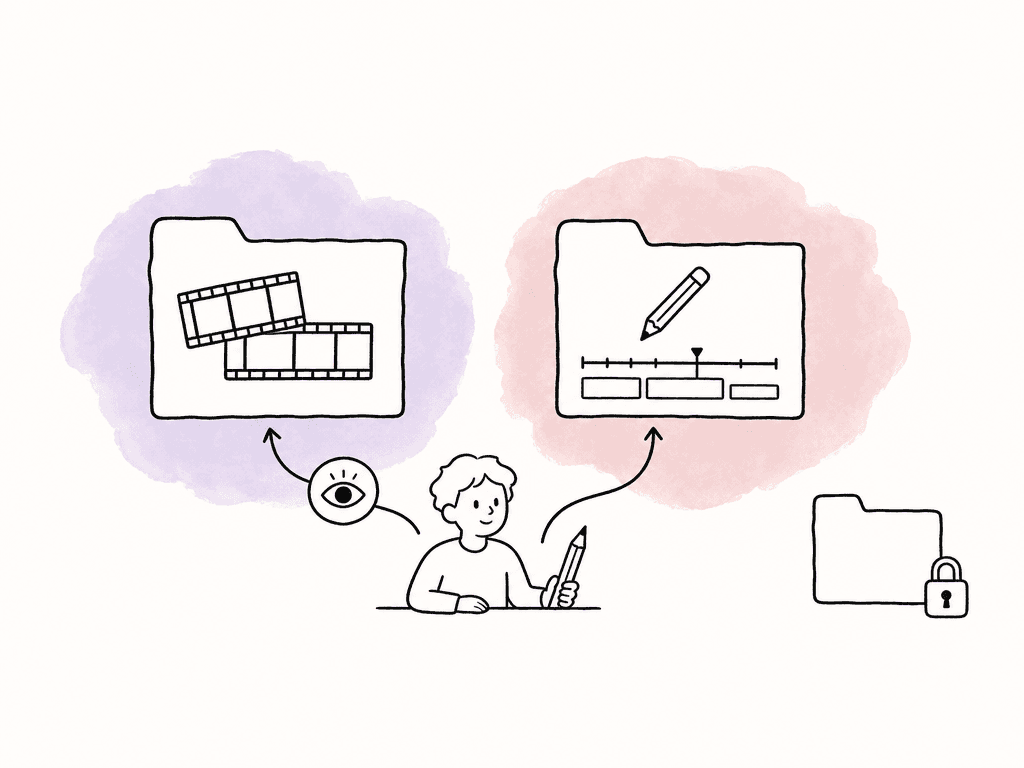
| Person | Access method | Permissions | Purpose |
|---|---|---|---|
| Agency producer | Workspace account with campaign project access | Full Access on the campaign project | The producer manages content and sharing. |
| Freelance editor | Limited Member, explicitly assigned to the campaign project | Editor on that project | The editor reads media, saves work, and responds to comments. |
| Client reviewer | A separate link to the review cut | Viewing and commenting; downloading disabled | The client leaves feedback without receiving an original download. |
| External graphics contributor | A link to a dedicated contribution folder | Viewing and adding content; other controls only as needed | The contributor supplies graphics without joining the workspace. |
Prepare one starter package with clear file ownership
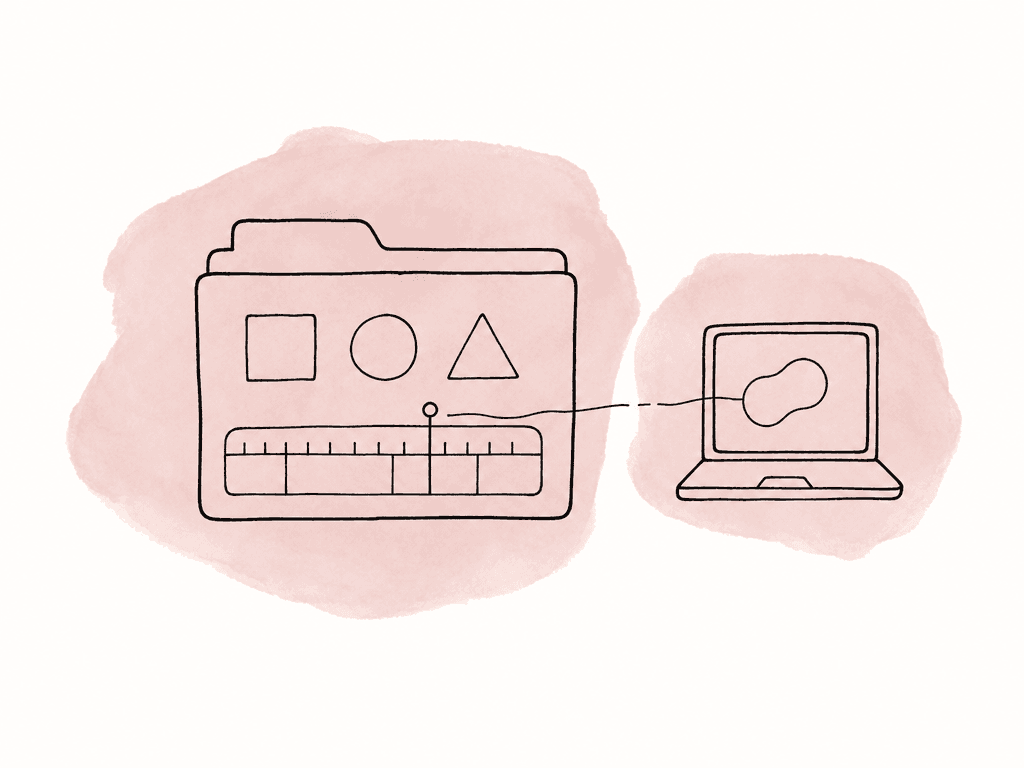
The starter package should explain where work lives as well as what to make. Use a short brief at a predictable location, with the project owner, editing application and version, sequence settings, delivery requirements, first review deadline, and approved references. Identify the exact sequence to continue if an edit already exists. For the example campaign, a project could contain these folders:Campaign_Editing/
01_Brief_and_References/
02_Source_Media/
03_Audio_and_Graphics/
04_Editing_Projects/
05_Review_Exports/
06_Final_Delivery/
Open the project on the editor's workstation
Invite the freelancer through workspace Settings → People, select Limited Member, and assign the required campaign project with the chosen project role. Have the editor accept the invitation and open the campaign project before the first session. The editor installs the Aspect desktop app for macOS or Windows, signs in, and mounts the project. It then appears as a drive in Finder or File Explorer, ready to open from the editing application. Use the editor's project account for this workflow; send guest links to people who only need to review or download selected files. For a download-based assignment, provide the selected files through an appropriately configured download link and agree where local copies will live. Before the full editing session, work through these steps together:- Open the starting project. Confirm the intended sequence, linked media, fonts, and effects load without unexpected substitutions.
- Play footage from each camera setup. Include the codecs, frame rates, audio layouts, and graphics used in the assignment, rather than checking only a reference export.
- Save a small working revision. Have the producer confirm it's available from the shared location after synchronization or upload finishes.
- Create a short review export. Confirm the naming, destination, and review process before the editor produces the first complete cut.
Give the editor review context and a decision owner
Tell the editor what the first review covers. For example, the producer might want to settle the story and timing before the client reviews graphics refinements. State what is open for feedback, who consolidates conflicting notes, and which person can approve delivery. This prevents an editor from interpreting two incompatible comments as equally actionable instructions. Keep each review export identifiable, such asCampaign_Main_60s_v03, and name the corresponding editing project or sequence in the handoff note. When using Aspect version stacks, upload the new export, add it to the stack, and check that the intended revision opens by default. Comments remain associated with the version on which they were made, so the freelancer can distinguish previous requests from new feedback.
Accept the editable handoff before closing access
Build time into your schedule for the internal editor to inspect the returned project while the freelancer is still available. The internal editor should be able to change the sequence and export it, including any graphics or effects added during the assignment. Ask the freelancer to save and close the working project, finish any required collaboration changes within the editing application, and wait for uploads or synchronization to complete. The receiving editor should then check:- Editing project: The correct project or supported project handoff opens, with the final sequences clearly identified.
- Referenced assets: Media resolves from the agreed locations, including newly created graphics, audio, and nested project dependencies.
- Application dependencies: Required fonts and effects are available, or the agreed replacements and rendered elements are included.
- Approved delivery: The final exports match the named revision that received approval, along with any required captions, audio files, or alternate formats.
- Continuation notes: Known limitations, outstanding changes, source restrictions, and any manual relinking steps are recorded.
Close every access route and account for local copies
Once the handoff is accepted, remove the freelancer's campaign access in the project's People settings. If they have no remaining assignments, review their responsibilities and remove their workspace membership as well. Separately remove access to any editing collaboration service used for the job; an Aspect permission change does not administer those other accounts. Next, inspect the share links created for the relevant assets, folders, collections, and project. Disable temporary links or delete links whose URLs should no longer be used. Closing one link leaves other links and workspace access unchanged. The sharing security guide explains these controls, including passwords and expiration dates. Set an expiration during onboarding, but still review the links at closeout because the assignment may finish before that date. Use the project permissions and share-link controls to end access; archiving a project leaves those permissions and links in place. Finally, complete the local-copy arrangement established at the start. Revoking access cannot recall downloads, exports, or copies made outside the platform. Ask the freelancer to account for those locations, including permitted backups and editing caches, and confirm the agreed return, retention, or deletion. Unpinning releases guaranteed offline storage, but Aspect may retain recently accessed data in its cache, so it isn't evidence of complete erasure. Where verified deletion is required, follow the organization's device cleanup process. Keep the accepted project location, access-removal date, closed links, and any authorized retained copies in the handoff record. The next producer can then see both how to reopen the work and whether anyone outside the current team still has a legitimate route to it.FAQ
An editor working inside Aspect or mounting a project needs an account and project access. A Limited Member is appropriate when they should see only assigned projects. Someone who only needs to download selected files, review a cut, or upload a delivery can use a share link without an account, with the necessary permissions enabled.
The project Commenter role includes viewing, downloading, and commenting. For a reviewer who should comment without downloading, use a share link with commenting enabled and downloading disabled. Check the exact access method because project roles and share-link permissions are different controls.
A Limited Member only sees projects where access has been explicitly granted. Their project role then applies throughout the assigned project, including its folders, assets, and collections. Keep material requiring a different access boundary in a separate project, or share selected content through a suitably configured guest link.
No. Revoking project access or disabling a share link does not recall downloaded copies. Include local downloads, pinned media, editing caches, exports, and any other permitted copies in the closeout process. Unpinning also does not guarantee immediate removal of every cached byte, so use your organization's device cleanup procedure when verified deletion is required.
Agree on an editable handoff containing the final editing project or the editing application's supported handoff, its source media references, any newly created assets, required fonts and effects information, and a record of the approved cut. The receiving editor should open it on another workstation, check for missing dependencies, and confirm that the delivery can be reproduced before access closes.