Separate the Resolve project from the media
Resolve keeps active projects in a project library. A project contains timelines, grades, and other project information, with references to media files. Blackmagic Cloud can host a shared library; a private DaVinci Resolve Project Server can support a team managing its own collaborative environment. Media needs its own route to every workstation. That might be a local SSD, media synchronized through Blackmagic Cloud, or a mounted shared drive. Blackmagic's collaboration documentation explicitly supports storage choices alongside its Cloud project workflow. There's also a naming distinction when using Aspect. An Aspect project organizes shared assets and can appear as a mounted drive. A Resolve project holds the edit. Giving someone access to one does not automatically give them access to the other.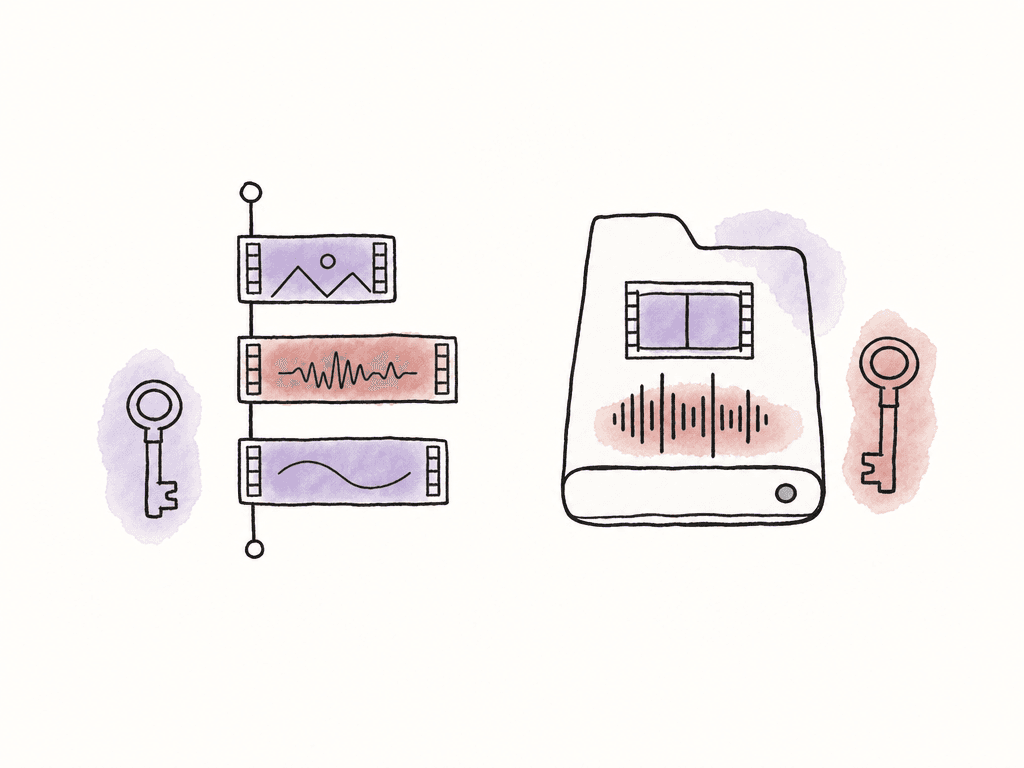
| What the team shares | Where it belongs | What to verify |
|---|---|---|
| Active Resolve project | Cloud project library or a supported private Project Server | Both editors can open the intended project and use its collaboration controls. |
| Originals, audio, graphics, and proxies | Local copies, synchronized storage, or a mounted shared drive | Each workstation can open the files referenced by the project. |
| Exported cuts and feedback | A review service or agreed review location | Everyone is discussing the correct revision. |
.drp belongs in a handoff or backup process. It's a snapshot of a Resolve project, and it does not include the source media or keep updating as the edit changes.
Choose how the team will share editing decisions
If your editors need to work at the same time, start with Blackmagic Cloud or a private Project Server. Blackmagic Cloud avoids making your facility responsible for hosting the project server. A private server can suit a team that needs control over its own network environment and has someone responsible for connectivity and administration. Resolve's collaboration controls include locking and update handling so collaborators can work without simply overwriting each other's changes. Assign work areas clearly: one editor can build interview selects while another assembles a different timeline. When both need the same work area, coordinate the change and use Resolve's update and comparison tools. If work moves from one person to the next, sequential DRP handoffs may be sufficient. Keep active local project libraries on the individual workstations, export a new DRP for each handoff, and record who owns the next edit. Putting a local library or a DRP on a synchronized drive isn't a substitute for configuring Resolve collaboration.Decide whether editors will download or stream the media
Local copies
Local copies suit a small team with enough SSD capacity, a stable media package, or long periods without connectivity. Each editor receives the required originals or proxies before work starts. Someone must also distribute newly added media and keep the folder structure consistent. Once the copies arrive, editors can play them without depending on the internet connection. Keep a file inventory and send new media to every editor as it's added to the project.Blackmagic Cloud media synchronization
Blackmagic Cloud can synchronize media between collaborators so each has local files. Its workflow also supports proxies and Blackmagic Proxy Generator, which watches nominated folders and generates proxy files from new camera originals. Editors who already use Blackmagic Cloud for their projects can use its media synchronization to receive local copies through the same service. Plan the required local storage and transfer time separately from the project library. Sharing a lightweight project doesn't mean the camera originals have finished arriving.Mounted media through Aspect
With Aspect's mounted media access, the project appears as a drive and applications request the file data they need. Editors can browse the shared folder structure without first downloading the whole project. Playback still depends on the connection, the number of streams, the codec, and the workstation's decoding capacity.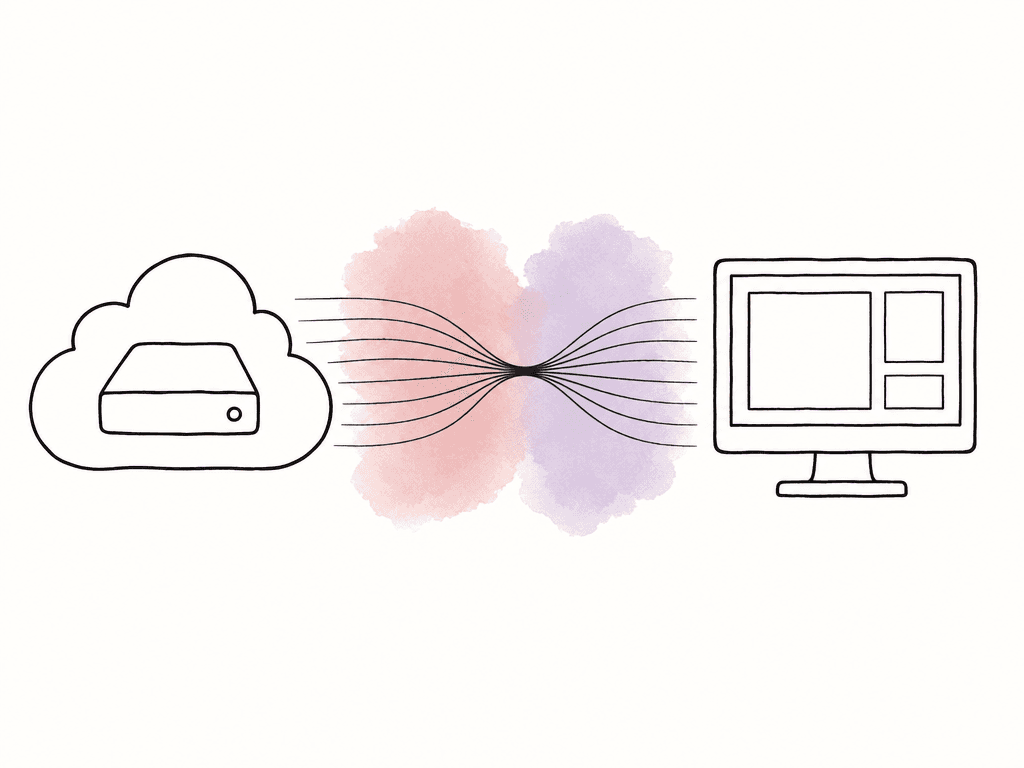
Budget for project hosting and media storage
Budget for the editing software, shared Resolve project, and media storage separately. These prices are in US dollars; the project-library fee is charged per library, not per editor.| Item | Price | What it provides in this workflow |
|---|---|---|
| DaVinci Resolve | Free | Editing software with multi-user collaboration. Each editor still needs access to the shared project and media. |
| DaVinci Resolve Studio | $295 purchase, or $30 per license per month through Blackmagic Cloud rental | The paid software edition. Project hosting and cloud media storage are separate charges. |
| Blackmagic Cloud project library | $5 per library per month | Hosts the shared Resolve project and its editing decisions. |
Compare media storage per TB
The storage prices below use the same unit. Aspect Pro starts at $30 per seat per month, with 500 GB included per seat; dividing $30 by 0.5 TB gives the monthly storage equivalent below. The Blackmagic figure is its media-storage rate, with project-library hosting charged separately.| Media storage | USD per TB per month | What it provides in this workflow |
|---|---|---|
| Aspect Pro | $60/TB/month of included storage, with lower rates for larger team volumes | Media editors open through the mounted Aspect drive. Resolve handles collaboration on the edit. |
| Blackmagic Cloud media storage | $15/TB/month | Media that synchronizes to each editor's local storage. Project-library hosting and local drives are additional costs. |
Set up two remote editors against the same media
For example, Maya and Theo are editing a 90-second film called Harbor. Maya builds the interview sequence while Theo prepares supporting footage. They use a shared Resolve project in Blackmagic Cloud and an Aspect project for the media.1. Agree on the working environment
Use the same Resolve version across the team and agree on project settings before building timelines. Check the fonts, plug-ins, graphics, and other dependencies the edit requires. A shared media folder can't supply a missing installed plug-in. Choose who manages the main timeline, who imports new media, and who prepares proxies. These assignments reduce conflicting changes and duplicate processing without preventing collaborators from working at the same time.2. Give both editors project and media access
In Resolve's Project Manager, sign in to Blackmagic Cloud and create a library dedicated to Harbor. Open the library's Details controls, choose Share, and enter the second editor's Blackmagic ID. The Resolve 21.1 manual states that shared library members can modify and delete any project within that library, which is why unrelated client projects should stay elsewhere. Create or import the Resolve project into that library, open it, and choose File > Multiple User Collaboration. Both editors should work in this shared project. Separately, give both editors access to the Harbor project in Aspect. Aspect's sharing and permissions guide distinguishes workspace access from project roles. For example, a freelance editor can be a Limited Member with Editor access to the production they're working on. Confirm both editors can open the Resolve project and read the media before assigning work.3. Establish a stable media root
Upload the originals, production audio, and graphics into the Aspect project, then mount that project through the desktop app on both computers. Keep the project name, folder structure, and source filenames stable. Use a consistent media root, such as/Volumes/Harbor on Macs or the same assigned drive letter on Windows, with camera footage and audio in clearly named folders. In Resolve's Media page, import from that mounted root. If it's absent from the Media Storage browser, add the location under Preferences > System > Media Storage.
When storage roots differ, use Project Settings > Path Mapping to associate the shared media location with each workstation's local path, or relink to the correct media location. Preserve the folder hierarchy and check several clips afterward, including shots from different camera cards. Repeated camera filenames make a visual check more useful than merely confirming that the red offline indicators disappeared.
4. Create and validate editing proxies
Choose proxy format and resolution in Resolve's Project Settings, select the source clips in the Media Pool, and use Generate Proxy Media. Put shared proxies in the mounted production project and wait for them to synchronize before the second editor relies on them. Aspect also offers Copy videos as proxies, which copies generated MP4 proxies while keeping the originals. Use Link Proxy Media in Resolve to attach the corresponding files. For externally generated proxies, Resolve requires the same filename except for its extension, identical timecode and frame rate, and a supported format and codec. Also verify duration, picture alignment, and audio layout. Generate a replacement in Resolve if a copied proxy does not match. Set Playback > Proxy Handling > Prefer Proxies for the edit. Check an interview clip, a long take, and any multichannel audio on both machines. Scrub to the beginning and end of each clip and switch between proxy and original playback to catch alignment or audio differences.5. Keep generated caches local and verify collaboration
Set Resolve's cache location to a fast local SSD. Resolve's render cache and Aspect's media cache serve different purposes: one holds generated processing results, while the other retains media data streamed from storage. Have Maya make a small, recognizable change in her assigned timeline and confirm that Theo receives it through Resolve's collaboration workflow. Then check a newly added media file on both workstations. This verifies project updates and media availability independently before the full edit depends on them.Name an owner for every DRP handoff
For a sequential workflow, the outgoing editor saves the project, opens Project Manager, and chooses Export Project. Use Export Project With Stills and LUTs when the handoff needs those grading resources. Save the DRP into the shared handoff folder with a clear name, such asHarbor_Edit_2026-09-28_v03.drp, and wait for synchronization to finish.
The receiving editor imports that DRP into their own project library, opens it, and confirms that its timelines find the expected media. Record the version, the next editor, the intended timeline, and any missing dependencies in the handoff note. The receiving editor exports a new DRP when the next handoff is ready.
If two people continue editing separate imports, they have created two branches of the work. Appoint someone to compare and integrate those changes deliberately. A newer filename or completed file synchronization does not decide which creative changes should enter the master project.
Prepare offline work as a separate project session
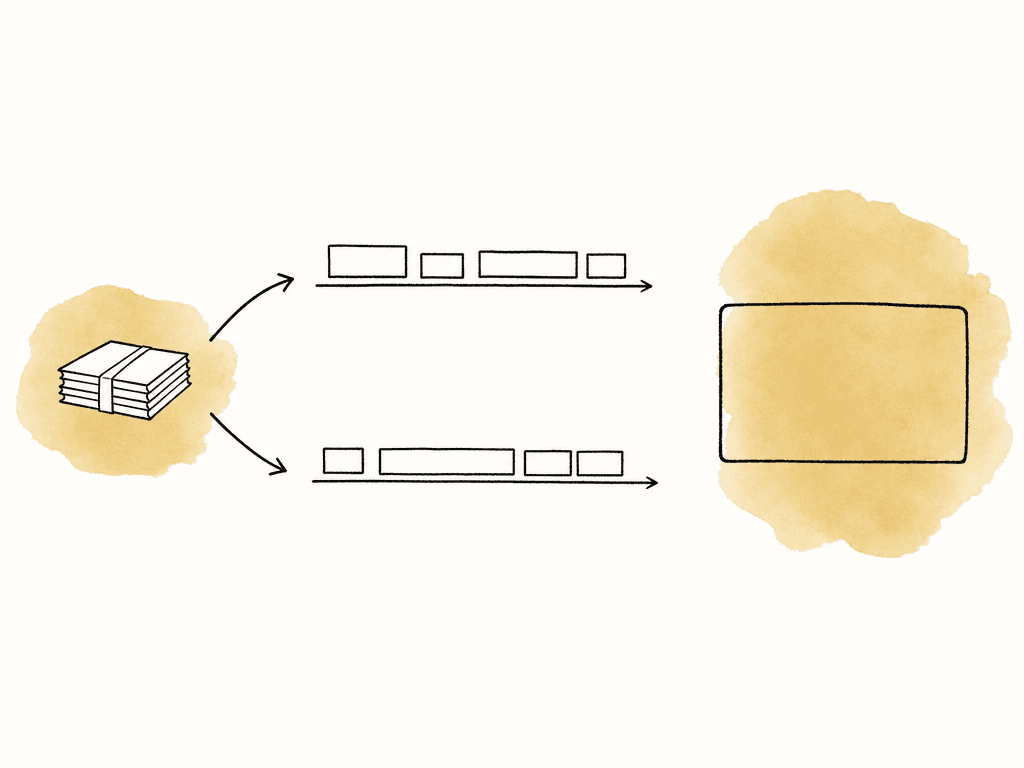
Before you go offline, export a DRP from the Cloud project and import it into a local project library. Agree on the scope of that session and how the results will return to the shared project. For example, Theo might work on a new selects timeline while Maya continues the main edit online. Pin the actual proxies, audio, graphics, and other files that local project references. Pin originals as well if the session requires grading or full-quality output. Wait until pinning finishes, leave enough SSD space for working files, and check the intended timeline without the network before departing. After reconnecting, synchronize new media and the exported handoff, then have the designated editor integrate the agreed work into the shared Resolve project. Media synchronization and Resolve project integration remain separate steps.Review the correct cut and finish from the intended sources
Give reviewers an exported cut with an identifiable revision. Blackmagic Cloud Presentations provides a review workflow connected to Resolve; Aspect can also hold review exports with comments tied to each version. Choose the review destination before sending the first cut and keep client notes there, so editors do not have to reconcile feedback across several services. Before finishing, choose Playback > Proxy Handling > Disable All Proxies and confirm that the required originals are available. Prefer Camera Originals can fall back to proxies when an original is missing, so disabling proxies makes that problem visible before delivery. Inspect picture, audio, and effects, and pin demanding media ahead of a grading session when the connection cannot sustain playback. For a master from originals, leave Use proxy media off in the Deliver page's advanced video settings and check any settings that reuse optimized media or render caches. Keep the delivered cut with its approval record and a DRP export of the final Resolve project. Include the source media location and any fonts, plug-ins, or grading resources in the handoff notes so another editor can reopen the work for a later revision.FAQ
A Cloud project library holds the Resolve project, including its timelines and editing decisions. Each collaborator still needs access to the files that project references. Blackmagic Cloud media synchronization is one option; local media copies and supported shared storage are other options. Check project access and media access separately during setup.
A DRP is an exported snapshot that must be imported into a Resolve project library. It does not update as someone continues editing, and synchronizing it does not create Resolve's live collaboration controls. Use a shared Cloud or server-based project for simultaneous work, or give one editor ownership of each sequential DRP handoff.
Yes. Aspect keeps media on a mounted project drive while Blackmagic Cloud manages the shared Resolve project. Each editor needs access to both services and a media path that resolves correctly on their workstation. Keep Resolve's generated cache local and choose proxies or fully pinned media when the session needs them.
No. Resolve requires externally generated proxies to match the source filename except for its extension, timecode, and frame rate, and to use a supported format and codec. Also verify duration, picture alignment, and audio layout. Attach Aspect's MP4 proxy copies to the matching originals in Resolve and check picture and sound before editing. Generate proxies from the originals in Resolve if the copied files do not match.
Pinning makes complete files available locally once their downloads finish. It does not merge Resolve project changes. Before going offline, export a DRP, import it into a local project library, pin the referenced media, and agree who will integrate the resulting work after reconnection. Pinning the DRP alone does not pin its footage.
The project can be accessible even when its referenced files are unavailable on that workstation. Check that the media drive is mounted, the user has access, the files have finished transferring, and the paths match. Resolve's path mapping or relinking tools can address location differences. Open clips from each camera card afterward and check their picture and sound, especially when filenames repeat.