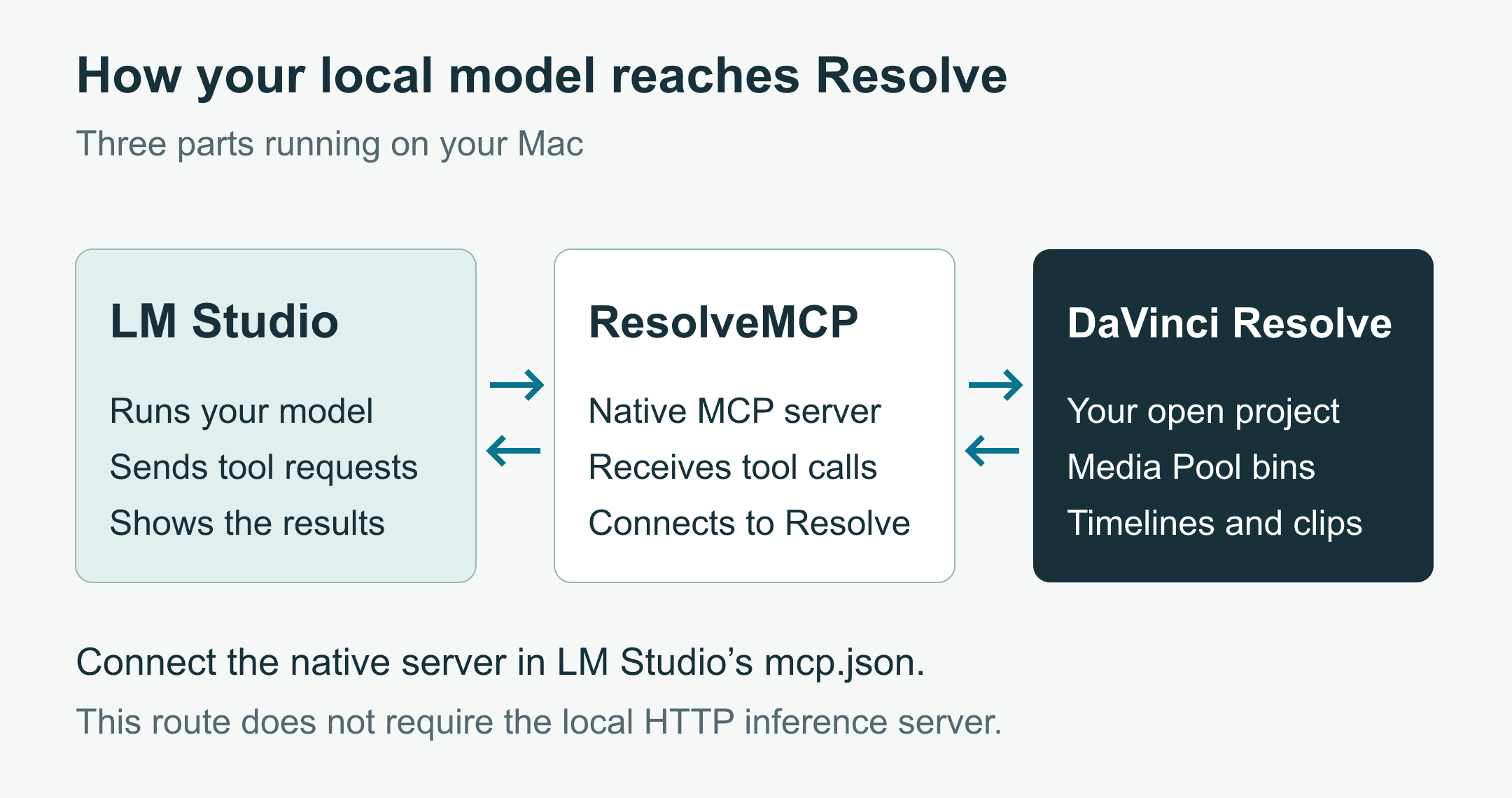
1234. LM Studio can act as an MCP host directly from the app by loading an MCP server entry from mcp.json.
What you're connecting
There are three moving parts:- DaVinci Resolve Studio 21.1 or later, with Blackmagic’s native Resolve MCP executable installed as part of the app.
- LM Studio 0.3.17 or later, acting as the MCP host.
- A local model in LM Studio that supports tool use.
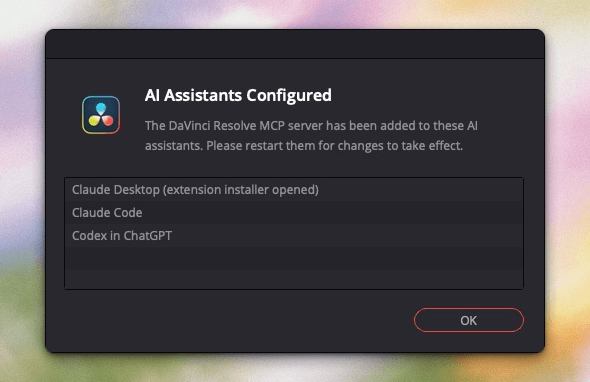
File > Setup AI Assistants. Use it as the Resolve-side integration entry point, especially on a fresh Resolve 21.1 Studio install. Don't assume that it automatically configures LM Studio. The concrete LM Studio route below is manual: you add Resolve’s MCP executable to LM Studio’s mcp.json.
Hardware requirements
Local AI and Resolve compete for memory. Resolve already wants GPU, CPU, storage, and RAM headroom, especially with camera originals, multicam, noise reduction, Fusion, or heavy grades. A local model adds another active workload on the same machine. For the macOS example here, LM Studio’s published requirements are a useful baseline: Apple Silicon, macOS 14 or newer, and 16 GB or more RAM recommended. LM Studio notes that 8 GB Macs may still run smaller models with modest context sizes, but that isn't the same thing as saying Resolve plus a tool-using local model will feel good on a real job. If your machine already struggles with the Resolve project, start with a smaller tool-capable model and a modest context size. Test it on a duplicate project and check that you can still use Resolve comfortably while the model runs. Check success with things you can observe: the model loads, chat works, tools appear, Resolve responds, and the machine remains responsive enough that an editor can still work.Install and open LM Studio
Install LM Studio on the same Mac that's running Resolve. Open it before you touch the MCP configuration. First confirm that the app itself works before adding Resolve to the mix. In LM Studio, choose a model that fits your available memory and supports tool use. Confirm in LM Studio’s model and runtime UI that you selected this local model for the chat. Don't treat general model popularity as enough, because the requirement here isn't just “can answer questions.” The model needs to call tools through MCP. LM Studio’s model browser and runtime UI can change over time, so use the app’s current tool-capability indicators rather than relying on a fixed model recommendation. Before connecting Resolve, run an ordinary local chat with a neutral prompt. Ask something simple, such as:In one sentence, suggest a clear name for a temporary Resolve test bin.
Prepare Resolve
Open DaVinci Resolve Studio 21.1 or later. Open a project that you can safely duplicate. If you're testing in a shared project library, cloud project, or active finishing project, stop and make a disposable copy first. From Resolve, go to:File > Setup AI Assistants
/Applications/DaVinci Resolve/DaVinci Resolve.app/Contents/Applications/ResolveMCP
C:\Program Files\Blackmagic Design\DaVinci Resolve\ResolveMCP.exe
Add Resolve MCP to LM Studio
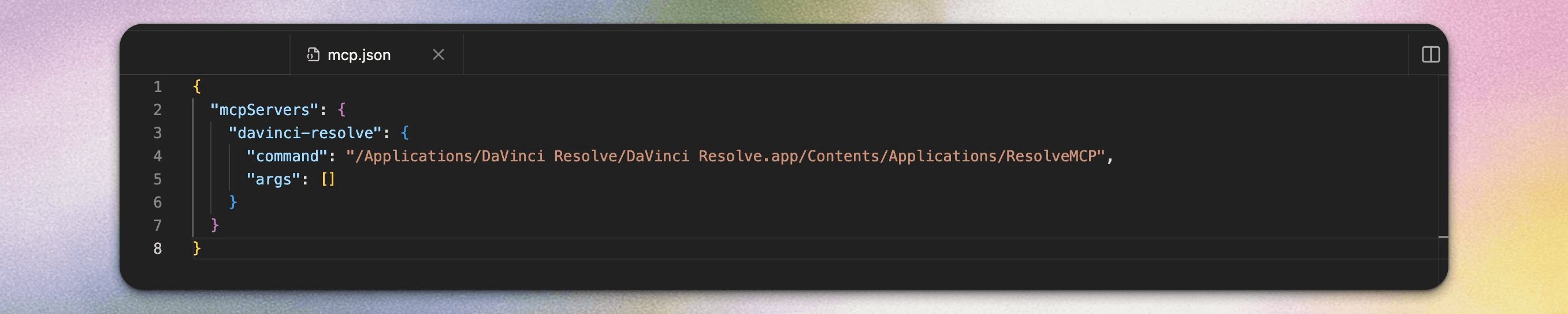
In LM Studio 0.4.26, open the right-hand sidebar and select Integrations, the hammer tab. Choose:Integrations > Install > Edit mcp.json
mcp.json file in the in-app editor. On macOS, that file lives at:
~/.lmstudio/mcp.json
{
  "mcpServers": {
    "davinci-resolve": {
      "command": "/Applications/DaVinci Resolve/DaVinci Resolve.app/Contents/Applications/ResolveMCP",
      "args": []
    }
  }
}
args list is intentional because the native wrapper behavior for Resolve’s MCP server launches ResolveMCP without additional arguments.
If your mcp.json already has an mcpServers object, don't paste a second top-level mcpServers object into the file and don't replace the servers that are already there. Merge only this davinci-resolve entry into the existing mcpServers object, using commas where valid JSON requires them:
"davinci-resolve": {
  "command": "/Applications/DaVinci Resolve/DaVinci Resolve.app/Contents/Applications/ResolveMCP",
  "args": []
}
mcp/davinci-resolve appear in Integrations. Enabling it and expanding its Tools list showed get_resolve_status, search_scripting_api, and run_script. Tool discovery worked with no model loaded. It confirms that LM Studio can start the MCP server, but you still need a tool-capable model to send the requests below.
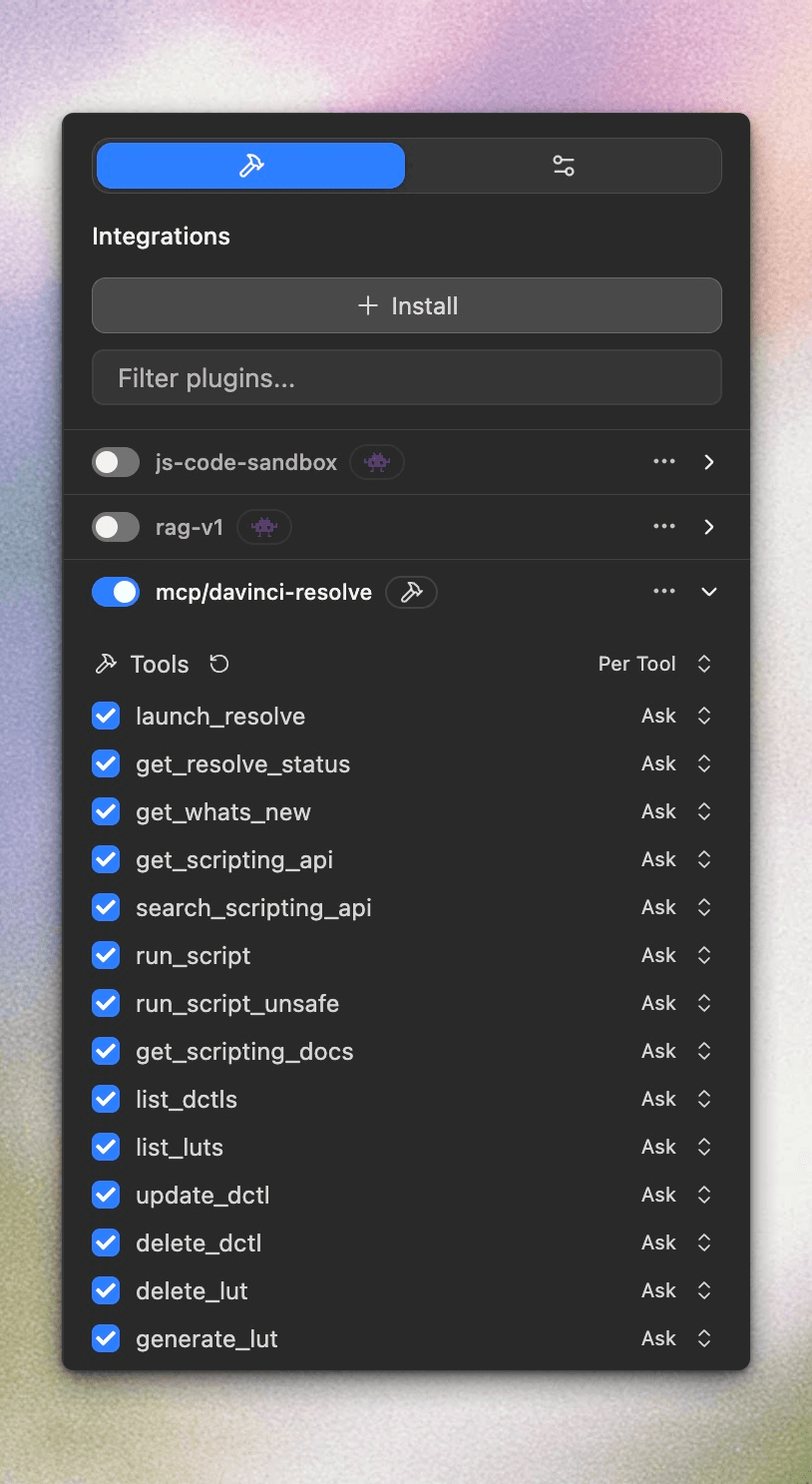
Check the connection
Open a chat in LM Studio with your tool-capable local model selected. Check that the Resolve tools are available, including:get_resolve_statussearch_scripting_apirun_script
Use the Resolve MCP tool get_resolve_status and tell me whether Resolve is reachable. Do not make any changes to the project.
get_resolve_status succeeds, ask for a read-only project inspection:
Read-only request: inspect the current Resolve project and tell me the project name, whether a timeline is open, and the top-level media pool bins you can see. Do not create, rename, delete, move, relink, render, or modify anything.
Create a test bin
Now create a duplicate project. You can do this in Resolve using your normal project management workflow, such as saving a copy or duplicating the project from the Project Manager. Name it clearly enough that nobody mistakes it for the active job. Once the duplicate is open, ask LM Studio for one small, obvious change:In the currently open duplicate Resolve project, create one top-level media pool bin named MCP_Local_Test. Do not change timelines, clips, grades, renders, project settings, or any existing bins.
MCP_Local_Test in a blank project named Aspect_Local_MCP_Tutorial. We created and read back this bin through Codex’s native Resolve MCP connection, then saved and exported the project. This checks the Resolve operation; we have not yet tested whether a local model in LM Studio produces the same result.
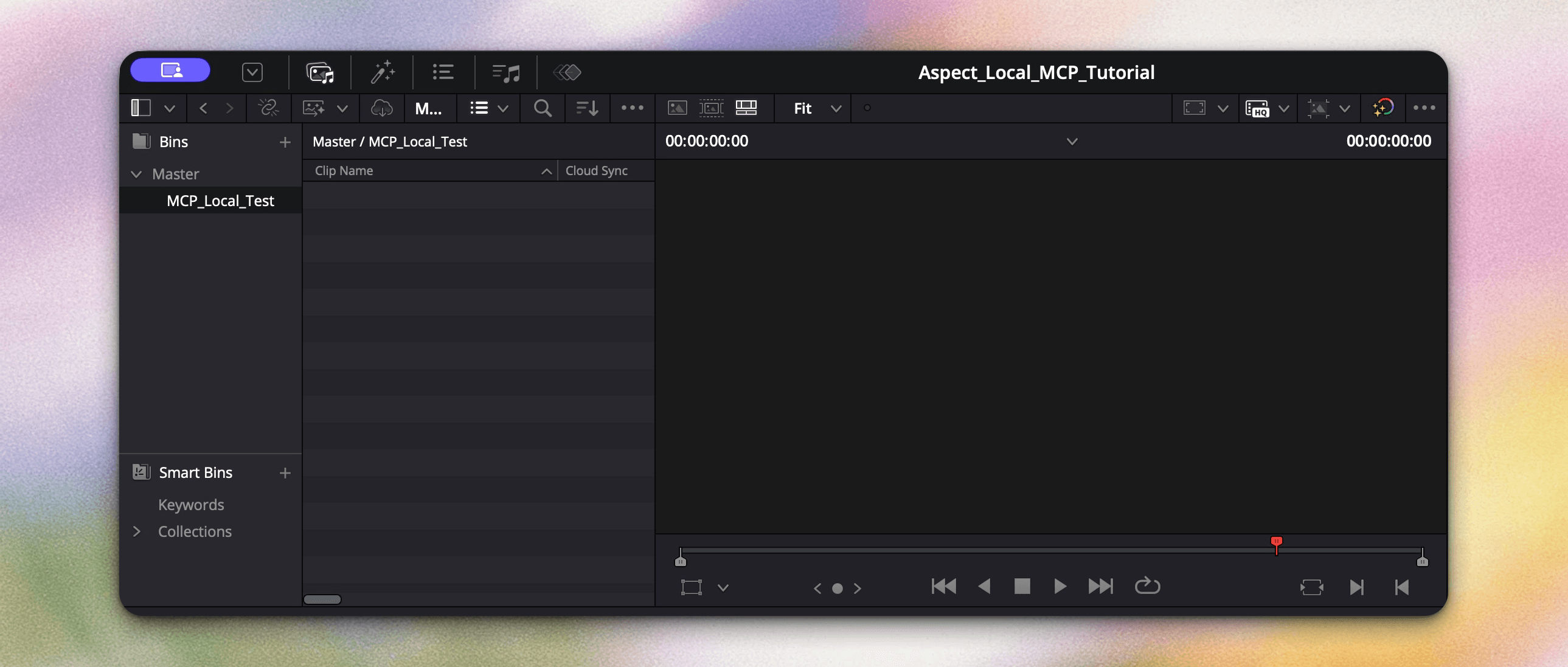
Where local assistants help in post workflows
We recommend using this setup for tasks you can describe precisely and verify in Resolve: creating bins, organizing media based on names or metadata, running simple searches, and reporting what is in the current project. These are tasks where your prompt can include exact names, rules, and a clear stop condition. The risk rises when the request is broad or aesthetic. “Make this edit better” isn't a useful instruction. “Find all clips in the interview bin with names containing CAM_A and create a bin called Interview CAM_A Selects” is much safer. The model needs scope, naming rules, and a clear stop condition. The native Resolve MCP tools include a general script-running path, which is powerful. That also means the model may translate your request into scripting operations. For production use, ask it to describe intended actions before execution, especially for anything that touches media pool structure, timelines, grades, renders, relinks, or project settings.Why source media context still matters
An assistant connected to Resolve can inspect what Resolve exposes through its tools and scripting API. That doesn't automatically mean it understands the broader production context: which drive is authoritative, which proxy set is safe to use, which camera originals are still pending, which review notes are current, or which stringout was superseded yesterday. You can use Aspect alongside Resolve to help an assistant find your source media and review context. Aspect is optional for the LM Studio connection above. It becomes useful when your instructions refer to footage, selects, or review notes that aren't available in the open Resolve project. For example, “use the approved selects from yesterday’s review” requires access to those selects and notes. Give the assistant that information before asking it to edit so it can identify the files you mean.Common mistakes
If the connection isn't working, start with these checks:- LM Studio can't launch the MCP server if the
commandpath doesn't exist exactly as written. Check the Resolve app location and confirmResolveMCPis present inside the bundle. - If the Resolve tools don't appear after saving
mcp.json, check the JSON structure, make sure you didn't create duplicate top-levelmcpServersobjects, and restart LM Studio if needed. - Ordinary chat may work even when tool use doesn't. Choose a model with tool-calling support and load it again.
- Keep Resolve open, with the duplicate project loaded, before asking for project inspection or edits.
- Some MCP servers or prompts can push too much context into a local model. Use narrower prompts, smaller project queries, and modest context settings.
mcp.json or server loading. Resolve inspection failure is usually Resolve state, executable path, permissions, or an assistant/tool-call issue.
Limits to keep in mind
A local model runs on your machine and can avoid sending prompts to a hosted model service. Other parts of the setup may still access your files or the network. You need to download models and software, and an MCP server may access local resources. Check what each component can access before using it with private material. Performance is also not just about the model. Resolve may be decoding camera media, caching, rendering thumbnails, running effects, or holding large timelines in memory. The local assistant is an additional workload. If you want to use this on a workstation that's already near its limits, keep the model small and the tasks narrow. Compatibility isn't universal either. Resolve version, LM Studio version, model capability, operating system, app paths, and project state all matter. Treat the first setup as a small workstation test, not a facility-wide rollout.Visual references and setup guides
- LM Studio's MCP editor screenshots. The official 0.3.17 walkthrough shows Install > Edit mcp.json and the editor. Its example uses another MCP server; use our Resolve entry for this tutorial.
- LM Studio's tool-confirmation example. See the published tool-confirmation interface. Check the current app UI when following the tutorial.
- Resolve setup with desktop assistants. Our existing Resolve guide provides the broader setup walkthrough and visual context for the native integration.
FAQ
No. For the app-based MCP route described here, LM Studio loads the Resolve MCP server from mcp.json. You do not need to enable LM Studio's local HTTP inference server or open port 1234.
On a standard macOS install, the native Resolve MCP executable is at /Applications/DaVinci Resolve/DaVinci Resolve.app/Contents/Applications/ResolveMCP. Check the actual path on your machine, especially if Resolve is installed somewhere else or the app bundle name differs.
No. Ordinary local chat is not enough. The selected model must support tool use so it can call MCP tools. If chat works but no Resolve tools are used, check that you loaded a tool-capable model and that LM Studio can see the Resolve MCP server.
No. A read-only prompt is an instruction to the assistant, not a technical permission boundary. You should still review tool calls before approving them because the Resolve MCP server can expose script-running capability.
Check that mcp.json contains one valid top-level mcpServers object, that the davinci-resolve entry is merged into it correctly, and that the command path points to the real ResolveMCP executable. If the JSON and path are correct, save the file and restart LM Studio if needed.