Choose the information you want to search
| What you remember | Search to start with | Example request |
|---|---|---|
| An action, subject, setting, or composition. | Visual content. | “A player kicking a ball while wearing a red shirt.” |
| A quote or the topic someone discussed. | Spoken content. | “Interview passages about preparing for the launch.” |
| A filename or part of one. | Filename. | “B001C009.” |
| A campaign, date, person, or maintained field. | The relevant metadata filter. | “Workshop footage from the autumn campaign.” |
1. Start with a project you know
Choose a small, representative project. Include footage with visible action and a recording with speech. Make sure you have access to the files and allow the required analysis to finish after upload. A clip missing from an unfinished index tells you little about the quality of a query. Write down a few shots and quotes that you already know are present. Note the source files and approximate positions before you search. That gives you something concrete to check against the results. For the visual example below, the request describes a player, a ball, and a red shirt. Those are observable details. “The best moment in the campaign” gives the system much less to work with unless you explain what makes that moment useful.2. Describe the visible shot
Open Search and describe what you want to see. Begin with the subject and action, then add details that would distinguish the shot from similar footage. For example:A player kicking a ball while wearing a red shirt.If the framing matters, add it: a wide shot, a close-up, or a view with room for a title. Avoid adding a detail you only vaguely remember as a firm requirement; it may exclude the footage you need.
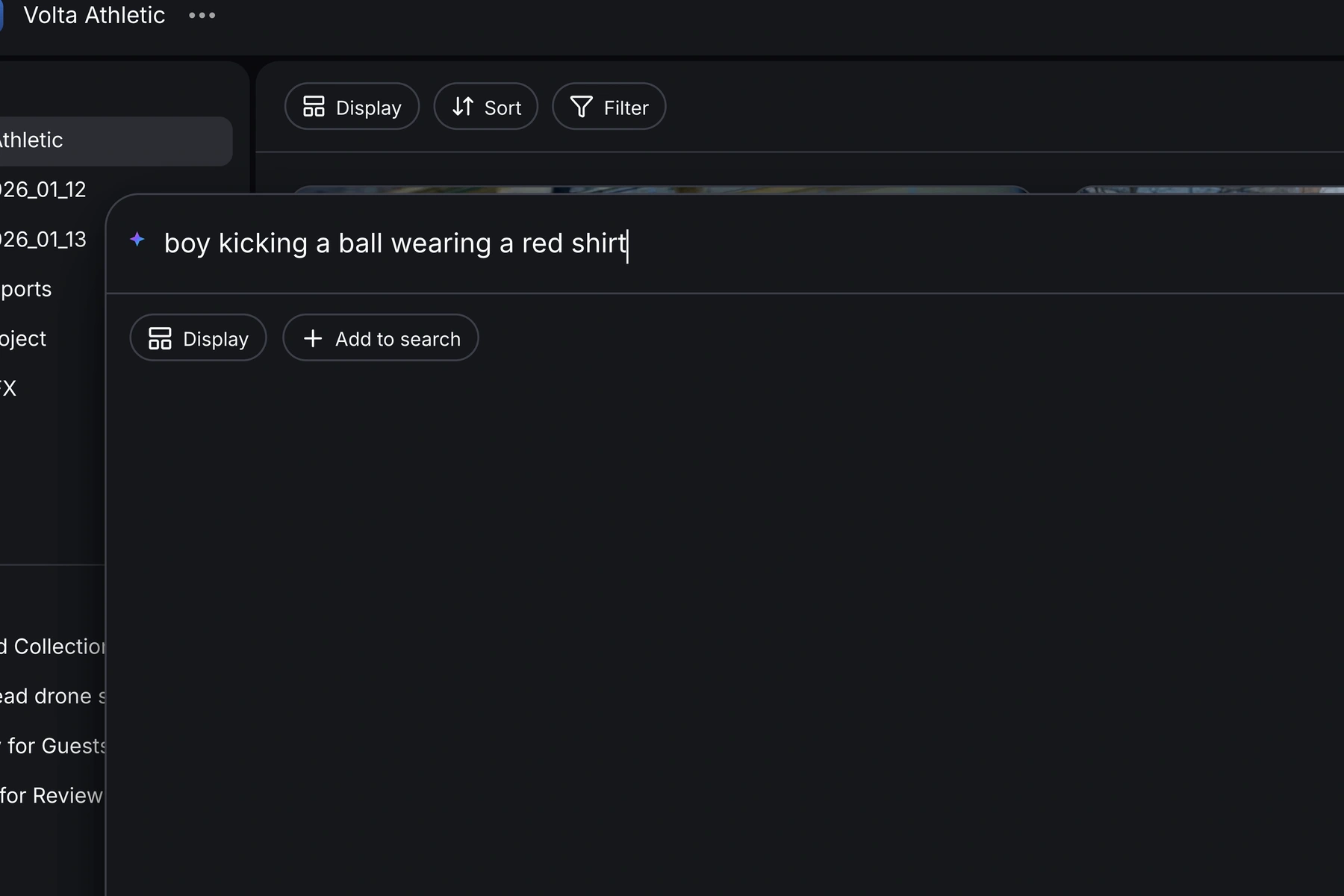
3. Inspect the filters and matching moments
Aspect translates the request into filters you can inspect and adjust. In the example, the Visual filter contains the scene description. Check that the system has interpreted the request the way you intended. If you included a date or project field, inspect that restriction too. A correct visual description combined with the wrong date can hide the right shot.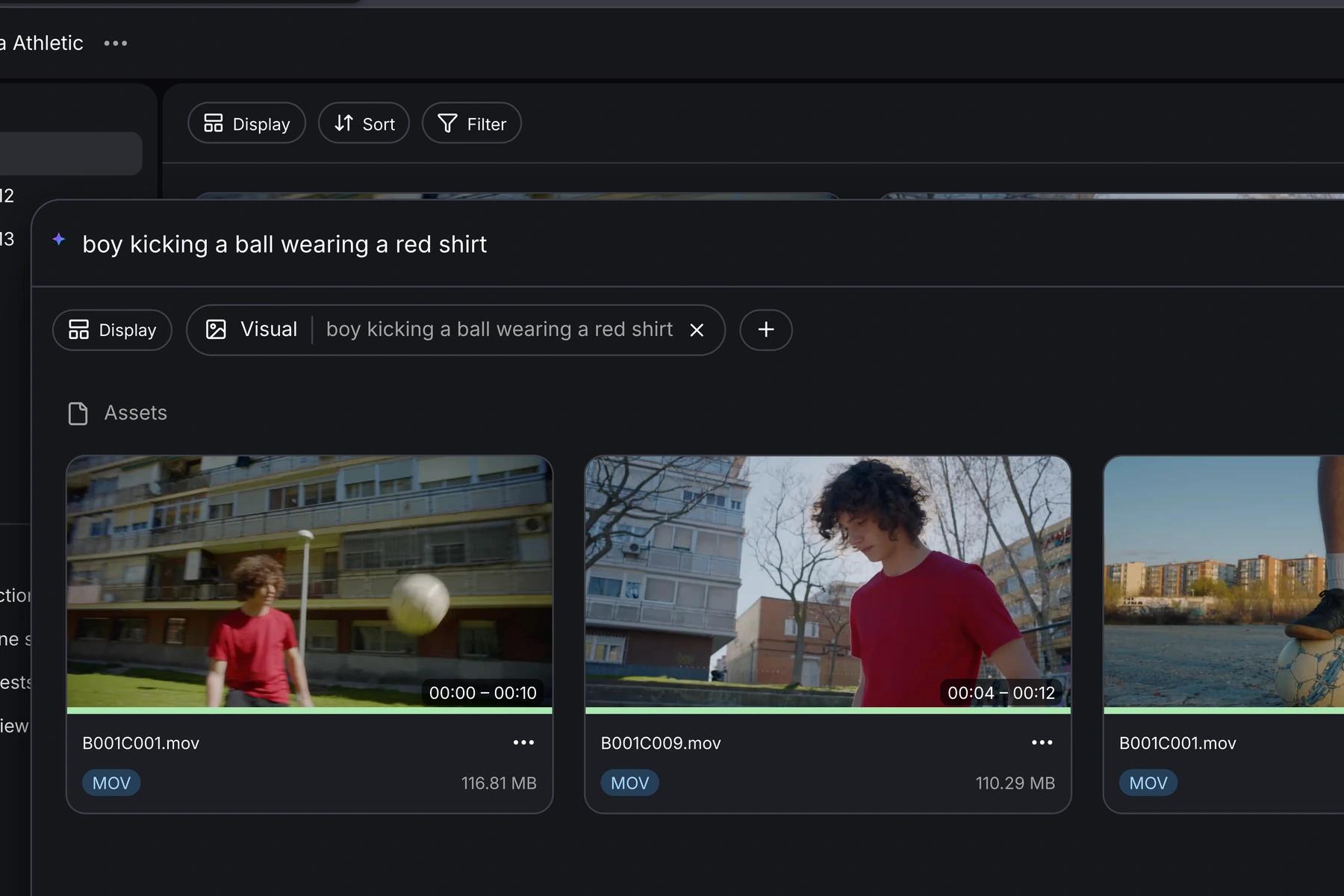
4. Search spoken content for an interview line
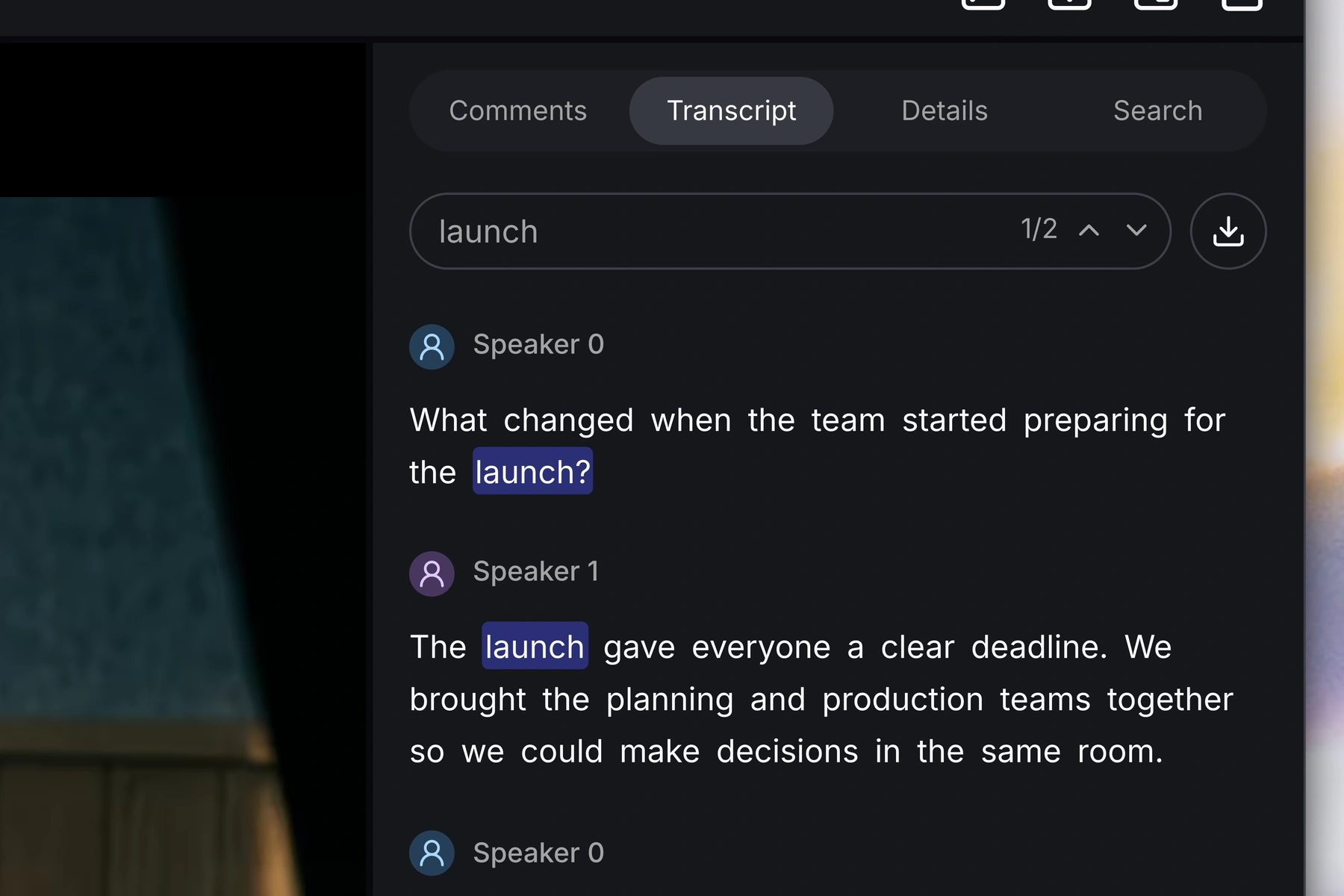
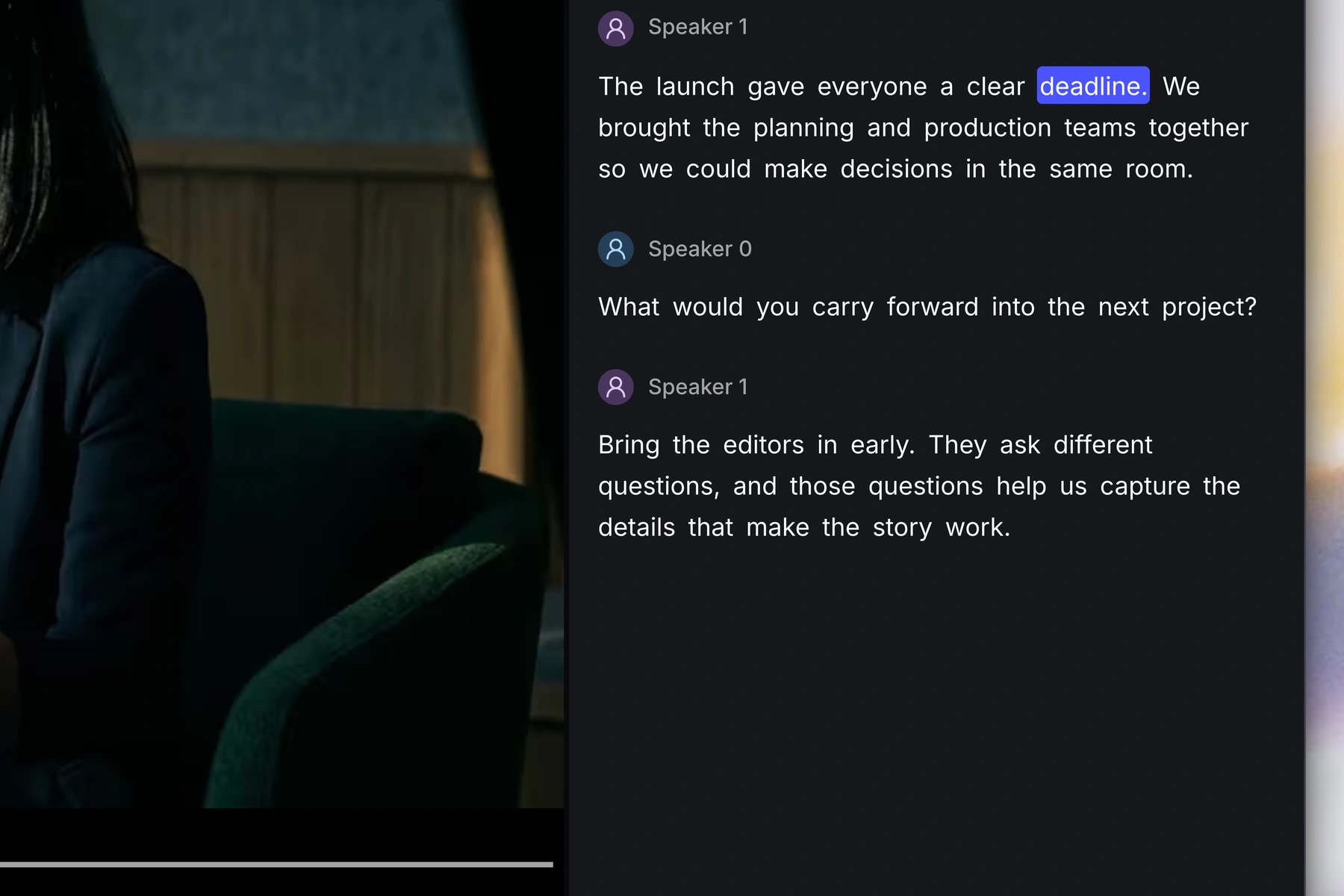
When you need dialogue, describe the quote or topic as spoken content:Interview passages where someone explains how the team prepared for the launch.If you remember the wording, use it. If you only remember the topic, try that first and listen to the candidate passages. Aspect's documentation supports both exact-phrase requests and descriptions of a spoken topic. Once you're inside a recording, open the Transcript tab. Its search field helps you locate a word within that file. In the example, “launch” appears twice. The match count and previous/next controls let you move between occurrences.
5. Refine an ambiguous request
Suppose “the launch” returns product interviews, an event recording, and footage of a boat. Decide which part of the request needs clarification before trying a longer paragraph.- If you want dialogue, specify that someone is discussing the product launch.
- If you want the event footage, describe the visible action or location.
- If the results span several campaigns, add a maintained campaign field.
- If nothing appears, remove a restrictive field and check the project, access, and indexing status.
6. Hand the source to your editor
Keep the source filename and useful time range with your selection. If the result is a quote, include enough context for the editor to judge its meaning. In the Aspect desktop app, right-click the result and choose Open in mount to reveal the original file on your desktop. The project needs to be available through your mounted filespace. Mounting a project provides the shared files through a drive that creative applications can access.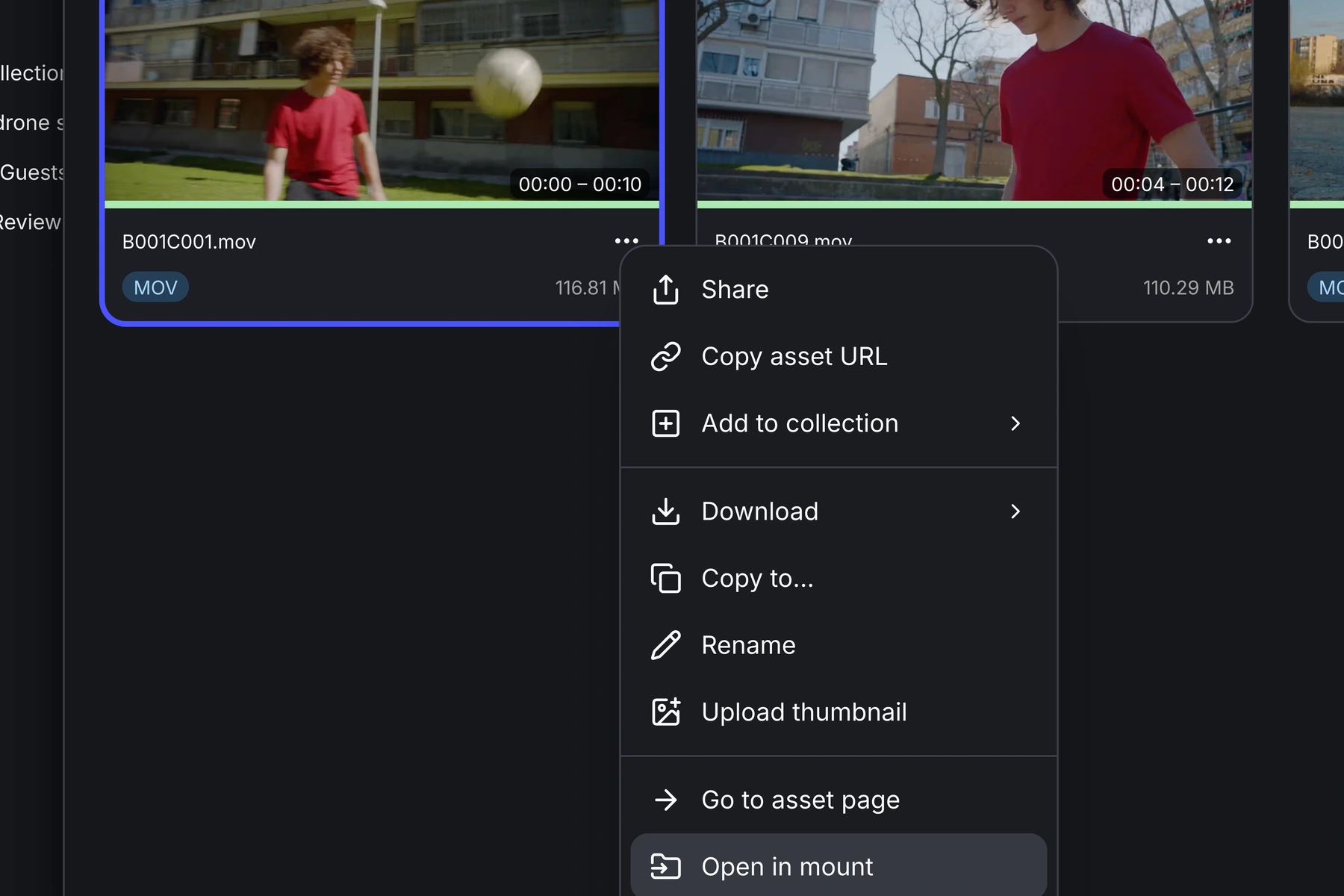
Check whether search works for your library
Use a small repeatable exercise instead of judging the system from one impressive result. Choose five to ten known shots, one known quote, and one request with no valid match. Include a silent clip and a shot whose filename doesn't describe its contents. For each request, record:- Whether the expected file and moment appear.
- Whether the first few results are useful or merely related.
- Whether the matching range includes enough of the action or sentence.
- Whether you can open the original and use it in the edit.
Common mistakes
Using visual search for words someone said. A scene can show a launch event without containing the interview line you remember. Specify spoken content when the audio matters. Accepting the thumbnail as confirmation. Watch the passage. The relevant object might be visible while the action, timing, or framing is wrong. Expecting a named person to be recognized automatically. Aspect's people search uses the people your team configures with reference photos. Check that setup before depending on a person's name in a request. Treating a match as permission to reuse the footage. Review the maintained rights information and applicable releases. The image alone cannot establish the terms of use. If you're still choosing a platform, read our comparison of AI video search tools for production libraries. If you want to see the complete retrieval and editing handoff, bring a few representative clips to an Aspect demo.FAQ
Visual search analyzes what appears on screen. It can search silent footage without relying on dialogue, provided that the footage has been indexed for visual search.
Aspect supports searches for an exact phrase or the spoken topic you remember. Once you open a candidate result, listen to the passage and use its transcript to check the wording and context.
A matching time range identifies a moment in the source. It does not by itself establish that the application creates an NLE subclip or transfers in and out points. Check the handoff supported by your editing workflow.
Check that you are searching the right project, have access to the media, and have allowed the required indexing to finish. Then inspect restrictive filters and try a simpler description of the visible or spoken content.
AI can help find a shot, but a visual match cannot establish usage rights. Filter with maintained rights information and check the underlying releases or licensing records before reuse.