
Start with the workload
For a single editor, Thunderbolt 4 storage is fast enough for active editing. Internal PCIe NVMe becomes necessary when the storage is feeding high-bitrate multicam, RAW, or heavy cache, and when conform, color and VFX, or export work is waiting on sustained throughput and low latency. The real decision is whether your working drive needs to behave like a portable project shuttle, or like part of the workstation.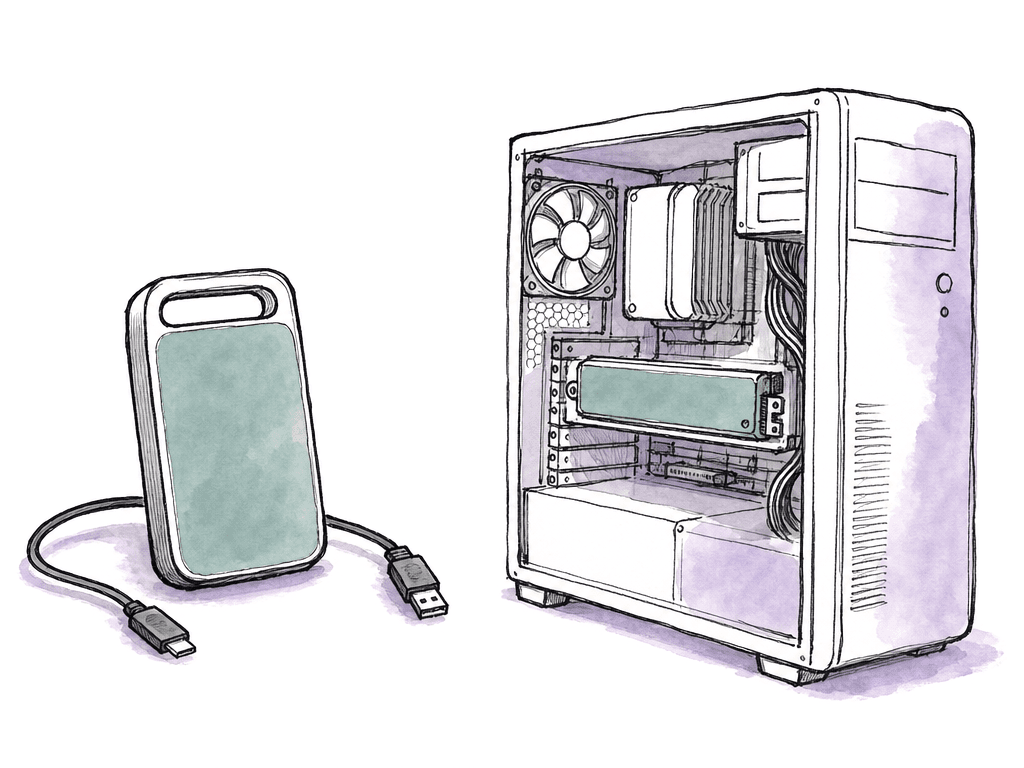
| Factor | Thunderbolt 4 NVMe SSD | Internal PCIe NVMe |
|---|---|---|
| Typical real-world sequential speed | About 2,500 to 3,000 MB/s with a good drive, enclosure, cable, and direct connection | Often 5,000 to 7,000 MB/s on PCIe Gen 4, with higher options on supported Gen 5 systems |
| Best role | Portable active project drive, laptop media volume, shuttle between rooms or systems | Workstation performance storage for OS, apps, cache, scratch, and demanding active media |
| Portability | High, easy to move between machines | Low, tied to one workstation |
| Latency and overhead | Higher overhead from Thunderbolt tunneling, enclosure controller, cable, and topology | Lower latency with a shorter path to the CPU and chipset |
| Where it feels the same | Many HD, 4K, proxy, optimized, and moderate 6K editorial workflows | Normal editing can feel similar if the timeline is not storage-bound |
| Where it pulls ahead | Limited by the external interface ceiling and dock or hub sharing | Heavy multicam, RAW, image sequences, render cache, conform, color, and export workloads |
| Main buying risk | Paying for a 7,000 MB/s blade that cannot run at that speed over Thunderbolt 4 | Buying very fast internal capacity when the real bottleneck is codec decode, GPU, RAM, or media management |
What Thunderbolt 4 actually gives an editor
Thunderbolt 4 is marketed as 40 Gbps. That number is easy to misunderstand, because it is not a 40 Gbps pipe dedicated only to your SSD. Thunderbolt carries PCIe, DisplayPort, and USB through the same connection, along with networking and other traffic. For NVMe storage, the relevant part is PCIe tunneling. In practice, Thunderbolt 3 and Thunderbolt 4 expose up to 32 Gbps of PCIe bandwidth, before overhead. After protocol overhead and controller behavior, enclosure limits, and thermal throttling, a strong Thunderbolt NVMe setup usually tops out around 2,800 to 3,000 MB/s.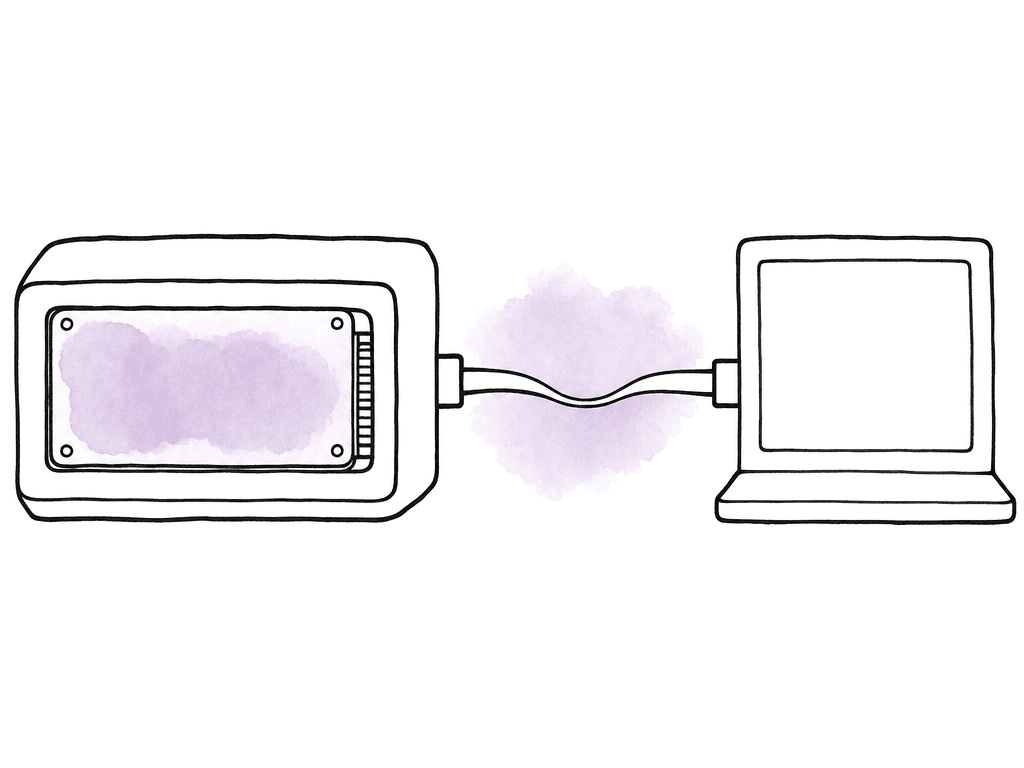
Where internal PCIe NVMe pulls away
Internal PCIe storage has a much shorter path between the drive and the system. There's no external controller, no cable, and no Thunderbolt tunneling layer, and no hub sharing the same uplink. That gives it higher throughput and lower latency. On current workstations, internal NVMe storage is commonly the fastest storage available to the editor. Apple Silicon internal SSDs, high-end PC motherboard M.2 slots, and PCIe add-in cards can all outperform Thunderbolt 4 by a large margin. In some systems, internal storage can be roughly twice as fast as Thunderbolt 3 or Thunderbolt 4 external SSDs. In high-end PC builds, the gap can be larger. That extra speed matters most in workflows that stack multiple storage demands at once. The common examples are:- Multicam timelines with several full-resolution streams
- 6K or 8K RAW playback without proxies
- Heavy color sessions with render cache enabled
- VFX pulls, image sequences, EXR, DPX, or high-frame-rate plates
- Large exports while the app is reading source media and writing cache
The throughput your timeline probably needs
Storage requirements are tied to codec and frame size, to frame rate and bit depth, and to stream count. A single stream of compressed 4K media may not ask much of the drive, while several streams of high-bitrate intraframe media add up quickly. RAW and image sequences move the bottleneck hard toward storage. For single-editor decision-making, these ranges are useful starting points:- Offline or proxy editing often stays below 100 MB/s
- Single-stream 4K in edit-friendly codecs is commonly comfortable around 200 to 400 MB/s
- Multiple streams of 4K intraframe media often require 500 MB/s to 1,000 MB/s or more
- 6K/8K compressed finishing commonly benefits from 1,000 MB/s and higher
- 8K RAW, image sequences, heavy multicam, or finishing cache can make 1,500 MB/s to 3,000 MB/s or more relevant
When Thunderbolt 4 is good enough
Thunderbolt 4 external SSDs make a lot of sense for single-editor setups because they solve the right problem: fast local working storage that can move between machines. They're especially strong when the project has to travel. If you move between a home system, an office workstation, and a laptop — or between a color room and set — external Thunderbolt storage keeps the active project self-contained. It also avoids filling expensive internal storage with media that may only be active for a few weeks. Thunderbolt 4 is a good fit for these setups:- One editor cutting HD, 4K, or moderate 6K projects
- ProRes, DNxHR, CineForm, XAVC, BRAW, or RED workflows using proxies or optimized media where needed
- Portable laptop-based editing
- Single-machine finishing where media bandwidth stays under the 2,500 to 3,000 MB/s range
- Project drives that need to be handed between Mac and PC systems
When internal PCIe is the better call
Internal PCIe NVMe is the better call when storage speed is part of the workstation’s performance envelope rather than a removable project container. If you're building or buying a desktop workstation, internal NVMe should be the first place you put the operating system and applications, the active cache, and the highest-pressure working media. The cost per terabyte may be higher than bulk external storage, but the performance per dollar is excellent compared with trying to make external storage behave like internal storage. Internal PCIe is worth prioritizing when you regularly do any of the following:- Finish high-resolution media at full quality instead of using proxies
- Cut multicam without transcoding to lighter editorial media
- Work with image sequences or large VFX plates
- Render cache constantly during grading
- Export while continuing to work on the same project
Hubs, docks, and the “why is my drive slow?” problem
A lot of Thunderbolt storage complaints come from the chain around the drive. Thunderbolt 4 supports hubs, docks, and daisy chains, but bandwidth still has to come from somewhere. If one cable from the computer feeds a dock, and that dock feeds a 4K display and a 10GbE adapter, audio hardware, a card reader, and your SSD, your storage is competing with the rest of that traffic. Some hubs also handle Thunderbolt 3 and Thunderbolt 4 storage differently depending on their chipset and port layout.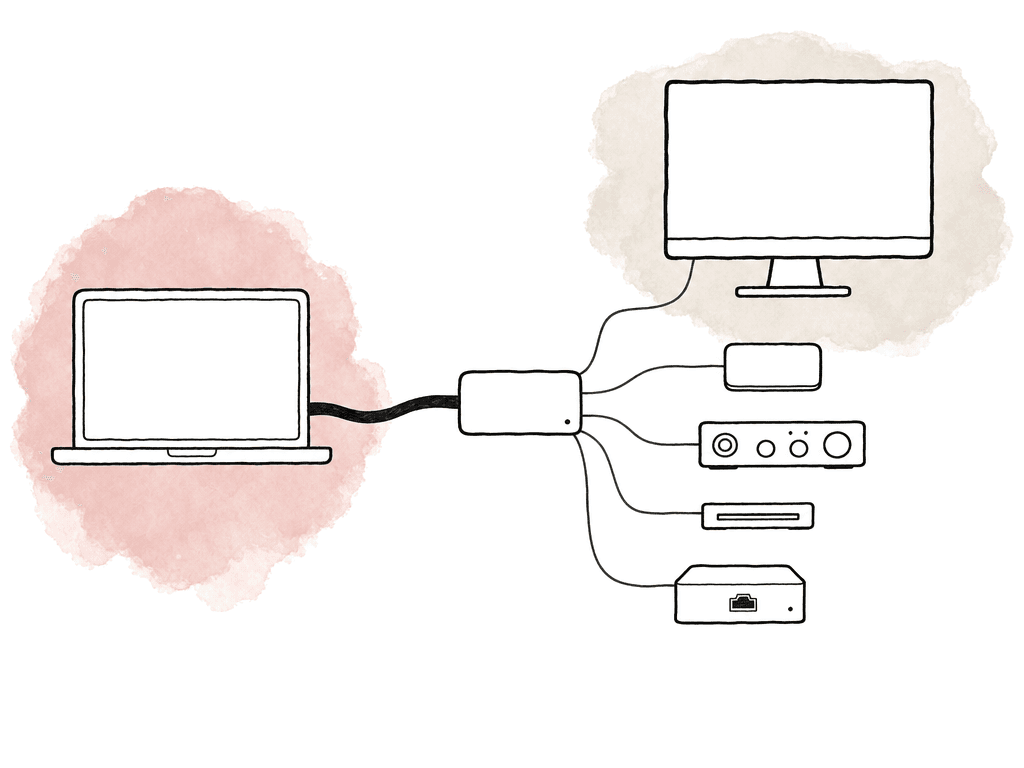
- Plugging the SSD into a dock instead of directly into the workstation
- Using a USB-C cable that isn't rated for Thunderbolt or 40 Gbps operation
- Buying a USB4 enclosure that doesn't consistently support fast PCIe tunneling on your host
- Running long transfers until the enclosure overheats and throttles
- Formatting the drive in a file system that performs poorly for the target OS
- Filling the SSD close to capacity, which can reduce sustained write behavior
- Testing only peak speed instead of sustained speed over a large file transfer
USB4, USB-C, and label confusion
USB-C is a connector shape, not a speed guarantee. Thunderbolt 4, USB4, and USB 3.2 drives can all use USB-C, and they look identical on the outside while performing very differently. Thunderbolt 4 has stricter requirements than generic USB-C storage and is generally more predictable for high-performance external NVMe. USB4 can be excellent, and some USB4 SSDs perform close to Thunderbolt 4 levels, but USB4 implementations vary more. Some support the features you want for fast SSD performance, some don't, and host compatibility can be messier. For a single editor buying a working drive, the safest external choices are:- A certified Thunderbolt 4 NVMe SSD or enclosure for predictable high-end external performance
- A reputable USB4 SSD if you have confirmed real-world performance on your specific machines
- A USB 3.2 Gen 2 or Gen 2x2 SSD for offload, backup, proxy work, or lighter editing
- SATA SSDs and HDDs for archive, delivery, and backup rather than active high-res editing
Cost and performance tradeoffs
The expensive mistake is buying speed in the wrong place. A premium PCIe Gen 4 NVMe blade inside a Thunderbolt 4 enclosure will still be capped by Thunderbolt 4. A midrange NVMe blade with good sustained performance may deliver nearly the same external speed for less money. Spending extra on enclosure quality and thermal design, on the cable, and on the warranty can matter more than buying the highest peak-rated SSD. For internal PCIe, the opposite is often true. If your workstation has a fast M.2 slot or PCIe add-in option, a strong NVMe drive can actually use more of its rated speed, and internal drives avoid the enclosure tax. On a desktop PC, internal NVMe is often the best cost-performance option for active storage. On many Macs, internal storage is extremely fast but expensive at purchase time, and you can't upgrade it later. That makes Thunderbolt external storage more attractive for capacity expansion. Think of the budget in tiers:- HDDs are the cheapest per TB option for archive and backup
- SATA SSDs and slower USB SSDs provide affordable working capacity for lighter projects
- Thunderbolt 4 or strong USB4 NVMe SSDs make sense for portable working storage
- Internal PCIe NVMe is the workstation performance storage tier
- PCIe SSD cards, NVMe RAID, or newer high-bandwidth external standards are specialty high-bandwidth options for finishing and specialty work
A sane single-editor layout
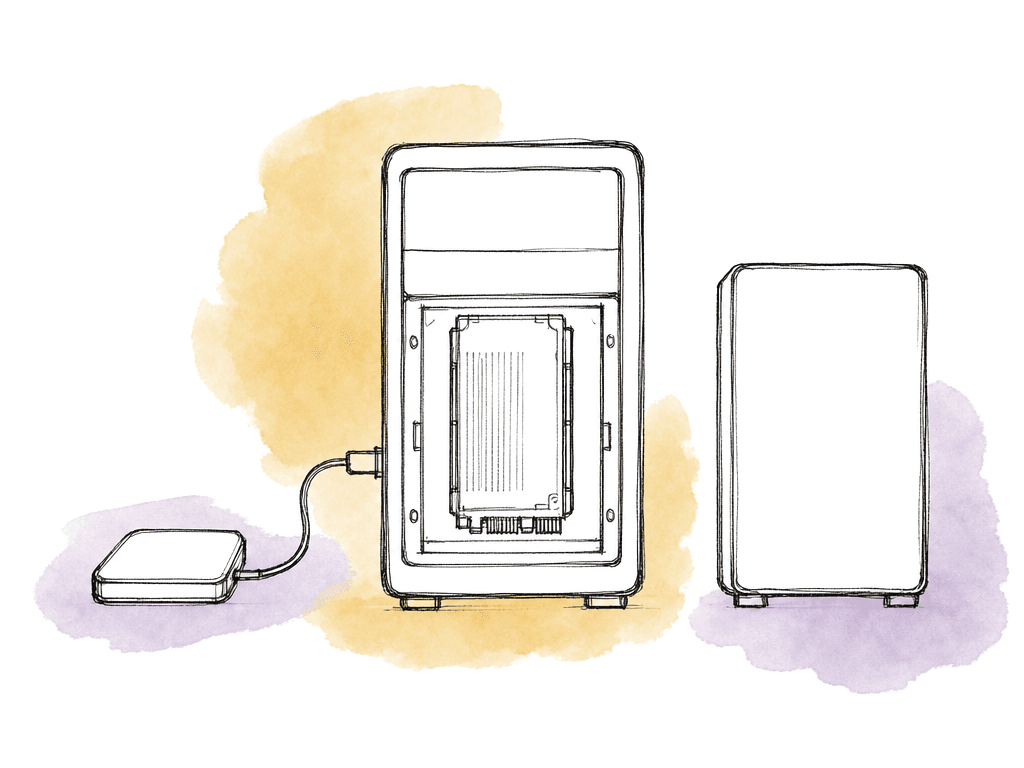
A stable setup separates work by access pattern. Your system drive is doing OS and app work. Your media drive is feeding playback. Your cache drive is absorbing writes. You shouldn't expect your archive to play a timeline. A strong single-editor configuration looks like this:- Use internal PCIe NVMe for OS, applications, NLE databases, project files, and cache
- Use a Thunderbolt 4 NVMe SSD for active media and portable project storage
- Use a second SSD or internal volume, if available, for render cache, previews, optimized media, or scratch
- Use a large HDD, NAS, or secondary external storage for backups, completed projects, camera originals, and archive
- Keep a separate backup target that you don't mount as the only other copy of the active project
How to decide without overbuying
If your current storage plays the timeline smoothly, exports at expected speeds, and doesn't stall during cache or conform work, you don't need internal PCIe just for the sake of it. Spend the money on capacity and backups. Spend it on RAM, GPU, or monitoring, or on a better media management process. Move toward Thunderbolt 4 when you need fast removable storage that can handle real editing work. Move toward internal PCIe when your workload is tied to one workstation and you need maximum sustained speed, lower latency, and more headroom. Use Thunderbolt 4 for most single-editor media projects. Internal PCIe is the right performance drive for the machine itself and for workflows where storage is already proven to be the bottleneck. Don't buy based on the biggest number printed on the box. Buy based on the slowest part of your actual workflow: the codec and stream count, the cache and connection path, the thermals, the backup plan. Run one real timeline off the drive you already own, watch where it stalls, then spend money on that.FAQ
Yes, Thunderbolt 4 is fast enough for most single-editor 4K workflows, especially when cutting ProRes and DNxHR, XAVC and XF-AVC, or optimized media and proxies. A good Thunderbolt 4 NVMe SSD usually delivers around 2,500 to 3,000 MB/s in real use, which is far above the needs of many 4K timelines.
Thunderbolt 4 has a practical storage ceiling below the rated speed of many modern NVMe drives. Although the port is marketed as 40 Gbps, NVMe storage over Thunderbolt uses PCIe tunneling with overhead, controller limits, and enclosure limits. As a result, even a very fast PCIe Gen 4 SSD will usually top out around 2,800 to 3,000 MB/s externally.
Choose internal PCIe NVMe when storage performance is part of the workstation’s workload, not just a place to hold media. It's the better choice for high-bitrate multicam, 6K or 8K RAW, and image sequences. It also wins for heavy render cache, color grading, VFX pulls, conform work, and export-heavy workflows where sustained read and write speed matters.
Yes. If the SSD is connected through a dock that also handles displays, Ethernet, and capture devices, or card readers and other storage, the drive may be sharing bandwidth with all of them. For best performance, connect the active media drive directly to the computer with a certified Thunderbolt cable whenever possible.
A practical layout is internal PCIe NVMe for the operating system and applications, for project files and databases, and for cache. Add a Thunderbolt 4 NVMe SSD for active media and portable project storage. Use larger HDDs, NAS storage, or secondary external drives for backup, archive, and completed projects.
If the bottleneck is handoff time rather than raw disk speed, a shared cloud media space can replace many shuttle drives. Aspect lets editors mount a shared cloud filespace like a drive, stream media as the NLE requests it, and pin folders locally when they need offline access.