Decide whether you need shared access or simultaneous sessions
Most teams say they want multiple users to share a powerful workstation, but that can mean a few different things. The common patterns look like this:- Rotating access: editor in the morning, assistant in the afternoon, producer review in the evening.
- Supervised access: editor drives the workstation while a director, producer, or client watches or occasionally takes control.
- Support access: assistant editor or technical director logs in to prep projects, relink media, install plugins, or troubleshoot.
- True multi-session access: multiple users log into the same host at the same time, each with a separate desktop session.
- Remote PC access: your team assigns each user to one physical office workstation, but connects from home or another location.
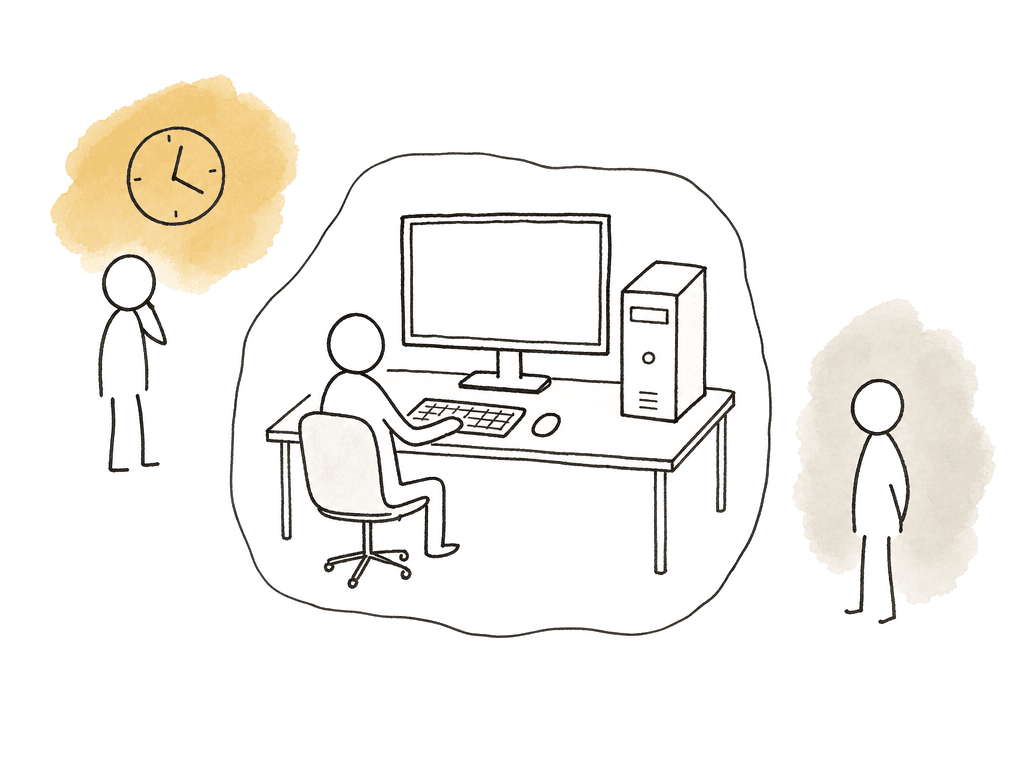
Keep the media close to the workstation
Remote desktop is attractive because you don't stream camera originals to someone's home laptop. You stream pixels from the host's display. The workstation reads media from local NVMe or direct-attached RAID. It may also read from a NAS or SAN, from Avid Nexis, or from another central storage system on the facility network.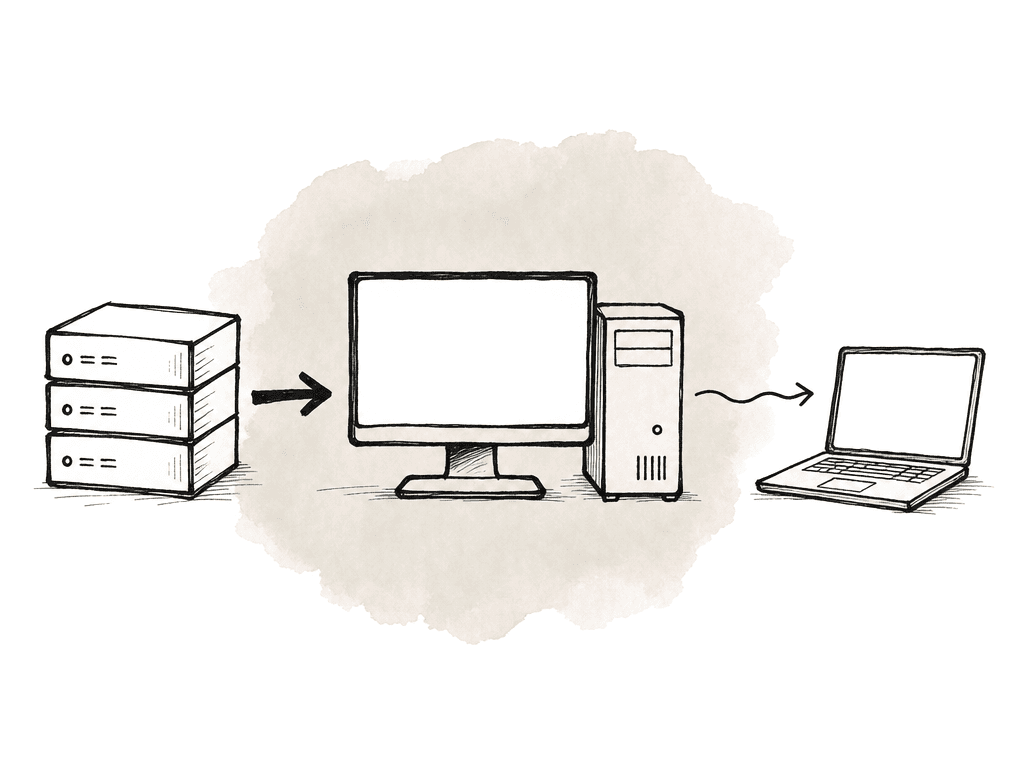
- Shared media volume for camera originals, proxies, graphics, VFX pulls, sound, and turnovers.
- Project storage with clear ownership rules, especially for NLEs that don't support simultaneous project writes.
- Fast local cache on the workstation for conformed audio, waveform files, render cache, database cache, temp exports, and app scratch.
- Separate export destination so long renders don't fill the system drive or user profile.
- Backup or snapshot policy for the central storage, not just the workstation.
Pick the remote desktop protocol for the task
For normal IT access, Windows Remote Desktop Protocol is convenient, built in, and manageable. For high-frame-rate creative interaction, GPU-oriented streaming tools feel better, because they're designed around low-latency H.264 or H.265 desktop streaming over UDP. The practical differences come down to session behavior, GPU capture, admin controls, and network traversal.| Option | Best fit | Session behavior | Main watchouts |
|---|---|---|---|
| Windows RDP | Administration, file management, prep work, light editorial | Creates or reconnects to a Windows session that may differ from the console | Display adapter changes, audio routing, GPU behavior, app licensing, and monitor layout surprises |
| Parsec | Low-latency creative control of a physical workstation | Streams the host desktop with GPU-accelerated H.264 or H.265 | Requires access management, tested host settings, and clear rules for operators and observers |
| Moonlight with Sunshine | Low-latency streaming for teams comfortable self-managing | Streams a GPU-captured desktop from a paired host | NAT traversal, pairing, security, updates, and support are mostly on your team |
| Citrix Remote PC Access | Enterprises with existing Citrix infrastructure and assigned office PCs | Brokers access to a user's physical workstation | Best when identity, gateways, policies, and support already exist in Citrix |
| RDS, VDI, or multi-session Windows | Managed desktop pools, producer desktops, admin tools, or scaled environments | Multiple users may receive separate sessions depending on design | GPU allocation, creative app support, licensing, storage load, and peripherals need real workflow testing |
- Windows RDP: good for administration, light creative tasks, project prep, file management, license checks, and some offline editorial workflows. It creates or reconnects to a Windows session and may behave differently from the physical console session.
- Parsec: strong fit for interactive creative work because the host encodes the desktop as a low-latency H.264 or H.265 stream. Team features can add centralized access control, host assignment, SSO, and easier freelancer onboarding.
- Moonlight with Sunshine: strong low-latency streaming option with more self-managed setup. It can perform very well, but NAT traversal, pairing, security, and support are more on your team.
- Citrix Remote PC Access: better fit for organizations that already run Citrix and want employees to access assigned physical office PCs through managed infrastructure.
- Full VDI or RDS farm: useful when you need many managed desktops, but your team should treat it as infrastructure, not a quick way to share one edit box.
Build access around named users
A shared Windows login feels fast until it ruins accountability. It also makes things collide: user preferences and caches, cloud sync and app licenses, browser sessions and project histories. Everyone who controls the machine should have their own account. That covers the editor and the assistant as much as the TD, the colorist, and the producer. The account model should define a few things clearly:- Who can log into the workstation remotely.
- Who has local administrator rights.
- Who can install plugins, drivers, codecs, fonts, and license managers.
- Which shared storage locations each role can read or write.
- Where each user's application caches and temp files live.
- What happens to inactive or disconnected sessions.
Make scheduling part of the technical design
If the workstation is expensive enough to share, schedule it. Calendar discipline matters more once remote desktop removes the social cues of a physical room. Two people can both think they have the machine, because nobody sees a closed door or a person at the keyboard. The schedule should track more than the person's name. Useful booking metadata includes: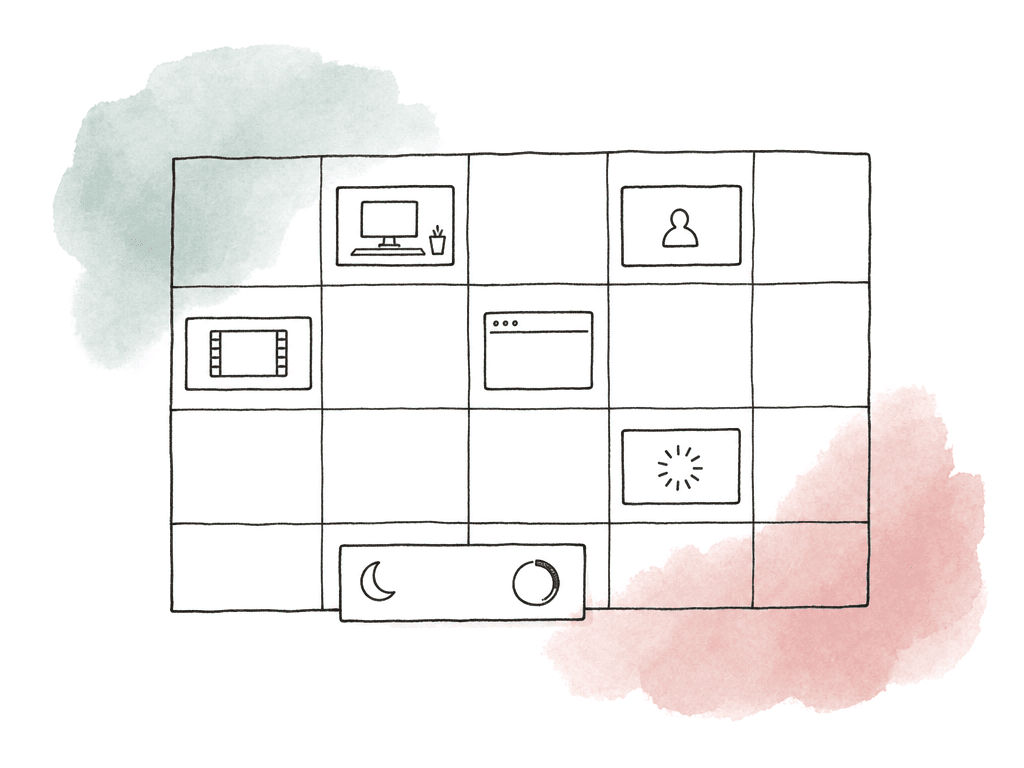
- Workstation name.
- User and role.
- Project or show.
- App expected to run.
- Whether the booking needs exclusive control.
- Whether the editor, assistant, colorist, or artist allows observers.
- Whether renders or exports may continue after the booking.
- Who can force-logoff or reboot if the machine is stuck.
Tune the host like an edit workstation first
Remote desktop performance depends on the weakest part of the path:- Host GPU encoding and host CPU
- Storage and LAN
- Internet uplink and remote user downlink
- Decoder performance and display resolution
- The remote protocol's own settings
- GPU with reliable hardware encode support for H.264 and ideally H.265.
- Enough VRAM for the creative app and the remote stream.
- Wired network to storage, preferably 10GbE or better for high-bitrate shared media workflows.
- Wired internet or facility uplink, not Wi-Fi.
- Fast local SSD or NVMe cache.
- Stable display configuration with dummy plugs or virtual displays if the machine runs headless.
- Power settings that prevent sleep, display-off weirdness, and USB suspend.
- Driver versions your team has tested with your NLE, finishing app, and remote desktop tool.
Tune the stream for editorial reality
The instinct is to max everything out. 4K at 60 fps, high bitrate, 10-bit. Multi-monitor at best quality. Sometimes that's right. Often it's a waste. Offline editorial usually benefits more from responsiveness than from pixel perfection. Color and VFX may need higher quality, and so may graphics and finishing. Even then, the remote desktop stream isn't always the source of truth for final image evaluation. Useful stream settings depend on the job:- Offline edit: 1080p or 1440p, 30 to 60 fps, moderate bitrate, prioritize low latency.
- Timeline review: 1080p, stable frame pacing, good audio sync, allow observers if the tool supports it.
- Motion graphics or VFX: 1440p or 4K if UI detail matters, higher bitrate, consider stylus/tablet support.
- Color grading control: low-latency control stream, separate plan for calibrated monitoring when required.
- Audio-sensitive work: test audio routing and latency carefully, especially if remote voice comms run on the same client.
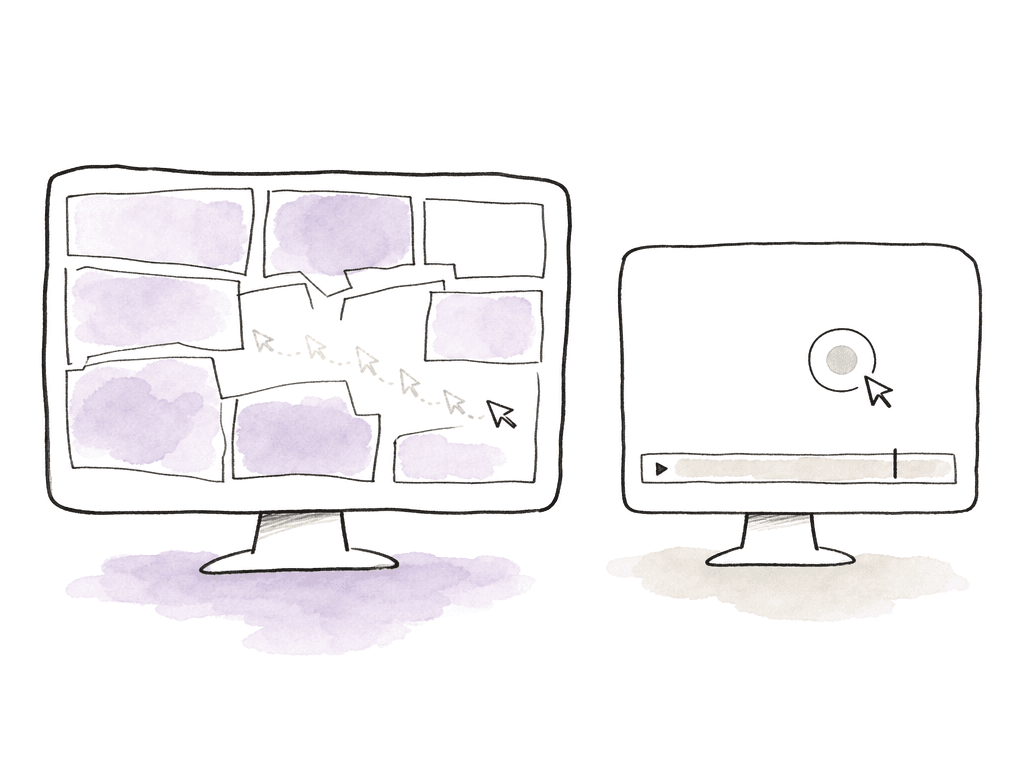
Treat observers differently from operators
Remote review is one of the best uses of a shared workstation, but it needs role separation. The person driving the session and the people watching shouldn't all have the same control level. A clean review setup has three layers:- Operator: the editor, assistant, colorist, or artist controlling the workstation.
- Observer: producer, director, supervisor, client, or teammate watching the stream.
- Admin: trusted technical user who can manage access, reboot, or recover the machine.
Watch for profile, cache, and license collisions
Most shared workstation pain comes from state. Creative workstations accumulate it everywhere:- User profiles and app preferences
- Project databases
- GPU caches, render caches, and LUT folders
- Font activation and plugin licenses
- Browser auth and cloud sync clients
- Mounted network volumes
- NLE media cache.
- Resolve cache and gallery stills.
- After Effects disk cache.
- Transcode and watch-folder outputs.
- Temp exports.
- App crash dumps and logs.
Secure it like production infrastructure
Don't expose RDP directly to the public internet. That advice has been around forever because people still ignore it. Use a VPN, secure gateway, or brokered remote access product. A zero-trust access layer or managed platform works too, whichever fits your IT environment. Security for shared workstations should cover identity, network, endpoint, and audit behavior. Important controls include:- Named accounts with MFA where supported.
- Least-privilege local admin access.
- Centralized offboarding for freelancers and vendors.
- Logging for connection events and administrative actions.
- Clear rules for clipboard, file transfer, drive redirection, and printer redirection.
Have a recovery path when remote access breaks
When a remote workstation is in another room, remote access failure is annoying. When it's in another city, it can stop the day. Build a second path in. For Windows RDP problems, Microsoft's own troubleshooting guidance starts with the basics:- Confirm the machine has RDP enabled.
- Confirm policy isn't blocking it.
- Confirm the listener exists.
- Confirm the port is reachable.
- Inspect session state.
qwinsta can show whether rdp-tcp is listening. PowerShell remoting can help if RDP itself is broken but the machine is still alive.
In a post environment, likely failure modes include:
- Host is asleep or stuck at a firmware, BitLocker, or login screen.
- Remote tool service didn't start after reboot.
- Display emulator failed or resolution changed.
- Storage mount dropped, causing the app to freeze.
- VPN is connected, but routing or DNS changed.
Know when one shared workstation is the wrong architecture
A shared workstation is a good bridge when you have expensive hardware, centralized media, and users who can schedule access. It isn't a substitute for a facility-wide remote post architecture. Move beyond a single shared workstation when you see patterns like these:- Bookings are constantly colliding.
- One machine's GPU, RAM, or storage can't handle the workload.
- Freelancers need fast onboarding and offboarding at scale.
- Different shows require isolated plugins, fonts, app versions, or security rules.
- The workstation is becoming an unofficial server for everyone's exports.
A workable baseline for a small post team
For a small team sharing one or two high-end systems, the baseline can be straightforward. Use named user accounts. Keep media on shared storage. Put app caches on a fast local cache volume with per-user folders. Use a low-latency streaming tool for creative control and keep RDP or another admin path for support. Schedule the workstation like a room. Define whether bookings end with sign-out or disconnection. Test the exact apps, codecs, and panels before the first real client session, and test licenses, audio devices, and monitor layout too. That setup won't solve every remote workflow problem, but it gives the team a stable operating model. The workstation stays powerful, the media stays centralized, and users stop fighting invisible sessions. In post, that's usually the difference between remote access that feels like a useful extension of the facility and remote access that becomes another thing production has to manage.FAQ
Usually not in a practical editing or finishing workflow. Treat a single high-end workstation like a shared edit bay, with one active operator at a time. True multi-session access is possible with technologies like Windows Remote Desktop Services, Citrix, or VDI. Before you rely on it, test creative apps, GPU usage, and licenses carefully, along with audio devices and storage performance.
Windows Remote Desktop works well for administration and file management, and for project prep and light editorial tasks. For responsive timeline work, low-latency tools such as Parsec or Moonlight with Sunshine feel better, because they're designed for GPU-encoded desktop streaming. RDP may also present a different session, display adapter, audio device, or monitor layout than the physical workstation.
For remote desktop workflows, media should stay near the workstation on fast local storage, NAS, SAN, Avid Nexis, or another shared storage system. The remote user receives a compressed view of the desktop, while the host workstation reads the media. If the host can't play the timeline smoothly from storage locally, remote desktop won't fix that problem.
Separate logins protect accountability. They reduce conflicts between preferences, caches, and cloud accounts, and between browser sessions, licenses, and project histories. They also make it easier to see who left a session open and who owns unsaved work. And they make clear which permissions should apply to each editor, assistant, producer, or technical user.
Offline editorial usually benefits more from low latency than from maximum image quality. A 1080p or 1440p stream at 30 to 60 fps with a moderate bitrate is often more usable than a 4K stream that drops frames. H.265 can improve quality at a given bitrate, but H.264 may be more reliable on older laptops or locked-down client machines.
Separate review from operation. The editor keeps control of the remote desktop while producers review uploaded cuts in a browser. There they leave timestamped comments, compare versions, and mark approvals. Aspect supports frame-accurate comments, annotations, replies, notifications, and version stacking as part of the review workflow.