

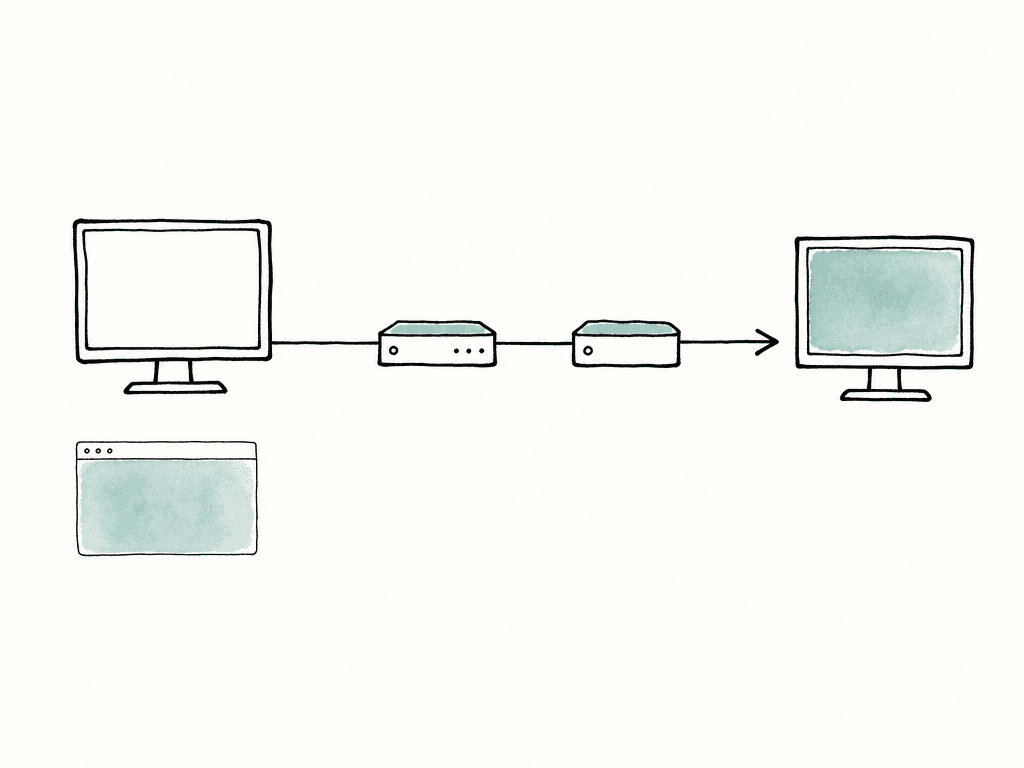
Workstation or grading system
→ video output card
→ SDI cable
→ LUT box or color management device
→ SDI cable
→ reference display
Start with the monitoring target
Before buying or wiring anything, define the signal you need to monitor. The same hardware can behave very differently depending on format, frame rate, levels, and color pipeline. For a standard SDR editorial or finishing room, the usual target is:- Rec.709
- Gamma 2.4 for a dim grading environment
- 100 nit reference white
- 10-bit video signal where possible
- Legal/video levels unless the whole chain is explicitly built around full/data levels
- Native project frame rate, not a convenient converted rate
- 1920x1080 or UHD, depending on the room and deliverable
- PQ or HLG
- Rec.2020 container, often with P3-limited mastering inside it
- Defined peak luminance, such as 600, 1000, or 4000 nits depending on the display and deliverable
- Correct HDR metadata behavior if any device in the chain depends on it
- 12G-SDI, quad-link SDI, or HDMI 2.x depending on resolution and frame rate
- A monitor that can actually display the required luminance and gamut, not just accept the signal
Choose the output card based on signal
Blackmagic DeckLink and UltraStudio devices, AJA Kona and Io devices, and similar video I/O hardware all solve the same core problem: they output a dedicated video signal from the workstation to the monitoring chain. The right choice depends on what you need to carry. The main decision points are:- Support for the SDI format you need, including 3G, 6G, 12G, quad-link, or dual-link
- The maximum raster and frame rate, such as HD, UHD, 4K DCI, or 50p/60p
- The required color sampling and bit depth, including 4:2:2 10-bit, 4:4:4, RGB, or 12-bit where required
- The connection type to the computer, such as PCIe, Thunderbolt, or external chassis
- Driver support for the software you actually use
- Enough outputs for client, scopes, recorder, or separate clean feeds
- Sync input if the room needs house reference or genlock
- Embedded audio support, especially if monitoring audio through SDI
Keep the signal path SDI when you can
For professional monitoring, SDI is usually the least annoying path. It locks well, carries embedded audio, supports long cable runs, and behaves predictably in machine rooms and grading suites. HDMI can work, especially for small rooms or consumer client displays, but it adds more ambiguity around levels, color space flags, HDCP, EDID negotiation, and range handling. A solid SDI path looks like this:DeckLink / AJA output
→ SDI out
→ LUT box SDI in
→ LUT box SDI out
→ reference monitor SDI in
Decide where the LUT should live
You can apply a LUT in several places: in the software, in the output card path, in an external LUT box, inside the monitor, or sometimes in the camera for on-set viewing. For a post monitoring chain, an external LUT box is useful because it separates the monitoring transform from the creative application timeline. That separation matters because you usually don't want to bake a display LUT into editorial exports, dailies, or online renders by accident. You want the LUT to affect the monitor path while the media, timeline, and render pipeline remain controlled by the project’s color management plan. External LUT boxes and color management devices apply 1D and/or 3D LUTs to a live SDI signal. Common uses include:- Log-to-Rec.709 viewing transforms
- Show LUT preview
- Display calibration LUTs
- SDR/HDR monitoring transforms
- Matching multiple monitors in a controlled pipeline
Use the LUT box for the right transform
There are two common LUT box patterns in post rooms, and mixing them up causes a lot of confusion. The first pattern is a display calibration LUT. In this setup, the grading application is already outputting the intended display color space, such as Rec.709 Gamma 2.4. The LUT box applies a calibration correction so the monitor conforms more accurately to that target. Your team should create this LUT through a proper calibration process for that specific monitor, input, luminance, and viewing condition. The second pattern is a viewing or show LUT. In this setup, the system may be outputting log, camera color, ACES, DaVinci Wide Gamut, or another working/rendering space, and the LUT box converts that signal into a display-referred image for the monitor. This is more common on set and in look development, but it also appears in post pipelines that want a hardware viewing transform. The danger is double-transforming. For example, if Resolve is already outputting Rec.709 Gamma 2.4 and the LUT box also has a log-to-709 LUT loaded, the image will be wrong. If the monitor also has an internal calibration LUT or color space conversion enabled on top of that, it can be wrong in a subtler way.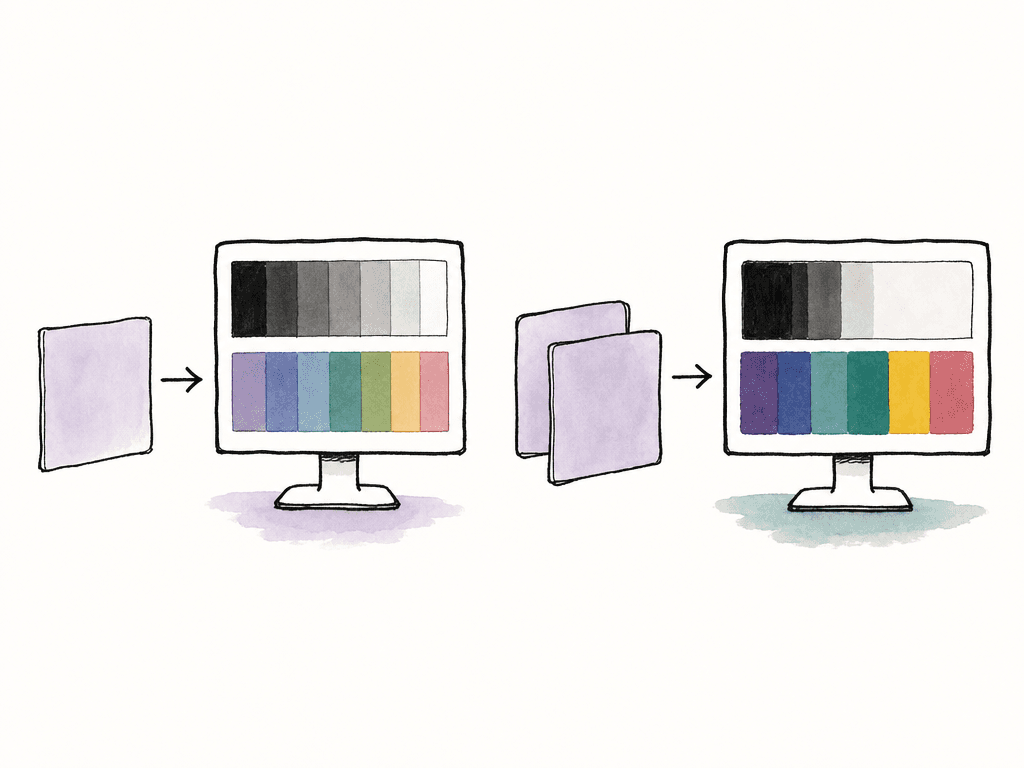
- Project color management describes how source media is interpreted and transformed in the software
- The output transform defines what the application sends to the video output card
- The LUT box transform handles calibration, show look, or viewing conversion
- The monitor mode sets the display’s target color space, EOTF, range, and luminance
| Stage | Job in the chain | Typical setting or content | Common mistake |
|---|---|---|---|
| Project color management | Interprets source media and defines the working or rendering space | ACES, DaVinci Wide Gamut, camera color management, scene-referred workflow | Assuming it is the same thing as monitor calibration |
| Application output transform | Defines the signal sent from the software to the video output card | Rec.709 Gamma 2.4, PQ Rec.2020, HLG, or a deliberate log feed | Leaving an unchecked preset active or sending the wrong display target |
| LUT box | Applies the assigned hardware transform in the SDI path | Display calibration LUT, show LUT, log-to-709 viewing LUT, HDR-to-SDR transform | Applying a second viewing transform or stacking calibration LUTs unintentionally |
| Reference display mode | Sets how the monitor interprets and displays the incoming signal | Rec.709 Gamma 2.4 at 100 nits, PQ Rec.2020 at target peak, correct input range | Using auto modes, dynamic processing, wrong gamut, or wrong range |
Configure the software output deliberately
In your NLE or grading system, choose the dedicated video device as the monitoring output. Don't judge color from the program viewer on the computer display unless that's explicitly your workflow and you understand the compromise. In Resolve, Premiere Pro, Media Composer, Baselight, Flame, and other systems, the details differ, but the intent is the same. The application needs to know:- Which video I/O device to use
- Output raster and frame rate
- Whether to follow timeline format or force a monitoring format
- Data levels or video levels behavior
- Output color space or display transform
- Whether external video scopes, clean feed, or HDR metadata are active
- Whether the application is applying a video monitoring LUT
Match levels across the whole chain
Video levels versus data levels is one of the easiest ways to make a calibrated display look “uncalibrated.” The image might look washed out, crushed, too contrasty, or slightly wrong in the shadows and highlights. People will start adjusting the monitor, the grade, or the LUT, when the real issue is range mapping.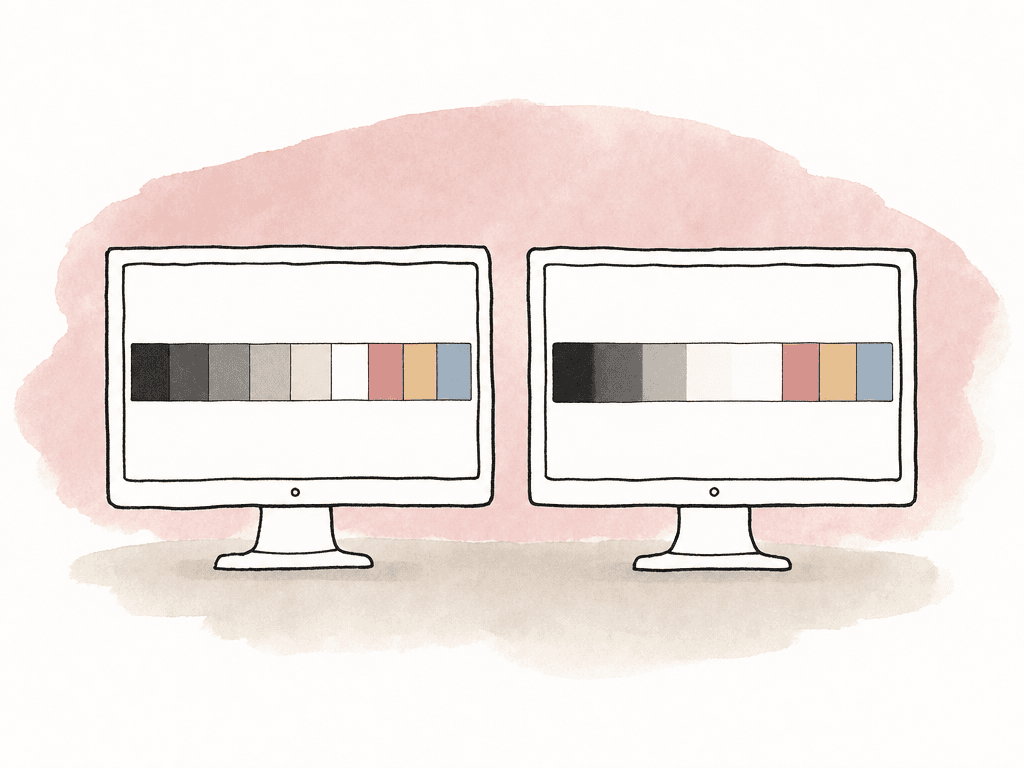
- Video/legal levels use the traditional limited video range
- Data/full levels use the full code value range
- Some software uses “auto” logic based on codec, format, or output path
- Some monitors expect a fixed range on certain inputs
- Some LUT boxes pass levels transparently, while others can be configured to scale or process them
Set the LUT box as a networked device
You often control modern LUT boxes over Ethernet or USB with calibration software, live grading software, or vendor utilities. Treat that control path as part of the room design. Label the device, assign a stable IP if needed, and keep the utility software available on the machine that will manage it.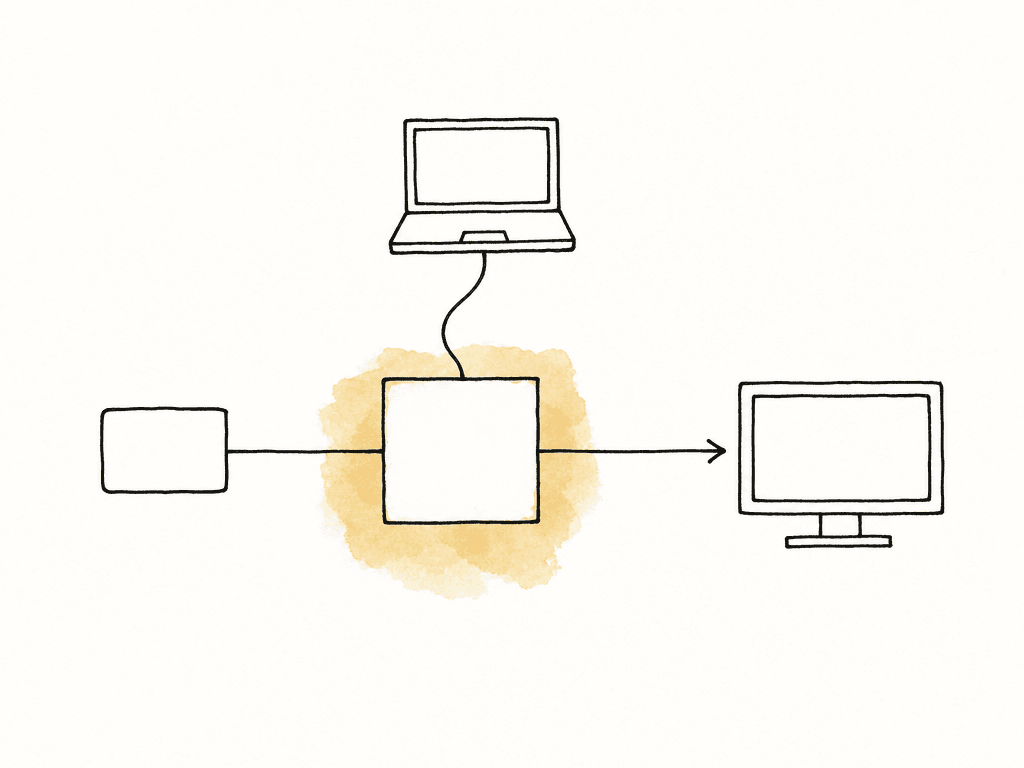
- Workstation running the grading or calibration software
- Video output card sending SDI
- LUT box on SDI for image processing
- Ethernet or USB control connection to the LUT box
- Reference monitor receiving processed SDI
- Saved presets for SDR, HDR, calibration bypass, and show LUT modes
Configure the reference display last, then stop touching it
Set the monitor to the target mode for the room. For SDR Rec.709, that usually means the Rec.709 color space, Gamma 2.4, correct luminance, correct input range, and disable any internal processing unless it's part of the calibration plan. For HDR, select the correct EOTF, gamut/container, peak luminance behavior, and input format. Monitor menus can be dangerous because they contain many settings that look helpful but break reference behavior. Don't keep dynamic contrast, auto color modes, noise reduction, motion smoothing, super white expansion, or extra processing features active on a reference path. If the display has internal LUT support, decide whether calibration lives inside the monitor or in the external LUT box. Avoid stacking both unless the calibration plan explicitly calls for it. After calibration, lock the monitor settings if the display supports it. At minimum, write them down and save them as named presets. A room can lose half a day because someone changed an input range setting while trying to make a client monitor look nicer.Common failure modes and how to read them
Most monitoring problems show up as a visual complaint, but the cause is usually a signal mismatch, so these symptoms are useful because they point to the likely stage. Common patterns include:- A washed-out image usually points to a full-range signal interpreted as video range, wrong gamma, or double display transform
- Highlights clipping early usually points to a range mismatch, HDR-to-SDR mistake, or LUT built for a different peak luminance
- Colors that are too saturated usually point to a gamut mismatch, P3/Rec.2020 content viewed as Rec.709, or wrong monitor mode
- No signal usually points to an unsupported raster/frame rate, bad cable, wrong SDI link mode, or output card not selected
- Missing audio usually points to embedded audio disabled, wrong SDI output, or monitor not set to the expected audio pair
Build presets for the work you actually do
A monitoring chain is only useful if the next person can recall it, and most facilities and teams need a small set of known-good modes. Useful preset families might include:- An SDR editorial preset with 1080p, Rec.709 Gamma 2.4, and video levels
- An SDR finishing preset with UHD or HD, Rec.709 Gamma 2.4, and a calibrated reference path
- An HDR review preset with UHD, PQ, Rec.2020 container, and a defined nit target
- A show LUT preview preset with a camera/log input transform plus show look to display target
- A calibration bypass preset with the same signal format and LUT processing disabled
- A client display feed preset with separate conversion if the client display isn't reference accurate
The setup that works most of the time
For a reliable SDR post room, a strong baseline is:Workstation running the NLE or grading system
→ Blackmagic or AJA video output card
→ 3G/12G-SDI depending on raster and frame rate
→ LUT box with display calibration LUT
→ SDI reference monitor set to Rec.709 Gamma 2.4
FAQ
A video output card sends a dedicated video signal from the NLE or grading system to the monitoring chain, separate from the operating system desktop. This avoids interference from GPU color management, ICC profiles, desktop scaling, UI overlays, browser color handling, and other non-reference display behavior. The computer viewer can be useful for navigation, but the reference display should receive a clean signal through the dedicated output path.
The LUT should live in the stage that matches its purpose. Creative or show LUTs may belong in the project if they're part of the creative pipeline. A display calibration LUT often belongs in the LUT box or inside the monitor. A viewing transform may be applied in software or hardware, depending on the workflow. The important rule is to avoid applying the same transform twice. Document which stage handles project color management, output transform, LUT box processing, and monitor mode.
For professional post monitoring, SDI is usually preferred because it locks reliably, supports longer cable runs, carries embedded audio, and behaves predictably with routers, patch panels, and machine room infrastructure. HDMI can work in smaller rooms or for client displays, but it often introduces more uncertainty around EDID, level range, color space flags, HDCP, and consumer display processing.
The required SDI format depends on raster size, frame rate, bit depth, sampling, and whether the signal is HD, UHD, 4K DCI, SDR, or HDR. A 1080p Rec.709 room may only need 3G-SDI. UHD or 4K monitoring, especially at higher frame rates, may require 12G-SDI or multi-link SDI. Confirm that the output card, LUT box, cabling, router, and monitor all support the exact signal format you plan to use.
A common cause is a mismatch between video/legal levels and data/full levels. A full-range signal interpreted as video range can look washed out, while a video-range signal interpreted as full range can crush shadows and highlights. Incorrect gamma, a wrong monitor mode, or a double-applied LUT can also cause similar symptoms. Test with known patterns through the actual output card, LUT box, and monitor path.
Put that information with the cut, not only in an email or room notebook. Aspect can store review context, versions, and custom fields, so teams can track details like Rec.709 Gamma 2.4, PQ 1000 nit, LUT name, output card format, and monitor preset as part of the project’s custom metadata.


