
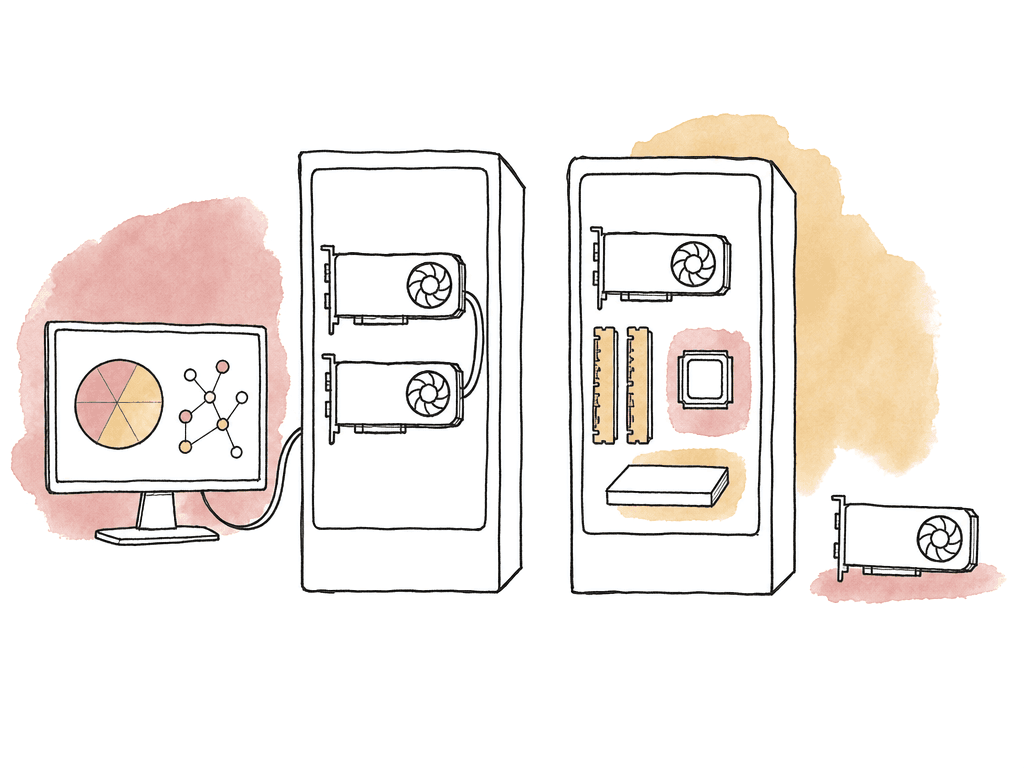
Match the hardware to the workload first
Multi-GPU makes the most sense when the workstation spends a lot of time on operations that can be split across GPUs. In Resolve, that means high-resolution finishing and grading, where the GPU does real image processing on every frame. Good candidates include:- 4K, 6K, and 8K timelines with heavy color nodes
- Temporal noise reduction and motion effects
- GPU-accelerated OFX chains
- RAW debayering at high quality
- Deliverables where image processing dominates render time rather than codec export
- Simple edit timelines with light correction
- Long-GOP camera formats where decode is the bottleneck
- Exports limited by a single hardware encoder
- Network storage that can't feed frames fast enough
- After Effects comps dominated by expressions, shape layers, CPU-only effects, or single-threaded plugins
What “multi-GPU” actually means in post apps
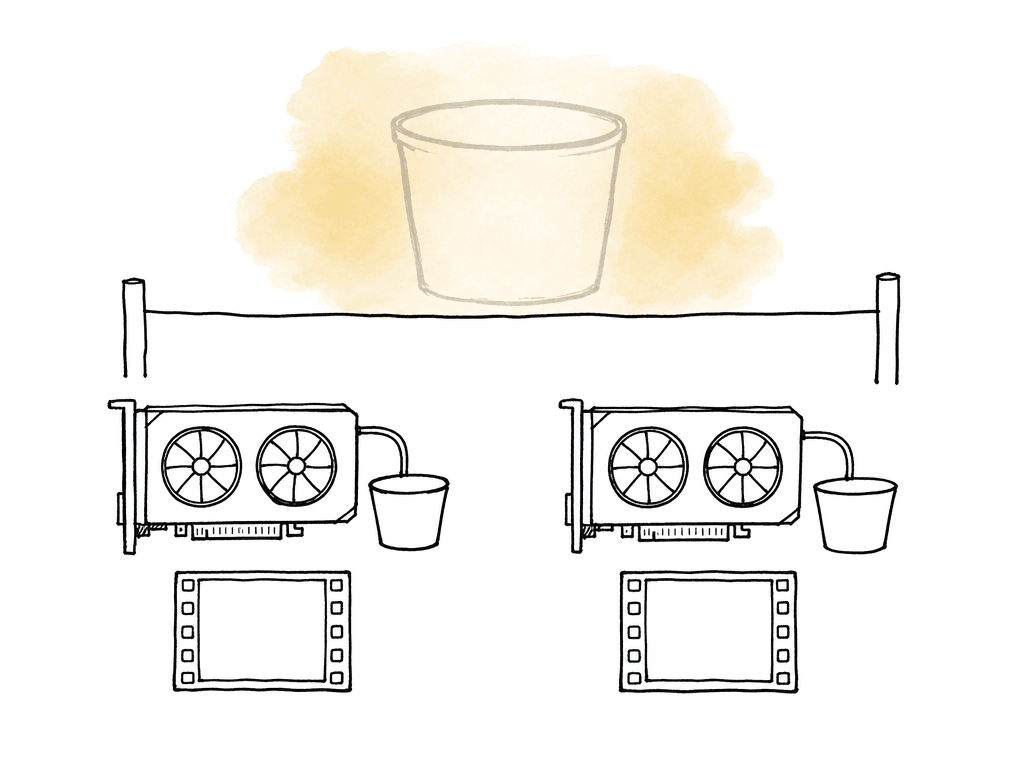
There are two ideas people often mix up: load balancing and memory pooling.| Concept | What it means | Resolve impact | After Effects impact | Buying implication |
|---|---|---|---|---|
| Load balancing | The application splits work across more than one GPU. | Can improve heavy grading, temporal noise reduction, scaling, and GPU-aware effects when the GPU is the bottleneck. | Limited. AE may use GPU acceleration for specific features, but a second GPU rarely changes overall comp performance much. | Useful when one GPU is already saturated and VRAM use is still comfortable. |
| VRAM pooling | Multiple GPUs act like one larger shared memory space. | Usually not available in the way editors expect. Each GPU still needs enough usable VRAM for the workload. | Not a practical planning feature for typical AE workstations. | Do not buy two smaller cards to solve a VRAM shortage. Buy one card with more VRAM instead. |
| Mixed-card scaling | Different GPUs work together in the same system. | Can work, but the slower or smaller-VRAM card may reduce the practical benefit and complicate support. | Rarely worth planning around unless another application needs it. | Prefer matched GPUs for Resolve. Prefer one stronger GPU for AE-first systems. |
- Two 24 GB GPUs don't behave like one 48 GB GPU.
- Mixed-VRAM cards usually behave like the smaller card is the real limit for shared workloads.
- NVLink, where available, isn't a universal “combine VRAM” switch.
- SLI isn't required for Resolve and is generally not relevant to modern DCC performance.
- Don't plan After Effects around VRAM pooling.
Choose GPUs that behave well together
Use identical GPUs in a multi-GPU Resolve system, with the same model, VRAM capacity, driver family, and cooling behavior. Mixed cards can work, but they make troubleshooting harder and can reduce the benefit. Your team will get a more stable post workstation from matched professional or high-end consumer GPUs than from a grab bag of available cards. The variables that decide the match are VRAM, compute performance, and cooling. Slot width, power draw, and driver support decide whether the pair survives in the chassis. Use these guidelines when choosing cards:- Prefer matching GPUs for Resolve multi-GPU systems.
- Prioritize VRAM per card for high-resolution finishing.
- Avoid blower/open-air combinations that fight each other thermally.
- Leave physical space between cards when possible.
- Confirm the power supply can handle sustained render load, not just peak desktop use.
- Use current Studio, Pro, or enterprise drivers rather than gaming-first drivers on production systems.
- Don't mix NVIDIA and AMD in the same Resolve workstation unless you have a very specific reason and have tested it.
Motherboard and BIOS settings that matter
A lot of multi-GPU problems start before the operating system loads. The motherboard has to expose both GPUs with enough PCIe lanes, enough address space, and a sane slot configuration.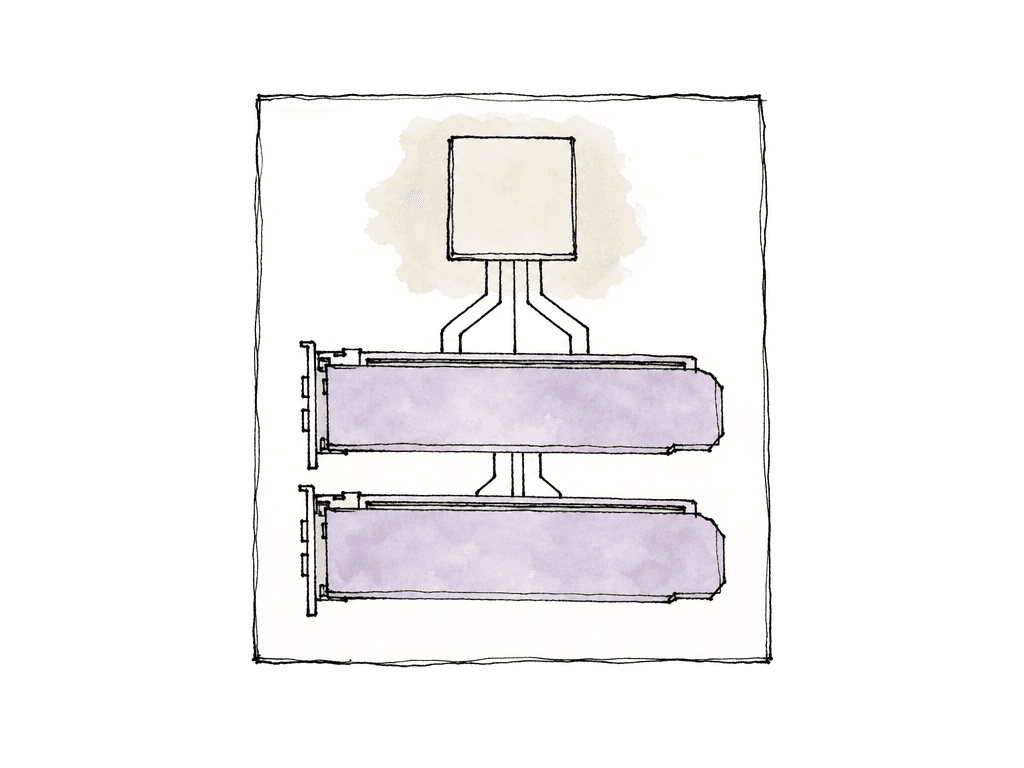
- Set PCIe slot configuration to x8/x8 or x16/x16 where applicable
- Configure PCIe bifurcation correctly if the board requires manual setup
- Enable Above 4G Decoding for multiple large PCIe devices
- Enable Resizable BAR only if it's stable with your GPU and driver stack
- Set Primary display to the GPU that drives the UI monitor
- Disable integrated graphics unless you intentionally use it for display or Quick Sync workflows
- Disable CSM on modern UEFI Windows systems
- Set PCIe generation to Auto, or manually lower it only to troubleshoot instability
- Set adequate fan curves for sustained GPU load
- CUDA
- Compute
- 3D
- Copy
- Encode or Decode
Driver setup for Resolve
For Resolve, install a current production driver. Keep it consistent across the room if multiple systems need to behave the same way. Avoid updating drivers mid-show just because a new version exists. Update when you need a fix, a new GPU, or a new Resolve version. A security requirement is the other good reason. Then test with real projects. Inside Resolve, the relevant settings live in Preferences, under the system memory and GPU area. The exact labels change by version and platform, but the idea holds. Resolve can choose automatically, or you can manually select the GPU processing mode and which GPUs Resolve uses. Typical settings to review include:- GPU processing mode: Auto, CUDA, OpenCL, or Metal depending on platform
- GPU selection: Auto or manual
- Which GPUs Resolve uses for compute
- Whether Resolve also uses the display GPU for image processing
- Memory allocation and cache behavior
- Video I/O settings if the machine also has Blackmagic playback or capture hardware
Driver setup for After Effects
After Effects has fewer multi-GPU decisions because there's less useful multi-GPU behavior to configure. The setting most artists actually need is the project renderer under Video Rendering and Effects. Depending on OS and GPU, that might be Mercury GPU Acceleration using CUDA, Metal, or OpenCL. If you set it to Mercury Software Only, GPU-accelerated effects fall back to CPU rendering. Check these AE areas when configuring a workstation:- Project Settings, Video Rendering and Effects
- GPU Information in Preferences
- Media and Disk Cache location and size
- Memory and Performance allocation
- Multi-Frame Rendering settings
- Current GPU drivers and plugin versions
Where the gains show up
In Resolve, a second GPU can produce very real gains, but the curve depends on the task. Heavy temporal noise reduction and high-quality scaling are the classic places where multiple GPUs help. Blur-heavy looks and GPU-accelerated OFX are the others. Render exports may speed up dramatically if the grade is the bottleneck. Where the gains shrink:- CPU-based codec decode, especially some long-GOP media
- Hardware encoding limited to one encoder path or export setting
- Plugins that don't scale across GPUs
- Fusion comps that hit CPU, RAM, or single-GPU limits
- Insufficient VRAM on each card
- Storage that can't read source media or write renders fast enough
- Thermal throttling after a few minutes
Common failure modes in real rooms
Most multi-GPU issues fall into a few buckets. Thermals are the first. Two high-end GPUs can dump hundreds of watts into a chassis for hours during renders. A system that passes a short benchmark can still throttle or crash 20 minutes into noise-reduced 8K playback. Watch sustained clock speeds, not just temperature snapshots.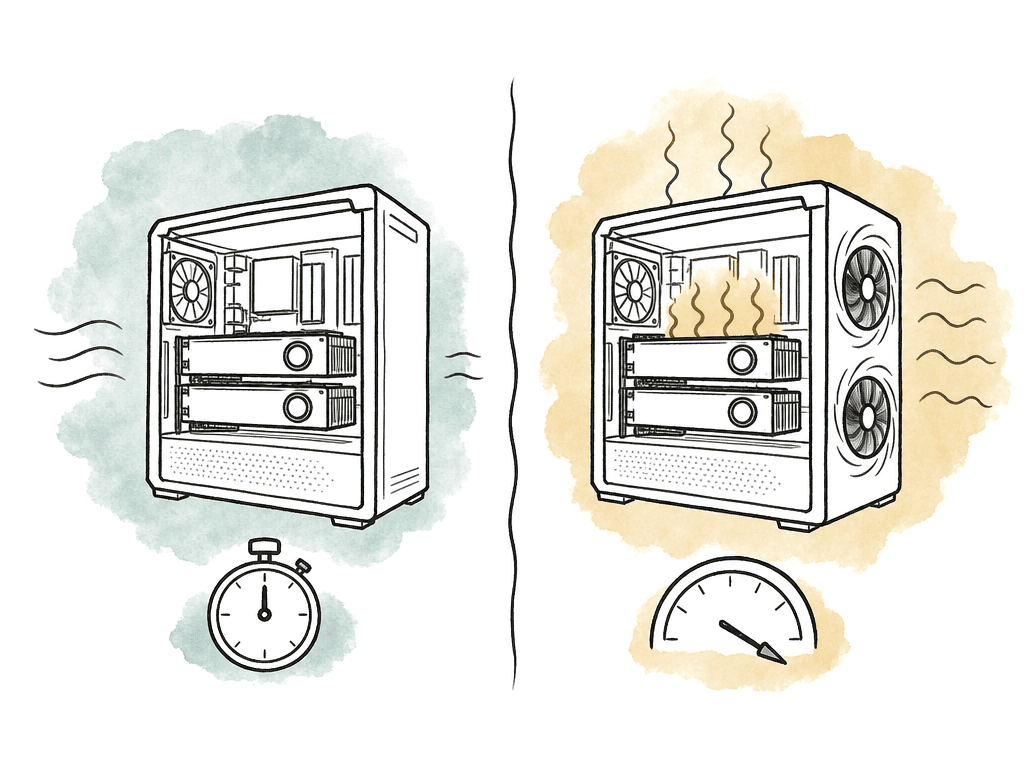
A sensible buying decision
For a Resolve-first room, start with the strongest single GPU you can justify, with enough VRAM for your highest-resolution work. If your test timelines show the GPU saturated and VRAM comfortable, a second matching GPU is a smart upgrade. If VRAM is the problem, buy a larger GPU instead of adding a smaller second one. For an After Effects-first artist, buy one strong GPU and lots of RAM. Pair them with a fast CPU that has good per-core performance, plus fast NVMe storage for cache. Add a second GPU only when another tool in the workflow needs it. Resolve, a GPU renderer, and 3D rendering are the common reasons, along with machine-learning processing. For a shared finishing workstation that runs both Resolve and AE, design for Resolve's GPU appetite without starving AE's CPU, RAM, and cache needs. The balanced version often looks like this:- One or two matched high-VRAM GPUs
- Plenty of system RAM and fast local NVMe cache
- A CPU with strong single-core and multicore performance
- Clean airflow and conservative driver management
FAQ
Yes, Resolve can benefit from multiple GPUs when the workload is GPU-bound. The clearest gains appear in heavy grading, temporal noise reduction, and high-resolution debayering. Scaling, GPU-accelerated OFX, HDR finishing, and render jobs where image processing is the bottleneck also scale well. If the timeline is limited instead by codec decode, storage, or CPU, a second GPU may deliver little improvement. The same is true when export encoding or insufficient VRAM is the ceiling.
Usually not in a way that justifies buying a second GPU for After Effects alone. After Effects uses the GPU for specific effects, viewers, color management, and some rendering paths. Many comps are limited instead by CPU performance, RAM, or cache speed, and others by expressions, plugins, or project structure. Most AE users see better returns from more RAM and a stronger CPU. Faster NVMe cache storage and one better primary GPU come next.
In most Resolve and After Effects workstations, no. Two 24 GB GPUs generally don't behave like one 48 GB GPU. Shared workloads often require the same frame data on each card, so the practical VRAM limit can remain the capacity of one card. If a project needs more VRAM, one larger GPU is safer than two smaller GPUs.
SLI isn't required for Resolve and is generally not relevant to modern post-production GPU scaling. Resolve handles supported multi-GPU processing at the application level. NVLink, where available, isn't a universal switch that combines VRAM for all workflows. Don't assume it solves memory limits unless your specific application and workflow explicitly support the behavior you need.
Start with the correct PCIe slot configuration, such as x8/x8 or x16/x16 where supported. Enable Above 4G Decoding for multiple large PCIe devices, keep UEFI settings stable, and set an appropriate primary display GPU. Resizable BAR can be enabled if it's stable with the GPU and driver stack. Check the motherboard manual carefully, because some long PCIe slots don't provide the bandwidth or CPU lane connection expected for heavy GPU compute.
When you're comparing one GPU versus two GPUs, different driver versions, or revised grades, the output files multiply quickly. Aspect stacks versions on the same asset with version stacking, so the current render sits alongside previous passes, comments, and revision context.