

Decide what kind of comparison you're building
Before choosing monitors or routers, define the comparison. Most post teams use “A/B” to mean several different things, and each one needs a slightly different setup. Common A/B use cases include:- Before and after a grade change on the same shot
- Shot A versus shot B for sequence matching
- Camera original or log image versus color-managed viewing transform
- SDR trim versus HDR master
- Two display paths fed by the same signal to catch monitoring problems
| Comparison goal | Better A/B strategy | Display setup | Main risk to control |
|---|---|---|---|
| Grade before and after | Toggle versions through the same reference output | One calibrated reference display is usually enough | Changing the output transform or viewing path while judging the grade |
| Shot A versus shot B | Compare shots in sequence and, when useful, side by side | Same output path and same display conditions | Matching still frames while missing motion or context problems |
| Log or camera original versus managed view | Generate intentional source and viewing-transform states | Reference output with known color management | Confusing a technical transform difference with a creative grade difference |
| SDR trim versus HDR master | Generate two target-specific outputs | Separate calibrated SDR and HDR displays, each set to its delivery target | Expecting SDR and HDR to look identical instead of preserving intent within each target |
| Monitoring-path diagnostic | Split the same signal to both displays | Matched displays and identical input formats | Mistaking a display, range, or room mismatch for an image problem |
Keep the GUI out of color-critical comparison
For color QC, the viewer inside your NLE or grading app isn't the same thing as a reference output. The operating system, GPU settings, display profiles, scaling, HDR desktop modes, browser behavior, and whatever else is happening on that workstation affect the GUI. The cleaner setup is:- Application timeline or source monitor
- Dedicated video I/O device
- SDI or HDMI signal path
- Router, distribution amp, or monitor input selection
- Calibrated reference display
- Scopes fed from the same intended signal path
Route dual outputs based on the comparison type
There are two basic ways to build an A/B setup: split one signal, or generate two different signals.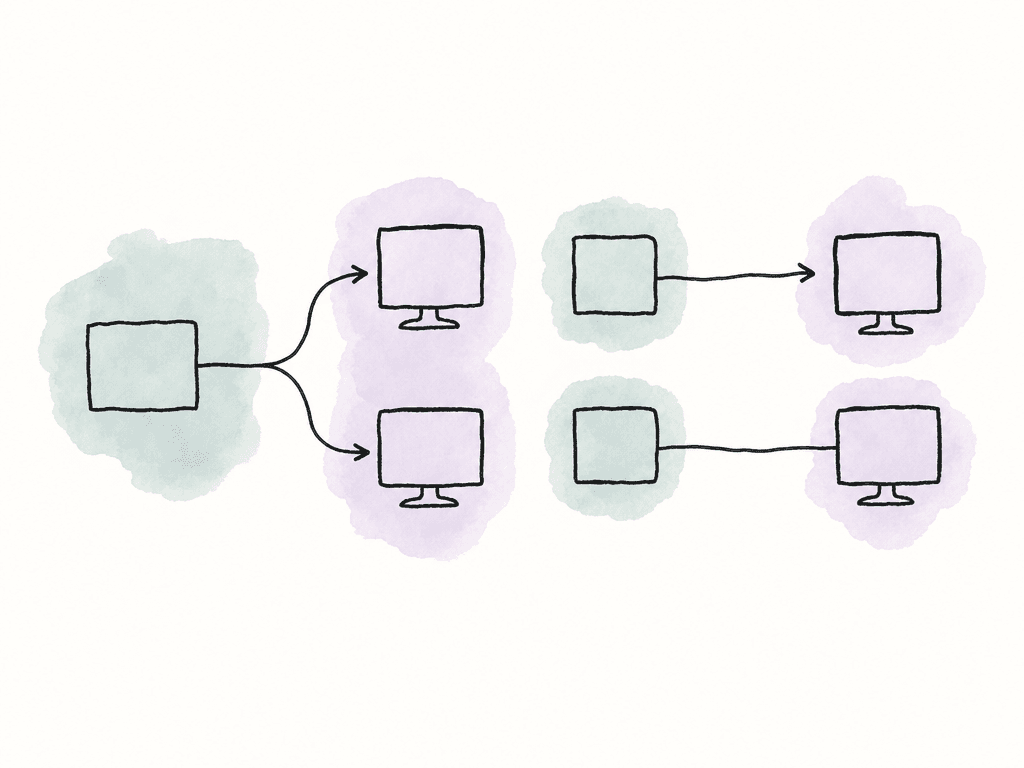
- Single video output into a router, then routed to monitor A or monitor B
- Single video output into a distribution amplifier, feeding two displays simultaneously
- Dual video outputs from the workstation or I/O device, each carrying a different transform
- One output to a reference monitor and one output to scopes
- Router presets that recall “A only,” “B only,” and “A/B side-by-side” room states
Match two displays before trusting the comparison
Two monitors can measure correctly and still not look identical. Different panel technologies have different spectral characteristics, and that can create metameric differences where viewers perceive two displays with similar measured values differently. This is especially relevant when comparing OLED, LCD, QD-OLED, mini-LED, and consumer HDR displays. For A/B color QC, your team should use matched display models whenever possible. Same manufacturer, same model, same size, same firmware, same calibration target, similar age, similar hours. That doesn't guarantee a perfect perceptual match, but it removes many variables.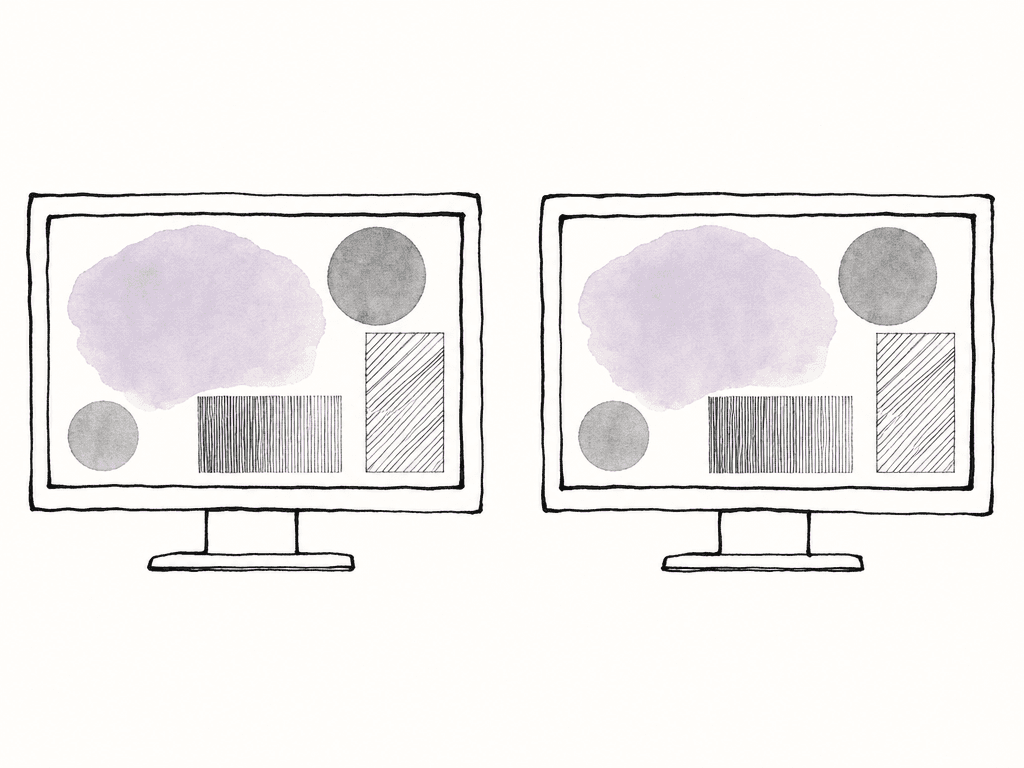
- Warm-up time before calibration or judgment
- Identical input signal format, such as resolution, frame rate, range, and chroma sampling
- Matching monitor picture modes and disabled consumer enhancements
- Calibration to the same white point, luminance, gamma or EOTF, and color space
- Consistent probe or measurement device where possible
- Consistent measurement conditions and calibration records
- Perceptual matching when two displays measure correctly but still look different
- Controlled room lighting and neutral surroundings
Treat the room as part of the A/B system
The room is part of the monitoring chain, along with signal routing. If monitor A is next to a bright wall and monitor B is framed by black acoustic treatment, viewers won't perceive them the same way. If one display is angled toward the colorist and the other is angled toward a client couch, they aren't equivalent. For a serious comparison, place the displays so the viewer can evaluate them from the same seated position, at similar distance and angle. Keep surround lighting stable. Avoid colored walls, colored bias lights, bright UI panels, and windows that change throughout the day. Even if your room isn't a purpose-built grading theater, consistency beats improvisation. This is especially important for assistant editors and post supervisors doing dailies or ingest QC. The goal may not be final color approval, but you still need a controlled enough setup to catch technical problems early. If an issue is visible only on one random office monitor under daylight, that's a clue, not a verdict. Move the question to the controlled viewing path before escalating.Use A/B for before and after grading checks
Before/after comparison is one of the most useful A/B workflows because it keeps creative decisions honest. A grade can look better after ten minutes of staring at it simply because your eyes adapted. A fast toggle back to the previous version tells you whether you improved the image or just got used to the new one.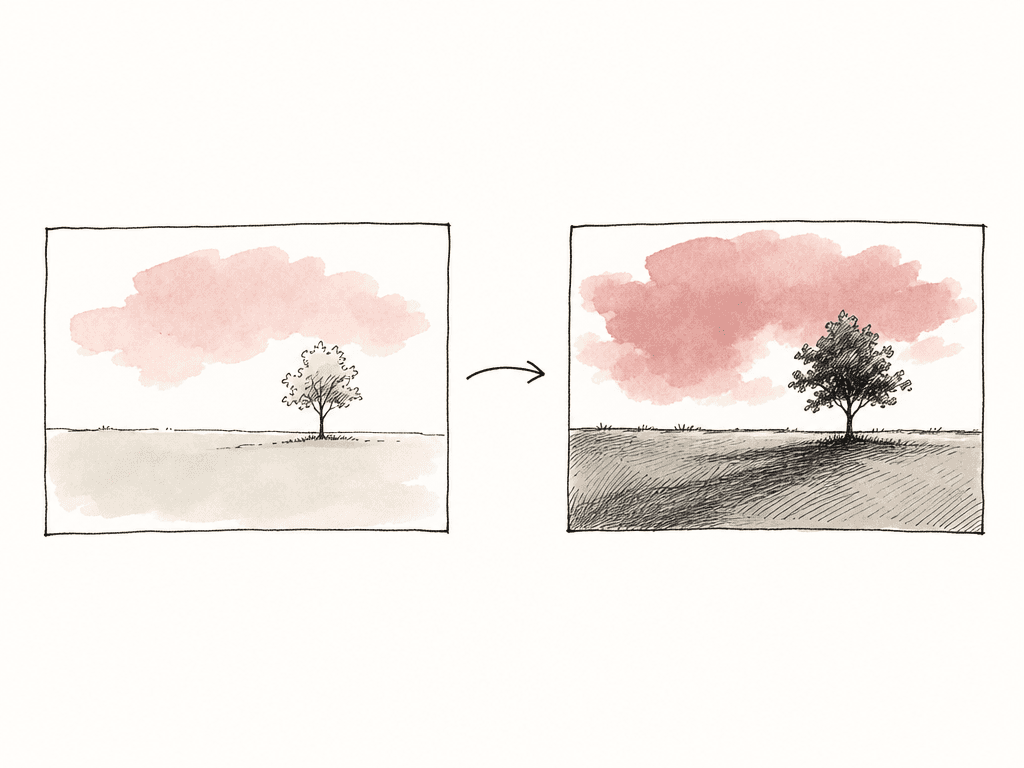
- Base grade versus current grade
- LUT v1 versus LUT v2
- Shot match before and after balancing
- Noise reduction off versus on
- Legalization or gamut mapping off versus on
Compare SDR and HDR without pretending they're the same image
SDR and HDR side-by-side monitoring is valuable, but it's easy to misunderstand. You aren't asking two displays to show the same thing. You're asking each display to show the correct rendering for its target.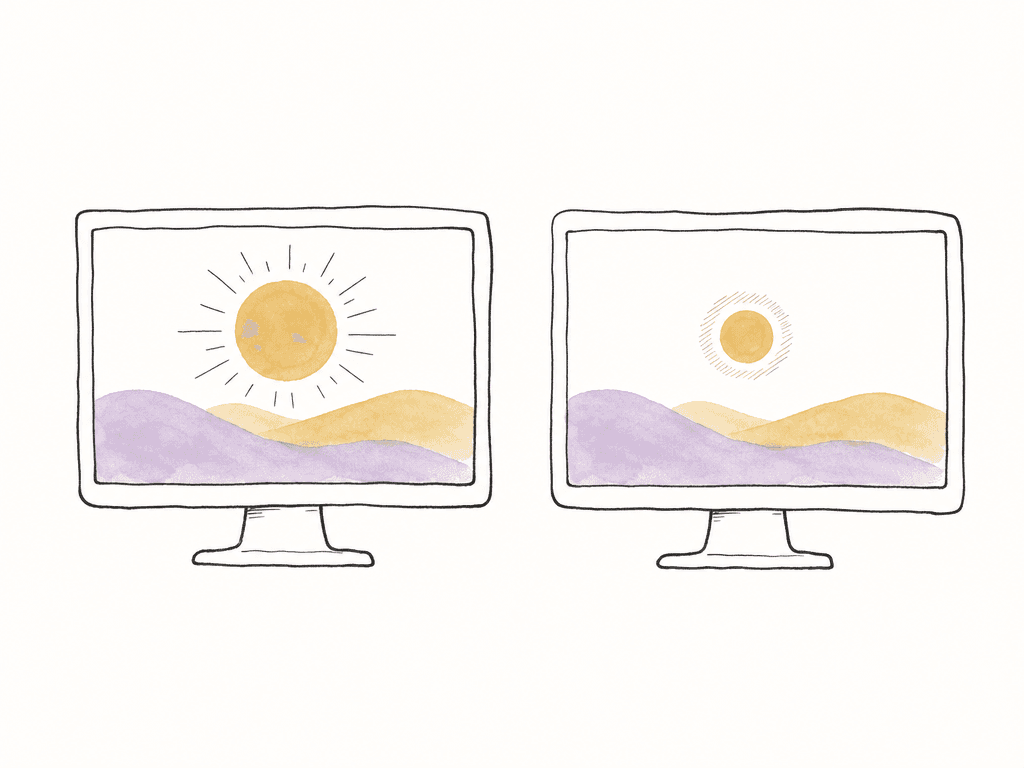
- HDR master output to a PQ HDR reference display
- SDR trim output to a Rec.709 Gamma 2.4 reference display
- Scopes that can evaluate PQ, Rec.709, gamut, and levels
- Color management that explicitly defines the HDR-to-SDR relationship
- Matching display technology where possible to reduce perceptual mismatch
- Room conditions appropriate for the mastering target
Watch for common failure modes
Most A/B problems come from one side of the comparison being processed differently, measured differently, or viewed differently. The most common failure modes are:- One display is calibrated and the other is only factory-set
- One path is full range and the other is legal/video range
- One path is being color managed by the OS and the other bypasses it
- HDR metadata is present on one path but absent or misread on the other
- A consumer TV is applying dynamic contrast, motion smoothing, local dimming changes, or color enhancement
Document the monitoring state so the team can repeat it
A/B monitoring only helps if your team can recall the setup. Post teams change rooms, swap editors, colorists, and sound mixers, update software, and move between dailies, editorial, finishing, and review. If the comparison setup lives only in one person’s head, it will drift. Your documentation should capture the details that change the image:- Project color management settings
- Timeline working space and output color space
- Show LUT, CDL, display LUT, and output transform versions
- Video I/O device and output format
- Router presets and monitor inputs
- Monitor model, serial number, firmware, calibration date, and target
- Probe or calibration system used
- Room lighting assumptions
- Scope connection point
- Known limitations, such as unmatched display technologies or non-reference client screens
Build for the decision you actually need
If you're doing editorial QC, build a simple, repeatable reference path and use A/B to catch obvious color-management or proxy errors. If you're doing finishing, keep the GUI out of the color-critical chain and make version toggling fast. If you're matching two displays, split the same signal first and solve the monitoring mismatch before judging creative differences. If you're comparing SDR and HDR, generate two intentional outputs and judge each against its own target. The best A/B monitoring setups reduce doubt. They make it clear whether a difference is in the grade, the transform, the display, or the room. Once the team trusts the comparison, review notes are easier to tie to a specific part of the pipeline.FAQ
For color-critical decisions, use a dedicated reference output instead of the application GUI viewer. The GUI can be affected by the operating system, GPU settings, desktop HDR modes, display profiles, scaling, and other variables. It's fine for navigation and editorial work, but approvals should be made from a known video I/O path feeding a calibrated display.
Split one signal when you're testing the monitoring chain, such as checking whether two displays match or whether a router path is behaving correctly. Generate two separate outputs when A and B are intentionally different images, such as HDR and SDR trims, two versions of a grade, or two output transforms. The routing choice should match the question you're trying to answer.
Side-by-side viewing is useful for diagnosing differences and explaining changes to a team, but full-screen toggling is often better for judging creative impact. Adjacent images can exaggerate small differences that may not matter in normal playback. If side-by-side is used for QC, confirm that both sides are being scaled, transformed, and displayed consistently.
No. Two displays can measure close to the same target and still appear different because of panel technology, spectral output, age, firmware, viewing angle, or metameric differences. Matched monitor models with the same calibration target are preferred. Measurement should come first, followed by a perceptual check to confirm the match is suitable for the decision being made.
SDR and HDR should be treated as different target renderings, not as identical images. The HDR output should be judged on an HDR reference display using the required HDR target, such as PQ. The SDR trim should be judged on a Rec.709 Gamma 2.4 display or the project’s defined SDR target. The comparison is about preserving creative intent across formats, not making SDR look as bright as HDR.
Monitoring notes become much more useful when the project records which transform, target, and version were used for a given review. Aspect lets teams define fields for those workflow details and keep them searchable as custom metadata.


