Start by defining the real payload
Most teams outgrow Dropbox or Google Drive when the account quietly becomes the production system. It holds camera originals and Premiere projects, exports and approvals, client links and stale vendor access. It also holds half-finished rough cuts, archived campaign work, and mystery folders owned by people who left two years ago. Copying everything from one cloud to another is how you spend money moving junk. It breaks active links, loses context, and recreates the same mess in a more expensive place. A good migration starts by defining what has to move as workflow. Storage is only part of it. For a media team, the payload means:- Source media, including camera originals, audio, graphics, stills, project files, LUTs, fonts, and sidecars
- Working versions, including rough cuts, selects, transcodes, renders, and approval exports
- Finished deliverables, including masters, social cutdowns, captions, thumbnails, and delivery packages
- Review context, including comments, approvals, annotations, decision history, and version relationships
- Metadata, including folder names, naming conventions, EXIF, IPTC, shoot dates, campaign IDs, client names, usage rights, and custom tags
- Permissions, including internal groups, client access, vendor access, download rights, expiring links, and password-protected shares
- Active links, including review links, client delivery links, embedded links in project trackers, and links sitting in email threads
Know what survives the move
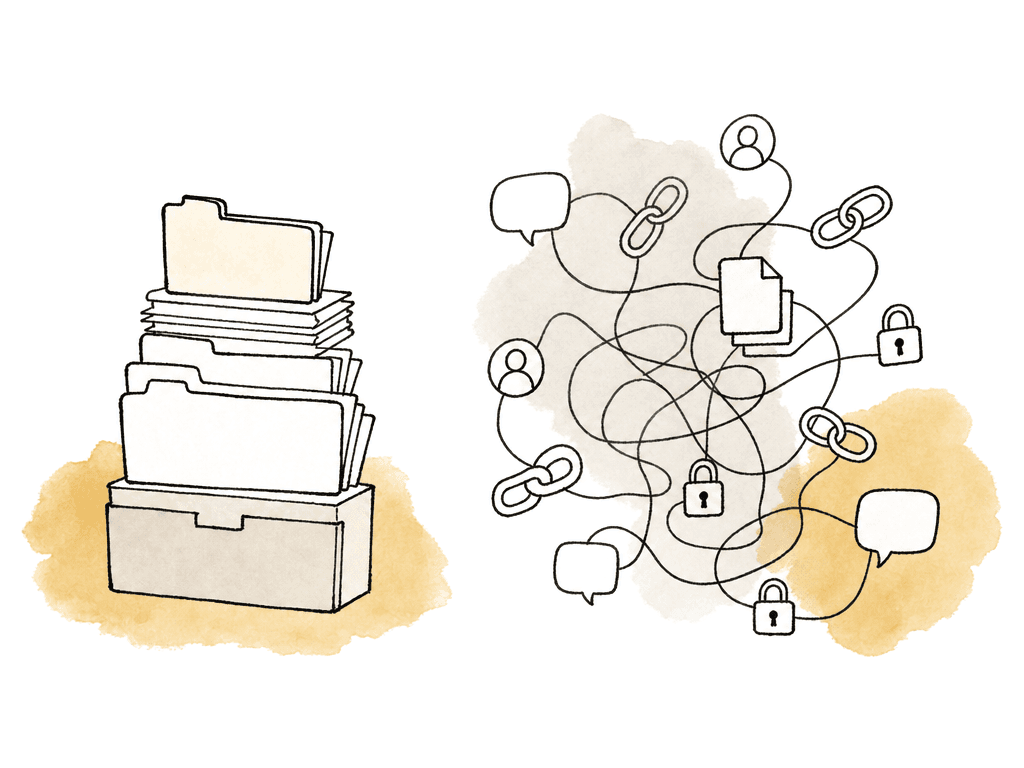
The most common migration mistake is treating the source account as the system of record for everything. Most of the time, it isn't. Dropbox or Google Drive may contain the files, but the real state of a project is spread wider than that. It lives in shared links and review tools, in Slack threads and email approvals, in NLE timelines and someone’s notes. Check what transfers for each data type and what you need to rebuild in the destination.How migration data usually translates
| Data type | Usually survives as-is? | What to plan for in the destination |
|---|---|---|
| Files | Mostly | Validate file counts, total bytes, representative paths, modified dates, and large-file handling. Throughput can be limited by source limits, destination limits, APIs, local disk, and retry behavior. |
| Folder structure | Mostly | Preserve hierarchy where it supports NLE relinking, but do not assume folder names carry enough context. Convert important folder meanings, such as client approved or final, into metadata, collections, or project status. |
| File versions | Sometimes | Decide whether older versions should become separate files, true stacked versions, or archive-only history. Dropbox version history varies by plan, but that history may not map natively into another platform. |
| Review comments and approvals | Rarely without a supported path | Export or preserve approval records when they matter. Comments in Dropbox Replay, Google Drive, or another review system should not be assumed to become native frame-accurate comments elsewhere unless the migration path explicitly supports it. |
| Metadata | Partially | Embedded EXIF and IPTC may be re-extracted, but custom labels, folder conventions, campaign IDs, usage rights, spreadsheet trackers, and informal naming rules need mapping into destination fields. |
| Permissions | Sometimes for internal users and groups | Some supported migrations can copy associated permissions, such as Google's Dropbox Business to Drive import path. External collaborators, public links, inherited access, ownership changes, expiry dates, and download rights still need a deliberate access design. |
| Active links | Usually no | Dropbox and Google Drive URLs point to source objects. Plan a replacement window for client portals, project boards, delivery trackers, email templates, and review threads. |
Separate working media from finished work and archive
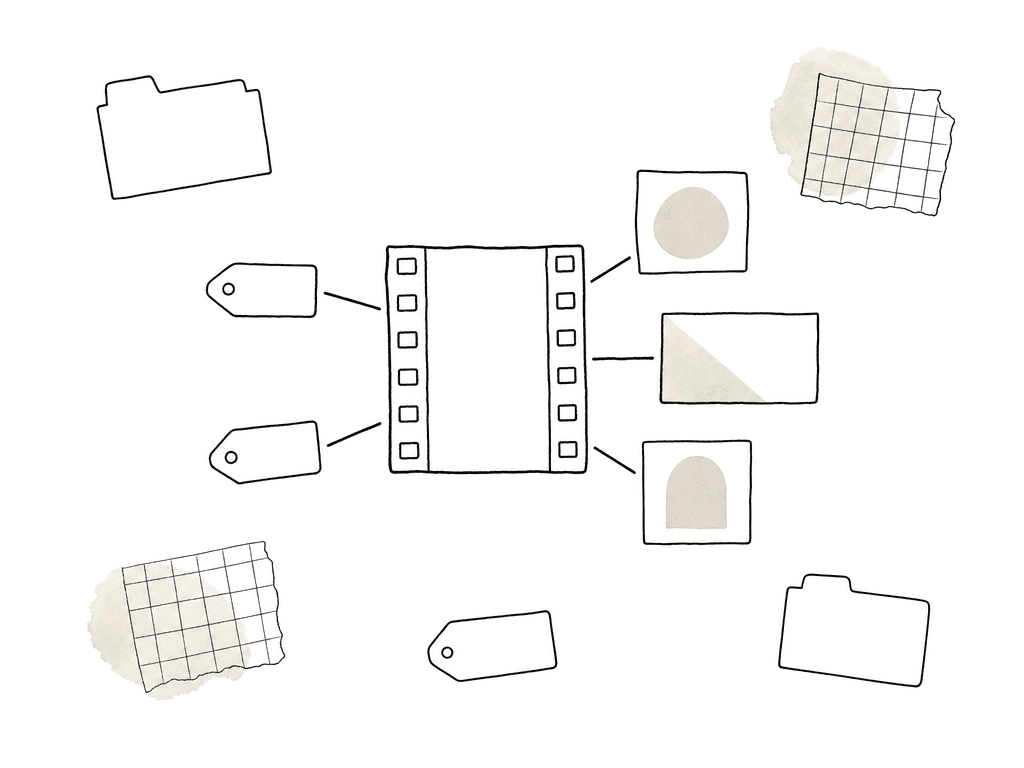
If you try to move every byte at once, active teams will either stop working or keep creating new deltas in the old platform while the migration runs. Both are painful. Split the account into three practical states: active, reference, and archive.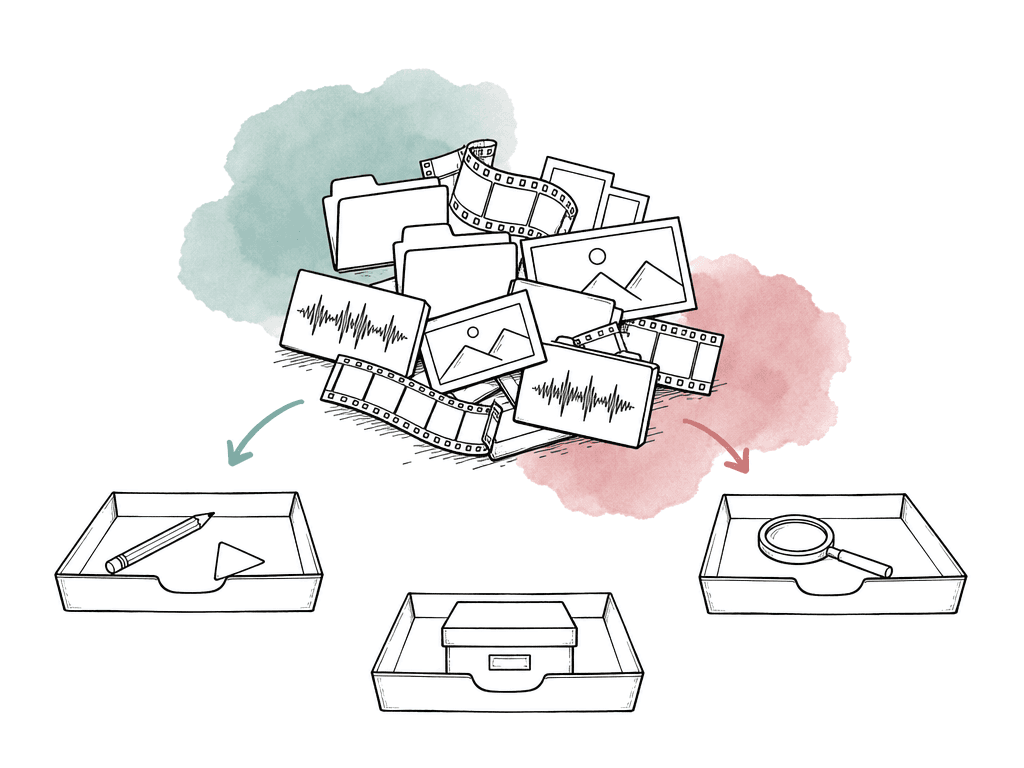
- No one has opened or modified the folder recently
- The project has been delivered and accepted
- The folder contains duplicate exports that exist elsewhere as masters
- The files are cache, render, or preview artifacts that can be regenerated
- The work belongs to a client or campaign with a defined retention policy
- The folder has unclear ownership and no active business owner
- The media is only needed for legal hold, compliance, or deep retrieval
Build an inventory you can act on
The inventory needs to be useful enough to decide what moves and what waits. It also has to say what archives, and who gets access after cutover. Start with the top-level structure, then sample deeper. You're looking for patterns rather than hand-classifying every file on day one. Export file listings where possible. Capture path, owner, and size for each entry. Capture modified date and created date too, along with extension and sharing state. If you can't export sharing details cleanly, capture enough to identify the riskiest areas. Those are public links and external domains, folders with many collaborators, and folders owned by departed users. A media migration inventory should expose these groups of facts:- Largest folders by total size
- Highest file-count folders
- Recently modified projects
- Folders shared externally
- Public or link-accessible assets
- Files owned by former employees or freelancers
- Duplicate delivery folders
- Known project roots for current jobs
- File types that need special handling, such as RAW formats, project files, fonts, captions, and sidecars
- Folders that contain generated media, cache, previews, renders, or transcodes
Decide the new permission model instead of copying the old one
Permissions are where old messes become new security problems. Dropbox and Google Drive make it easy for people to share work in the moment. That's part of their appeal. Over time, though, media accounts collect client links and freelancer access. They collect agency partner folders, “anyone with the link” shares, and internal exceptions that no one remembers approving. Use the migration to review who needs access and replace outdated permissions.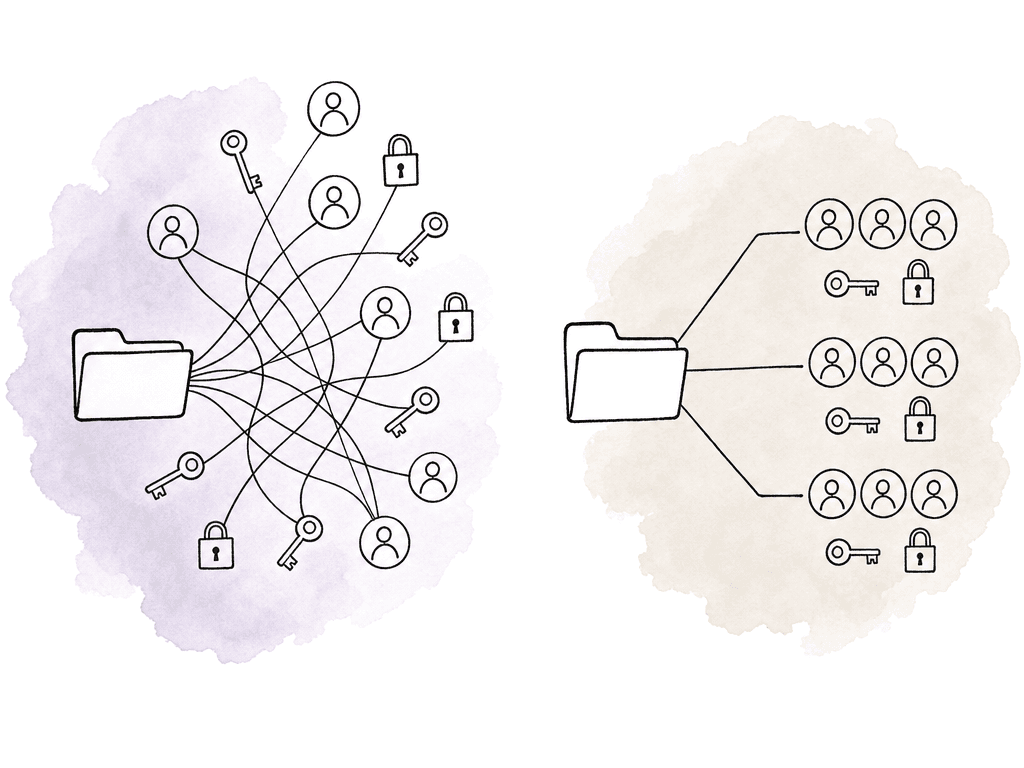
- Workspace-level admins who can manage users, billing, security, and global settings
- Producers and post leads who can create projects and manage project access
- Editors and artists who need edit access to working files
- Reviewers who need comment access but not file management rights
- Clients who need view, comment, or download access to selected assets
- Vendors who need time-limited access to specific folders or collections
- Archive users who can search and retrieve, but not casually modify old work
A realistic DIY migration path
A DIY migration can work if the account is small enough, the team has technical ownership, and the destination has solid import tooling. Your team will stage the work in four steps: copy, validate, cut over, then clean up. The first move should be a pilot project rather than the whole library. Choose one with enough complexity to be meaningful. It should have camera originals and project files, exports and review notes, and external collaborators. It also needs a known owner who can validate it quickly. Choose a project with the permission and metadata complexity you expect elsewhere in the library. For the pilot, capture the source state in a way you can compare later. You want file count and total size. You want representative paths, owner, and sharing status. Add a few known files that editors can open. Then migrate using the method your destination supports: cloud-to-cloud transfer, API import, desktop sync to local staging, or assisted upload. Each method has tradeoffs:- Cloud-to-cloud transfer avoids pulling everything through a local workstation, but may expose fewer controls for weird file states and review context
- API migration can preserve more structure when officially supported, but it depends on source and destination compatibility
- Desktop sync is understandable and easy to supervise, but it can be slow, fragile, and constrained by local disk
- Local staging gives you a clean copy and possible checksum validation, but requires storage, time, and operational discipline
- Source and destination file counts for the migrated scope
- Total bytes transferred
- Presence of expected folder paths
- Modified dates where they matter
- Ability to open project files and linked media
- Preview and proxy generation for representative media
- Playback behavior for large video files
- Preservation or recreation of version relationships
- Internal group access
- External reviewer access
- Download restrictions, passwords, and expiry where required
Switch at project boundaries whenever possible
A clean cutover says, “new work starts in the new platform, old work finishes where it already is unless there's a reason to move it.” Project-boundary switching keeps active work moving, and it also reduces the number of files that can change in two places at once. For current jobs, choose one of three patterns. The first pattern is finish-in-place. If a project delivers next week and the source platform isn't actively hurting it, leave it where it is. Move the final package, metadata, and archive copy after delivery. This is unglamorous and often correct. The second pattern is controlled mid-project cutover. Use this when the current platform is blocking work. Maybe editors can't access large files efficiently, or review is fragmented. Maybe sync conflicts are common, or external access is risky. Then run the cutover in order:- Freeze changes for a short window.
- Copy the whole project root.
- Validate the copy in the destination.
- Announce the new working location.
Rebuild review and delivery intentionally
Media teams often discover during migration that storage was only part of the problem. They had glued review and delivery together with whatever links people could create fastest. A media platform should let you rebuild that flow more cleanly. Upload or stream working media and generate previews or proxies. Collect frame-accurate comments and manage approvals. Share selected assets without exposing the whole folder tree. If you're moving into Aspect, the platform supports generated previews and proxies, plus frame-accurate comments and annotations. It supports version stacking and custom metadata. It supports collection sharing with permissions for view and download, and for comment and edit. The operational benefit is that the migration can become more than a storage relocation. You can convert messy review folders into version stacks. You can turn spreadsheet-only tracking into custom metadata. You can give clients collection-based access without breaking the underlying production folder hierarchy. Don't over-convert everything on day one. Start with active projects and the review patterns that create the most pain. It's fine if older finished work arrives as files plus searchable metadata while new work uses the full review flow.Where assisted migration changes the workload
The useful part of assisted migration is that it removes a pile of coordination work from your team. Transfer planning, batching, and retry handling go away. So do validation strategy, permission mapping, and the work of deciding how the new system should represent old structures. For Aspect migrations, Aspect offers complimentary migration support for enterprise customers and can preserve metadata, rights, and version history coming from Dropbox or Google Drive. Aspect’s migration team can move up to 8 TB per team per day from Dropbox or Google Drive to Aspect. DIY timing depends on your source limits and local network. It depends on transfer method, number of files, and file sizes. It also depends on API behavior, and on how many times you need to retry failed batches. A library with millions of small files may behave very differently from a library with fewer large camera originals. A cloud-to-cloud migration may behave differently from a local desktop sync. Don't promise stakeholders a timeline based on a vendor-assisted throughput number unless that vendor is actually running the transfer. Assisted migration is most valuable when the source account has one or more of these conditions:- Tens or hundreds of terabytes of media
- Many external collaborators
- Unclear ownership across old projects
- Active productions that can't pause for long
- Complex folder structures tied to NLE project files
- A need to preserve metadata, rights, or version history
- A large archive that your team needs to search but doesn't want to keep in hot storage
- Limited internal IT time for transfer monitoring and remediation
The decision point
You're ready to move off Dropbox or Google Drive when you need a media workflow that storage alone isn't solving. If your team mostly collaborates on documents, shares occasional files, and benefits from general productivity integrations, Dropbox or Google Drive may still be the right center of gravity. Their official materials describe sharing and admin capabilities, plus sync and migration capabilities for general business content. Some symptoms say the move is overdue. Large media access is slow and downloads are duplicated. Review notes are scattered and version context is weak. Usage rights are unclear and external collaborator sprawl is out of hand. When that is the picture, treat the migration as a workflow redesign:- Define the payload.
- Separate active work from archive.
- Map what survives.
- Rebuild permissions.
- Pilot with a real project.
- Switch at project boundaries.
- Use assisted migration when the scale or risk justifies it.
FAQ
Usually no. A media migration should separate active work and reference material from archive, duplicates, and disposable generated files before transfer. Moving everything can increase cost, extend the migration window, and recreate the same permission and folder problems in the new system. Active projects and searchable reference libraries deserve the most attention. Cold archive may belong in lower cost storage or a controlled retention system instead of hot production storage.
In most cases, no. A Dropbox or Google Drive link points to an object in that platform. When the asset is copied into a new media platform, it normally receives a new identity and a new link. Plan a replacement window for client review links and delivery links, for project tracker and embedded portal links, and for links sitting in email threads. For active projects, keep old links available until the new review or delivery link has been shared and confirmed.
Sometimes, but do not assume a clean one-to-one transfer. Google Workspace Help, retrieved July 28, 2026, says Google’s data import tool can copy files, folders, and associated permissions from Dropbox Business into Google Workspace when configured by a super admin. That is useful for Dropbox to Drive migrations. For moves into a media platform, permissions often need to be redesigned. Watch external collaborators and expiring links, inherited folder permissions, public links, and ownership changes. Treat the old permissions as evidence of how people worked, not necessarily as the policy to preserve.
If the team mostly works with office documents and spreadsheets, with PDFs and lightweight creative briefs, and with occasional file sharing, a general file sync platform may still be the better center of gravity. Google Drive’s product page, retrieved July 28, 2026, emphasizes real-time collaboration, Shared Drives, edit/comment/view permissions, expiry dates, and third-party integrations. Dropbox plan materials emphasize sync, sharing, password-protected links, team folders, and admin controls. A media platform becomes more compelling when the bottleneck is large media access or review context. It also wins on version relationships, rights metadata, external collaborator sprawl, and archive search.
Do not estimate only from internet speed. Migration time depends on source limits and destination limits, on API behavior, and on file count and average file size. It also depends on local staging storage, retry behavior, checksum or validation requirements, and how much work must pause during cutover. Google Workspace Help, retrieved July 28, 2026, states that each user can upload and copy 750 GB to Drive within 24 hours and that Drive can upload and synchronize files up to 5 TB. Those are Drive-specific limits, but they show why throughput is governed by platform rules as well as bandwidth. A pilot migration with a real project is the safest way to create a usable estimate.
Treat review history as workflow context, not just file data. If prior approvals matter, export or preserve the record before migration. Then rebuild active reviews in the destination so comments and versions are attached to the right media. Aspect supports frame-accurate comments, annotations, replies, notifications, version stacking, and change history as part of the team’s review workflow.