Start from the delivery requirement
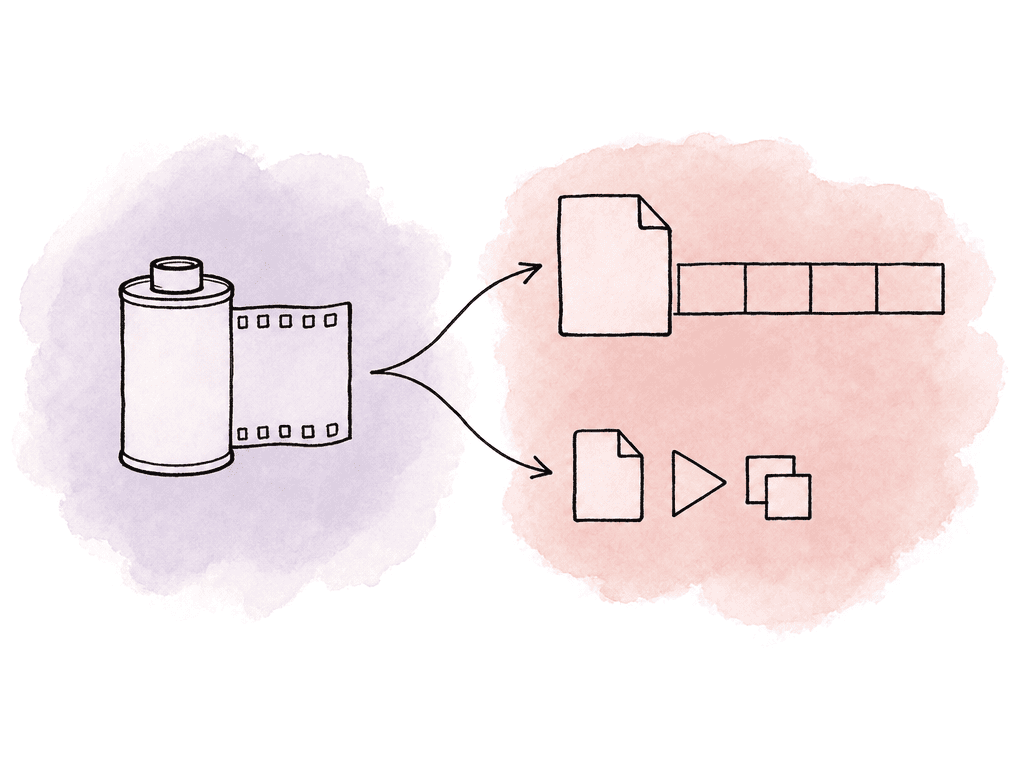
Before importing media, separate the editorial spec from the review spec. They may come from the same timeline. They are not the same deliverable.| Decision area | Editorial dailies | Production review files |
|---|---|---|
| Main job | Cut smoothly and relink to the OCN later | Let stakeholders watch, identify, and comment on shots easily |
| Typical format | ProRes Proxy, ProRes LT, ProRes 422, DNxHD, or DNxHR | H.264 or H.265 MP4 |
| Render style | Typically individual clips | Individual clips, scene strings, or a daily roll |
| Timecode and metadata | Preserve source timecode, clip name, reel or roll, scene, and take | Burn in the identifying metadata viewers need for notes |
| Audio | Synced production audio with the editorial channel order | Stereo mix unless the review spec says otherwise |
| Burn-ins | Clean unless editorial requests them | Enabled |
| Naming | Source filename or an approved conform-safe convention | Human-readable shoot day, scene, take, and camera information |
- ProRes Proxy, ProRes LT, or ProRes 422 in a QuickTime container for Resolve, Premiere Pro, Final Cut Pro, and many general offline workflows
- DNxHD or DNxHR for Avid-style editorial workflows, usually with MXF or QuickTime depending on the receiving spec
- H.264 or H.265 MP4 for production review, client viewing, and small-file uploads
- WAV or embedded audio depending on whether editorial wants synced audio in the picture files or separate production sound delivered alongside
Build the Resolve project around the camera originals
Treat the camera originals as source evidence, not working media. Your team should generate dailies after safely copying and verifying the original camera negative. Don't point Resolve at the camera card and start rendering from there. Work from a verified clone or storage volume that preserves the original camera folder structure. In Resolve, create a dedicated dailies project or a clearly separated dailies area inside the show project. For an on-set or near-set process, a simple structure beats clever organization:- Shoot day
- Camera letter
- Card or mag number
- Reel or roll
- Scene or block, if reliable metadata exists
- Audio by sound roll or day
- Timeline frame rate
- Timeline resolution and monitoring aspect
- Video monitoring format, if using a calibrated display
- Audio sample rate, usually 48 kHz for production workflows
- Camera RAW decode behavior, if working from RAW formats
- Color management mode
- Optimized media and proxy media settings, if the Resolve station needs playback help
Import camera originals without damaging relink paths
When you import camera media, preserve source filenames unless the workflow has a very specific reason not to. Editorial conform depends on being able to trace an offline clip back to the original source. Resolve can carry metadata, but humans still troubleshoot with filenames, roll names, and timecode.
- Source timecode
- Clip name
- Reel name, tape name, or camera roll
- Camera ID
- Sound roll
- Scene and take
- Shoot date
- FPS
- Resolution
- Audio channel configuration
Apply the on-set LUT without over-grading the dailies
Dailies should show the intended viewing transform and basic creative intent, not become a hidden final grade. ARRI’s dailies guidance describes Resolve as a fast option for delogged or color-corrected dailies from ARRIRAW or Apple ProRes camera originals. That covers workflows using 3D LUTs and per-shot LUTs, primary grading, and CDL export. The range is useful, and it creates a trap: Resolve can do a full DI-style grade, so people start doing one. For most on-set dailies, keep the look reproducible:- Use the show LUT or camera LUT agreed in the workflow memo
- Apply CDLs if the color pipeline calls for them
- Use primary corrections for exposure and balance when needed
- Avoid secondary windows, tracking, keys, and heavy look work unless the finishing pipeline has a defined way to carry or recreate it
- Keep SDR and HDR dailies separate if the production has both deliverables
- Camera color space normalization or RAW decode adjustment
- CDL or primary balance
- Show LUT
- Legalization or output trim if required for the viewing format
Sync audio and keep channel mapping predictable
If production sound is separate, sync before creating editorial dailies. Resolve can sync by timecode when the camera and audio recorder share jammed timecode. It can also use waveform sync in some cases. Timecode remains the cleaner professional path when it is available. After syncing, inspect the audio channel mapping. Editorial may want a mix track on channel 1 and isolated mics on later channels, or they may have a specific channel order from the sound department. The dailies team shouldn't randomly collapse multichannel production audio into a stereo pair unless the spec says so. Confirm these audio details inside Resolve:- Embedded camera scratch audio is present where expected
- Production WAVs match the shoot day and sound roll
- Synced clips maintain source timecode
- Channel count and order match editorial expectations
- Sample rate is 48 kHz unless the show has a different standard
- Dual-system audio remains traceable to the original sound files
Add burn-ins that solve review problems
Burn-ins aren't decoration. They exist so someone watching a file can identify exactly what they're seeing and report a useful note. Resolve’s Data Burn-In controls let you overlay clip and project metadata onto the image. For dailies, apply burn-ins to review files and sometimes to editorial viewing copies. Leave clean editorial proxies alone unless editorial requests them. Common dailies burn-in fields include:- Source clip name
- Source timecode
- Record timecode, if relevant
- Scene and take
- Camera roll or reel
- Camera ID
- Shoot date
- Resolution or frame rate
- LUT or color pipeline identifier
- Audio roll or sync status
Choose transcode settings by recipient
Resolve gives you several ways to create lower-bandwidth media. There is proxy generation and optimized media, Media Management transcodes, and Deliver page renders. For on-set dailies, the Deliver page is the most controlled option. It lets you fold sync and color, burn-in and naming, and audio and codec choices into repeatable presets. Blackmagic’s Proxy Generator is useful when the goal is automatic proxy creation from watch folders, especially for Resolve-native workflows. It can generate formats such as H.264, H.265, or ProRes proxies and link them back to originals. But a managed Resolve render is the better fit once dailies need a show LUT or data burn-in, synced production sound and CDL handling, or strict editorial naming. For editorial proxies, prioritize relinkability and edit performance:- Individual clips, not one long timeline movie
- Same frame rate as source or agreed project rate
- Source timecode preserved
- Source filename or approved naming convention
- Reel or roll metadata preserved where possible
- Constant, edit-friendly codec
- Audio channel layout matching the editorial spec
- H.264 MP4 for maximum compatibility
- 1080p is often enough, unless framing or focus review requires higher resolution
- Burn-in enabled
- Stereo audio mix unless otherwise requested
- File names that include shoot day, scene, take, or camera information
- Burn-ins baked into the image
- Heavily compressed long-GOP encoding
- Renamed clips with no source relationship
- Missing timecode
Render from the Deliver page with relink in mind
On the Deliver page, use a render preset for each deliverable type. Don't rebuild settings by hand every night when people are tired. A dailies preset should define format and codec, resolution and audio behavior, naming pattern and burn-in state. It should also define whether Resolve renders individual source clips or a single timeline file. For editorial dailies, individual clips are usually the safer choice. Each rendered file stays aligned with a source clip, which makes relinking, replacing, or reconforming easier. For production review, you may render individual clips, scene strings, or a single daily roll depending on how the team watches material. If editorial wants source filenames, use them. If production wants human-readable review files, make a separate review export with a readable convention. Don't satisfy production by renaming editorial files in a way that breaks conform. Good render behavior is predictable:- One output folder per shoot day and deliverable type
- No accidental frame-rate conversion
- No surprise resizing or cropping
- Burn-ins only on the outputs that require them
- Your team checks audio after render instead of assuming it's correct
Watch for the failure modes that cost nights
Most dailies problems come from small setup choices your team makes too early and discovers too late. The failures that cause the most pain are:- Project frame rate doesn't match the shoot or editorial spec
- The assistant editor imported camera originals from an incomplete or unverified copy
- The colorist applied the LUT twice, once through color management and once as a node or output LUT
- The assistant editor rendered synced audio as stereo when editorial expected isolated tracks
- The assistant editor changed source filenames without preserving reel or timecode metadata
Make the handoff predictable too
The dailies package should tell the next person what they have. Don't make them reverse-engineer your Resolve project. Alongside the rendered media, include whatever the production has agreed to exchange. That means ALE and CDL files, sound reports and camera reports, and LUT names. It can also mean Resolve project exports and simple notes about known issues. A clean package might include:- Editorial proxy folder
- Production review folder
- Audio folder, if separate
- LUT or CDL folder, if part of the handoff
- Camera and sound reports
- A short render note with codec, resolution, frame rate, color pipeline, and any exceptions
FAQ
No. Render dailies from a verified copy or clone of the camera originals, not directly from the camera card. Preserve the original folder structure so metadata, filenames, timecode, and relink paths remain intact for editorial and finishing.
Editorial proxies are made for cutting and later conform. They need source timecode and stable filenames, reel or camera roll metadata, and correct audio channels. The codec should be edit-friendly, such as ProRes Proxy, ProRes LT, DNxHD, or DNxHR. Production review files are made for easy playback and communication. They often use H.264 or H.265 MP4, include burn-ins and a baked-in LUT, and keep file sizes small.
The LUT can be applied at the clip level, timeline level, through color management, or in a node on the Color page, but the safest choice depends on the workflow. Clip-level or node-based application is usually better when multiple cameras, LUTs, or source color spaces are involved. A timeline-level LUT is faster but assumes every shot needs the same transform.
Usually no, unless editorial specifically requests them. Burn-ins are most useful for production review, where viewers need to identify a shot by clip name, scene, and take. They may also need source timecode, camera roll, shoot date, or LUT information. Clean editorial proxies should stay free of baked-in text so they can be used for offline editing without image distractions.
Yes. Resolve can sync production audio to camera clips using matching timecode when the camera and sound recorder were jammed correctly. It can also use waveform sync in some situations, but timecode sync is generally more reliable for professional dailies workflows. After syncing, audio channel order and track layout should be checked against the editorial spec.
You still need editorial proxies that match the conform and audio spec, but lightweight review copies may not always need a separate manual export. Aspect automatically creates generated proxies and previews, while Resolve renders remain useful when the review file needs a specific LUT, burn-in, naming convention, or audio mix.