

Pick the timeline from the delivery, not the bin
You should start a mixed-format project with the final master, or the most important master if there are several. For broadcast, that may be 1080i 59.94, 1080p 23.976, 2160p 25, or another spec supplied by the network or platform. For theatrical, it might be a DCI raster and aspect ratio. For branded or web work, it may be UHD, HD, vertical, square, or a family of deliverables. Your timeline decision should account for these format properties:- Frame rate: 23.976, 24, 25, 29.97, 50, 59.94, or another required rate
- Frame size: HD, UHD, DCI 2K, DCI 4K, vertical, square, or custom
- Aspect ratio: 1.78, 1.85, 2.00, 2.39, 9:16, 1:1, or platform-specific
- Scan type: progressive or interlaced
- Pixel aspect ratio: usually square pixels now, but not always in legacy media
- Audio sample rate: usually 48 kHz for professional video workflows
- Color pipeline: SDR, HDR, log-managed, display-referred, or ACES-style workflow
Frame rate is the hard choice
Resolution mismatches are usually manageable. Frame-rate mismatches are where projects get weird. A timeline plays at one frame rate, so if a source clip doesn't match, the NLE has to decide which source frames appear on which timeline frames. Since video frames are indivisible, there's no such thing as showing half a source frame for half a timeline frame. The software must repeat frames, drop frames, blend frames, synthesize frames, or change playback speed.
| Method | What it does | Best used when | Common risk |
|---|---|---|---|
| Frame sampling | Drops or repeats whole frames to match the timeline rate | Quick real-time playback when minor cadence issues are acceptable | Judder, uneven motion, duplicate frames |
| Frame blending | Blends adjacent frames to smooth the rate mismatch | Temporary conversions or shots with limited motion | Ghosting, soft edges, smeared movement |
| Optical flow or motion estimation | Synthesizes new frames between existing frames | High-quality slowdowns or conversions where smooth motion matters | Warping, tearing, strange artifacts around fast motion or occlusion |
| Speed conforming | Changes playback speed so captured frames play at the timeline rate | High-speed footage intended as slow motion, or rate changes with creative intent | Wrong duration if used accidentally, sync issues with production audio |
| Pulldown handling | Adds, removes, or preserves a 24-ish to 29.97 or 59.94 cadence | Broadcast workflows, telecined archive, legacy masters | Baked-in cadence errors, interlace artifacts, duplicate frames |
| Standards conversion | Converts between rate families such as 25, 29.97, 50, and 59.94 | Required delivery in a different regional or broadcast standard | Motion artifacts, audio speed or pitch issues if not managed deliberately |
- Frame sampling: repeats or drops frames to fit the timeline
- Frame blending: blends adjacent frames to reduce stutter, often at the cost of ghosting
- Optical flow or motion estimation: creates new intermediate frames, which can look smoother but may create warping artifacts
- Speed conforming: plays all captured frames at the timeline rate, creating true slow motion or fast motion
- Pulldown: maps 24-ish material into a 29.97 or 59.94 cadence, often for broadcast or legacy workflows
- Standards conversion: converts between rate families, such as 25 to 29.97 or 23.976 to 25
Don't confuse slow motion with conversion
High-speed footage is one of the most common sources of mixed frame rates. The editorial intent matters more than the number stamped on the file. If a camera records 120 fps footage with a playback base of 23.976, the NLE may already see it as slow motion. In that case, the clip’s file metadata tells the software to play those 120 captured frames across a 23.976 timeline. You don't need frame-rate conversion for the slow-motion look because the clip is already conformed. If a camera records 59.94 and the editor wants it to play in real time in a 23.976 timeline, the NLE must convert the motion. It will drop, blend, or synthesize frames. If the editor wants that same 59.94 clip to become slow motion, the editor should interpret or speed-adjust the clip so every source frame is used over a longer duration. This distinction is worth making clear in bins and notes. Label high-speed material by intent, not just technical rate:- Real-time 59.94 for conversion to timeline
- 59.94 intended as 40 percent slow motion in 23.976
- 120 fps base-conformed to 23.976 in camera
- 29.97 archive with possible pulldown
- Variable frame rate phone capture requiring transcode
Resolution is more forgiving, but framing isn't
Most modern NLEs handle mixed frame sizes without drama. A UHD clip can sit in an HD timeline, and a 1080 clip can sit in a UHD timeline. A 4.6K camera source can be reframed inside a 2K or HD finish. The software scales clips according to the sequence or project settings, and you can override sizing clip by clip. The default scaling choice may not match the creative framing.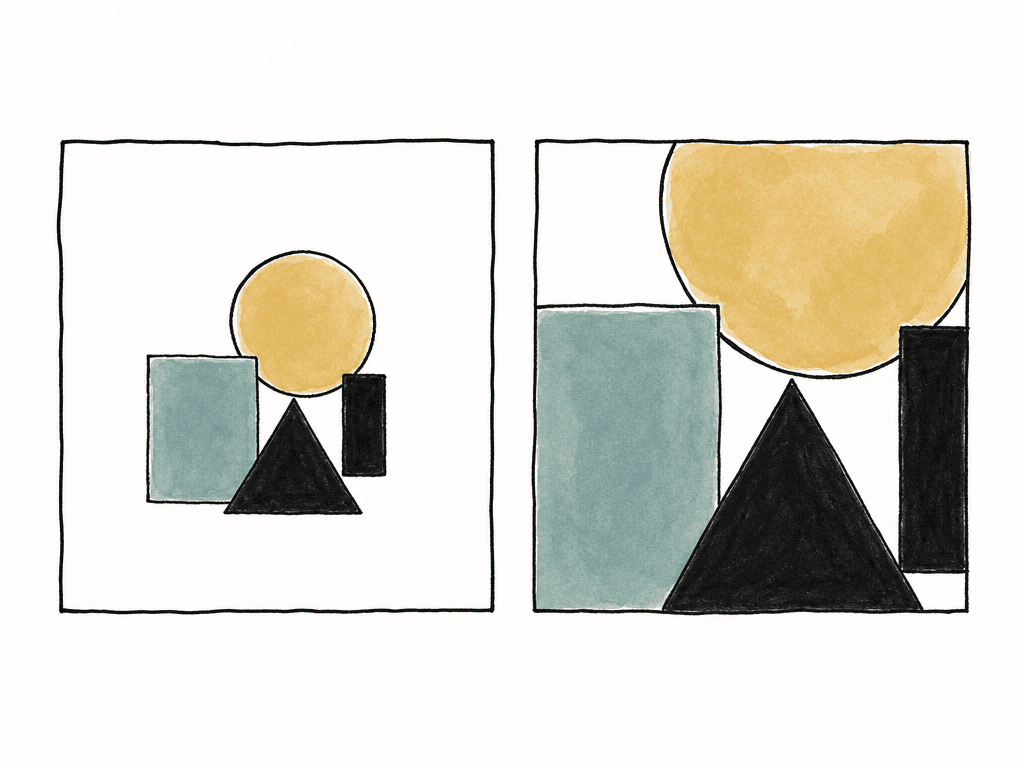
- Fit: scales the whole image inside the frame, possibly creating letterbox or pillarbox areas
- Fill: scales until the frame is filled, cropping edges if the aspect ratio differs
- Stretch: distorts the image to fill the frame, usually wrong unless intentionally used
- Center crop or no scale: keeps the source size relative to the timeline, cropping large sources
- Custom transform: manual scale, position, rotation, and crop decisions per shot
How the major NLEs tend to handle it
The details vary by application, but the pattern is consistent: the timeline has fixed format settings, and the NLE conforms mismatched clips through project, sequence, or clip-level controls. Final Cut Pro is famously automatic at project creation. When you add the first video clip to a new project, it can set the project format, frame size, and frame rate based on that source media. That's convenient for quick jobs and risky for professional mixed-format work if the first clip isn't representative. Final Cut also lets you modify project settings and control frame size and frame-rate conform behavior clip by clip. The key is to create or adjust the project intentionally instead of letting the first inserted clip define the show. DaVinci Resolve uses project and timeline settings to determine resolution, frame rate, image scaling, monitoring, and output behavior. Resolve handles mixed frame sizes through timeline resolution and image scaling settings, with manual overrides available per clip. Resolve also supports individual timeline settings, which matters when one project needs several deliverables with different resolutions or output sizing rules. The catch is that some frame-rate choices are foundational. Set them early. Premiere Pro, Media Composer, and other NLEs follow the same broad logic even when the menu names differ. A sequence has settings, and the NLE adapts clips that don't match. You can often choose scale behavior, interpret footage, create proxies, render previews, and apply motion interpolation or timewarp effects. The workflow problem is less about finding the button and more about documenting the intended handling so another editor, assistant, colorist, or online artist gets the same result.Watch for pulldown, interlacing, and variable frame rate
The worst mixed-format issues often come from media that looks normal at first glance. Archive, broadcast masters, screen recordings, phone footage, and web downloads can carry hidden complications. Pulldown is a classic trap. A file may report as 29.97, but the underlying content may be 23.976 film-style material with a repeated-field or repeated-frame cadence. If you cut it as ordinary 29.97 into a 23.976 timeline, you may bake in uneven motion or duplicate frames. If the cadence is consistent, removing pulldown before editorial or during ingest can recover the original progressive cadence. If the cadence is broken, your team may need shot-by-shot treatment. Interlaced footage is another place to slow down. A progressive timeline and interlaced source aren't automatically a problem, but deinterlacing quality matters. Bad deinterlacing creates combing, softened motion, or jagged edges. If the delivery is interlaced, field order also matters. A field-order mistake can make motion vibrate or judder in a way that's obvious on proper monitoring. Variable frame rate footage is common from phones, webcams, screen recordings, and some capture utilities. The file may average 30 fps but drift in timing across the clip. NLEs have improved, but your team will be safer in longform editorial, multicam, sync sound, and turnovers if you transcode variable frame rate sources to a constant frame rate mezzanine before serious cutting. These sources deserve extra attention during ingest:- Phone video with variable frame rate
- 29.97 files that may contain 23.976 pulldown
- Interlaced archive masters
- Clips with mismatched or missing timecode
- Camera files recorded at high speed for slow motion
Use proxies and dailies to lock the intent early
Offline editorial can hide format problems until online if your team makes proxies casually. A proxy should be lightweight, but it should also preserve the metadata and behavior needed for conform: source filename, reel or tape name, timecode, frame rate interpretation, audio sync, color transform notes, and framing. For high-volume shows, assistants often receive material from many cameras, locations, and departments. Unscripted workflows can include stage cameras, interviews, behind-the-scenes footage, high-speed cameras, follow-home crews, and archival inserts. The volume makes it tempting to “just transcode everything to the edit codec,” but your team should decide mixed frame-rate handling before the transcode batch runs. Good proxy and dailies decisions include:- Transcode variable frame rate sources to constant frame rate
- Preserve source timecode and reel metadata wherever possible
- Keep proxy frame rate aligned with the intended editorial interpretation
- Burn in source name, source timecode, and frame rate for review copies when useful
- Document any pulldown removal, deinterlacing, or standards conversion
When to convert media instead of relying on the timeline
Letting the NLE conform clips in the timeline during the edit is fine, especially during rough cut, but there are cases where a pre-converted mezzanine is safer. Consider converting or normalizing media before edit when:- The source is variable frame rate
- The source has unstable pulldown cadence
- The source is interlaced and the project is progressive
- The source codec performs poorly in the NLE
- The online, color, or VFX team requires a specific format
Render settings are part of the format decision
A timeline render isn't automatically the same as the source, the project, or the final master. Render settings can override timeline resolution, resize clips, change codec, change field order, and apply frame-rate conversion. In mixed-resolution projects, some tools can render individual clips at the project or render resolution, while others can render source clips at their original resolution for dailies or turnovers. That distinction matters. If you're rendering a master, the output should match the delivery spec. If you're rendering dailies, review files, VFX plates, or archival pulls, you may need source resolution, source frame rate, handles, or no timeline resize. One render preset can't safely serve every purpose.
- Output frame rate
- Output frame size
- Scaling method and resize filter
- Field order or progressive setting
- Motion interpolation or frame sampling mode
- Codec, bitrate, and chroma subsampling
- Audio sample rate and channel layout
- Whether the export uses previews, optimized media, proxies, or render cache
- Whether the export includes captions, mattes, LUTs, and color management as intended
Multiple deliverables may need multiple timelines
If the project has one master, one timeline format can carry the edit. If the project has HD, UHD, vertical, square, textless, broadcast, and social versions, you may need separate timelines or output passes with their own settings. Nesting or duplicating a locked sequence into alternate formats can work, but only if your team reviews reframes, graphics, subtitles, and speed effects in each format. A UHD 16:9 timeline can generate an HD 16:9 master cleanly. It doesn't automatically generate a good 9:16 version. A 23.976 creative master can be converted for a 29.97 delivery, but your team should treat that conversion as a deliverable-specific process, not an afterthought during the edit. A texted broadcast version and a textless international version may share picture timing while requiring different graphics, mattes, and QC passes. The more deliverables you have, the more important it's to name timelines clearly. Include frame rate, raster, aspect, and version in the sequence name. “Final_final_v12” tells the finishing team nothing, but “EP103_locked_2398_ UHD_178_texted” is boring, but boring names save time.The decision that keeps mixed-format timelines sane
Undocumented automatic conforming is the problem. Set the timeline from the delivery. Treat frame rate as the critical choice. Treat resolution as both a technical scale operation and a creative framing operation. Decide when clips should play in real time, when they should become slow motion, and when they need high-quality conversion outside the timeline. Normalize risky sources early, especially variable frame rate, pulldown, interlaced archive, and multicam-heavy material. Then render each output for its actual purpose, not from a generic preset. Modern NLEs are very good at hiding format mismatches. That's useful while cutting, but it's dangerous when nobody knows what the software hid.FAQ
Set the timeline to the primary delivery format, not the first clip you import or edit. The timeline should be based on the required frame rate, resolution, aspect ratio, scan type, pixel aspect ratio, audio sample rate, and color pipeline for the master. Letting the first random clip define the sequence can create hidden scaling, cadence, or export problems later.
The NLE must adapt the source frames to the timeline frame rate. Depending on the settings, it may repeat frames, drop frames, blend frames, synthesize new frames with optical flow, apply pulldown, or change playback speed. These methods produce different motion and artifacts, so frame-rate handling should be an intentional editorial or finishing decision.
No. If the clip plays in real time, the NLE has to convert its motion to 23.976 by dropping, sampling, blending, or synthesizing frames. If you want slow motion, the clip should be interpreted or speed-adjusted so more of its captured frames are played over a longer duration. Real-time conversion and slow-motion conforming are different operations.
Pre-conversion is useful when the source is variable frame rate, has unstable pulldown, is interlaced in a progressive project, performs poorly in the NLE, will be used heavily in multicam, or needs a consistent approved conversion for online, color, VFX, or delivery. Timeline conversion is flexible, but managed mezzanine files can reduce ambiguity and improve reliability.
Sometimes one locked timeline can be duplicated or nested into alternate timelines, but each deliverable needs its own review for framing, graphics, subtitles, speed effects, captions, and export settings. A UHD 16:9 master can usually make a clean HD 16:9 output, but it won't automatically create a well-composed 9:16 or 1:1 version.
Treat those decisions as asset metadata, not tribal knowledge. Aspect lets teams add custom fields for notes like pulldown removed, VFR transcoded, deinterlaced, or intended slow motion, so the handling travels with the asset in custom metadata.


