

Pick the remote editing model before tuning the VPN
There are three common ways teams try to do this.| Remote model | Best fit | Main VPN dependency | Strength | Weak point |
|---|---|---|---|---|
| Remote desktop into an on-prem workstation | Full-res editorial, shared NEXIS projects, finishing-adjacent work | Stable interactive traffic for display, audio, keyboard, mouse, and tablet input | Keeps media, bin locking, databases, and playback on the facility LAN | Requires available facility workstations and a well-tuned remote display path |
| Proxy-first remote editing | Creative editing away from the facility, lower bandwidth users, planned relink or conform workflows | Reliable transfer, sync, or managed access to proxy media and project data | Avoids pulling high-res media through the VPN | Requires strict proxy creation, source identity, relink, and turnover discipline |
| Direct shared storage over VPN | Light bin work, metadata prep, small teams, short-form projects, assistant tasks | Low latency, near-zero packet loss, correct SMB or storage access, reliable locking | Lets remote users touch shared projects and media folders directly | Fragile for playback, multicam, simultaneous writes, large bins, and unstable home networks |
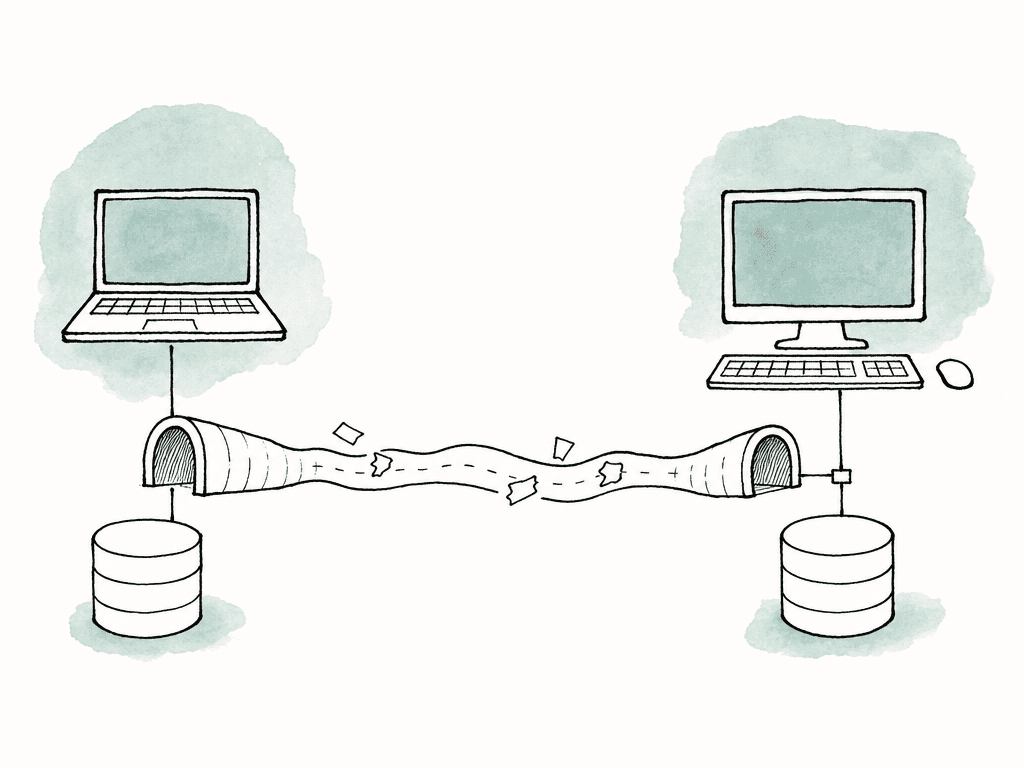
The VPN settings that matter for Media Composer
Media Composer itself isn't “VPN optimized.” The services around it are what need predictable network behavior:- Storage, authentication, and DNS
- Remote desktop, Interplay, and MediaCentral
- NEXIS client connections, plus any file sharing used for projects and media
- Low and consistent latency is more important than peak speed for project and bin operations.
- Packet loss should be effectively zero. Even small loss can make file sharing and remote display protocols feel broken.
- Set MTU and MSS clamping so packets aren't fragmenting across the tunnel.
- DNS should resolve facility hostnames exactly as they do on site.
- Remote users should authenticate against the same identity source used for storage and project permissions.
- VPN sessions shouldn't sleep aggressively during long renders, exports, transcodes, or background tasks.
- The VPN should route only the required production systems unless your security model requires full tunnel.
- QoS should prioritize remote desktop or interactive editing traffic if the VPN is carrying display streams.
- Treat Wi-Fi as a risk factor, not a production network.
Port configuration isn't just “allow VPN”
Avid’s own cloud and remote workflow documentation makes an important point: being connected to VPN doesn't guarantee that Media Composer can reach the required services. Firewalls, IPS devices, and endpoint security tools can still block traffic, and so can VPN ACLs. What they block may be specific hosts, TCP ports, UDP ports, or service discovery traffic. Start by mapping the workflow, then allow only what that workflow needs. A remote desktop workflow has different network requirements than a direct SMB mount. An Interplay or MediaCentral workflow has different requirements again.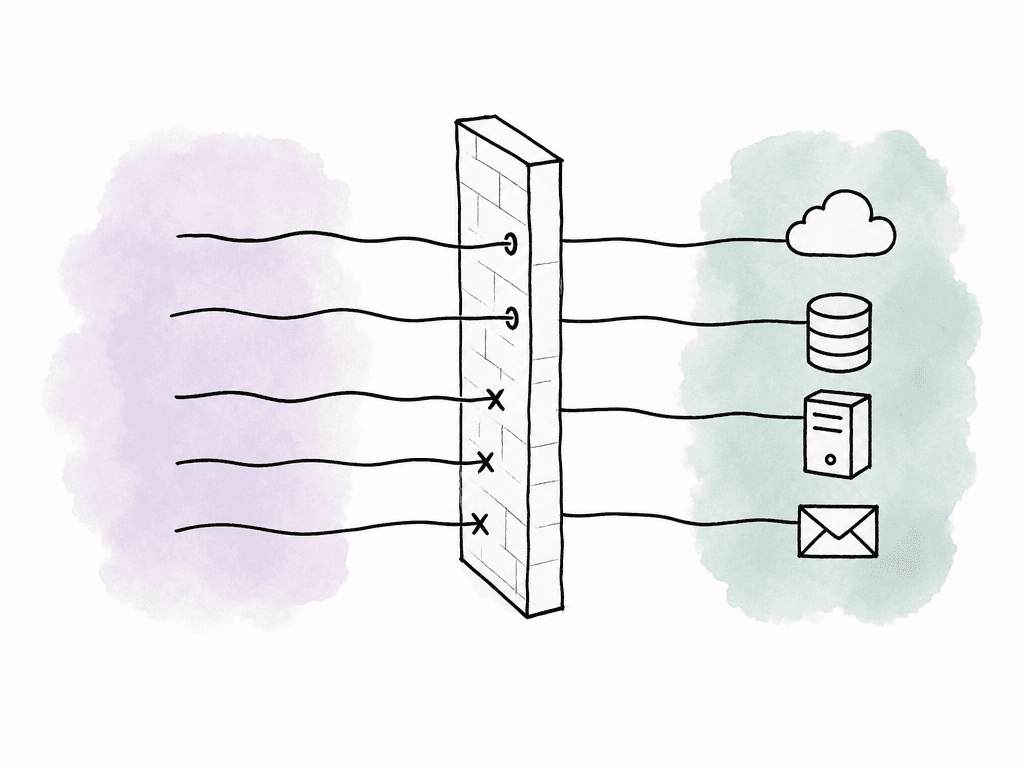
- VPN tunnel access for approved users and devices
- DNS, directory, time sync, and certificate services
- Remote desktop or PCoIP-style display protocol traffic
- NEXIS client and storage management traffic, if remote clients mount NEXIS
- SMB file sharing traffic, if projects or media folders are shared over SMB
- Interplay, MediaCentral, or Cloud UX services, if used
- License services and background services required by the facility build
- Monitoring, logging, and management access for support staff
Shared projects need shared settings, not copied chaos
In a shared storage environment, a Media Composer project isn't just a folder full of bins. Project settings matter, and your team needs to keep them consistent across systems. Avid stores a Settings.xml file at the root of the project folder. When a new computer opens that project on shared storage for the first time, Media Composer creates a folder for that computer under AvidSharedData. It then copies the project Settings.xml there. So the first open on each workstation can create workstation-specific settings behavior if you aren't deliberate. The practical approach is to set the project correctly before everyone piles in:- Open the project on a known-good system.
- Configure project settings that should apply across the team.
- Save those settings.
- Make sure the root Settings.xml reflects the approved setup.
- Have new workstations open the project only after the shared settings are in place.
Media folder sharing has to follow Avid’s rules
Avid managed media is picky in ways that are helpful once you respect them. The Avid MediaFiles folder belongs at the root of the media volume or workspace. Inside it, MXF media is organized under the MXF folder, usually in numbered subfolders. Media Composer scans those folders and builds database files so clips can relink to media.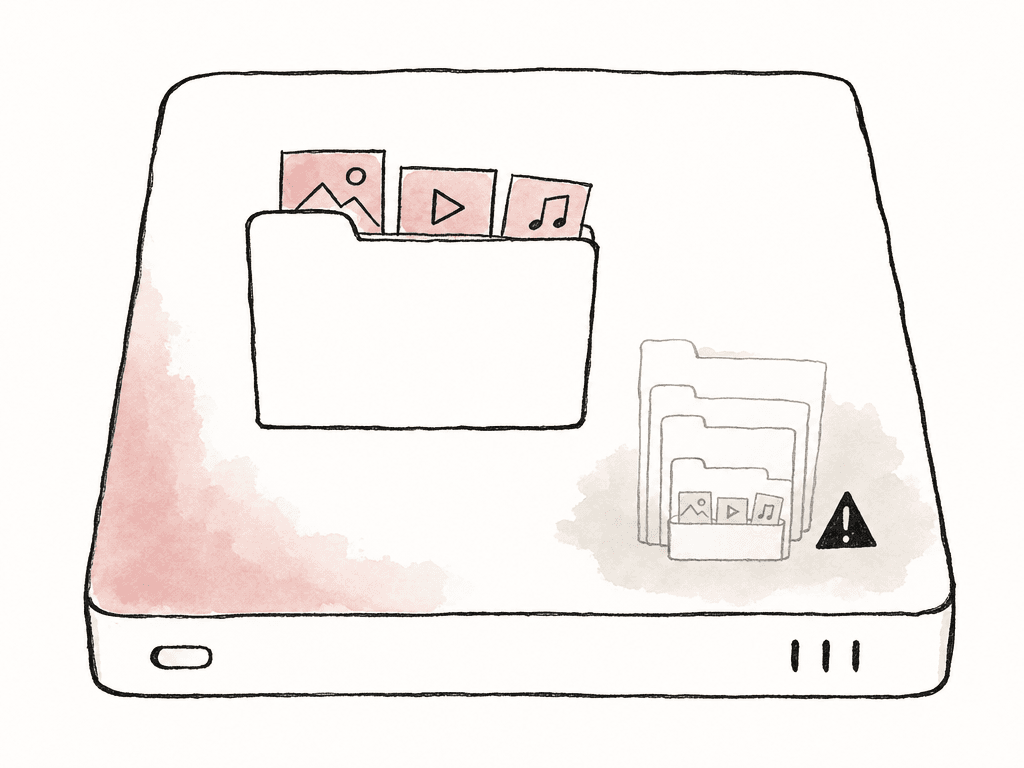
- Use one or more shared media workspaces for Avid managed media
- Put Avid MediaFiles at the root of each media workspace
- Put MXF media inside Avid MediaFiles/MXF/numbered folders
- Store project folders separately from media where possible
- Assign ingest, transcode, and render locations intentionally
- Set permissions that allow Media Composer to create, modify, and rebuild database files
- Confirm the Avid MediaFiles folder is at the root of the mounted workspace.
- Confirm the folder isn't accidentally nested one level too deep.
- Confirm users have write permission where Media Composer needs to create database files.
- Confirm the media database has rebuilt.
- Confirm the editor has mounted the same workspace that contains the media, not a similarly named local or cached copy.
Don't put one giant project on the VPN and hope
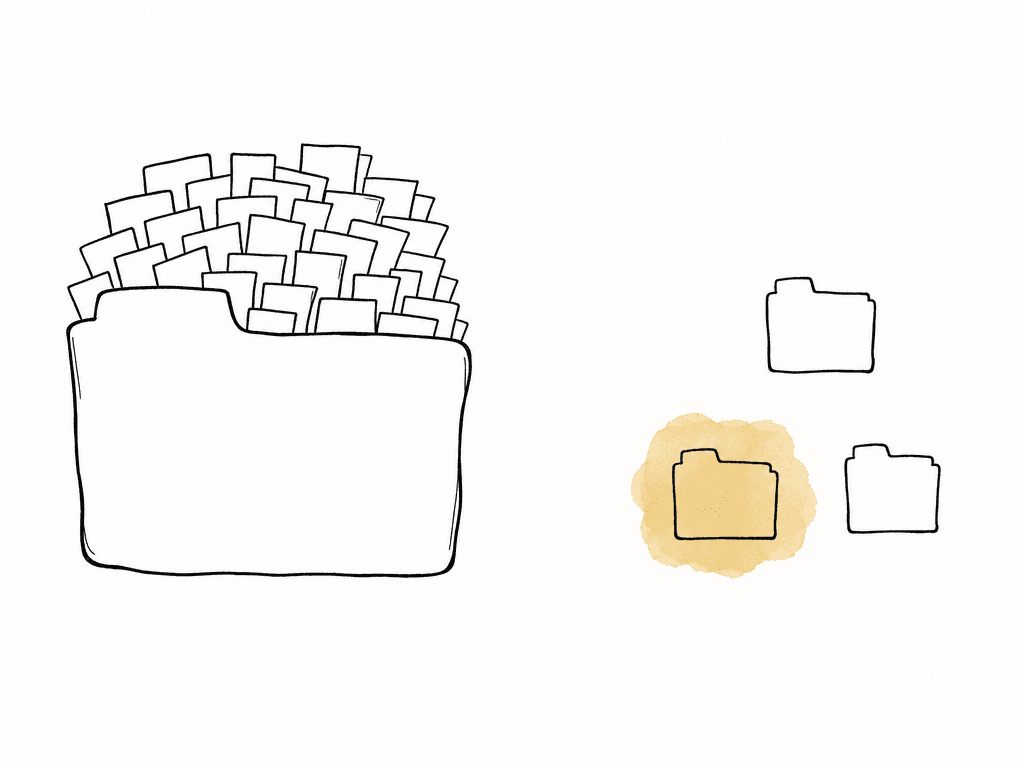
Project structure is workflow infrastructure. Over VPN, a bloated project becomes a network problem, because every open, save, lock, and bin refresh has to cross a less predictable path. On episodic, unscripted, and documentary shows, and on any multi-editor job, split the work in a way that matches how editorial actually moves material. Avid has described large unscripted workflows where a single repository-style project or library holds media, while editors work in more focused creative projects. That pattern exists for a reason: it separates asset organization from day-to-day cutting. Useful split patterns include:- A media repository project for ingest, grouping, sync, stringouts, and archival bins
- Separate editor projects for episodes, reels, acts, scenes, or story teams
- Assistant projects for prep tasks that don't require editors to open every bin
- Turnover or finishing projects that contain only the sequences and reference bins needed downstream
- Read-only archive areas for locked cuts, exports, and old versions
Workgroup configuration should match editorial roles
Configure workgroups around what people need to do. Editors need active project access and their assigned media workspaces. They also need render locations and review/export destinations. Assistant editors may need broader ingest and media management permissions. Producers may need screening exports or review systems, not write access to live Avid bins. Finishing may need locked sequences, source media, and AAFs, plus turnover folders. Finishing does not need the messy working project. For Avid environments with Interplay, MediaCentral, NEXIS EDGE, or Cloud Remote-style features, workgroup settings become even more important. Some Avid remote workflows include administrator-controlled settings for whether remote download is allowed for a workgroup. That's a security and workflow decision, not just a convenience toggle. On some shows, sensitive media leaving the facility is unacceptable. At minimum, align these across the workgroup:- Media Composer version and patch level
- NEXIS client version, if used
- Project type, raster, frame rate, and color settings
- User permissions for projects, media, renders, and exports
- Workspace names and mount behavior
- Remote download policy, if applicable
- Two-factor authentication and device requirements
- Naming conventions for users, systems, bins, and workspaces
- Support escalation path when a remote editor is blocked
Third-party storage and bin sharing need extra caution
Media Composer can work with shared storage beyond Avid NEXIS, but you need to be honest about support boundaries. Recent Media Composer builds include a project setting for enabling bin sharing on third-party storage emulating Avid NEXIS or ISIS. That setting exists because bin sharing depends on storage behavior, not just folder access. If you're using third-party shared storage over VPN, test bin locking deliberately:- Open the same shared project from two systems.
- Open a bin on one system and confirm the other sees the expected locked state.
- Save changes, then close and reopen.
- Drop the VPN session while a bin is open and see what happens.
- Confirm lock files clear properly.
- Repeat the whole test with the actual endpoint security tools enabled.
Proxies are usually the difference between usable and miserable
If remote users need creative playback, don't try to drag full-res media through the tunnel. Build a proxy plan instead. Media Composer supports proxy workflows, and Avid’s high-resolution workflow guidance calls out important details around project raster, transcode choices, and relink behavior. For example, transcode options can be limited by the current project format. High-res sources in an HD project may not expose every proxy dimension or original-resolution transcode option you expect. For VPN shared projects, the proxy decision should include:- Proxy codec and raster that plays reliably on remote systems
- Where your team creates proxies: facility, assistant workstation, distributed processing, or automated workflow
- Whether your team copies proxies remote, streams them, or accesses them through managed remote tools
- How your team preserves source identity for relink
- Who can relink, consolidate, transcode, or delete media
- How finishing gets back to full-res media
- Ingest a real camera card and create proxies.
- Cut a short sequence remotely.
- Relink to high-res, then render and export.
- Turn over.
How to know the setup is actually production-ready
Fold testing into each part of the workflow, not just the day before editors start. When your team changes the VPN, open a shared project and save bins. When your team changes storage permissions, create Avid media and confirm databases update. When your team updates Media Composer, open copied bins from the real show and check compatibility. When your team adds proxies, relink a real sequence. The most useful pilot is one assistant editor and one editor working for a day on representative material. Include multicam if the show uses multicam. Include turnovers if the show turns over weekly. Include producer changes if story bins move between episodes or acts. Include a simulated VPN drop, because someone’s home internet will absolutely drop during the season. A working Media Composer shared project over VPN is a chain. It runs from remote access and ports through DNS, storage, and permissions. Then it runs through project settings, media layout, and version control, and it ends at proxy strategy and the human rules around bins. So keep full-res editing close to the storage. Keep remote traffic predictable. Split projects so people only touch what they need. Do that and nobody has to think about the VPN again, which is exactly what you want.FAQ
Yes, but the most reliable setup is not direct full-res editing across the VPN. A safer model keeps Media Composer workstations and NEXIS or shared storage on the facility network, along with shared projects and high-resolution media. Remote users then connect to those systems through remote desktop or a managed proxy workflow. Directly mounting shared storage over VPN can work for light bin access or assistant tasks. It is more sensitive to latency, packet loss, permissions, DNS, and file locking.
The most important VPN qualities are low consistent latency and near-zero packet loss. Correct MTU and MSS clamping, reliable DNS, and proper authentication come next. Sessions also need to stay stable and not sleep during long operations. If remote desktop is used, prioritize interactive display traffic where possible. If shared storage is mounted, make sure the VPN and firewall rules allow the storage, authentication, name resolution, and locking behavior required by the workflow.
There's no single universal port list because the required ports depend on the workflow and Avid products in use. Remote desktop, SMB project sharing, and NEXIS client access each require different rules. So do Interplay, MediaCentral, and Cloud UX, along with licensing, DNS, directory services, and time sync. For SMB shares, TCP 445 is commonly required, but that is not the whole list. Name resolution, authentication, endpoint firewall policy, signing or encryption settings, and permissions also matter. Use the port guide for the exact Avid versions and services in the environment rather than copying rules from another facility.
Common causes are the Avid MediaFiles folder being in the wrong location, or media nested one folder too deep. Missing write permissions and stale media database files also cause it, as does the editor mounting the wrong workspace. For Avid managed media, the Avid MediaFiles folder should be at the root of the media volume or workspace, with MXF media inside Avid MediaFiles/MXF/numbered folders. Media Composer also needs permission to create and rebuild database files in those folders.
Avoid making every remote user open one huge master project. Large projects increase bin refresh, save, lock, and open times over VPN. A better structure separates media organization from day-to-day cutting. Use a repository project for ingest and sync, and separate editor projects for episodes or scenes. Add assistant projects for prep work and turnover projects for finishing. This reduces contention, keeps active bins smaller, and makes bin ownership clearer.
Producers rarely need write access to the shared Media Composer project. Aspect can keep review outside the active edit project, with timestamped comments, annotations, and replies carrying version context. Editorial receives usable notes through a frame-accurate review workflow without exposing live bins.


