Start with the sync anchor
A multicam sequence is just a container that lets you cut between angles while the NLE maintains sync between them. In Premiere Pro, that container is usually a multi-camera source sequence, while in Final Cut Pro, it's a multicam clip with angles. Different NLEs name the object differently, but the problem is the same: you need to place every angle against a shared clock, marker, or moment.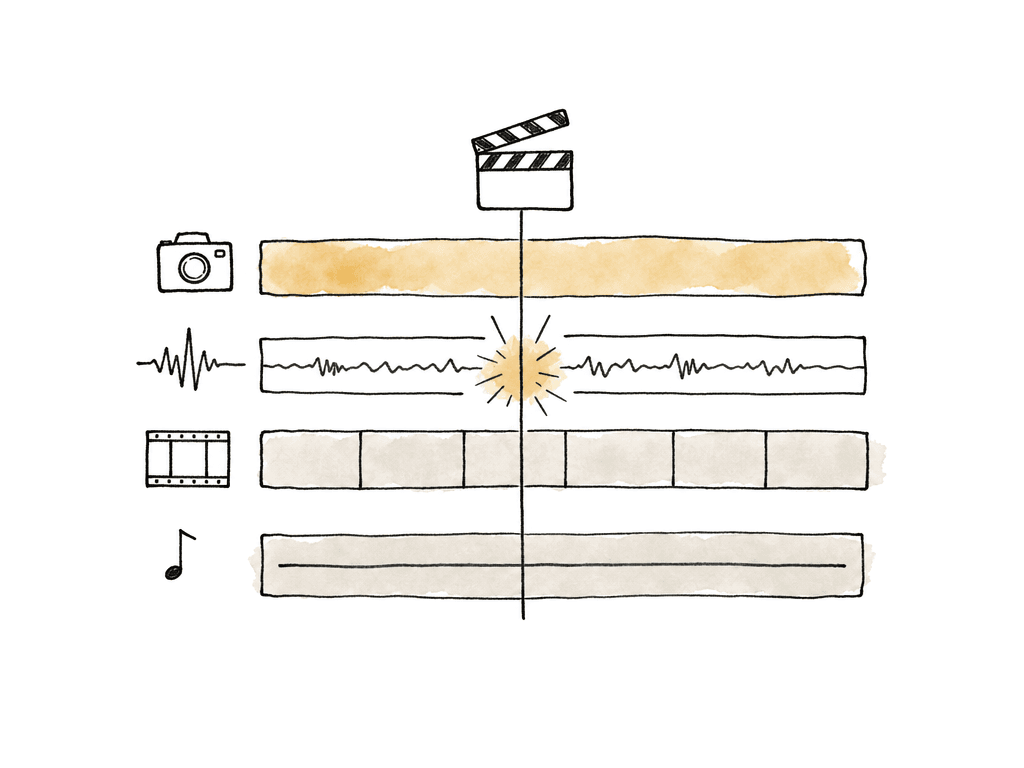
- Use timecode when the cameras and audio recorder were jam-synced or otherwise share matching timecode.
- Use audio waveform sync when every camera or recorder captured the same event sound.
- Use an in point or out point when an assistant manually marks the same clap, slate frame, or cue on every source.
- Use a marker when you want to mark a visible or audible event without trimming or changing clip boundaries.
- Use a visual cue when there's no useful audio, such as a flash, door close, hand clap visible but not audible, or a performer’s gesture.
| Sync anchor | Best use | How to apply it | Main risk |
|---|---|---|---|
| Timecode | Cameras and recorder share matching jam-synced timecode | Create the multicam by timecode, then inspect head, middle, and tail | Slate displays can be mistaken for shared clip timecode |
| Audio waveform | Every device captured the same event sound clearly enough | Sync by audio first, then check transients and dialogue | Noisy, compressed, or unrelated scratch audio can create false matches |
| Slate or clap | There is a clear board clap or hand clap on picture or audio | Mark the clap with in points, out points, or markers and align those points | Acoustic delay can make camera mic spikes slightly later than the picture |
| Marker on cue | A visible or audible cue is easier to mark than trim | Place matching markers on each source and sync by marker | Marking different frames of the same action creates an offset |
| Visual cue | Audio is missing, distorted, or unrelated | Align the shared visual event, then confirm against any usable sound | Mouth shapes and soft gestures are easy to misread |
Organize the sources so the group makes sense
A multicam build gets messy fast when the software has to guess which clip belongs to which camera. Before syncing, group and label the media in a way that reflects the shoot, not just the card dump. At minimum, separate the material by shoot day, scene or segment, camera, and external audio. Keep the original filenames and source metadata intact wherever possible. Renaming camera originals casually can cause pain later during conform, relink, turnover, and archive. If you need friendlier names, use bins, clip names, camera angle metadata, scene/take fields, or logging columns instead of destroying the source identity. Useful labels for unsynced multicam work include:- Camera angle name, such as A Cam, B Cam, Wide, Host, Guest, Roaming
- Shoot day or recording block
- Scene, segment, song, act, or interview section
- Audio role, such as Mix, Boom, Lav 1, Lav 2, Board Feed
- Notes about restarts, missing audio, corrupt clips, or camera splits
Build a sync map when the sync is uncertain
For clean interview shoots with three cameras and matching scratch audio, you can often select the clips, create the multicam group, sync by audio, and move on. For anything more complicated, build a sync map first. A sync map is a timeline where all cameras and production audio are laid out in relation to each other before they become a multicam group. It gives the assistant editor a place to see the whole recording block: starts, stops, gaps, drift, split files, missing clips, and questionable matches.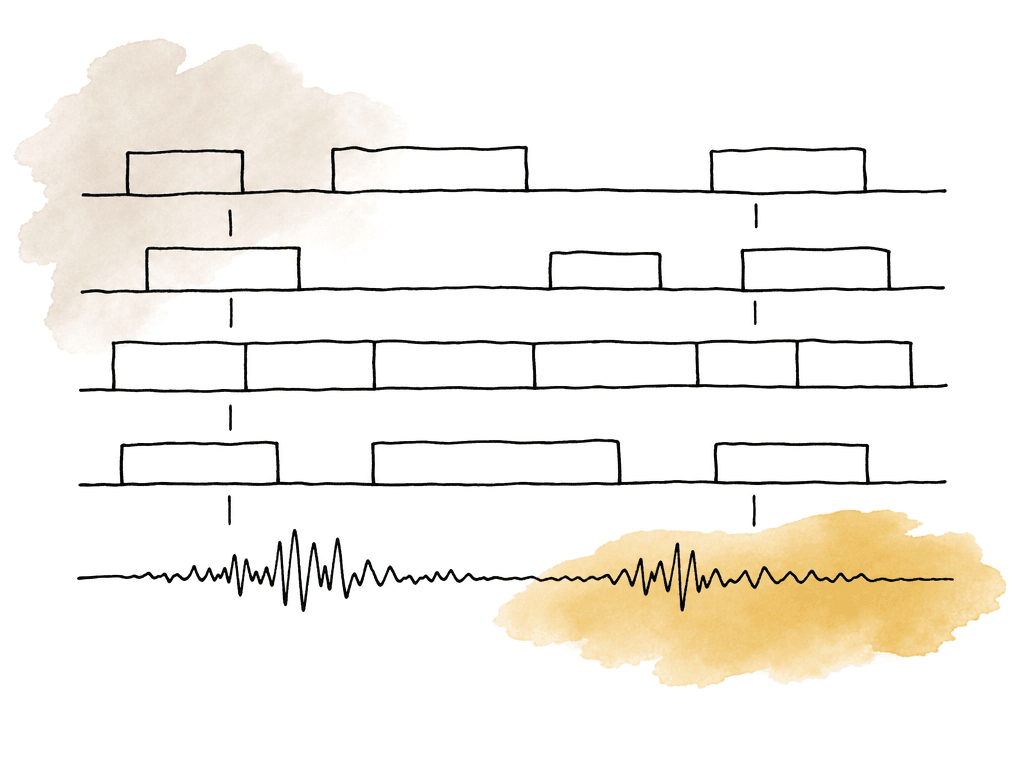
- Cameras started and stopped independently.
- Mirrorless cameras or action cameras split files during long recordings.
- External audio ran continuously while cameras rolled in chunks.
- One camera has no scratch audio or distorted scratch audio.
- The shoot includes phones, screen recordings, or other sources with variable frame rate behavior.
Manual sync methods that actually hold up
Manual sync is often the right method when the sources are incomplete, noisy, or inconsistent. The trick is to choose a sync point that you can identify the same way across all sources. A slate clap is ideal because it gives you both a visual event and an audio transient. If the board is visible, find the frame where the sticks close. If the audio is present, find the sharp waveform spike. Those should agree closely, but if they don't, prioritize the production audio and picture relationship that matches the real clap. A slate that's several feet from a camera will have minor acoustic delay in the camera mic, while the visual frame shows the event immediately. Usually that difference is small, but it can matter on tight dialogue or music.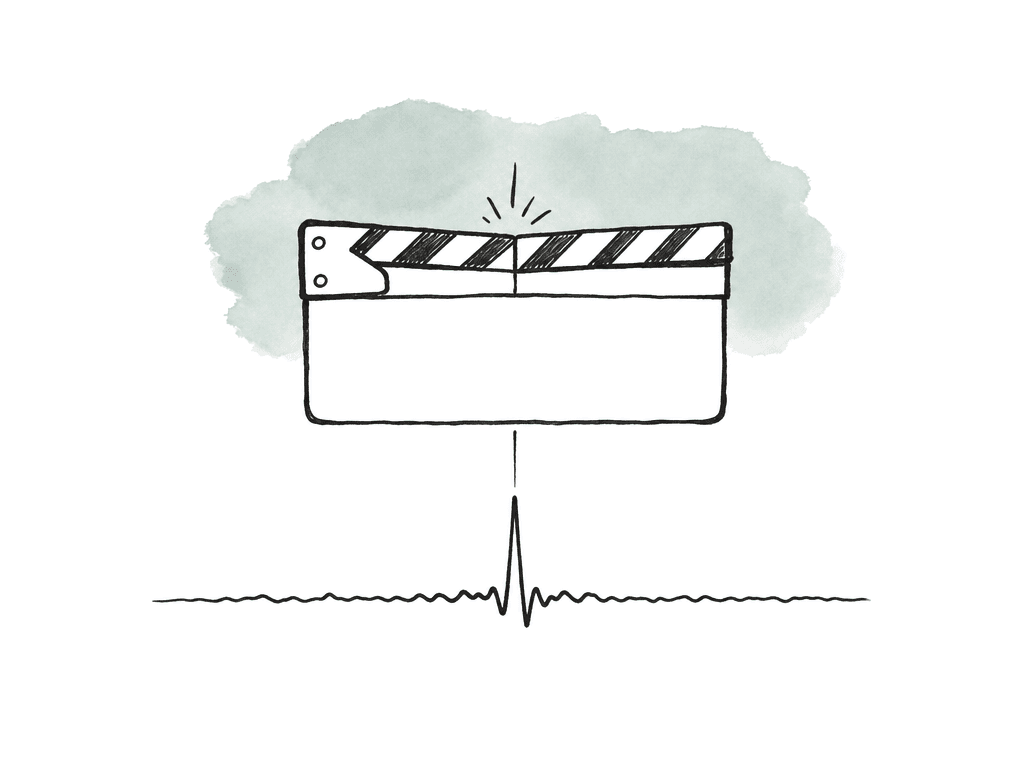
Create the multicam group after the alignment is proven
Once you have established sync, create the multicam object from the aligned sources or from the selected clips with the correct sync method. In Premiere, you usually select the relevant camera and audio clips, then create a multi-camera source sequence. The important choice is the synchronization point: timecode, audio, in points, out points, or markers. If you already marked the slate with in points, use in points. If the clips have valid shared timecode, use timecode. If every camera has scratch audio, audio sync is often the fastest. Pay attention to the audio settings while creating the multicam. A common mistake is letting the multicam use camera audio as the main edit audio when there's a separate production mix or isolated lav tracks. For the edit, you usually want the multicam to cut picture angles while preserving the right audio source underneath. That may be a mix track for cutting, with ISOs carried along for later audio work. In Final Cut Pro, add camera names and angles before creating the multicam clip when possible. Final Cut can automatically sync using audio analysis, and it can also create multicam clips using manual metadata-driven methods. If you know the media’s metadata is reliable, manual methods can be faster than waiting for audio analysis. If the audio is the best reference, let the automatic audio sync process do the first pass, then open the multicam clip and inspect the angle sync. A sensible multicam group should have a clean angle layout:- Use one angle per camera position or source type.
- Arrange split camera files sequentially in the same angle.
- Carry production audio as its own angle or audio component when useful.
- Keep camera audio only if it helps sync, reference, or emergency repair.
- Leave empty sections visible where a camera stopped rolling rather than covered up accidentally.
Handle drift before it becomes an edit problem
Sync drift is different from bad initial sync. Bad initial sync means the sources don't line up correctly at the start, while drift means they start in sync and slowly move apart over time. Drift usually shows up in long takes, low-cost recorders, phones, action cameras, screen captures, and mixed frame rate workflows. It can also happen when one device recorded at the wrong sample rate or when your team cuts variable frame rate media directly without normalization. The symptom is familiar: the clap is perfect at the head, but 30 or 60 minutes later the lips are late, the music feels flammy, or the board feed no longer matches the camera scratch track. Nudging the whole clip will fix one point and break another.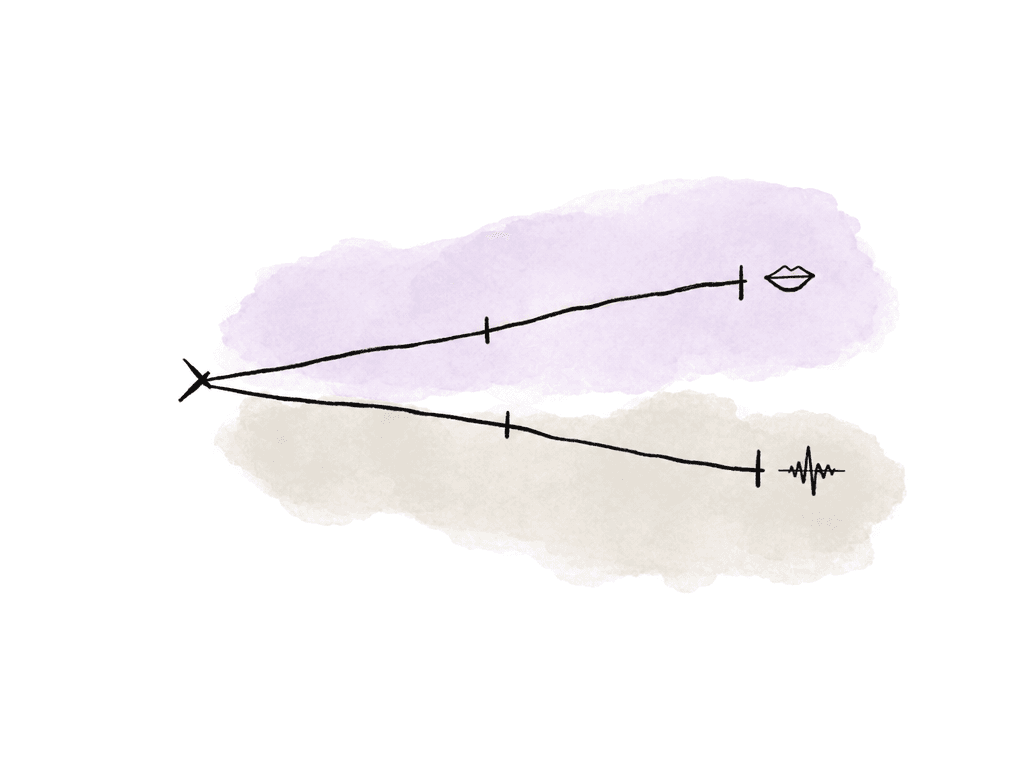
Cut with the multicam, but keep checking sync in context
After the group is built, bring it into the edit timeline and enable multicam cutting. At this point, the editor should be thinking about performance, coverage, rhythm, and story. Still, you need to evaluate sync in the edit, not only in the source group. Some issues only appear after the editor makes edits. For example, an angle may be correct in the multicam clip, but the edit may have the wrong audio component enabled. A camera restart may leave a gap that's hidden by another angle until the editor cuts back to it. Someone may have duplicated and modified a multicam clip in one sequence but not another. Good sync review happens while watching real moments in the edit: dialogue cuts, reaction shots, music hits, applause, footfalls, prop sounds, and any place where picture and sound lock together in the viewer’s mind. Lip sync is the obvious test, but not the only one. A drummer’s stick, a clapperboard, a glass set on a table, or a laugh reaction can reveal problems faster than a neutral talking head. When something feels off, isolate the problem. Compare the active edit against the multicam source. Then compare the multicam source against the original camera clip and production audio. Don't assume the multicam is wrong just because the timeline feels wrong. The issue might be an audio effect with latency, a nested sequence interpretation, a proxy mismatch, a render artifact, or a slipped edit.Keep an audit trail for the team
Unsynced multicam work involves judgment calls. If you don't record those calls anywhere, the next person has to rediscover them under pressure. You need enough context for another assistant, editor, online editor, or sound team to understand what happened. Mark clips that failed automatic sync. Note which source is the sync master. Label any drift corrections. Keep sync maps in the project instead of deleting them once you make the multicam. If you synced a camera by visual cue because it has no reliable audio, say so in the sequence name or notes. This matters later when someone asks why a camera angle doesn't line up with timecode, why a clip has a 99.98 percent speed adjustment, or why a production audio file starts earlier than picture. Clear sync documentation turns those from emergencies into explainable workflow details.Build and verify the multicam before editing
For most unsynced multicam jobs, the reliable path is: organize the media, choose the best sync anchor, build a sync map if there's any uncertainty, create the multicam group, inspect the group at multiple points, then cut from that group. Automatic sync tools are useful, especially waveform sync in modern NLEs, but they aren't a substitute for understanding the sources. The more inconsistent the shoot, the more you need visible proof of sync before editing begins. A good multicam sequence should let the editor forget about the mess that came in from production. The angles switch cleanly, the audio stays locked, split files behave like continuous cameras, and your team has already handled any drift or manual repair inside the group. That's the difference between “we made a multicam” and “this is safe to cut.”FAQ
Start by choosing the most reliable shared sync reference. Use matching timecode if it's real, waveform sync if all devices recorded usable reference audio, in points or markers on a slate clap if there's a clear clap, and visual cues only when audio is missing or unreliable. Don't create the multicam group until the alignment has been proven.
A sync map is a timeline where all camera clips and production audio are laid out against each other before being wrapped into a multicam sequence or clip. It helps reveal camera starts and stops, split files, missing clips, failed waveform matches, and sync drift. It's especially useful for long recordings, mixed camera types, phones, screen captures, and shoots where cameras rolled independently.
First confirm that the sources start in sync and gradually move apart, rather than being misaligned from the beginning. Then check sync at the head, middle, and tail. Common fixes include cutting the drifting source into smaller sections and slipping each section, applying a tiny speed adjustment, checking for sample rate problems, or transcoding variable frame rate media to constant frame rate before rebuilding the multicam group.
In most editorial workflows, the multicam should switch picture angles while preserving the correct production audio. That usually means using a production mix for cutting and keeping isolated lav, boom, or board feed tracks available for later sound work. Camera audio can be useful for syncing or emergency repair, but it shouldn't accidentally replace the intended production audio.
Open the group or angle editor and inspect sync at multiple points, especially the beginning, middle, and end of long takes. Check dialogue, claps, music hits, applause, footfalls, and other moments where sound and picture clearly connect. Confirm that split camera files are arranged correctly, angle names are clear, production audio is enabled as intended, and any drift corrections or manual sync choices are documented.
Treat sync decisions as project metadata, not tribal knowledge. In Aspect, teams can use notes and custom fields to track the sync master, failed waveform matches, visual-only sync points, and speed corrections as part of the asset record with custom metadata.