

Decide what the report is allowed to be responsible for
A dailies report isn't the same thing as a camera report, sound report, continuity log, lab report, or daily production report, though it may overlap with all of them. Its job is to summarize media that entered the dailies workflow and make that summary usable downstream. Before building the template, decide whether the report describes:- Original camera files only
- Original audio files only
- Proxies or editorial transcodes only
- Both source media and generated dailies deliverables
- Archive copies, including RAID, shuttle drive, LTO, or cloud transfer status

Build the report around the grain of the workflow
The most common reporting mistake is summarizing too early. If you only keep a top-line total, you lose the ability to explain mismatches later. Keep the row-level detail at the clip level, then generate summaries from it. A solid dailies report usually has two layers:- A clip log, with one row per source clip or delivered asset
- A summary tab or page, grouped by shoot day, camera, and sometimes unit
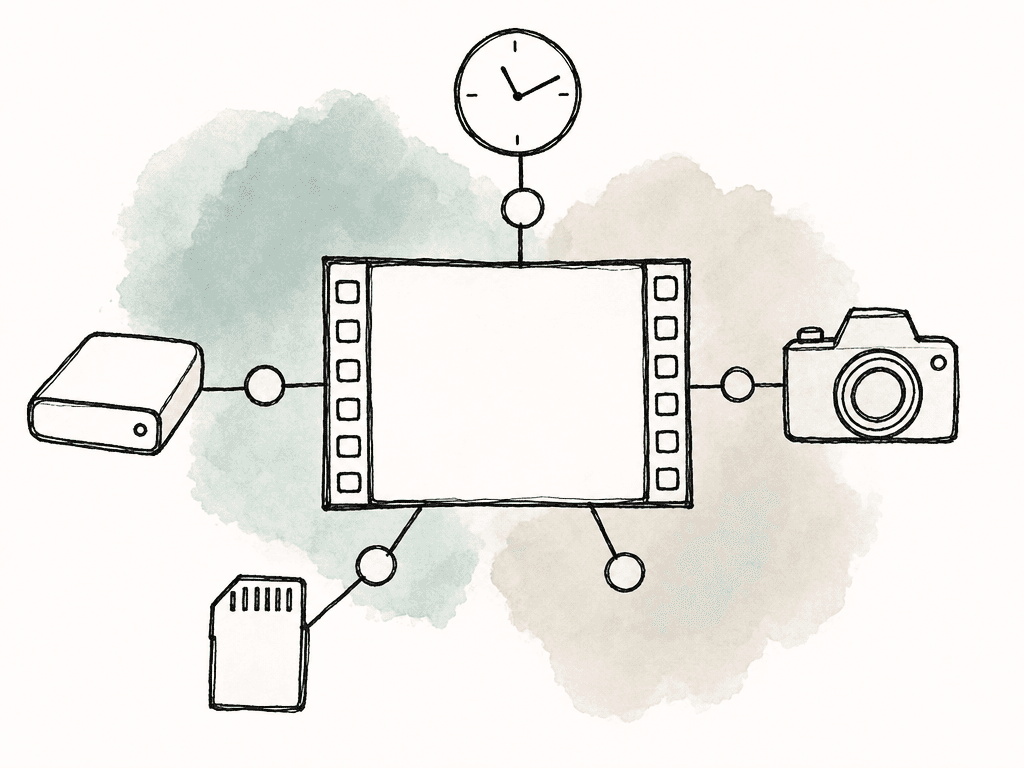
- Production name or code
- Shoot date
- Unit, if there's more than one
- Camera ID, such as A, B, C, Drone, Crash, Bodycam, or VFX witness
- Card, mag, or roll name
- Clip name exactly as recorded
- File path or volume name
- Start timecode and end timecode
- Duration
- Frame rate
- Codec or format
- Resolution
- File size
- Audio presence or linked sound roll, if relevant
- Status, such as ingested, verified, transcoded, synced, delivered, held, or excluded
- Notes for anomalies
Normalize camera IDs before calculating anything
Camera naming gets messy fast. One system may call the same body “A Cam,” “A-CAM,” “CAM_A,” “A001,” or the serial number. If your report groups those as separate cameras, your totals are already wrong. Pick a normalized camera ID for reporting and keep the original value in a separate field. For example, “A” can be the report camera, while “A004C013_250814” remains the clip name. If you're receiving camera reports from set, use the naming convention agreed in the workflow memo. If the show has a loader or DIT, align with their roll naming rather than inventing a post-side abbreviation. This is especially important when a camera body changes cards, a second unit joins, or a drone and crash camera are added mid-shoot. The goal is that anyone reading the report can tell which camera generated which media without decoding filenames.Calculate duration in frames, then display it in timecode
Duration looks simple until mixed frame rates enter the show. If you calculate duration only from human-readable timecode strings, you'll eventually get rounding errors, drop-frame confusion, or off-speed surprises. The safer approach is to store duration as a frame count or seconds value, then display it as timecode for readers. Your reporting system should know the base frame rate used for the production and the actual frame rate of the clip.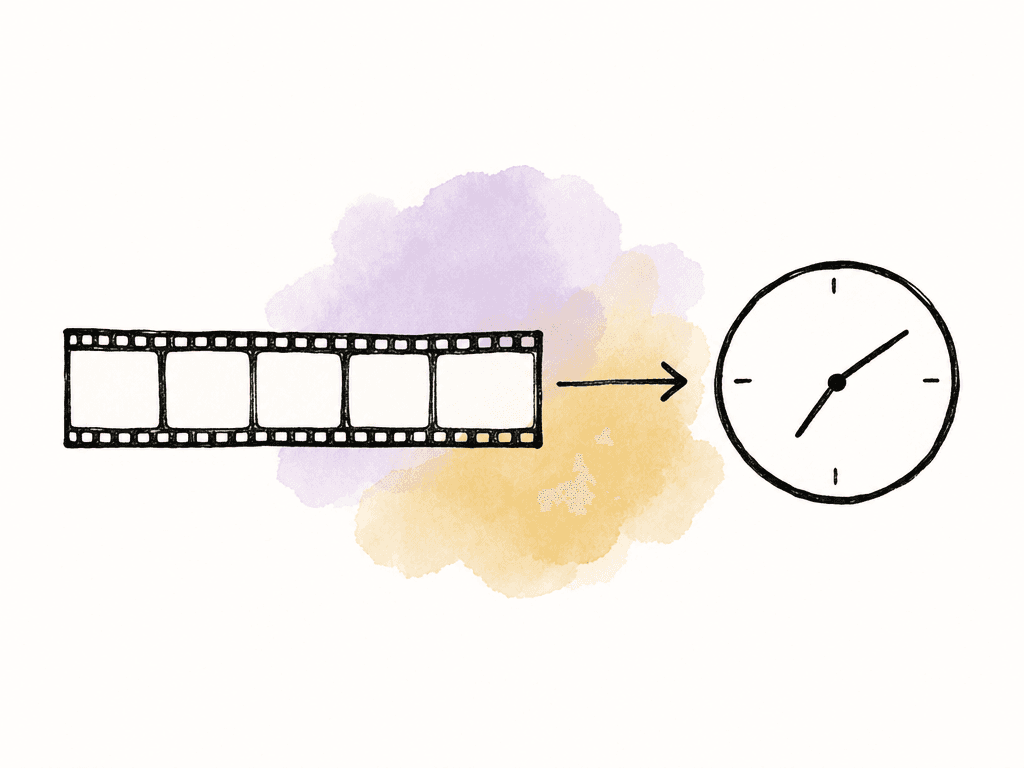
- Source start timecode
- Source end timecode
- Duration frames
- Duration seconds
- Display duration as HH:MM:SS:FF
- Base frame rate
- Recorded frame rate, if different
Treat storage as measured data, not estimated data
Use actual file sizes for storage whenever possible. Camera spec sheets and codec calculators are useful before the shoot, but a dailies report should reflect what your team actually copied, verified, transcoded, and delivered. At minimum, show source storage per camera. If your dailies team creates proxies or editorial media, show those separately so nobody confuses OCF volume with deliverable volume.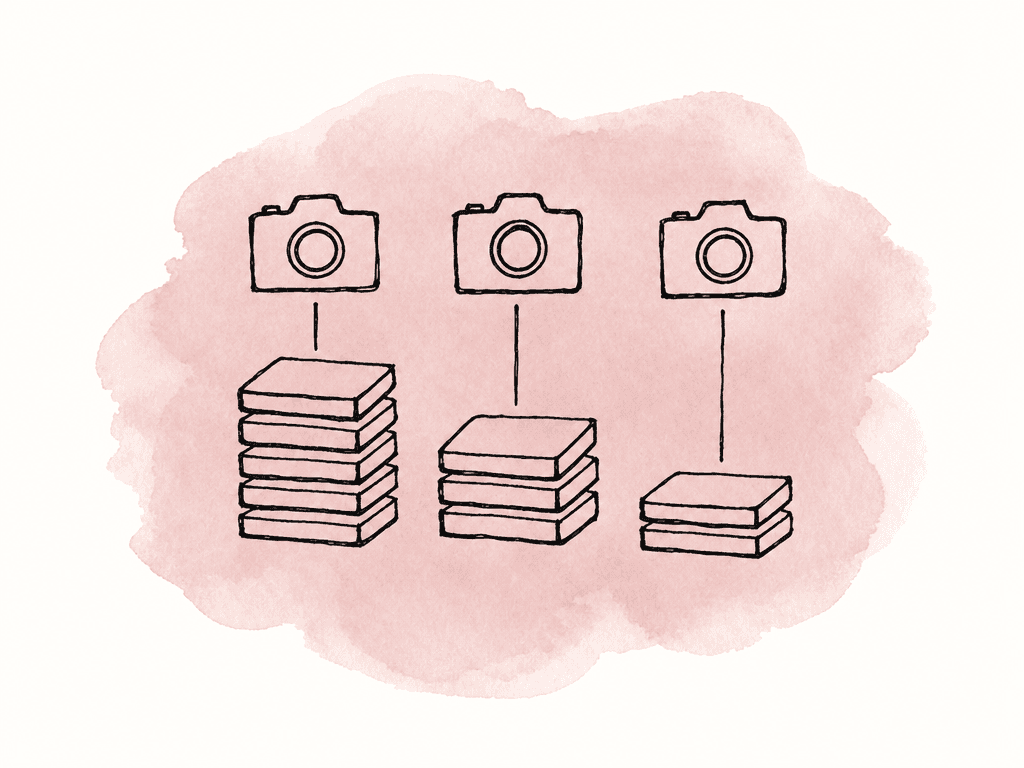
- OCF size per camera
- OAF size per sound roll or shoot day
- Proxy size per camera or delivery batch
- Total verified source media
- Total generated dailies media
- Total archive copy size, if archive is in scope
Pull metadata from the earliest reliable source
The best metadata source is the one closest to ingest that your team can trust. On many sets, that means a media management tool used by the DIT or data manager. In other workflows, it may be Resolve, a lab system, camera card folder scans, or an exported CSV from the dailies application. Common input sources include:- Camera card directory scans
- DIT or lab software reports
- ALE, EDL, XML, CSV, or JSON exports
- Sound reports
- Transcode job logs
A spreadsheet version that actually holds up
A spreadsheet is often the fastest way to start, especially for commercials, documentaries, unscripted, or smaller scripted shows. The key is to avoid making the spreadsheet the place where humans retype everything. Use one tab for imported clip-level data and another tab for the summary. Don't edit the imported tab except to add controlled fields that your source export doesn't include, such as normalized camera ID or inclusion status. A basic workbook can use these tabs:- Raw import
- Normalized clip log
- Daily summary
- Camera summary
- Exceptions
- Distribution notes
| Shoot date | Camera | Clips | Runtime | OCF GB | Proxy GB | Cards | Exceptions |
|---|---|---|---|---|---|---|---|
| 2026-08-14 | A | 86 | 01:42:18:12 | 742.6 | 38.4 | 4 | 1 |
| 2026-08-14 | B | 79 | 01:35:44:03 | 698.2 | 36.9 | 4 | 0 |
| 2026-08-14 | Drone | 24 | 00:18:12:00 | 112.8 | 5.1 | 2 | 2 |
A script version for repeatable reporting
A simple script can scan a folder, read media metadata, combine it with CSV exports, and generate a daily report without your team touching every row. Python is common because it handles CSV, JSON, filesystem scans, and media tool output well. Many teams also use shell scripts, Node, or whatever fits your facility. A script-based flow usually looks like this:- Read the day’s media inventory from a folder scan or exported report
- Extract file size, path, clip name, and modification data
- Pull duration, frame rate, resolution, and codec from media metadata
- Map camera IDs from naming rules or a lookup table
- Join with camera reports or sound reports if needed
- Write clip-level CSV
- Generate a summary CSV, spreadsheet, PDF, or HTML report
- Save the report into the project folder and send it to the distribution list
- File has no readable duration
- Clip name doesn't match expected naming pattern
- Camera ID can't be mapped
- File size is zero or unusually small
- Duplicate clip name appears in multiple locations
- Media exists on drive but not in the DIT export
- DIT export references media not found on the drive
- Proxy exists without source media in the current inventory
- Source exists but transcode or sync is incomplete
Reconcile counts against ingest and delivery
A dailies report sits between ingest and editorial handoff, so you need it to match both sides. The ingest count tells you what arrived, and the delivery count tells you what editorial or review actually received. Those are related, but not identical.| Count state | Count this | Why it matters |
|---|---|---|
| Received source clips | All source clips entering the dailies workflow from cards, drives, or transfers | Shows what arrived from set before QC or processing |
| Verified source clips | Source clips that passed copy or checksum verification | Supports confidence that source media can move forward in the workflow |
| Transcoded clips | Source clips that produced editorial or review media | Shows transcode progress and helps explain processing delays |
| Synced clips | Clips linked to production sound where sync is required | Shows editorial readiness for dialogue and scene work |
| Delivered clips | Assets handed to editorial, review, production, or another recipient | Defines what recipients should expect to see |
| Held or excluded clips | Media intentionally withheld, failed QC, missing metadata, or outside delivery scope | Explains why received and delivered totals do not match |
- Received source clips
- Verified source clips
- Transcoded clips
- Synced clips
- Delivered clips
- Held or excluded clips
Make the report readable for each audience
One report can serve multiple teams, but not if it dumps every field on the first page. Put the high-level production summary first, then the detail. Production usually wants:- Total clips by camera
- Total running time by camera
- Total data shot
- Any missing, damaged, delayed, or held media
- Whether the day is complete
- Delivered clip count
- Sync status
- Reel, roll, scene, take, and timecode metadata
- Proxy specs
- Any clips that need attention
- Storage burn rate
- Transcode volume
- Delivery status
- Archive status
- Exceptions that affect schedule or cost
Automate distribution, but keep ownership clear
Send the report at the same point in the workflow every day. That might be after ingest verification, after transcodes finish, after editorial delivery, or after archive confirmation. Pick the moment that matches the purpose of the report. If production needs storage burn during lunch, send a preliminary ingest summary. If editorial needs confidence before cutting, send the final delivery report after dailies are posted or transferred. If both groups need reports, label them clearly as preliminary and final. A normal distribution group might include:- DIT or data manager
- Dailies colorist or lab producer
- Post supervisor
- Assistant editor
- Editorial producer
- Production office
- VFX producer, when applicable
- Studio or network post contact, when required
PROJECT_DailiesReport_YYYYMMDD_v001. If revisions are possible, version the report instead of overwriting it. A corrected report with a clear note is better than a silent replacement.
Use the report to spot trends
Daily reports become much more valuable after a week. Clip counts, runtime, and storage volume reveal how the shoot is behaving. If Camera C suddenly doubles its data volume, maybe a setting changed. If proxy storage grows faster than expected, maybe editorial deliverables are heavier than planned. If delivered clip counts keep lagging behind verified source counts, the bottleneck is probably transcode, sync, or review. Useful trend summaries include:- Storage by shoot day
- Storage by camera
- Average GB per hour of footage
- Received versus delivered clip counts
- Exception count by category
Keep the first version simple enough to survive
The best first draft of a dailies report is the one your team will actually produce every day. Start with clip count, duration, and storage per camera. Add status fields so your team can reconcile the numbers. Add exceptions so problems are visible. Then refine the formatting once the data is reliable. If you can get one clean report out every shoot day, with consistent camera grouping and trustworthy totals, you have already solved the hard part. Everything after that's polish: cleaner PDFs, automated email, archive summaries, and weekly rollups. The report earns its place when people stop asking, “Did we get everything?” and start asking better questions, like “Why did Camera B generate twice as much media today?” or “Can editorial start with the delivered set while your team investigates the held clips?” That's the point of the dailies report: shared visibility while the day’s footage is still fresh.FAQ
At minimum, a dailies report should include shoot date, camera ID, clip count, total running time, source media size, card or roll information, delivery status, and any exceptions. The most useful reports keep a clip-level log underneath the summary so totals can be traced back to individual clips.
It can count either, but the report must label them separately. Source camera files, audio files, proxies, synced clips, and delivered dailies can all have different totals. Avoid using one vague “total clips” column unless the report clearly defines what that total represents.
Duration should be calculated from frames or seconds, then displayed as timecode for readability. This is safer than relying only on timecode strings, especially when a show includes mixed frame rates, drop-frame timecode, or off-speed footage.
Clip counts can differ because some source clips may be false starts, MOS material, technical tests, held shots, damaged files, or unsynced items. A good report separates received, verified, transcoded, synced, delivered, and excluded clips so those differences are visible instead of confusing.
Yes, if the spreadsheet imports clip-level metadata instead of relying on manual entry. A strong spreadsheet setup usually has a raw import tab, a normalized clip log, summary tabs, exceptions, and distribution notes. Pivot tables or formulas can then summarize clips, duration, and storage by shoot day and camera.
Treat the report like a controlled deliverable, not an email attachment that can be forwarded forever. Aspect lets teams share folders, reports, or review collections with specific access levels, passwords, and expiry dates, which helps production see the summary while editorial keeps deeper media access behind granular sharing permissions.


