

Start with the backup topology
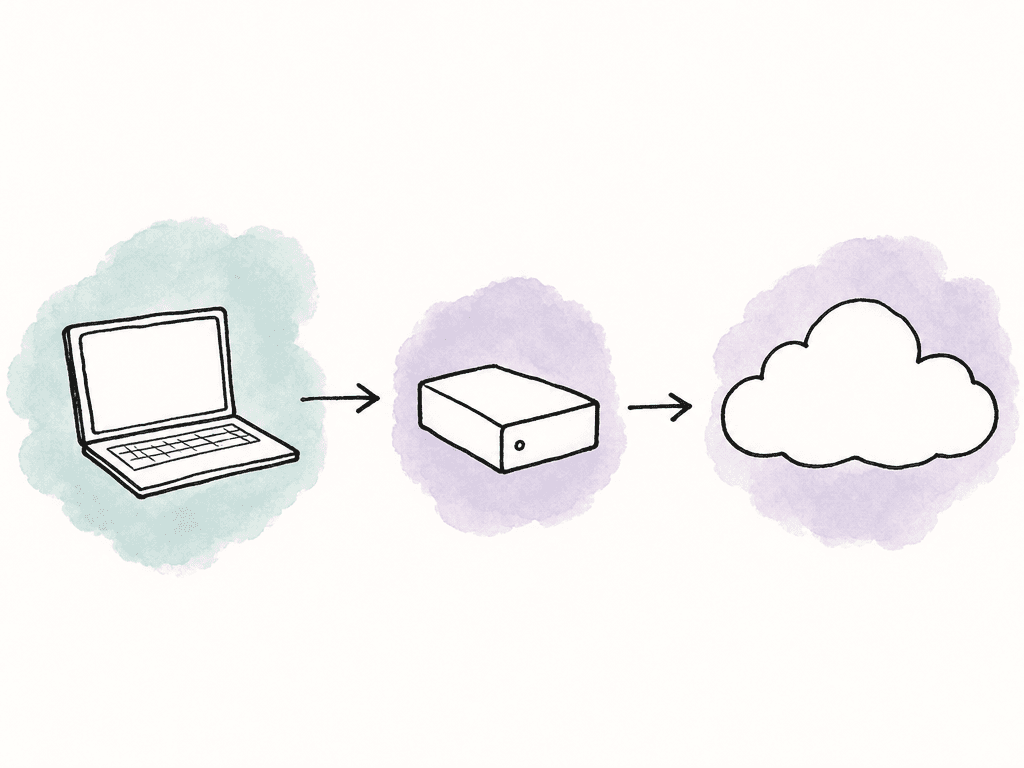
For post-production,rsync and rclone work best as two halves of the same backup system. Use rsync for fast local or LAN copies, such as edit storage to a NAS, shuttle drive, or another server. Use rclone for cloud destinations, object storage, and offsite copies. Don't make either tool responsible for the whole policy.
A sane baseline looks like this:
- The working copy is the storage editors and assistants actively use.
- The onsite backup is a NAS, RAID, server, or attached disk that receives automated
rsynccopies. - The offsite backup is cloud/object storage that receives automated
rclonecopies from the onsite backup or from a staging volume.
Decide what is allowed to change
Your team shouldn't treat all post-production data the same way. Camera originals, production audio, reports, LUTs, and artwork references are usually append-only. Project files, graphics, turnovers, renders, exports, and cache folders change constantly. If you apply one sync rule to everything, you either copy too much junk or risk deleting something important. Group your data by behavior before you write scripts: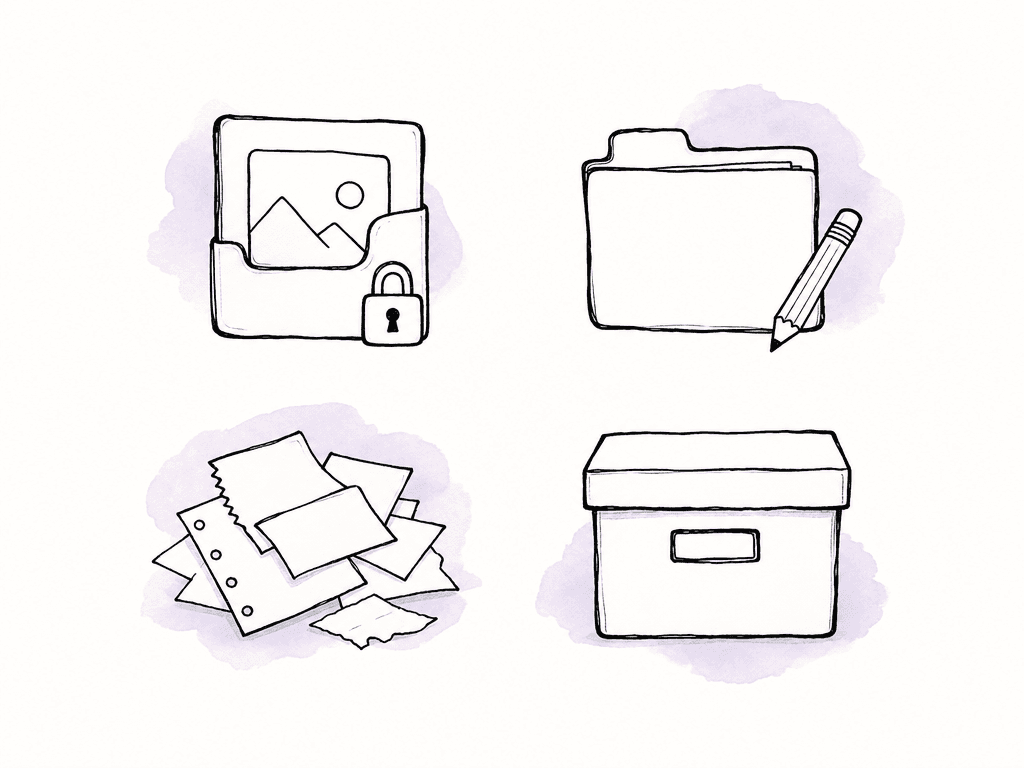
- Immutable media includes camera cards, sound rolls, stills, DIT reports, original documents.
- Active project data includes NLE projects, bins, productions, graphics project files, scripts, subtitles, review exports.
- Regenerable data includes render cache, waveform cache, optimized media, preview files, temp folders.
- Delivery and archive data includes final masters, textless versions, audio splits, captions, project exports, documentation.
| Data category | Common examples | Backup treatment | Watchouts |
|---|---|---|---|
| Immutable media | Camera originals, sound rolls, stills, DIT reports | Back up immediately and preserve folder structure | Avoid delete-based mirroring unless another retained copy exists |
| Active project data | NLE projects, bins, graphics files, scripts, subtitles | Back up frequently and keep previous versions | Open files and rapid saves can create inconsistent point-in-time copies |
| Regenerable data | Render cache, waveform cache, temp folders, preview files | Usually exclude from routine backups | Do not exclude proxies or optimized media unless the team agrees they can be rebuilt |
| Delivery and archive data | Masters, textless versions, audio splits, captions, turnovers | Copy to controlled archive locations with clear retention | Treat delivered folders as write-controlled once approved |
/Volumes/PROJECTS/SHOW_104/
  00_ADMIN/
  01_CAMERA_ORIGINALS/
  02_PRODUCTION_AUDIO/
  03_PROJECT_FILES/
  04_GRAPHICS/
  05_EXPORTS/
  06_TURNOVERS/
  90_CACHE_DO_NOT_BACKUP/
Use rsync for local and network copies
rsync is a file-copying tool built for local copies and remote copies over SSH, and its advantage is that repeat runs only move what changed. That matters when a show has terabytes of camera media but only a small number of new project files and exports each night.
A basic local backup looks like this:
rsync -a --info=stats2,progress2 \
  /Volumes/PROJECTS/SHOW_104/ \
  /Volumes/BACKUP_RAID/SHOW_104/
/SHOW_104/, rsync copies the contents of that folder into the destination. Without the slash, it copies the folder itself. Pick one convention and stick with it, because accidental nesting is one of the most common ways automated backups become messy.
For a NAS or another server over SSH:
rsync -a --info=stats2,progress2 \
  -e ssh \
  /Volumes/PROJECTS/SHOW_104/ \
  backupuser@nas.local:/storage/backups/SHOW_104/
-a: archive mode, which preserves permissions, timestamps, symlinks, and directory structure where possible.--dry-run: preview behavior before running a real copy.--exclude: skip cache folders, temp folders, and other regenerable files.--log-file: write a job-specific log.--delete: remove destination files that no longer exist at the source, only when you intentionally want a mirror.--backup --backup-dir: move overwritten or deleted destination files into a dated folder instead of losing them immediately.
--delete unless you have another retained copy or a versioning layer.
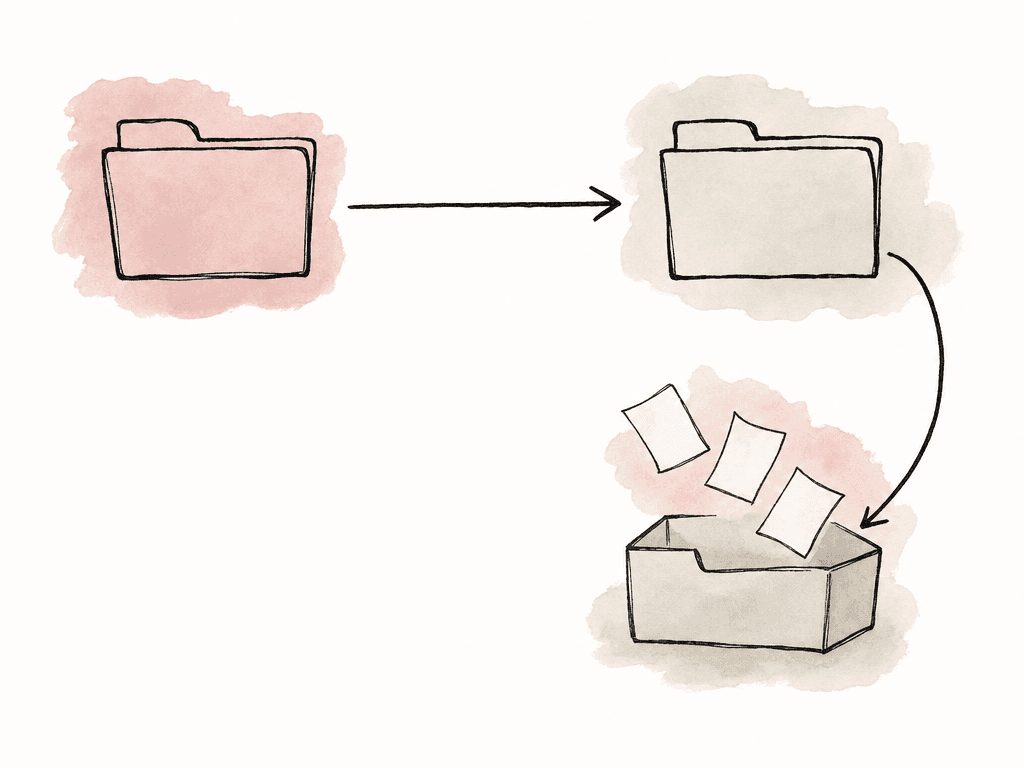
A safer mirror-style command keeps replaced files in a dated holding area:
#!/usr/bin/env bash
set -euo pipefail

PROJECT="SHOW_104"
DATE="$(date +%Y-%m-%d_%H-%M-%S)"

SRC="/Volumes/PROJECTS/${PROJECT}/"
DST="/Volumes/BACKUP_RAID/${PROJECT}/"
LOG_DIR="/Volumes/BACKUP_RAID/_logs/${PROJECT}"
PREVIOUS_DIR="/Volumes/BACKUP_RAID/_previous/${PROJECT}/${DATE}"

mkdir -p "$LOG_DIR" "$PREVIOUS_DIR"

rsync -a \
  --delete \
  --backup \
  --backup-dir="$PREVIOUS_DIR" \
  --exclude="90_CACHE_DO_NOT_BACKUP/" \
  --exclude="*.tmp" \
  --exclude=".DS_Store" \
  --log-file="$LOG_DIR/rsync_${DATE}.log" \
  --info=stats2 \
  "$SRC" "$DST"
Be careful with media-specific failure modes
Media backups fail in boring ways, and boring failures are the ones that hurt. Open project files are one example. If an editor is actively saving a project while the job runs, you may capture a version mid-change. That's usually fine for small project files if the next run catches the next save, but it isn't a substitute for proper project versioning. For NLE projects, encourage frequent dated saves and include the project autosave folders if they aren't huge. Filename compatibility is another one. Mixed macOS, Linux, Windows, and NAS environments can disagree about Unicode normalization, case sensitivity, and characters allowed in filenames.rsync can see visually identical filenames as different if one filesystem decomposes UTF-8 characters differently. That can cause recopying or, with delete behavior, surprising replacements. Avoid clever characters in folder names. Keep camera/card naming boring: letters, numbers, underscores, and hyphens.
Permissions can also become noise. If the backup destination doesn't support the same ownership or ACL model as the source, rsync -a may report errors even when file data copied correctly. In a mixed Mac/NAS environment, you may need to tune metadata preservation rather than blindly preserving every attribute. Test this on a small folder before backing up a full show.
Useful exclusions for post-production often include:
- NLE render cache and preview folders.
- Transcode scratch folders that can be rebuilt.
- Cloud sync placeholder metadata.
- Trash folders and recycle bins.
- OS indexing folders.
Configure rclone for the offsite copy
rclone is the right tool when the destination is cloud or object storage. It supports many backends, including S3-compatible storage, Backblaze B2, Google Drive, Microsoft OneDrive, and other providers. Your script can use one command style even if the storage backend changes later.
Configuration usually starts with:
rclone config
post_b2:
post_s3:
post_drive:
rclone lsd post_b2:
rclone mkdir post_b2:show-backups
rclone ls post_b2:show-backups
copy and sync very intentionally.
rclone copy copies new and changed files to the destination but doesn't delete extra files already in the destination:
rclone copy \
  /Volumes/BACKUP_RAID/SHOW_104/ \
  post_b2:show-backups/SHOW_104/ \
  --progress
rclone sync makes the destination match the source, including deleting destination files that are no longer present at the source:
rclone sync \
  /Volumes/BACKUP_RAID/SHOW_104/ \
  post_b2:show-backups/SHOW_104/ \
  --progress
copy is the safer default for offsite. Use sync only when you mean the cloud destination to be a clean mirror and you have retention, versioning, object lock, or another recovery path. Cloud deletion mistakes are slower and more expensive to unwind than local ones.
A production-friendly rclone command should log, retry, and produce machine-readable output if you plan to monitor it:
#!/usr/bin/env bash
set -euo pipefail

PROJECT="SHOW_104"
DATE="$(date +%Y-%m-%d_%H-%M-%S)"

SRC="/Volumes/BACKUP_RAID/${PROJECT}/"
REMOTE="post_b2:show-backups/${PROJECT}/"
LOG_DIR="/Volumes/BACKUP_RAID/_logs/${PROJECT}"

mkdir -p "$LOG_DIR"

rclone copy "$SRC" "$REMOTE" \
  --log-file="$LOG_DIR/rclone_${DATE}.log" \
  --log-level INFO \
  --stats 60s \
  --retries 5 \
  --low-level-retries 20 \
  --transfers 4 \
  --checkers 8 \
  --exclude "90_CACHE_DO_NOT_BACKUP/**" \
  --exclude ".DS_Store"
--transfers and --checkers based on bandwidth and provider limits. More parallelism isn't always better, because a small facility internet connection can become unusable if offsite backup saturates upload during the edit day.
For object storage, your team should discuss lifecycle rules with whoever owns the account. You may want recent projects in hot storage, older projects in cheaper storage, and final archives retained differently from active project backups. Keep the script simple, but don't ignore the storage policy behind it.
Chain rsync and rclone in one control script
A reliable backup job should do local collection first, then offsite upload. That way the cloud copy comes from a stable backup source instead of an active editing volume, and it also means the editor storage isn't responsible for every cloud retry. Here is a simple combined script:#!/usr/bin/env bash
set -euo pipefail
PROJECT="SHOW_104"
DATE="$(date +%Y-%m-%d_%H-%M-%S)"
SRC="/Volumes/PROJECTS/${PROJECT}/"
LOCAL_DST="/Volumes/BACKUP_RAID/${PROJECT}/"
REMOTE_DST="post_b2:show-backups/${PROJECT}/"
LOG_DIR="/Volumes/BACKUP_RAID/_logs/${PROJECT}"
PREVIOUS_DIR="/Volumes/BACKUP_RAID/_previous/${PROJECT}/${DATE}"
mkdir -p "$LOG_DIR" "$PREVIOUS_DIR"
echo "[$(date)] Starting local rsync for ${PROJECT}" >> "$LOG_DIR/backup_${DATE}.log"
rsync -a \
--delete \
--backup \
--backup-dir="$PREVIOUS_DIR" \
--exclude="90_CACHE_DO_NOT_BACKUP/" \
--exclude=".DS_Store" \
--log-file="$LOG_DIR/rsync_${DATE}.log" \
--info=stats2 \
"$SRC" "$LOCAL_DST"
echo "[$(date)] Starting offsite rclone copy for ${PROJECT}" >> "$LOG_DIR/backup_${DATE}.log"
rclone copy "$LOCAL_DST" "$REMOTE_DST" \
--log-file="$LOG_DIR/rclone_${DATE}.log" \
--log-level INFO \
--stats 60s \
--retries 5 \
--low-level-retries 20 \
--transfers 4 \
--checkers 8
echo "[$(date)] Backup completed for ${PROJECT}" >> "$LOG_DIR/backup_${DATE}.log"
PROJECT="SHOW_104"
SRC="/Volumes/PROJECTS/SHOW_104/"
LOCAL_DST="/Volumes/BACKUP_RAID/SHOW_104/"
REMOTE_DST="post_b2:show-backups/SHOW_104/"
source "/etc/post-backups/SHOW_104.conf"
Schedule jobs when they'll actually run
On Linux, you can use cron or systemd timers. Cron is simple and common, while systemd timers are better when you want missed jobs to run after boot, cleaner logs in the journal, and stronger service isolation. A cron entry for a nightly run might look like this:30 2 * * * /usr/local/bin/backup_show_104.sh
PATH, SSH agent, mounted volumes, or rclone config location is different. Use absolute paths where possible, and make sure the script can find its config without relying on your interactive shell.
For rclone, it can help to specify the config path explicitly:
rclone --config /etc/rclone/rclone.conf copy "$LOCAL_DST" "$REMOTE_DST"
rsync, use key-based auth and test it as the same user that runs the scheduled job. If your scheduled environment can't see SSH_AUTH_SOCK, don't depend on an interactive SSH agent. Use a key file with appropriate permissions, or configure the service environment deliberately.
On macOS, launchd is usually more dependable than cron, especially if you need jobs to run as a particular user and access mounted volumes. The main caveat is sleep, because if the machine sleeps through the backup window, the job won't protect you. For a backup host, disable sleep or use a machine designed to stay online.
Schedule around real editorial behavior. Overnight is obvious, but not always enough. A project with heavy ingest may need hourly local backup of project files and nightly offsite media sync. A finishing week may need more frequent exports and project-file backups than a quiet offline edit.
Prove the backup during the workflow
A backup isn't real until you can demonstrate restore behavior, so your team should verify the backup near each copy operation. Forrsync, a dry run after the copy can show whether the destination still differs:
rsync -a --dry-run --delete \
  /Volumes/PROJECTS/SHOW_104/ \
  /Volumes/BACKUP_RAID/SHOW_104/
rsync is excellent for recurring backup, but camera-card ingest is its own discipline.
For rclone, use check when the backend supports the comparison you need:
rclone check \
  /Volumes/BACKUP_RAID/SHOW_104/ \
  post_b2:show-backups/SHOW_104/ \
  --one-way \
  --log-file="/Volumes/BACKUP_RAID/_logs/SHOW_104/rclone_check.log"
--one-way behavior is useful when you used copy and expect the destination to contain at least everything from the source, possibly more. If you used sync, you may want stricter comparison.
Do occasional restore drills. Pull back a few random camera files, a project file, an export, and a folder with non-ASCII filenames. Open them, relink something, and confirm the path structure makes sense. It should be routine enough that restore isn't a new skill during an emergency.
Log for humans and alert on silence
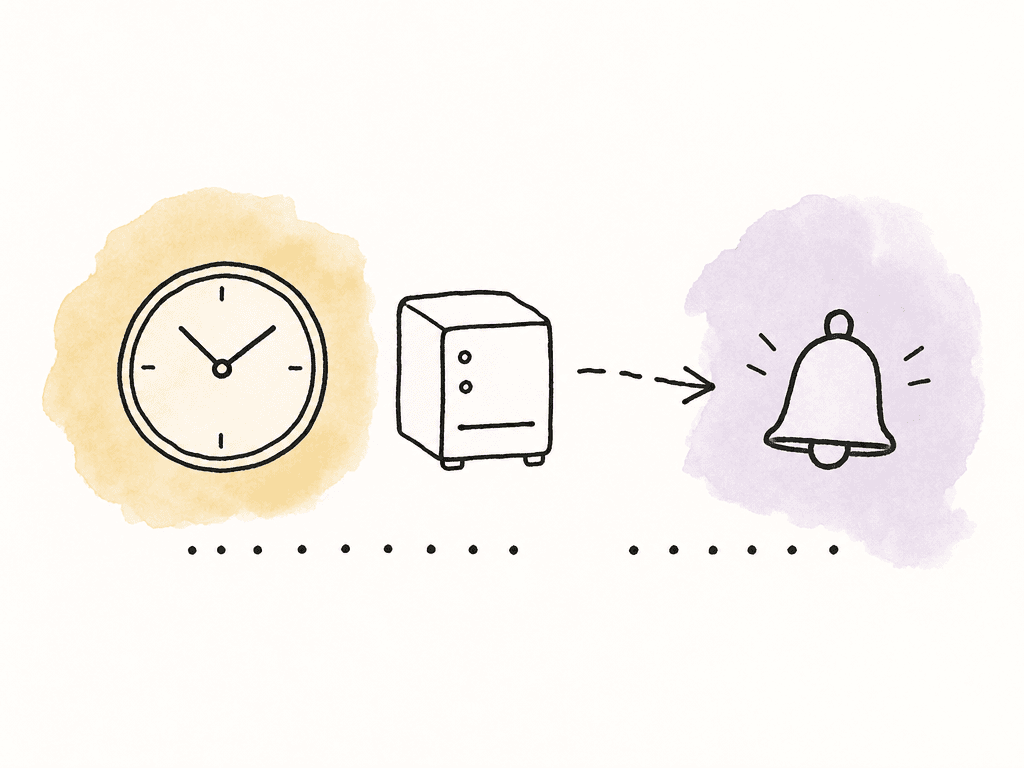
Logs should answer three questions quickly: did the job run, did it move data, and did anything fail? Separate logs per project and per run are easier to inspect than one giant append-only file. A useful log folder might look like this:/Volumes/BACKUP_RAID/_logs/SHOW_104/
backup_2026-08-14_02-30-00.log
rsync_2026-08-14_02-30-00.log
rclone_2026-08-14_02-30-00.log
rclone_check_2026-08-14_03-45-00.log
#!/usr/bin/env bash
set -euo pipefail

notify_failure() {
  SUBJECT="Backup failed: SHOW_104"
  BODY="Backup failed on $(hostname) at $(date). Check logs in /Volumes/BACKUP_RAID/_logs/SHOW_104."
  printf "%s\n" "$BODY" | mail -s "$SUBJECT" post-team@example.com
}

trap notify_failure ERR
- Project name.
- Hostname.
- Job stage, such as local
rsync, cloudrclone, or verification. - Log path.
- Exit code when available.
- Last successful run if you track it.
Keep deletion and retention boring
The riskiest automation flag in this whole setup is deletion.rsync --delete and rclone sync are powerful because they remove drift, but they're dangerous because they faithfully copy human mistakes.
For active shows, prefer this behavior:
- You can let the local destination mirror the source, but send deleted or overwritten files into a dated previous folder.
- Use
copy, notsync, for the cloud destination unless bucket versioning or retention is in place. - Review cache exclusions explicitly per workflow.
- Make archive folders write-controlled once the project is delivered.
rsync where it's strongest: fast, repeatable local and network copies. Use rclone where it's strongest: cloud remotes, retries, and offsite automation. Then wrap both in logging, scheduling, verification, and alerts so the system stays boring when the project gets chaotic.FAQ
Yes, in many active post workflows. rclone copy sends new and changed files to the cloud without deleting extra files that already exist at the destination. rclone sync makes the destination match the source, including deletions. Use sync only when you have versioning, retention, object lock, or another recovery path in place.
Use rsync --delete only when the destination is intended to be a true mirror of the source. For active editorial work, it's safer to combine --delete with --backup and --backup-dir so deleted or overwritten destination files are moved into a dated recovery folder instead of disappearing immediately.
Common exclusions include render cache, waveform cache, preview files, temp folders, trash folders, OS indexing files, application scratch folders, and files such as.DS_Store. Don't automatically exclude proxies or optimized media unless the team has confirmed they can be regenerated without schedule risk.
The schedule should match the pace of the job. Nightly backups may be enough for stable editorial work, but heavy ingest, finishing, or delivery periods may need more frequent project-file, export, or turnover backups. Run jobs from a machine that stays online, such as a NAS, backup server, storage node, Mac mini, or Linux workstation.
Use verification and restore drills. For rsync, a dry run after the copy can show whether the destination still differs from the source. For rclone, rclone check can compare local and cloud destinations when the backend supports it. Periodically restore a few camera files, project files, exports, and unusual filenames, then open them and confirm the folder structure still works for relinking.
Don't solve external access by copying random folders out of the backup destination. Keep the backup structure clean, then share only the assets or folders each person needs. Aspect supports view, download, comment, edit, and full-access controls with granular sharing permissions.


