Build the workflow around delivery targets
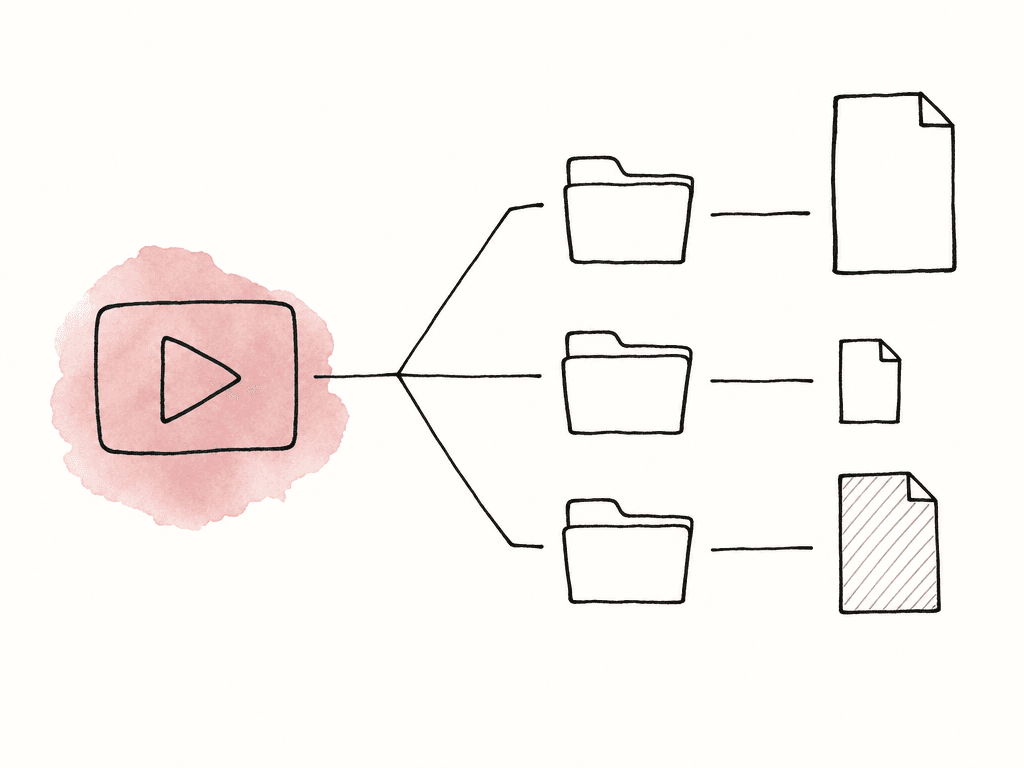
Dailies aren't just compressed copies of camera files. They're the daily bridge between set and editorial, production, and review. They arrive after your team has backed up, checked, and organized camera originals and production audio. Your automation should sit after data safety rather than ahead of it. The most reliable pattern is to create separate watched locations for each delivery intent. For example, a small production might use folders like this:/Watchfolders
/Editorial_Proxy
/Director_Review
/Client_Review
/Audio_Only
/Failed
/Completed
/Logs
/ShowName
  /S01E03
    /Day_014
      /Editorial_Proxy
      /Director_Review
      /Client_Review
Choose presets by destination
Presets are where the workflow becomes specific. A preset should define the transcode settings and audio treatment, overlays, metadata output, plus the destination and any naming rules. Some systems separate transcoding presets from delivery presets, which is worth copying. The transcode preset says “make this kind of file.” The delivery preset says “put it here, name it this way, and send or register it with this destination.”| Delivery target | Typical output | Preset should prioritize | Common mistake to avoid |
|---|---|---|---|
| Editorial | ProRes Proxy, DNxHD, DNxHR, or another edit-friendly proxy | Source timecode, reel or clip metadata, synced audio, stable frame rate handling, relink-safe naming | Making a file that plays well but does not relink cleanly for conform |
| Director review | H.264, H.265, or platform-ready review file | Fast playback, timecode and clip burn-in, viewing LUT, simple delivery path | Overbuilding the file like an editorial proxy when speed matters more |
| Client review | Compressed review file with approved branding or watermark | Access control, watermarking, approved identifiers, limited metadata exposure | Exposing internal clip names, notes, or burn-ins that were meant only for production |
| Overview stringout | Combined day, scene, or selected-take sequence | Easy scanning, clear separators, useful burn-ins, small file size | Treating the stringout as an editorial source for cutting or conform |
| Audio or sync package | WAV, ALE, CSV, XML, or sidecar metadata | Channel mapping, sync references, clip IDs, NLE compatibility | Delivering picture files without the metadata or audio structure editorial needs |
- Editorial dailies: edit-friendly codec, consistent frame rate, source timecode, reel or clip metadata, synced production audio, and handles only if the editorial workflow expects them.
- Director review: smaller file, fast playback, visible clip name and timecode burn-in, basic color transform or look, and delivery to a review platform or shared location.
- Client review: compressed deliverable, watermark or branding if required, limited metadata exposure, and a destination controlled by production or post.
- Quick overview strings: combined clips or scene/day compilations for fast scanning, not for editorial conform.
- Audio replacement or sync packages: WAV, ALE, CSV, or sidecar metadata depending on the downstream system.
Editorial_ProResProxy_1080p_SourceTC_v03 is ugly to read and impossible to misread. A name like Dailies_New will become a trap after the next prep day.
Decide whether the watchfolder is local, NAS, or cloud
The right location depends on where your team copies the media and who needs the result. A local watchfolder is simple and fast when a DIT, dailies technician, or assistant editor is sitting next to the encoding workstation. A NAS watchfolder makes more sense when several post team members or systems need access. A cloud watchfolder earns its place when remote ingest, automatic upload, or distributed review is part of the job. Each storage model trades something different:- Local storage: easiest to troubleshoot, lowest network dependency, but tied to one machine.
- Shared NAS: good for a facility or editorial room, but requires permissions, mount stability, and enough throughput for simultaneous reads and writes.
- Cloud storage: strong for remote teams and automatic distribution, but depends on upload speed, polling behavior, cloud costs, and transfer reliability.
- Hybrid storage: common for productions that process locally, then upload completed outputs or metadata automatically.
Make file arrival predictable
A watchfolder shouldn't process a file the instant its filename appears. Large media files can take minutes or hours to copy. If the automation grabs a growing file, you get corrupt outputs, partial transcodes, or strange failures that are hard to reproduce. A dependable watchfolder waits for stability before starting a job. It can scan at intervals and check whether file size has stopped changing. It can wait for a marker file. It can process a completed folder only after the transfer tool says the copy is finished.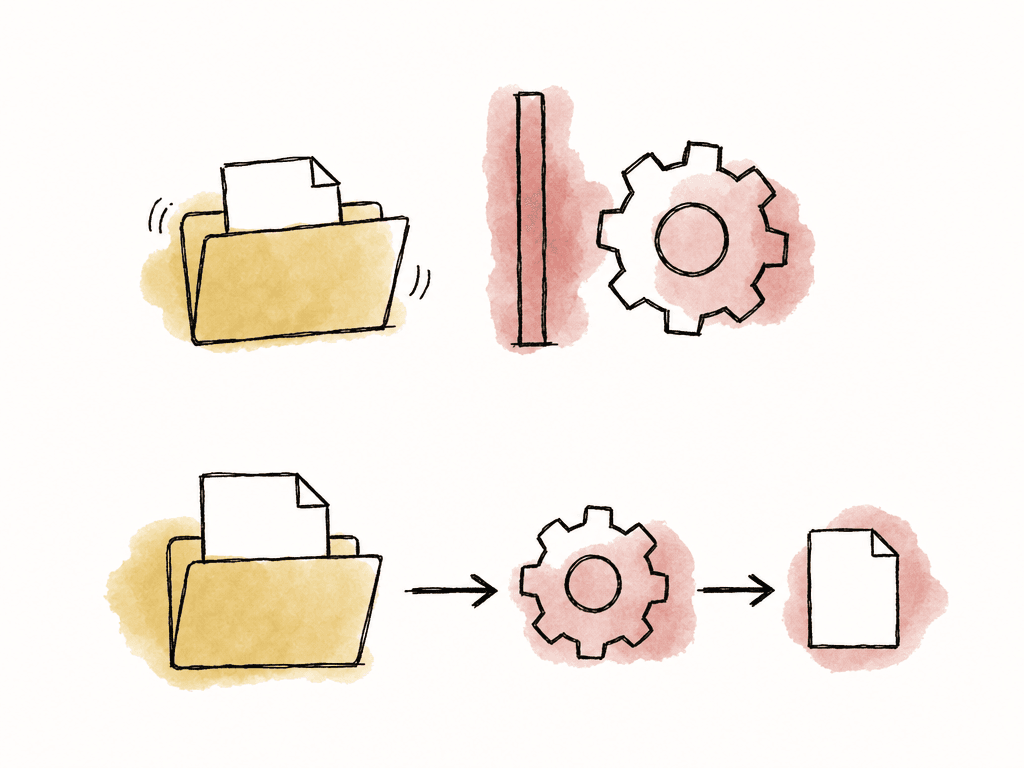
- Have the automation poll the folder at a predictable interval so it doesn't constantly hammer storage.
- Ignore temporary, hidden, or partial transfer files.
- Wait until file size and modified time remain stable for a set period.
- Process folders as packages when audio, video, LUTs, and metadata must stay together.
- Move or mark items once the automation has claimed them.
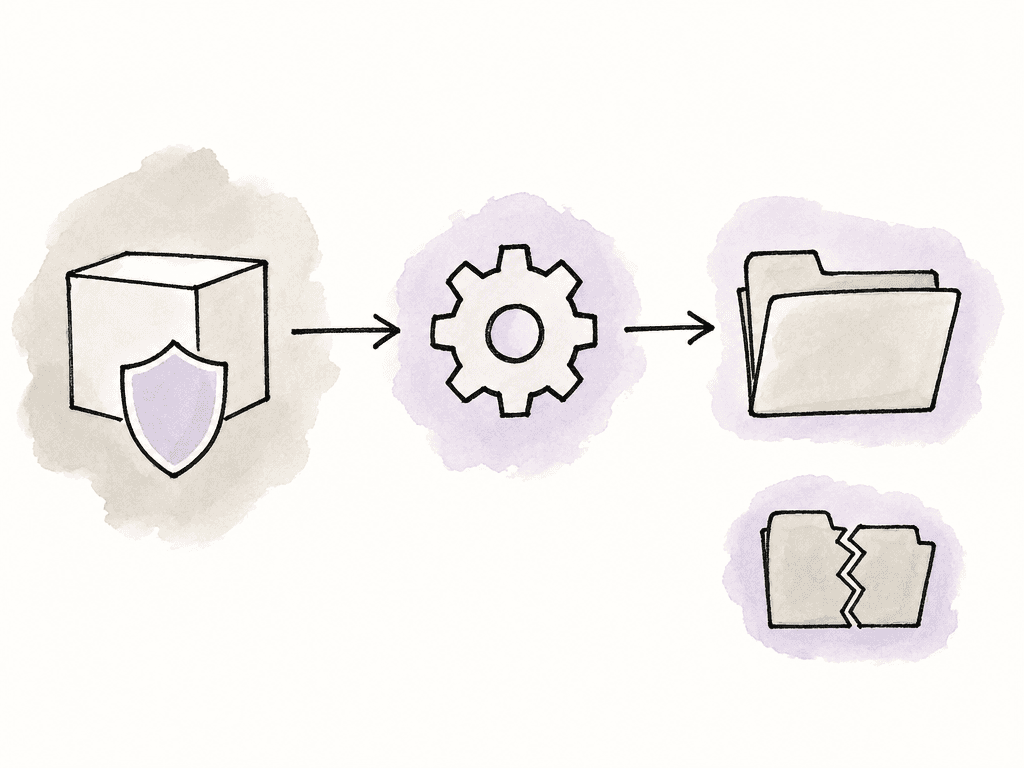
Keep original camera media out of the danger zone
Dailies automation shouldn't casually manipulate original camera files or original audio files. Studio guidance separates the responsibilities for backing up, archiving, and clearing camera cards, because the consequences are serious. Someone has to own archiving OCF and OAF. It may be the loader or the DIT, the dailies team, or post. If nobody knows who, automation makes the confusion worse. A safe pattern is to keep sources, work-in-progress, outputs, and transfer areas separate:/Source_ReadOnly
/Watch_Incoming
/Processing
/Output
/Completed
/Failed
/Archive_Manifest
Design outputs for editorial relink
Editorial dailies have different requirements from review dailies. They have to survive the path from ingest to offline edit to turnover and conform. So the preset has to preserve the identifiers editorial will rely on later. For an editorial proxy preset, pay attention to these fields and behaviors:- Source timecode and duration.
- Reel, tape, camera roll, or clip name strategy.
- Filename consistency with camera originals or the agreed editorial convention.
- Audio channel mapping, including mix tracks and isolated microphones.
- Frame rate handling, especially for off-speed or mixed-rate material.
- Color transform or viewing LUT, without baking decisions that should remain flexible.
- Sidecar metadata such as ALE, CSV, EDL, XML, or project bins when required.
Use burn-ins intentionally
Burn-ins are useful until they aren't. For director and production review, burn in the clip name and source timecode, the camera and scene/take, and the date. That saves a lot of back-and-forth. For client review, the same burn-in might expose information you don't want outside the core team. For editorial, burn-ins can help on picture, but they shouldn't replace real metadata. A practical burn-in strategy separates audiences:- Internal review: clip name, source timecode, camera roll, scene/take, shoot day, and look name if useful.
- Director review: source timecode and clip or scene/take, usually with minimal clutter.
- Client review: watermark, project branding, and only the identifiers production approves.
- Editorial proxy: burn-in only if editorial wants it, with metadata preserved in the file or sidecar.
Route completed jobs without relying on memory
The transcode is only half the delivery. Once the file exists, it has to land where the next person expects it. That might be a shared storage folder or an editorial NAS, a review platform, or a cloud bucket. It might also be a media asset manager or a transfer portal. For each preset, define the completed output route as part of the delivery recipe:Editorial_Proxy -> /Editorial/Ingest/ShowName/Day_014
Director_Review -> /Review/Director/ShowName/Day_014
Client_Review -> /Review/Client/ShowName/Day_014
Treat failures as expected events
Every dailies system hits bad files and unsupported codecs, missing audio, and full disks. It hits disconnected storage, expired credentials, and human mistakes too. What separates a usable system from a stressful one is whether those failures are visible and recoverable. Useful failure categories include:- File still copying or never reached a stable state.
- Unsupported, corrupt, or unexpectedly wrapped media.
- Missing sidecar metadata, LUT, CDL, or production audio.
- Preset mismatch, such as a codec the automation tool doesn't support.
- Destination unavailable because of network, permissions, or credentials.
- Insufficient local, NAS, or cloud storage.
- Duplicate filename or already-processed package.
- Application crash, worker timeout, or license issue.
Log like someone will ask tomorrow
Dailies questions often arrive after everyone is tired: Did scene 27B go to editorial? Which preset made the client file? Was the director sent the version with the updated LUT? Did the upload finish before the notes call? Logging answers those questions without archaeology. A useful job log records the operational facts:
- Source path and source filename.
- File size, duration, codec, resolution, frame rate, and timecode start when available.
- Preset name and preset version.
- Output filename and destination path.
- Job start time, finish time, and processing duration.
- Worker machine or service that ran the job.
- Transfer or upload status.
- Error message and retry count if the job failed.
- User or process that submitted the media, if known.
Keep humans in the loop where judgment matters
Automation is best at repeatable routing and encoding. It doesn't replace dailies supervision or color judgment, sync checks, or editorial communication. A watchfolder can detect new media and run a preset, upload the outputs, and write logs. It can't decide whether a LUT is creatively right, whether a take should be held back, or whether a metadata convention changed because editorial asked for it. A practical automated dailies workflow still has human review at the right points. The assistant editor or dailies technician should see enough status to catch missing clips and obvious sync problems, incorrect burn-ins, or failed uploads before those files become someone else’s problem. The best version of this workflow feels uneventful. Media shows up in a known place, and the system waits until it's safe to process. The correct preset runs for the intended audience. Outputs route to the right destination. Failures land in one place with readable reasons. Completed jobs are logged well enough that post can answer questions without digging through drives. So build the folders and presets before the first shoot day, then run one real day through them and read the log end to end. If that log tells you which preset made which file and whether it landed, the automation is ready to carry the schedule.FAQ
Organize them by delivery target. A folder named for the intended output, such as Editorial_Proxy, Director_Review, or Client_Review, makes it clear which preset should run. Organizing only by camera roll or source type creates confusion, because the same camera media may need several different outputs.
A reliable watchfolder waits until files are stable before starting a job. Poll at intervals and check that file size and modified time have stopped changing. Ignore temporary transfer files. Require a marker file that confirms the copy is complete. For complex dailies packages, it is safer to trigger processing from a completed folder rather than from a single media file.
It should preserve source timecode and duration, reel or clip metadata, and filename conventions. It should also preserve audio channel mapping, frame rate behavior, and any required sidecar metadata such as ALE, CSV, XML, or bins. Test the output inside the actual editorial system to confirm that relinking, audio layout, metadata, and duration all behave as expected.
Review dailies are made for viewing, notes, and approvals. They use smaller compressed files, often with burn-ins, watermarks, or platform delivery. Editorial proxies are made for editing and later turnover. They need reliable timecode and metadata, audio mapping, and naming conventions that relink cleanly. A file that works well for review may be unusable for editorial.
Record the source path and filename, the media properties, and the preset name and version. Record the output filename and destination, the start and finish time and processing duration, and the worker machine. Then record upload status, retry count, and any error message. Preset version matters most, because it shows which files were created before and after changes to audio mapping, burn-ins, LUTs, or delivery settings.
Use a separate client review preset and destination, then restrict access at the folder, collection, or link level. Aspect supports view, download, comment, and edit controls, plus link expiry, so client dailies can be shared with granular permissions.