- Video essence such as DNxHD, DNxHR, XAVC, AVC-Intra, XDCAM, or JPEG 2000
- PCM audio and multichannel audio
- Timecode tracks, reel metadata, and camera metadata
- Vendor-specific descriptors

- If the file opens but relink fails, suspect metadata.
- If picture opens but audio is wrong, suspect channel layout or track mapping.
- If one app imports and another refuses, suspect codec support, MXF operational pattern, or version-specific decode support.
- If Avid is involved, be especially careful about OP-Atom versus OP1a and whether you're linking, importing, consolidating, or using managed media.
- If Premiere is involved, confirm whether the issue is import, relink, interpretation, proxy reconnect, or export settings.
| Symptom | Likely failing layer | First diagnostic move | Least destructive fix |
|---|---|---|---|
| File opens in one app but is refused by another | Wrapper, codec support, or application version | Compare format_name, codec_name, profile, and the receiving app's supported formats | Update the app or plug-in, change the import or link method, or rewrap if the codec is already supported |
| Picture plays but audio is missing, split, or mapped incorrectly | Audio stream layout or channel interpretation | Use FFprobe to see whether audio is one multichannel stream or separate mono streams | Remap or reinterpret audio in the NLE, or create a controlled audio transcode if the layout must change |
| Media imports but relink, AAF, XML, or conform fails | Metadata used for identification | Compare source timecode, duration, clip name, reel, tape, and camera roll values | Relink with the correct metadata rules, or regenerate media while preserving conform identifiers |
| Avid links the file but will not treat it like managed media | OP1a versus OP-Atom workflow, Avid media database expectations, or incomplete descriptors | Confirm whether the file is linked through AMA or UME, imported, transcoded, consolidated, or placed in Avid MediaFiles | Generate Avid-compatible media through Media Composer, Resolve, or a tested dailies system |
| A desktop player works but an NLE fails | Professional codec, metadata, or workflow compatibility | Test in the target NLE and compare the FFprobe report against known good files | Do not use player playback as QC, test the actual workflow step that fails |
Why MXF breaks between Avid, Premiere, and Resolve
MXF failures are rarely random. They come from a mismatch between how the file was created and how the receiving application expects to use it. Avid Media Composer has a long history with MXF OP-Atom media inside theAvid MediaFiles/MXF folder structure. Avid also supports linking to generic MXF through AMA, including OP1a-style files. Linked media and managed Avid media are still not the same workflow. Avid documentation is clear that some operations have limitations with AMA clips. It also warns against mixing AMA and traditional import workflows casually. Dynamic Relink and some multicam workflows behave differently depending on how media entered the project.
Premiere Pro is more permissive on import. That doesn't mean it interprets every file the way Avid did. A common surprise: an Avid-originated multichannel audio MXF shows up as multiple mono items or separate audio clips in Premiere. The media is technically valid. Premiere’s interpretation simply doesn't match the expected audio layout.
Resolve sits between the two. It supports the DNxHD and DNxHR workflows used with Avid and reads many MXF variants. But that support is specific. It depends on codec and wrapper, on bit depth and chroma sampling, and on the operating system and Resolve version. A Resolve 20 or 21 workstation may accept a file that an older Resolve 17 workstation doesn't.
The same .mxf extension tells you almost nothing, so you need to inspect the file.
Separate wrapper problems from codec problems
The first useful split is wrapper versus codec.- Wrapper — the MXF structure: OP1a, OP-Atom, partitioning, timecode tracks, descriptors, and how streams are arranged.
- Codec — the compressed or uncompressed media essence inside: DNxHD, DNxHR, XAVC-I, XAVC-L, AVC-Intra, XDCAM HD, PCM audio, and so on.
- File imports in Premiere but not Avid: often wrapper expectations, Avid AMA support, missing plug-ins, or unsupported metadata descriptors.
- File links in Avid but won't fast import or consolidate as expected: often native versus non-native codec handling, or a difference between linking and managed Avid media.
- File opens in Resolve but AAF relink fails: often source timecode, reel name, tape name, or clip name mismatch.
- File plays video but not audio in a desktop player: often not an editing problem at all, since many consumer players don't handle professional MXF audio layouts well.
- File plays in VLC but fails in an NLE: usually a professional metadata, codec licensing, or workflow compatibility issue rather than basic file corruption.
Use FFprobe to see what you actually have
FFprobe is useful because it gives a neutral view of the file: container and streams, codecs and timecode, audio layout and metadata tags. It won't tell you every application-specific behavior, but it will stop the guessing.
ffprobe -hide_banner -i input.mxf
ffprobe -hide_banner -v error \
  -show_format \
  -show_streams \
  -print_format json \
  input.mxf > input.ffprobe.json
ffprobe -hide_banner -v error \
  -select_streams v:0 \
  -show_entries stream=index,codec_name,codec_long_name,profile,width,height,r_frame_rate,avg_frame_rate,pix_fmt,field_order,time_base,duration_tags:stream_tags=timecode,reel_name,tape \
  -of default=noprint_wrappers=1 \
  input.mxf
ffprobe -hide_banner -v error \
  -select_streams a \
  -show_entries stream=index,codec_name,channels,channel_layout,sample_rate,bits_per_sample:stream_tags=title,language \
  -of table \
  input.mxf
format_name, which may show MXF variants recognized by FFmpeg.codec_nameandprofile, especially for DNxHD, DNxHR, XAVC, AVC-Intra, and PCM audio.width,height,pix_fmt, andfield_order.r_frame_rate,avg_frame_rate, and time base.- stream count, especially whether audio is one 8-channel stream or eight mono streams.
timecode,reel_name,tape,material_package_name, or similar tags.- duration differences between audio and video streams.
Avid-specific failure patterns
Avid is where MXF interoperability gets strictest, because Avid workflows depend heavily on media management and metadata. There are two very different ways an MXF can appear in Media Composer:- Linked media through AMA or UME.
- Managed media inside the Avid MediaFiles folder structure.
Avid MediaFiles/MXF/1. Avid’s supported formats documentation separates native formats, which Avid can rewrap or fast import, from non-native formats, which require transcoding. The app being able to see your file is no guarantee it can treat that file as native managed media.
Common Avid issues include:
- OP1a files link but don't behave like Avid managed media.
- OP-Atom files created outside Avid are missing metadata Avid expects.
- DNxHD or DNxHR essence is valid, but the MXF descriptors are incomplete.
- AMA-linked clips don't support the same relink, multicam, or render behavior as imported/transcoded media.
- AAF sequences from another system don't relink because source timecode, tape, reel, or clip names differ.
- Use Avid, Resolve, or another post-aware tool to generate Avid-compatible DNxHD/DNxHR MXF when the file must become managed Avid media.
- Use AAF plus linked camera originals when the conform needs to preserve source metadata.
- Avoid hand-dropping externally generated MXFs into Avid MediaFiles unless your team has tested that workflow with the same codec, frame rate, raster, and Media Composer version.
- Keep source timecode, clip name, and reel or tape metadata stable from dailies through conform.
- It won't link.
- It won't import.
- It won't scan into the media database.
- It won't relink.
- It plays incorrectly.
Premiere-specific failure patterns
Premiere Pro accepts a wide range of MXF files. Its interoperability problems appear later, during audio prep, relink and proxy reconnect, or export. The most common Premiere MXF issue in mixed Avid workflows is audio channel interpretation. A file that appears as one 8-channel clip in Avid can appear as multiple mono clips or separate audio items in Premiere. That is often normal. It depends on how the MXF stores audio and how Premiere interprets those streams. Look at the FFprobe audio report before changing the project:ffprobe -hide_banner -v error \
-select_streams a \
-show_entries stream=index,codec_name,channels,channel_layout,sample_rate \
-of compact \
input.mxf
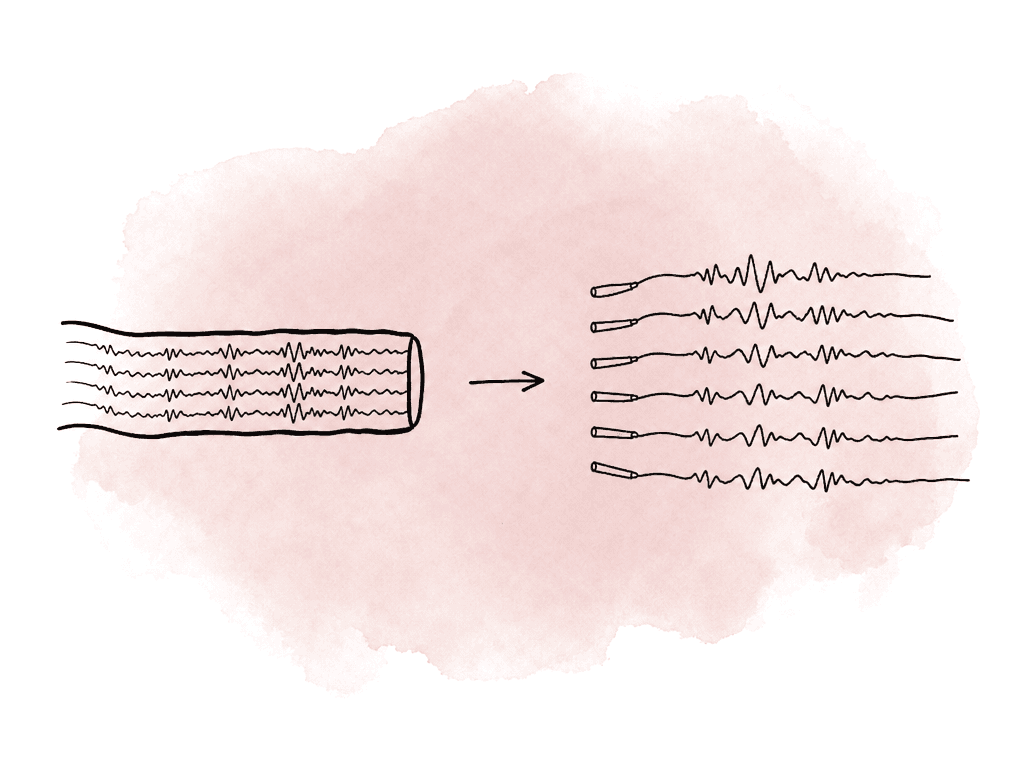
- file name and path, for simple relink;
- media start timecode, for conform;
- duration, frame rate, and audio channel count;
- proxy and full-resolution relationships;
- reel, tape, or camera roll metadata when moving through AAF/XML.
Resolve-specific failure patterns
Resolve is commonly used as the bridge between Avid and finishing. It supports Avid DNxHD/DNxHR workflows and can exchange sequences using AAF. Avid’s own guidance describes two broad Media Composer to Resolve approaches. One sends an AAF that links to original AMA-linked sources. The other sends an AAF with rendered MXF media. Resolve can also render DNxHD or DNxHR MXF media back for Media Composer. That doesn't make every MXF safe. Resolve support depends on exact codec details. The supported formats list changes across versions. Some formats decode but don't encode, and others are limited by operating system or licensing. Resolve problems fall into a few buckets:- The file is a camera MXF variant that the installed Resolve version doesn't decode.
- The file decodes, but metadata needed for conform is missing or mapped differently.
- Proxy generation fails for a specific camera codec or MXF flavor.
- AAF import succeeds, but clips link to the wrong media because reel or source timecode conflicts.
- Avid return media renders correctly, but Media Composer doesn't relink because the expected naming or tape metadata is different.
A test matrix for mixed NLE workflows
When a production has to move MXF media through Avid, Premiere, and Resolve, build a small test set before committing the whole show. Use real files from the camera, from the sound and dailies workflow, and from the finishing path. A generic sample clip proves nothing. A useful test set includes:- one normal camera clip;
- one long take;
- one high frame rate or off-speed clip;
- one clip with all expected audio channels;
- one clip with synced production sound;
- one proxy and its matching full-resolution source;
- one rendered DNxHD or DNxHR handoff file;
- one final delivery-style MXF with the required channel layout.
- Link, import, transcode, and proxy generation
- Relink, AAF export, and XML export
- Resolve conform, Avid return, and Premiere relink
- Final export
- Avid 2024.x links XAVC-I OP1a via source browser, but your team must transcode to DNxHR LB for shared editorial.
- Premiere imports the same file, but audio appears as eight mono tracks.
- Resolve 20 reads the source and conforms from AAF when Resolve sources reel name from filename.
- Avid return from Resolve works when rendered as DNxHR HQX MXF using Avid-compatible settings.
- FFmpeg rewrap opens in Premiere and Resolve but Media Composer doesn't accept it as managed Avid media.
Rewrapping when the essence is fine
Rewrapping copies the video and audio essence into a new container without re-encoding. It is fast and it avoids generational quality loss. Reach for it when the receiving tool dislikes the container but supports the codec.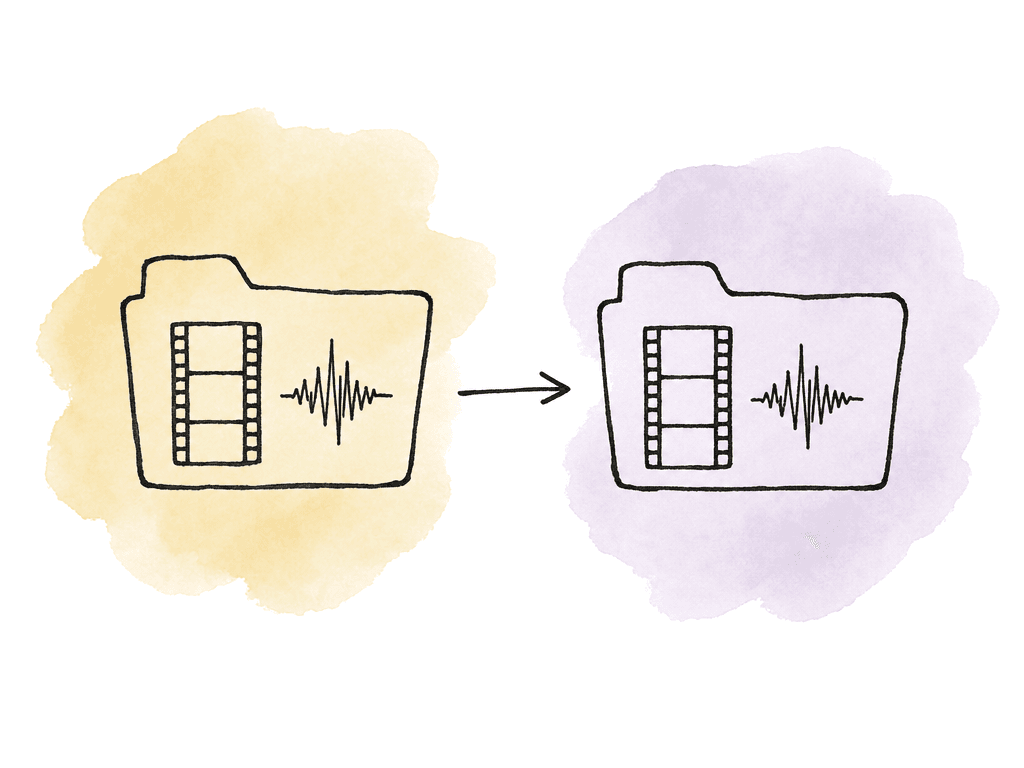
ffmpeg -i input.mxf -map 0 -c copy output.mov
ffmpeg -i input.mxf -map 0 -c copy output_rewrap.mxf
- Unsupported codecs
- Bad timecode decisions
- Wrong audio mapping
- Missing metadata that the destination requires
ffprobe -hide_banner -v error -show_format -show_streams -print_format json input.mxf > original.json
ffprobe -hide_banner -v error -show_format -show_streams -print_format json output_rewrap.mxf > rewrap.json
Re-encoding as the controlled last resort
Re-encode when the codec is unsupported or too heavy for the workflow, when the file is damaged, or when behavior is inconsistent across systems. It is also standard when standardizing edit media so all collaborators work with the same codec and raster. Good mezzanine choices depend on the facility and destination. In Avid and Resolve workflows, DNxHD and DNxHR are common because both applications support them well. Premiere also handles DNx media in professional workflows. A basic DNxHR transcode might look like this:ffmpeg -i input.mxf \
-map 0:v:0 -map 0:a? \
-c:v dnxhd -profile:v dnxhr_hq \
-c:a pcm_s24le \
output_dnxhr.mov
- Frame rate and raster
- Field order and color range
- Channel count
- The delivery requirements
- keep source timecode;
- keep source clip names;
- preserve reel, tape, or camera roll values where the workflow uses them;
- avoid changing frame rates unless that's an intentional edit decision;
- keep audio channel order documented;
- store the FFprobe report with the transcode batch.
The clean decision path
Resist the urge to “just make a new file” when an MXF breaks across Avid, Premiere, or Resolve. Inspect it first. Then decide which layer is failing. Use FFprobe to identify the wrapper and codec, the stream layout, and the timecode and metadata. Test the file in the exact app versions the team uses. Separate import problems from relink problems. Treat Avid linked media and Avid managed media as different workflows. Treat Premiere audio interpretation as something to inspect, not guess. Treat Resolve support as version-specific. Then choose the least destructive fix:- reinterpret or remap audio when the streams are valid but presented incorrectly;
- relink using stable file names, timecode, reel, and clip metadata when the media is valid but offline;
- rewrap when the codec is supported and only the container is the problem;
- re-encode when the codec, performance profile, or application support makes it necessary.
.mxf as an answer. The extension is only the wrapper label. Inspect the file, name the failing layer, then apply the smallest fix that layer allows.FAQ
Rewrapping helps when the codec is supported but the receiving application dislikes the container structure. It copies the existing audio and video essence into a new wrapper without re-encoding, so it's fast and avoids quality loss. It won't fix an unsupported codec, incorrect audio mapping, missing conform metadata, or media that needs to become true Avid-managed OP-Atom media.
FFprobe shows the actual contents of the MXF: codec, profile, frame size, frame rate, pixel format, field order, stream count, audio channels, timecode, and metadata tags. That separates wrapper problems from codec problems, and it reveals whether audio is stored as one multichannel stream or as multiple mono streams.
MXF can store audio as one interleaved multichannel stream or as several mono streams, and each application interprets those streams its own way. If picture plays but audio is missing, split unexpectedly, or mapped to the wrong tracks, inspect the audio streams with FFprobe first. Then adjust channel interpretation or track mapping in the destination application.
Source timecode, clip name, reel name, tape name, camera roll, file name, duration, frame rate, and audio channel count are commonly important. Which fields count depends on the workflow and the application. If those values change during transcoding, proxy creation, or rewrapping, AAF, XML, and relink workflows can fail even when the media itself plays correctly.
Re-encode when the receiving system can't decode the codec, the media is too heavy for the workflow, the file is damaged, or the production needs standardized editorial media. In Avid and Resolve workflows, DNxHD and DNxHR are common mezzanine choices. Re-encoding should preserve timecode, clip names, reel or tape metadata, frame rate, and documented audio channel order whenever conform depends on those values.
Multiple local copies produce false results, because one assistant may be testing the original while another tests a rewrap or transcode. Aspect lets the team mount the same project media as one shared cloud filespace, so Avid, Premiere, and Resolve tests all happen against the same file set.