
- codec
- profile and level
- resolution and frame rate
- bit depth and color
- bitrate
Start with the delivery target
Choose profile and level from the destination backward, and ask: “What has to decode this file?” A broadcast spec, streaming platform spec, camera proxy requirement, archive policy, or vendor ingest sheet will usually define some combination of these fields:- Codec: H.264/AVC or H.265/HEVC
- Container: MP4, MOV, transport stream, IMF-related package, or another wrapper
- Profile: for example H.264 High, H.265 Main, or H.265 Main 10
- Level: for example H.264 Level 4.1 or H.265 Level 5.1
- Resolution and frame rate: 1920x1080 at 29.97, 3840x2160 at 59.94, and so on
- Bit depth and chroma: usually 8-bit 4:2:0 or 10-bit 4:2:0 for these delivery codecs
- Bitrate mode and limits: CBR, VBR, average bitrate, max bitrate, or VBV/HRD constraints
- Audio requirements: codec, sample rate, channel layout, loudness, and track order
What profile actually controls
A profile is a subset of the codec, and it defines which coding tools and signal characteristics are allowed in the bitstream. Think of it as a feature set, not a quality slider.
| Profile | Common use | Bit depth and chroma | Compatibility impact |
|---|---|---|---|
| H.264 Baseline | Older or highly limited playback targets | 8-bit 4:2:0 | Broad legacy support, lower compression efficiency |
| H.264 Main | Older broadcast, device, or platform specs that request it | 8-bit 4:2:0 | More efficient than Baseline, less common as a modern general default |
| H.264 High | General HD delivery and many SDR review or web files | 8-bit 4:2:0 | Strong everyday compatibility with better efficiency than Main |
| H.265 Main | Efficient SDR delivery to known HEVC-capable targets | 8-bit 4:2:0 | Smaller files than H.264 at similar quality, narrower playback support |
| H.265 Main 10 | HDR, 10-bit SDR, and high-quality HEVC delivery | 10-bit 4:2:0 | Required for many HDR workflows, dependent on HEVC Main 10 decoder support |
- H.264 Baseline: older compatibility profile, historically useful for very limited devices and low-complexity playback. It avoids some compression tools, so it isn't efficient by modern standards.
- H.264 Main: a middle ground that supports more tools than Baseline, but isn't usually the default choice for high-quality general delivery today unless a spec asks for it.
- H.264 High: the common H.264 choice for HD and many 4K SDR deliverables when compatibility is still important.
- H.265 Main: 8-bit 4:2:0 HEVC, useful for efficient SDR delivery where the playback target supports HEVC.
- H.265 Main 10: 10-bit 4:2:0 HEVC, commonly required for HDR and often preferred for high-quality 10-bit SDR masters where supported.
What level actually controls
Level is where the codec says how much picture data the decoder must be able to process. It constrains things like frame size, frame rate, macroblock or luma sample processing rate, decoded picture buffer, and maximum bitrate. In plain language, level answers: how big, how fast, and how heavy is this stream?
- H.264 Level 4.0 or 4.1: commonly associated with 1080p delivery, depending on frame rate and bitrate.
- H.264 Level 4.2: commonly used when 1080p60 is required.
- H.264 Level 5.1: commonly used for UHD/4K up to around 30 fps in many workflows.
- H.264 Level 5.2: commonly used when UHD/4K high frame rate delivery is required.
- H.265 Level 4 or 4.1: commonly associated with HD delivery, with the exact choice depending on frame rate and bitrate.
- H.265 Level 5 or 5.1: commonly associated with UHD/4K delivery, with 5.1 often used for UHD 60.
- H.265 Level 5.2 and above: used for higher frame rates, larger rasters, or more demanding UHD/8K cases.
H.264 versus H.265 in real post workflows
H.264 is still the safer compatibility choice because it's widely supported across edit systems, browsers, review devices, hardware decoders, social platforms, conference systems, and older playback environments. If the recipient is unknown and the file is SDR, 8-bit, and not too bandwidth-constrained, H.264 High Profile in an MP4 container is still hard to beat. H.265 is the efficiency choice, and it can deliver similar subjective quality at a lower bitrate than H.264, especially at 4K and above. It's also the more natural fit for 10-bit and HDR delivery because Main 10 is common in HEVC workflows. The tradeoff is compatibility because HEVC decode support depends more heavily on device generation, OS support, GPU support, browser support, licensing, and the exact player being used. For editorial and production teams, the decision usually falls into a few buckets:- Fast review copies for broad access: H.264, MP4, High Profile, level matched to raster and frame rate, generous enough bitrate to survive review.
- Smaller 4K review files for known modern devices: H.265 Main for 8-bit SDR or Main 10 for 10-bit/HDR, with level matched to 4K frame rate.
- HDR deliverables: usually H.265 Main 10 unless the delivery spec asks for another mezzanine or mastering format.
- Proxies for editorial: often ProRes Proxy, DNxHR LB, or another edit-friendly codec, though H.264/H.265 proxies may be used when small files matter more than timeline performance.
- Final masters for finishing or archive: usually not H.264/H.265 unless the spec explicitly calls for them. ProRes, DNxHR, image sequences, IMF, or another mezzanine/mastering format may be more appropriate.
Main versus Main 10 is really about bit depth
The most common H.265 profile decision is Main versus Main 10. Main is for 8-bit 4:2:0. Main 10 is for 10-bit 4:2:0. If your source is 10-bit log, a graded HDR timeline, or a 10-bit SDR master and you care about preserving that precision in the delivery encode, Main 10 is usually the right HEVC profile. For H.264, 10-bit support exists in the standard, but it isn't broadly supported in the same everyday playback sense. H.264 High 10 isn't the same safe delivery choice as H.264 High. Many common hardware decoders expect 8-bit H.264, especially for MP4 playback. If you need 10-bit delivery, H.265 Main 10 is usually a more realistic compressed delivery target, assuming the destination supports HEVC. This matters in finishing because banding and gradient damage can get baked into review or approval files. If the final approval is happening from a highly compressed 8-bit encode of a delicate grade, people may comment on artifacts that aren't present in the master. That doesn't mean every review file needs Main 10, but it does mean the codec profile should reflect what the file is being used to judge. For edit proxies, 10-bit is usually less important than link integrity, timecode, audio channel matching, reel metadata, and smooth playback. For color review, VFX pulls, or HDR client approval, bit depth becomes much more important.H.265 tiers and bitrate ceilings
H.265 adds another visible concept: tier. You'll usually see Main tier and High tier. This isn't the same thing as Main profile because profile describes coding features and bit depth. Tier changes bitrate limits at a given level. Main tier is enough for many streaming-style HEVC files. Use High tier when the stream needs a higher bitrate ceiling at the same level, which may happen in higher-quality UHD delivery or demanding contribution workflows. If a spec says Main 10 Profile, Level 5.1, Main Tier, don't export High Tier unless the spec allows it. If it says High Tier, don't assume Main Tier will pass just because the picture plays. Teams often miss this setting because export dialogs compress it into a small dropdown or hide it behind advanced controls. But QC tools will report it, and automated ingest systems may enforce it.Bitrate settings can break level compliance
Profile and level constrain bitrate decisions, and you can choose the right profile and level, then still fail because your average or peak bitrate is outside the target. Rate control changes how predictable the file is. Constant bitrate gives a more uniform data rate and some broadcast or streaming systems may require it, but it can waste bits on simple shots and starve complex ones. Variable bitrate can spend more on difficult scenes and less on simple scenes, which usually improves quality for a given file size. Two-pass VBR is useful when you need to hit a target size or average bitrate more accurately. CRF or constant quality modes are great for local encodes and internal files where consistent visual quality matters more than exact size, but they may not satisfy a delivery spec with hard bitrate limits. The important connection is peak bitrate. A file with an acceptable average bitrate can still have peaks that violate the level, tier, or platform rules. Encoders expose this in different ways: maximum bitrate, buffer size, VBV maxrate, HRD settings, “restricted” quality settings, or streaming compliance options. If a destination has strict limits, use those controls instead of relying on a simple quality slider.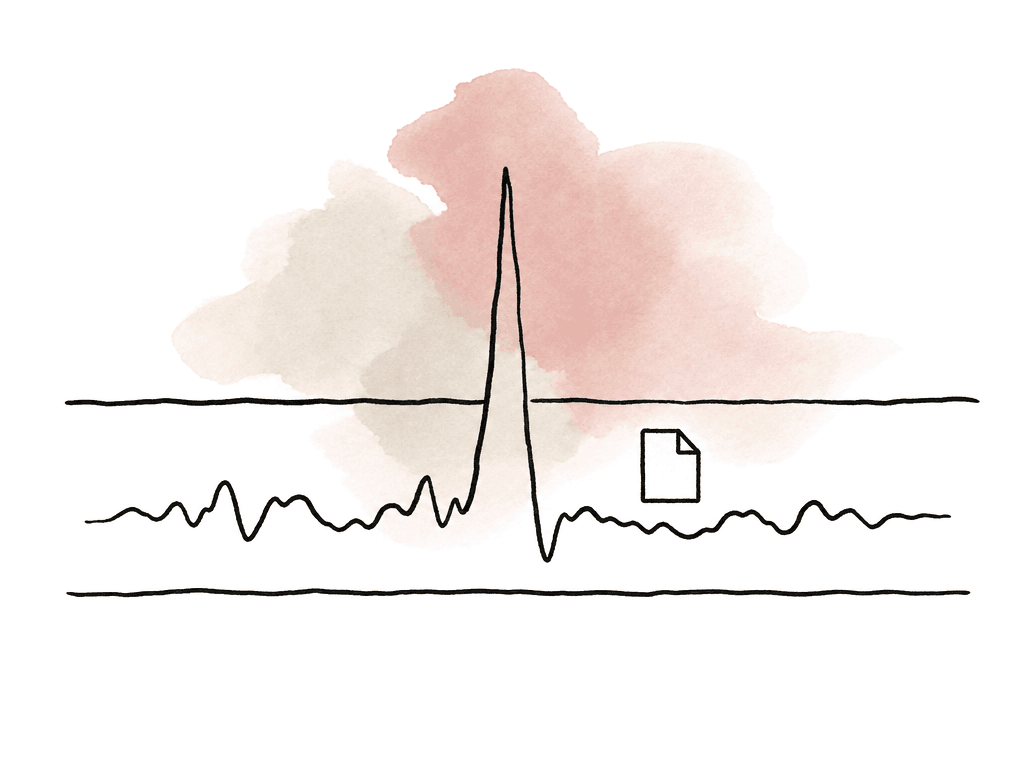
When the wrong profile or level gets through
Bad profile and level choices tend to fail in predictable ways. The annoying part is that they don't always fail where you make the file. Your edit workstation may be the most forgiving playback environment in the chain. Common symptoms include:- QC rejection: the report flags profile, level, tier, bit depth, chroma format, bitrate, or buffer constraints.
- Playback failure on hardware devices: black video, stuttering, dropped frames, or audio-only playback.
- Ingest rejection: the platform accepts the upload, then fails during transcode, packaging, or automated validation.
- Unexpected 8-bit output: the export encodes a 10-bit source or HDR timeline with an 8-bit profile.
- Silent encoder adjustment: the export tool changes level, switches from hardware to software encoding, or disables an option because the requested combination is unsupported.
Reading the spec without overthinking it
A delivery spec can look more intimidating than it's. Most profile and level requirements are just saying, “Make a file our decoder farm can handle.” Your job is to translate those lines into encoder settings without changing the intent. If the spec says H.264 High Profile Level 4.1, 1920x1080, 29.97, 8-bit 4:2:0, max 20 Mbps, then make exactly that. Don't choose Level 5.1 because it sounds more capable. Don't choose Baseline because it sounds more compatible. Don't choose HEVC because the file would be smaller. The spec defines a contract. If the spec says H.265 Main 10 Profile, Level 5.1, Main Tier, UHD, 59.94, 10-bit 4:2:0, then profile, tier, and level all matter. Main 10 carries the bit depth. Level 5.1 fits the UHD frame-rate class. Main Tier affects the bitrate ceiling. If your encoder only exposes “H.265” and “quality,” it may not be the right tool for that deliverable. When there's no spec, decide based on risk. Broad unknown playback favors H.264. Known modern playback and file-size pressure favor H.265. 10-bit or HDR compressed delivery usually points to H.265 Main 10. Timeline performance may point away from both and toward a mezzanine or proxy codec.Verifying the file after export
The export settings are the request. The encoded file is the evidence. For any file that goes to a client, platform, broadcaster, finishing vendor, or large production team, inspect the actual stream metadata after export. Check these fields:- Codec name and codec profile
- Level, and tier for H.265
- Resolution and frame rate
- Bit depth and chroma subsampling
- Scan type, if interlace or progressive delivery matters
- Average and peak bitrate, where measurable
- Color primaries, transfer function, and matrix tags
- Audio codec, channel count, sample rate, and layout
The decision that saves the most time
Most profile and level problems come from treating the export dialog like a quality menu, but it's a compatibility and compliance menu. Pick H.264 when broad playback matters. Pick H.265 when efficiency, UHD, HDR, or 10-bit delivery matters and the destination supports it. Pick Main 10 when you need 10-bit HEVC. Match the level to the actual resolution, frame rate, and bitrate limits. For H.265, match the tier too. Then inspect the finished file instead of assuming the encoder did what you intended. That habit prevents a lot of avoidable churn: rejected uploads, late-night re-encodes, client playback issues, bad review copies, and confusing QC notes that appear long after everyone thought the export was done.FAQ
Profile defines which codec features are allowed, such as bit depth, chroma format, and compression tools. Level defines how demanding the stream can be, including resolution, frame rate, decoded picture buffering, and bitrate limits. In H.265, tier also affects the allowed bitrate ceiling.
No. Profile and level are compatibility settings, not quality sliders. A higher profile or level can make the file less compatible with the destination device, platform, or QC spec. Match the required profile, level, tier, resolution, frame rate, bit depth, chroma, and bitrate to the delivery specification.
Use H.265 Main 10 when the deliverable needs 10-bit 4:2:0 video, especially for HDR, 10-bit SDR masters, or color-critical review files where preserving bit depth matters. H.265 Main is for 8-bit 4:2:0 video. Main 10 allows 10-bit coding, but HDR correctness also depends on color primaries, transfer function, matrix tags, and required metadata.
Edit workstations and modern software players are often more forgiving than hardware decoders, ingest systems, web players, or automated QC tools. A file may decode locally even if its declared level is too low, its tier is wrong, its bitrate peaks exceed limits, or its profile is unsupported by the destination.
Inspect the encoded file with a media analysis tool rather than relying only on the export dialog or file extension. Check codec, profile, level, H.265 tier, resolution, frame rate, bit depth, chroma subsampling, bitrate, color tags, scan type, and audio layout. The export settings are only the request. The finished file metadata is the evidence.
Treat those settings as asset metadata, not just notes in an email thread. Aspect lets teams add custom fields for codec, profile, level, tier, bit depth, bitrate, and QC status, keeping that information searchable alongside the actual delivery files.