How Sony proxy recording fits into the camera workflow
Sony’s proxy recording feature records a lower-resolution, lower-bitrate clip while the camera records the high-resolution original. On many current Sony cameras this happens directly in camera, so the DIT or assistant editor doesn't have to wait for post-transcode proxies before anyone can review the material.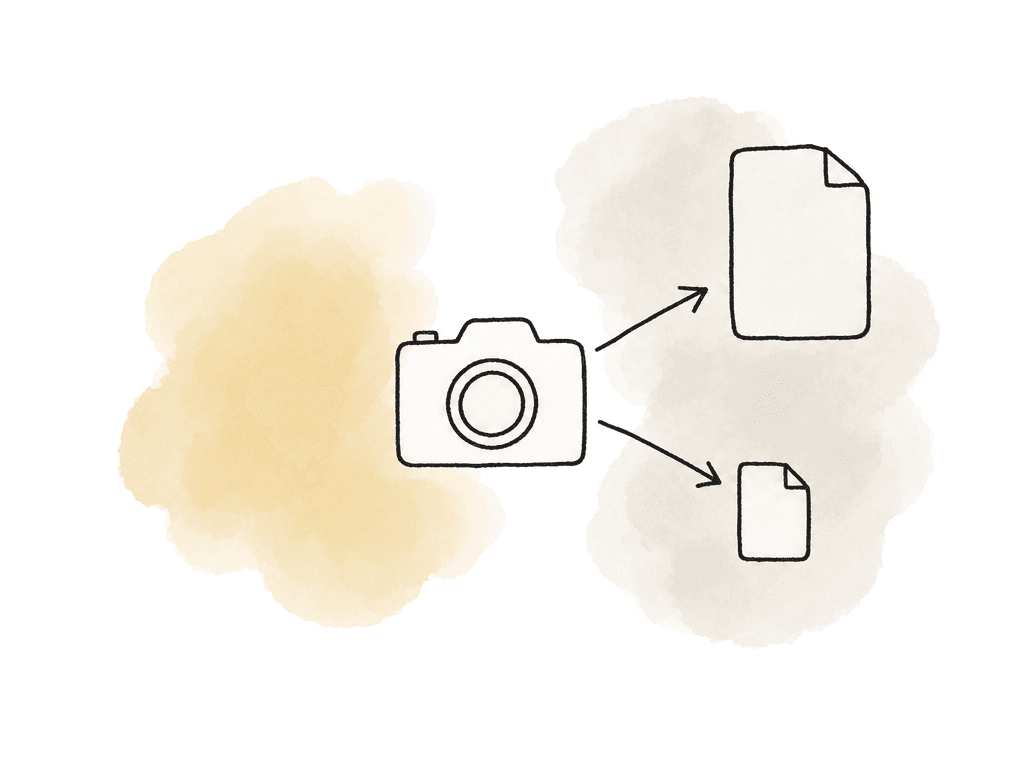
- Camera originals stay protected for archive, conform, finishing, VFX, and grade.
- Proxies move quickly to review, logging, stringouts, or offline editorial.
- Shared timecode, clip naming, reel naming, and duration allow the proxy to point back to the original.
- Looks or LUT decisions can travel with the review process when the team needs a closer representation of intent.
Pick the proxy based on where it's going
Start with the review destination. A proxy for a director watching takes on set, a story producer screening selects remotely, and an assistant editor attaching proxies in an NLE don't need exactly the same thing.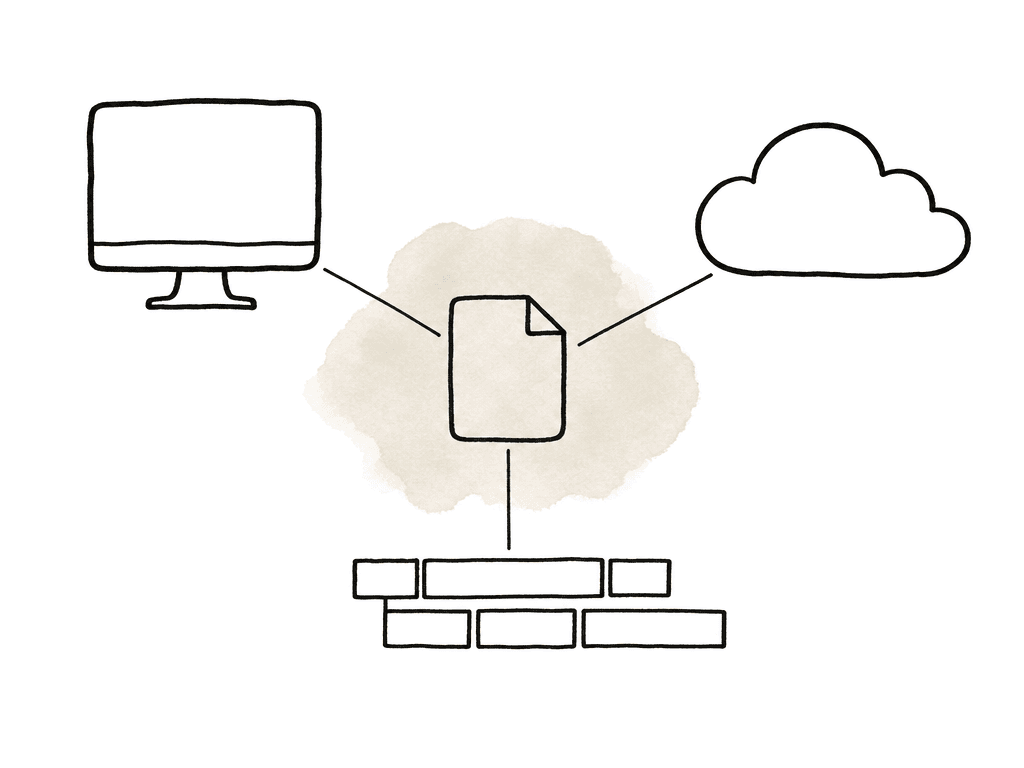
- A lower bitrate transfers faster and plays more smoothly on the web, but shows more compression artifacts.
- A lower resolution is easier to upload and play back, but is less useful for focus review or detailed continuity notes.
- An edit-friendly codec is easier to attach in editorial, but may create larger files than a web-first proxy.
- Matching frame rate and timecode are essential if editorial will ever relink the file or use it for offline edit.
- Audio channel compatibility is important for transcription, dialogue review, and NLE proxy attachment.
Enabling simultaneous proxy recording on Sony cameras
The exact menu path changes by body, but the pattern is consistent: enable proxy recording under the project, recording, or image quality menu, choose the proxy format/settings where available, confirm the card setup, and then record normally. Proxy recording starts when the main recording starts. On cameras using newer Sony professional menu structures, you may see proxy controls under a path like Project, Proxy Rec, Setting. On some Alpha-style bodies, proxy settings may live under Shooting, Image Quality/Rec, Proxy Settings. Some models expose options for proxy file format, bitrate, color sampling, bit depth, or audio channel selection. A typical Sony proxy setup involves these settings:- Turn Proxy Recording or Proxy Rec Setting on.
- Select the available HD proxy format that matches the workflow destination under Proxy file format.
- Choose the bitrate and bit depth option appropriate for review or editorial under Proxy recording settings.
- Choose the channel pair or channel mapping if the camera supports audio channel control.
- Set the camera ID, reel, and naming convention before shooting.
- Confirm timecode mode and sync plan before the camera creates proxy and original files.
Card setup and where the camera writes the proxy files
Sony cameras usually record proxy files alongside the main media structure, but not necessarily in the same folder as the camera originals. The camera may place them in a proxy-specific directory or under a media structure such as M4ROOT or PRIVATE, depending on body and format. Some models allow the root folder naming to follow a camera ID and reel pattern, which can help the post team keep multi-camera days sane. On certain Sony professional camcorders, the camera derives proxy file names from the original clip name with a suffix such as S03. For chunked upload workflows, the proxy may include the original clip name plus a chunk number and suffix. The camera records timecode simultaneously, which is the key piece that lets review media stay useful beyond simple playback. During prep, confirm whether the file carries the right relationship to the original. Shoot a short test, offload both the original and proxy, and inspect the results in the same toolchain the production will use. That means the NLE, the review system, the cloud upload process, or the media management app, not only the camera playback screen.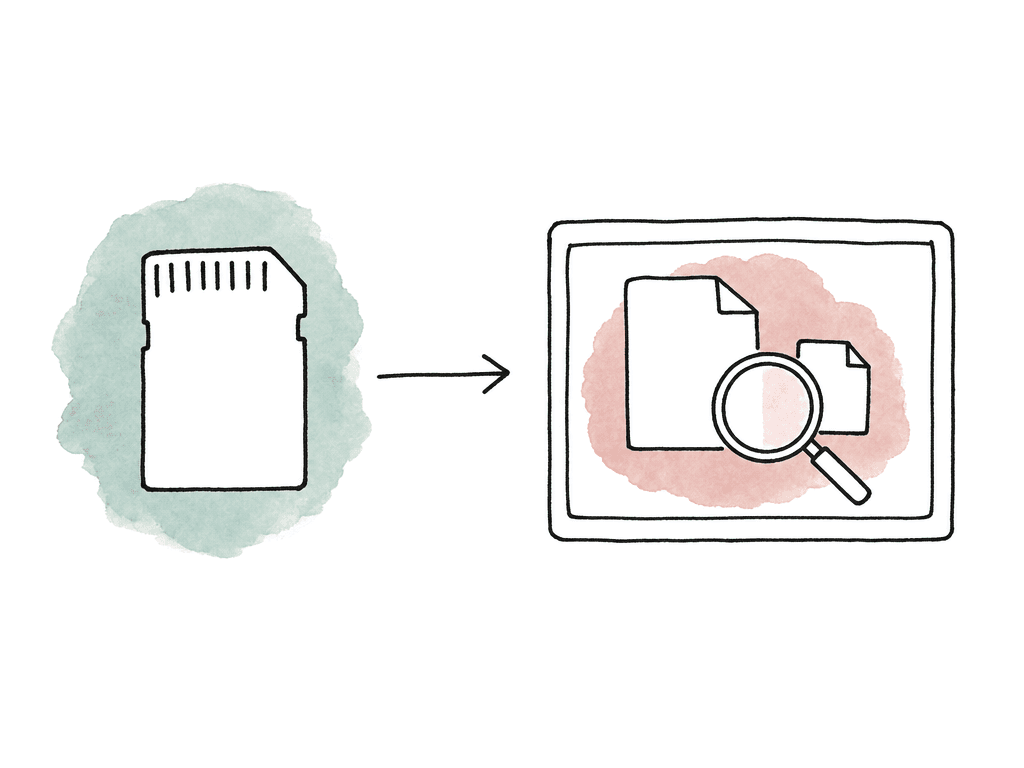
- File extension and wrapper, such as MP4 or mp4 depending on proxy format.
- Folder path, especially if automated ingest expects a specific structure.
- Clip name relationship between proxy and original.
- Timecode start, duration, and frame rate.
- Audio channel count and channel order.
- Card access behavior before removing media or powering down.
Getting proxies off set quickly
There are two common ways to move Sony proxies for fast review: copy them during normal media offload, or push them automatically through a network workflow.| Transfer method | Best fit | How it works | Main advantage | Watch point |
|---|---|---|---|---|
| Supervised card offload | Scripted work, commercials, and controlled media workflows | The DIT or data manager copies camera originals with checksum verification, extracts or copies proxies, then sends the proxy folder to review or editorial | Strong media control and clear accountability | Proxies usually move after the card reaches the offload station |
| Proxy auto-upload | News, documentary, field production, and remote producer review | The camera uploads proxy files to a configured FTP server or supported cloud destination | Review media can leave set before full camera originals arrive | Network setup, authentication, and upload failures need active monitoring |
| Selected or chunked transfer | Fast turnaround review when only part of a clip is needed | The workflow transfers selected clips, selected ranges, or short proxy segments while recording continues | Smaller transfers can arrive sooner than full-take proxies | Spanned or chunked files can complicate duration checks and NLE relinking |
- Field producers can review proxies that upload automatically from camera or the camera operator's location.
- Assistant editors can receive lightweight files before full camera originals arrive.
- News or documentary teams can transfer selected parts of a clip first instead of the whole take.
- Production offices can receive proxies throughout the day while camera originals remain on set.
Review proxies still need a look
A proxy that's technically correct but visually misleading can create bad notes. If the director, DP, client, or producer is reviewing a flat log-looking proxy without knowing it, you can lose time explaining exposure, contrast, or color that would look normal with the intended monitoring LUT. Sony workflows often include on-set look management, including LUTs for monitoring and review. Sony’s s709 look, for example, is designed for on-set monitoring and clip review, with a film-like contrast and color response. VENICE and FX9-style workflows commonly use LUTs or ART files as part of the production’s viewing pipeline. The decision here is whether the proxy should represent the technical capture or the intended viewing transform. For editorial and conform, the original media and metadata matter most. For client review, continuity, and performance notes, a reasonable viewing look is often more useful. Your team can mix those two purposes without labeling them. If your proxy review path applies a LUT, make that clear in the naming, burn-in, metadata, or review notes. If it doesn't apply a LUT, make sure reviewers know they're seeing log or a technical image. Don't let “proxy” become a mystery file where nobody knows whether the look is baked, displayed, or absent.Using Catalyst Browse in the handoff
Sony Catalyst Browse is useful when the team needs a Sony-aware way to inspect, copy, log, and transcode media. It can browse files from Sony cameras, show detailed clip information, copy media to local storage, and transcode to other formats. For proxy workflows, Catalyst Browse isn't automatically required, but it's a good sanity tool. If a proxy file isn't appearing where expected, if your team needs to inspect metadata, or if the production wants to export a different review format from Sony source media, it can help bridge camera and post. Use it during prep and troubleshooting, and confirm that Catalyst Browse sees the clips as expected, that the camera-original media is intact, and that any proxy or transcode files line up with the clip metadata post expects. Then decide whether Catalyst is part of the daily process or just a support tool.Relinking proxies to original media in the NLE
Relinking depends on the NLE, but the matching logic is always some combination of filename, reel or tape name, source timecode, duration, frame rate, and audio structure. In-camera proxies make this easier when they preserve timecode and maintain a predictable naming relationship to the original clips.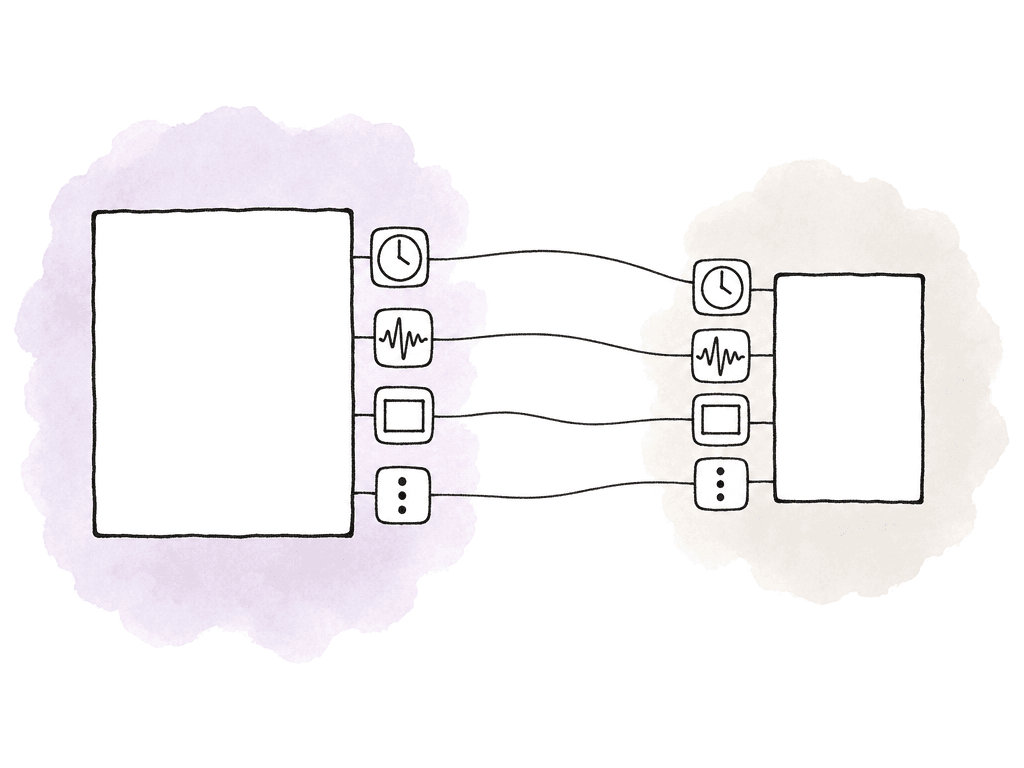
- Proxy and original filenames differ in a way the NLE can't automatically associate.
- Timecode matches, but reel or source name is missing or inconsistent.
- Proxy frame rate doesn't match the original.
- Proxy duration differs because of spanned clips, chunked uploads, or interrupted recording.
- Audio channel count differs between proxy and original, causing attach or relink failures.
- A flattened proxy folder structure lost context needed for ingest.
Where in-camera proxies aren't enough
In-camera proxies are great for speed, but they aren't the answer to every post workflow. Production may still need a proper dailies pipeline when review files require burn-ins, synced double-system audio, CDL or LUT application, watermarking, scene/take metadata, multiple deliverable formats, or editorial codecs that differ from the camera’s proxy options. Sony’s own CineAlta workflow framing separates on-set look management, data transfer and backup, dailies, and editorial. Proxy recording can speed up several of those stages, but it doesn't replace all of them. If editorial needs synced audio and ALE metadata, camera proxies alone may only be a temporary review asset. If finishing will conform from X-OCN or RAW, the proxy’s real value is speed and reference, not final image quality. Use camera proxies for immediate access, and use dailies or post-generated proxies when the file needs to carry more editorial structure than the camera can create.A clean Sony proxy setup in practice
After the test clip is open in the review tool and the NLE, confirm the handoff details that will affect the workflow:- timecode
- clip naming
- frame rate
- audio
- relink behavior
FAQ
Usually no. Sony in-camera proxies are best for fast review, logging, remote viewing, or early offline access. A full dailies workflow may still be needed for synced double-system audio, burn-ins, LUT or CDL application, watermarking, scene and take metadata, editorial deliverables, and quality control.
Choose the smallest proxy that still preserves the information your workflow needs: matching frame rate, source timecode, usable audio, predictable clip names, and enough image quality for review. For simple producer or client viewing, a low-bitrate HD proxy is often enough. For editorial offline work, prioritize NLE compatibility and clean relinking over the smallest possible file size.
The location depends on the camera model and recording format. Sony proxies may be stored in a proxy-specific folder or inside a camera media structure such as PRIVATE or M4ROOT. During prep, shoot a test clip and confirm the proxy folder path, filename relationship, timecode, duration, audio channels, and how the files appear in the review system or NLE.
Not always. Some Sony cameras don't allow proxy recording at the same time as certain special recording modes, including Slow & Quick Motion on some models. Test the exact camera, firmware, codec, frame rate, and recording mode before the shoot so the crew knows when proxy recording will remain active and when it may be disabled.
Relinking usually depends on a combination of filename, source timecode, reel or tape name, duration, frame rate, and audio structure. In-camera proxies are easier to attach when they preserve timecode and maintain a predictable naming relationship to the originals. Avoid renaming proxy files or flattening camera folders unless post has approved that method.
Treat the in-camera Sony proxies as the review asset and keep the originals in the controlled media path. Aspect lets teams upload those lightweight files for frame-accurate comments, annotations, replies, and approvals in a shared review workflow.