

Where Catalyst Browse fits in a Sony camera workflow
Sony’s own CineAlta workflow breaks post into familiar buckets: on-set look management, data transfer and backup, dailies, editorial, and grading. Catalyst Browse sits between transfer and dailies. It's useful after your team has copied the media safely, and before your team treats those clips as ready for edit or review.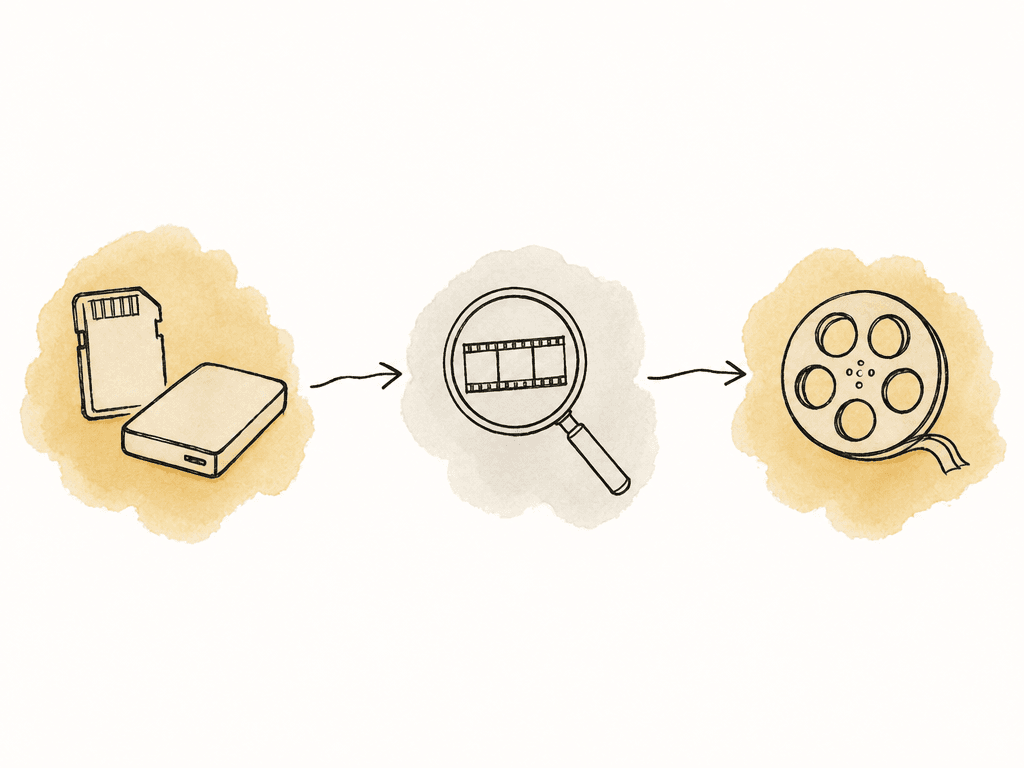
| Workflow point | Primary job | Catalyst Browse role | Typical output |
|---|---|---|---|
| Checksum offload and backup | Create verified copies and protect camera originals | Wait until a known-good copy exists, then inspect that copy | Offload report, protected roll structure, archive copy |
| Catalyst Browse QC | Open Sony media, confirm playback, read metadata, check timecode, apply review looks | Main Sony-specific inspection tool | QC notes, OK or NG flags, markers, stills, short reference clips |
| Dailies and editorial prep | Sync, transcode, apply show naming, prepare edit-ready media | Troubleshooting reference when another tool reads Sony media differently | Dailies, proxies, edit ingest media |
| Grading and finishing | Conform, grade, manage final color, deliver masters | Reference viewer for source checks | Conformed timeline, graded masters, delivery files |
- Is the clip playable from the copied media location?
- Does the clip show the expected timecode, duration, format, frame rate, and audio configuration?
- Does the displayed image make sense when viewed using the source color space or an appropriate review look?
- Are there obvious recording, exposure, audio, focus, corruption, or card-structure issues?
- Can production get a still, short reference clip, or logged note without waiting for editorial?
Install the right version and keep the setup the same
Catalyst Browse is available for Windows and macOS, and Sony identifies it as the free member of the Catalyst family. You can use it without signing in with an account, which makes it easier to deploy on a lab machine, DIT cart, edit assist station, or producer review laptop. For media QC, the workstation should behave the same way from one run to the next. Use the current production-approved version, avoid mid-project upgrades unless there's a specific fix you need, and document the workstation configuration. If you're supporting multiple shows or camera packages, record the Catalyst Browse version alongside the OS version, GPU driver version, and any known limitations. A solid QC station setup usually includes:- Fast local storage or a fast mounted work volume for copied camera media
- Enough bandwidth for the heaviest expected format, especially high-data-rate RAW or X-OCN material
- A calibrated or at least consistent review monitor for exposure and color sanity checks
- Headphones or proper audio monitoring for sync, channel assignment, and noise checks
- Access to the camera report, sound report, and offload report
- A clear policy that your team inspects camera originals and doesn't casually modify them
Preserve the folder structure
One of the easiest ways to create confusion with camera QC is to separate clips from their surrounding folder structure. Sony formats may carry important metadata in sidecar files, XML files, clip folders, or volume-level structures depending on camera and recording mode. Catalyst Browse understands Sony media, but you should still give it the original structure. Don't flatten a card into a random “clips” folder and then wonder why metadata is missing. Don't rename internal folders unless your media management plan explicitly supports it. Don't drag only the largest video essence file into a review folder and call that a QC source.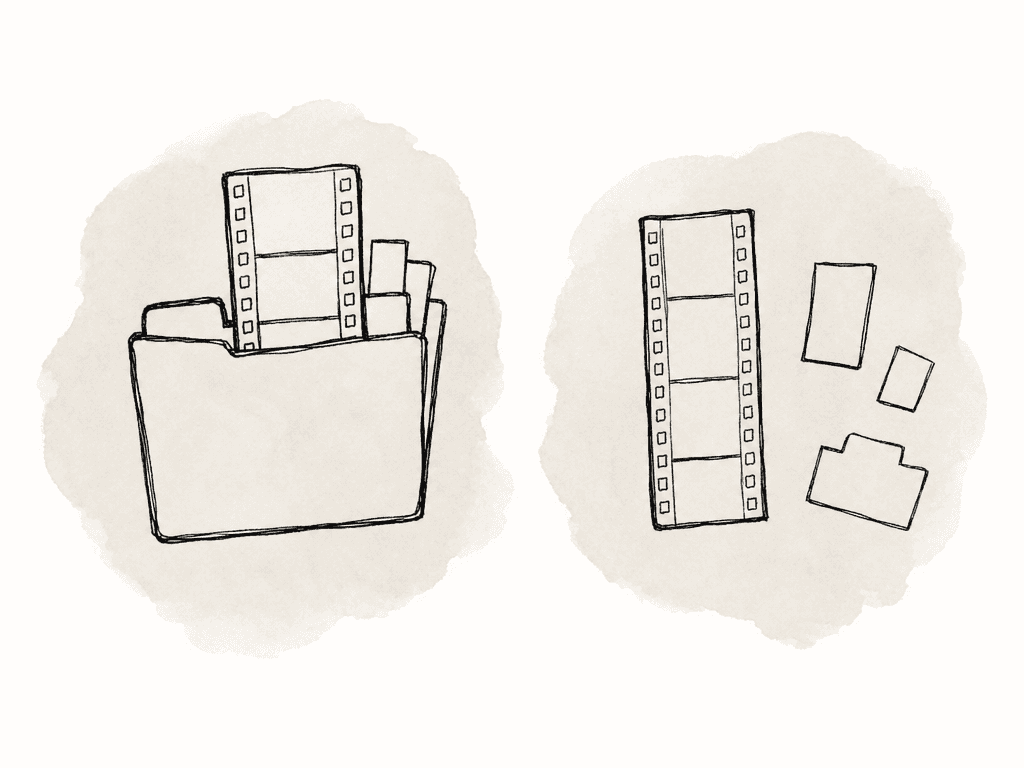
Configure playback for stability first
Catalyst Browse can use GPU acceleration for playback and transcoding. Sony’s application options allow you to choose a video processing device, including CPU mode if you want to bypass GPU acceleration. In normal conditions, the automatically selected GPU path is usually the starting point. If playback is unstable, glitchy, or inconsistent across stations, CPU mode or a different GPU setting may be the faster troubleshooting path. Sony’s help materials also note OpenCL/OpenGL interoperability settings. Performance mode can improve playback by allowing OpenCL and OpenGL to share rendered frames, but some hardware and driver combinations can become unstable. That matters in QC because repeatability is more valuable than squeezing out a few extra frames per second. Use these settings as controlled variables:- Leave the video processing device on the automatically selected device unless you're troubleshooting playback or transcode problems
- Use CPU processing to bypass GPU acceleration when driver behavior is suspect
- Use the performance-oriented OpenCL/OpenGL interoperability setting when stable, but change it if the station shows preview artifacts or crashes
- Hold Control + Shift while launching Catalyst Browse if you need to reset options to defaults
- On some Windows PCs with Intel Quick Sync Video, repeated folder moves can cause Catalyst applications to stop working; Sony notes that launching with Control + 1 may improve GPU driver operation, and Control + 2 restores the original state
Browse Sony RAW and XAVC media with intent
When you open a roll in Catalyst Browse, resist the urge to scrub randomly through everything. Start with the structure of the day. Sort or view clips in a way that matches the camera report. Confirm that the clip count, durations, and start times line up with what production says the team shot. For XAVC, you're usually checking whether files mount correctly, play smoothly enough for review, and report expected format details. XAVC is common in fast-turnaround editorial workflows, so problems tend to show up as mismatched frame rates, missing audio, unexpected color appearance, or broken card structure from a bad copy. For Sony RAW, X-OCN, or SR-style workflows, the QC expectation is different. These formats are more likely to feed grading, VFX, or high-end dailies pipelines. Sony positions X-OCN as a 16-bit linear format with smaller file sizes than traditional RAW and broad support in major post tools. In Catalyst Browse, you aren't finishing the image but confirming that the image opens correctly, carries the expected metadata, and can be viewed in a way that doesn't mislead the team. Playback should include more than the first frame. Hit the head, a few points through the middle, and the tail of longer clips. Watch motion, listen for audio, and check whether timecode advances continuously. If the on-set team flagged a clip for a problem, go directly to that moment and add a marker or note if your workflow uses Catalyst logging.Read metadata like a post handoff, not a trivia panel
Catalyst Browse gives detailed clip views and lets you see and edit media metadata. For QC, metadata is evidence, and the goal is to compare the displayed clip information against the camera report, sound report, and expected project specs.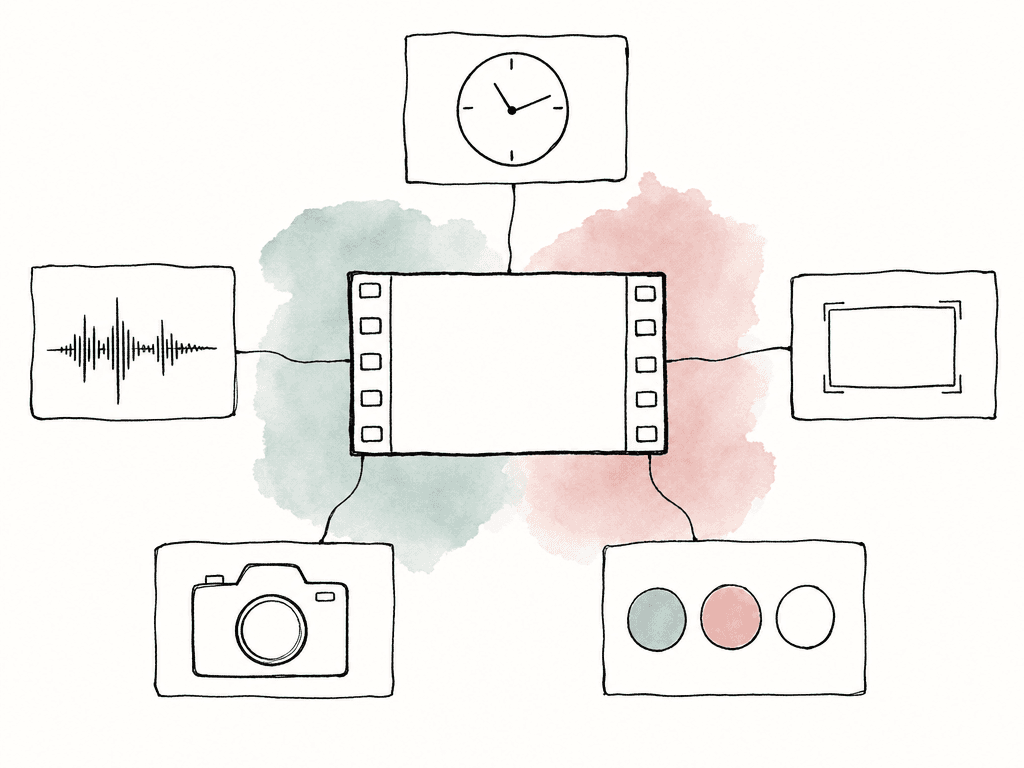
- Clip name and roll or card identity
- Start timecode, end timecode, and duration
- Frame rate and recording format
- Resolution and scan mode
- Audio channel count and sample rate
- Camera model and recording mode when available
- Color space, gamma, LUT, or look-related metadata when available
- Creation date and shoot date context
Use flags and markers for communication
Catalyst Browse and Catalyst Prepare support OK, NG, and KEEP flags, plus marker points tied to clip timecode. In a QC workflow, those are useful only if the receiving team knows what they mean. A flagging system that lives only on one workstation isn't much of a system. Define simple meanings. OK can mean the clip passed the media QC pass. NG can mean your team found a technical issue and needs review. KEEP can mean the clip is important for production or editorial attention even if it isn't technically bad. Place markers on the timecode where something happens, not somewhere near it. Good marker notes are short and specific: “audio dropout left channel,” “focus buzz on subject entrance,” “possible dead pixel upper right,” “slate timecode mismatch,” “camera bump after line.” Avoid vague notes like “bad?” unless you're truly asking for review. The point is to reduce the amount of detective work the assistant editor or post supervisor has to do later.Apply look adjustments for review, not for truth
Catalyst Browse can accurately view media using source color space and can apply color correction and color looks. This is one of the reasons it's valuable for Sony media QC. Log or RAW-looking footage can scare producers, and unmanaged color can make normal footage look wrong. A basic viewing transform or show look can make review exports more useful. But be clear about what the look is doing. For QC, a look adjustment is a viewing aid, not the final grade, and it shouldn't hide technical problems. If you crush shadows to make a still look dramatic, you may miss underexposure. If you add a heavy LUT to every clip, you may obscure clipping, noise, white balance problems, or sensor issues. Use look adjustments in a controlled way:- Source color space viewing for the most technically honest interpretation Catalyst can provide
- A show LUT or camera LUT when production needs a familiar review image
- Basic exposure or contrast adjustment only when needed to judge the shot
- Compare the source and review look, even if not literal side-by-side: know whether you're evaluating the source or the review look
- Clear labels on exported stills or clips when you bake in a LUT or correction
Export stills and short clips for production reports
Production reports usually don't need full dailies. They need evidence: a frame that shows a problem, a short clip that demonstrates a playback or camera issue, or a reference still for continuity and discussion. Catalyst Browse can export stills and transcode selected clips, which makes it useful for this kind of lightweight reporting.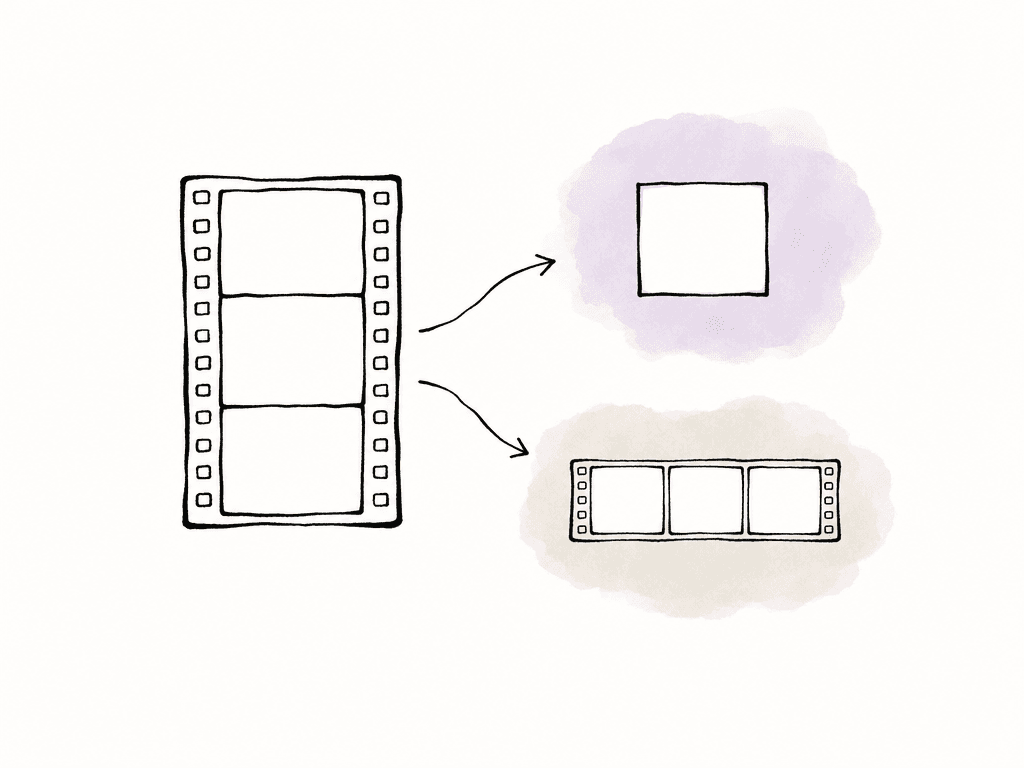
- Show_ShootDate_CamRoll_ClipName_Timecode_issue
- Show_Episode_Scene_Take_ClipName_Timecode
- CameraLetter_CardNumber_ClipName_markerNote
- ClipName_sourceTC_reviewLUT if a look is baked into the export
Common failure modes and how to respond
Most Catalyst Browse QC issues fall into two buckets: real media problems and workstation interpretation problems. The trick is to slow down enough to separate them. When something looks wrong, these are the usual suspects:- Incomplete copy: missing sidecars, XML files, folders, or split clip parts
- Unsupported or outdated setup: older Catalyst version, OS mismatch, or missing driver support
- GPU or driver instability: artifacts, crashes, ghosting, or inconsistent playback
- Storage bottleneck: dropped frames or stutter from slow drives or network paths
- Color management confusion: log or RAW footage viewed without the expected transform
When Catalyst Browse is enough, and when it isn't
Catalyst Browse is enough when your team needs first-pass Sony media inspection: open the camera originals, confirm metadata, check timecode, review image and audio, add simple flags or markers, and export lightweight reference material. It's also a good sanity tool when another application interprets Sony media strangely and you want to compare against Sony’s own viewer. It isn't enough when your team needs managed dailies, high-volume transcoding with show-wide naming rules, multi-user review, color pipeline enforcement, VFX turnover, archive validation, or editorial ingest across multiple camera brands. Catalyst Browse can participate in some of those workflows, but it shouldn't be the only control point. A clean setup is usually this: checksum offload first, Catalyst Browse QC second, dailies or editorial prep third. If you keep those boundaries clear, Catalyst Browse stays a reliable Sony media QC tool instead of another place where the workflow can drift.FAQ
For media QC, inspect the verified copy whenever possible. Catalyst Browse can open media from a card reader, camera, local drive, or mounted storage, but checking the copied media confirms that the offload produced a usable result. If you inspect directly from the card on set, treat it as a quick confidence check rather than archival validation.
Sony formats may store metadata in clip folders, XML files, sidecars, or volume-level structures. If you pull only the main video file into a separate folder, Catalyst Browse may lose access to important context such as clip metadata, timecode, spanned clip information, or look-related data. Browse at the card, volume, or camera-roll level whenever possible.
No. Catalyst Browse is best used as a Sony-native inspection and review tool. It can help confirm playback, metadata, timecode, image appearance, and audio, and it can create lightweight reference exports. Dailies creation, proxy generation, editorial ingest, VFX pulls, archive validation, and final color workflows should stay in the production-approved pipeline tools.
First determine whether the problem is media-related or workstation-related. Reopen the original card or roll structure, compare against the camera and offload reports, try another workstation, and test CPU versus GPU playback if needed. Problems such as missing metadata, color shifts, stutter, or artifacts can come from incomplete copies, broken folder structure, storage speed, color management confusion, or GPU driver behavior.
Yes. Catalyst Browse can export stills and transcode selected clips, which is useful for production reports, issue documentation, continuity references, and quick review material. Name exports with the source clip and timecode, and label them clearly if a LUT or correction is baked in. These exports should be treated as references, not as official proxies or finishing deliverables.
Treat Catalyst Browse exports as lightweight evidence, then place them in a review space where the source clip name, timecode, and note stay together. Aspect lets producers comment on the exact frame of a still or reference clip, which keeps QC discussion tied to the media instead of scattered across email threads with frame-accurate comments.


