
The two frame rates that matter on RED
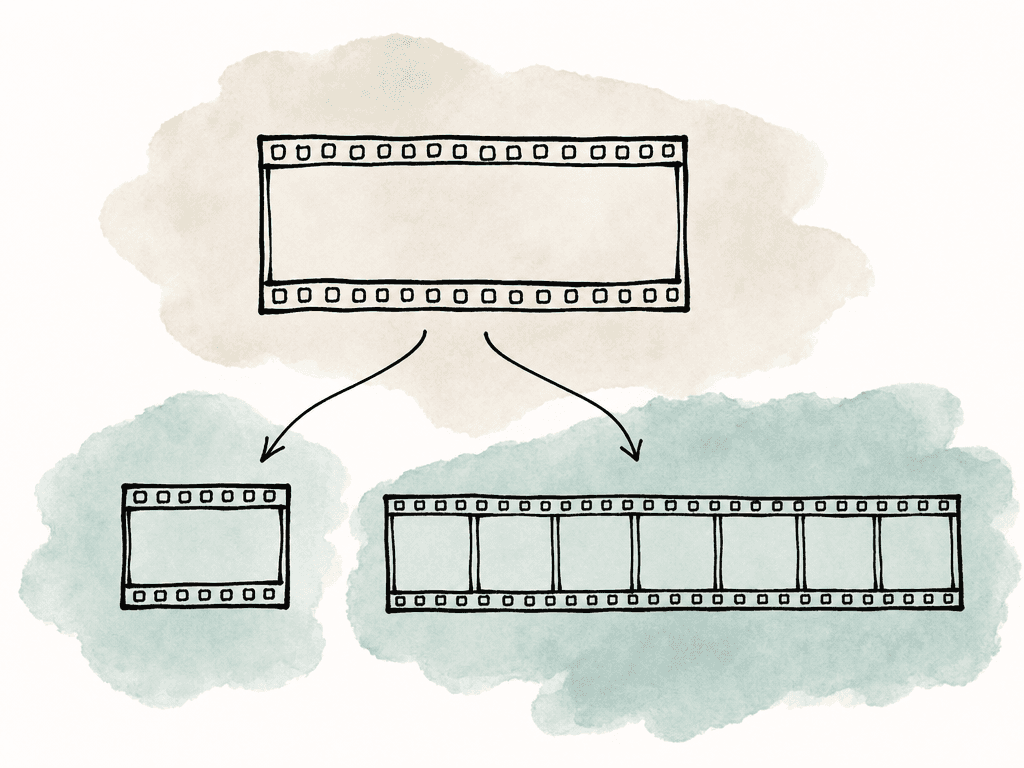
RED cameras separate the idea of capture from playback. The recording frame rate, sometimes called the capture frame rate or sensor frame rate, is how many frames the camera records per second. The project time base is the rate at which that footage is intended to play back. If the recording frame rate is higher than the project time base, the camera is overcranking and the clip plays as slow motion. If the recording frame rate is lower than the project time base, it plays as fast motion. So a clip recorded at 96 fps with a 24 fps project time base is a 24 fps clip that contains 96 captured frames per second of action, played back at one quarter speed. That's native slow motion. The important RED-side settings are:- Project time base: the intended playback rate, often 23.976 for cinema-style work, 25 for PAL regions, or 29.97 for NTSC/broadcast-style work.
- Recording frame rate: the capture rate, such as 48, 60, 96, 120, or higher depending on the camera, sensor format, REDCODE, and other settings.
- Sensor format and resolution: these affect the maximum frame rate available.
- REDCODE compression: crews often use higher compression ratios when a higher frame rate is required or storage is limited.
- Audio and recording mode: off-speed and special recording modes can affect whether usable production audio is captured.
Choose the timeline rate, not the fastest camera rate
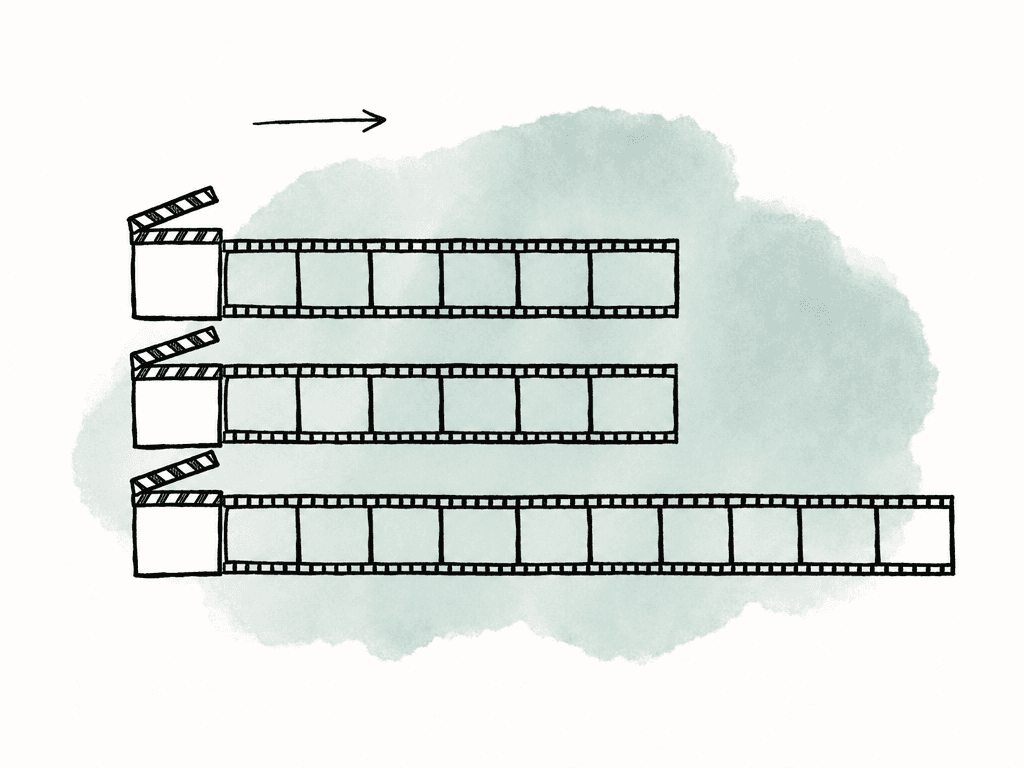
In most jobs, set the multicam timeline to the delivery or edit base rate rather than the highest capture rate on set. If the show is 23.976, build the timeline at 23.976. If the show is 25, build it at 25. If the broadcast deliverable is 29.97, build there unless post has a specific reason to cut elsewhere. This keeps titles, turnovers, and timecode references predictable, and it does the same for exports, review files, and audio workflows. It also keeps the assistant editor from having to explain why the timeline is 59.94 when the whole show is being finished at 23.976. A typical RED multicam slow-motion setup might look like this:- A camera: 23.976 project time base, 23.976 recording frame rate, normal sync sound.
- B camera: 23.976 project time base, 48 recording frame rate, 50 percent slow motion.
- C camera: 23.976 project time base, 96 recording frame rate, 25 percent slow motion.
- Multicam for dialogue or continuous performance: real-time angles only, unless your team retimes the slow cameras back to real-time for sync.
- Slow-motion selects: use overcranked angles as inserts, cutaways, or dedicated slow-motion sections.
Native slow motion versus retimed slow motion
There are two common ways slow motion enters the edit, and they behave differently. The camera creates native slow motion because the RED records more frames than the project time base, and the file metadata tells the NLE to play those frames at the project rate. Motion is smooth because every playback frame comes from a real captured frame, up to the limits of the chosen speed. A 96 fps recording played at 23.976 gives you about 25 percent speed. A 48 fps recording played at 23.976 gives you about 50 percent speed. You create retimed slow motion in the NLE. A clip that plays real-time in the edit is slowed down after the fact. If there are enough source frames, the NLE can use those real frames. If not, it has to repeat frames, blend frames, or synthesize motion using optical flow or another interpolation method. For RED multicam, the cleanest workflow is to label the intent early:- Real-time coverage: keep duration matched to actual event time.
- Native slow-motion coverage: allow the clip to play longer than real time using the RED project time base.
- Flexible high-frame-rate coverage: keep it real-time for sync, then slow down selected edits later.
- Problem footage: clips where the camera project time base doesn't match the intended final time base.
Building a multicam when angles have different frame rates
A multicam clip wants all angles to represent the same clock time. Say camera A records a clap at 01:00:00:00 and the subject walks across frame for ten seconds. Every real-time angle should cover that same ten seconds. If camera B is already playing native slow motion, that same walk might last forty seconds in the browser. Syncing those two as if they're equivalent will create confusion immediately. There are three practical patterns that work.| Multicam pattern | Best use case | How to treat high-frame-rate RED clips | Main risk |
|---|---|---|---|
| Real-time multicam with slow motion later | Continuous sync work such as concerts, interviews, unscripted scenes, live events, and sports coverage | Convert or retime overcranked clips to real-time duration before building the multicam, then slow selected shots later | If a native slow-motion clip stays slow inside the multicam, it will not match the real-time angles |
| Normal-speed multicam plus separate slow-motion selects | Scenes where the editor needs reliable angle switching, but also wants beauty shots, inserts, or cutaways | Keep real-time cameras in the multicam and organize overcranked clips separately at native slow-motion playback | Slow-motion material may be harder to find if bins and naming do not clearly label intent |
| Dedicated slow-motion multicam | Multiple cameras intentionally covering the same action at the same slow-motion playback relationship | Use angles with matching overcrank relationships, or manually retime them so the same action has matching duration | Mixing 48 fps and 96 fps slow-motion angles without adjustment makes the same action run for different lengths |
Interpreting RED footage correctly in the NLE
Most major NLEs can work with R3D files directly. Premiere Pro, DaVinci Resolve, and Final Cut Pro all handle them, as do Avid workflows depending on the exact setup. The frame-rate metadata usually comes through, but assistants still need to inspect clips rather than assuming the bin column tells the whole story. For RED media, look for both the capture/recording rate and the playback/project rate. A clip may have been captured at 120 fps but play back at 23.976. In the edit, that clip behaves like a 23.976 slow-motion clip rather than a 120 fps sequence. In Premiere Pro, import RED camera cards through the Media Browser instead of dragging individual file chunks from the filesystem. R3D clips can be split into 4 GB portions during recording, and proper card-level import helps the application index them as unified clips. In Resolve, set project and Camera RAW preferences before bringing in large batches when possible, then confirm how Resolve decodes and interprets the RED clips. Resolve is commonly used for R3D workflows and gives you strong access to RED RAW settings. Timeline frame rate decisions can become harder to change once the project is underway. In Final Cut Pro, RED RAW settings applied to original R3D clips can update reference clips such as synced clips, compound clips, and multicam clips. That's useful, but it also means your team should be deliberate about when they adjust RAW settings and when they create editorial structures. Avoid creating unnecessary optimized or proxy media at import if the workflow depends on later RAW adjustments. Across NLEs, the practical inspection points are:- Does the clip duration match real time or slow-motion time?
- Does the playback frame rate match the show timeline?
- Does the metadata show a higher recording frame rate than project time base?
- Does the clip include usable audio?
- Are proxies, transcodes, and camera originals using the same starting timecode?
- Are high-frame-rate clips labeled by intent, not just by fps?
Keeping audio sync when frame rates differ
Audio is where frame-rate mistakes become expensive. Picture can look “close enough” for a while. Audio drift exposes a bad interpretation quickly. Start with this assumption: production sync sound belongs to real-time recording, not to overcranked slow motion. RED support guidance for missing audio points directly at varispeed and special recording modes as things to disable when your team expects audio. So if the sensor frame rate differs from the project time base, don't assume the camera audio will be present or useful. Confirm it.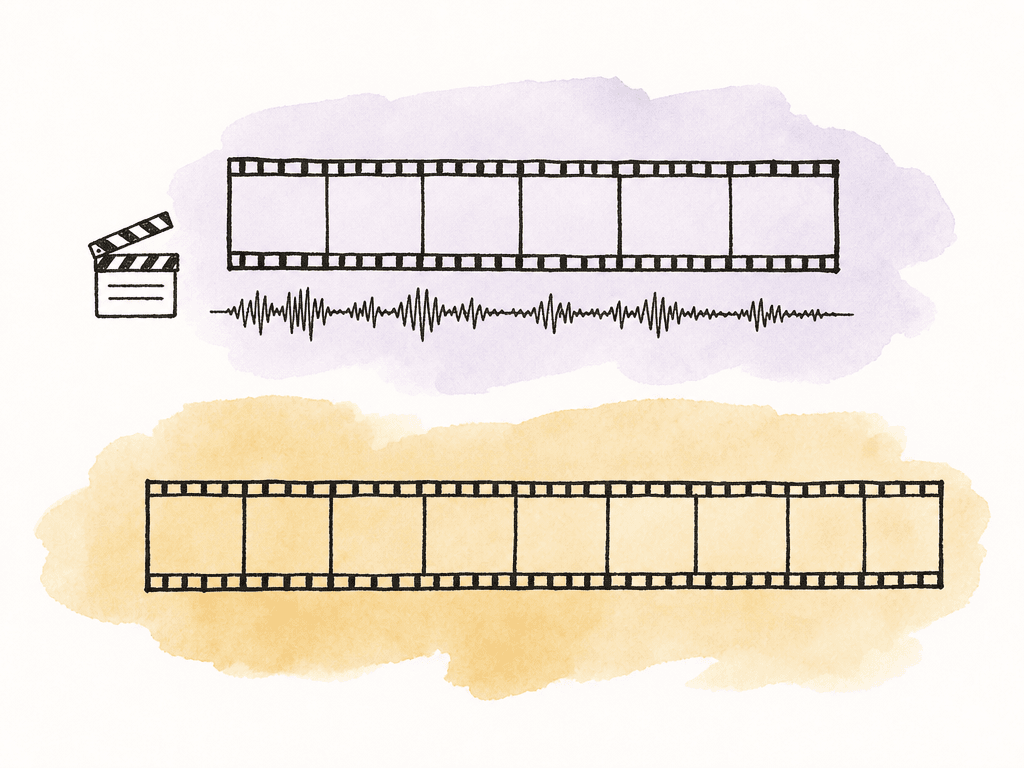
- External recorder running at the production sample rate.
- Camera audio from a real-time camera.
- Timecode sync or jammed timecode across cameras and audio devices.
- Slate or waveform sync as a fallback.
- Clear notes identifying which RED angles are off-speed.
Handling mixed 23.976, 25, 29.97, 50, 59.94, and 120
Mixed-rate jobs are common now. A single project might carry a RED A-cam at 23.976, a drone at 59.94, and an action camera at 119.88, plus a broadcast source at 29.97 and archive at 25. The decision tree is still the same, but you need to separate “different acquisition standard” from “intentional slow motion.” Here are the common cases, written as the usual intent rather than a rule:- 47.952 or 48 captured for 23.976 or 24 playback: half-speed native slow motion.
- 59.94 captured for 23.976 playback: often 40 percent speed if you conform it, or real-time with frame sampling if you leave it as normal 59.94.
- 50 captured for 25 playback: half-speed native slow motion.
- 119.88 captured for 23.976 playback: 20 percent speed if you conform it.
- 29.97 source in a 23.976 show: a standards/conversion issue, not automatically slow motion.
- 25 source in a 23.976 show: a standards/conversion and audio pitch/sync issue, not automatically slow motion.
Proxies and transcodes need the same timing story
Proxy workflow can hide frame-rate problems until conform. If the proxy is interpreted one way and the R3D original is interpreted another way, the edit may relink with different durations, different start frames, or different timecode behavior.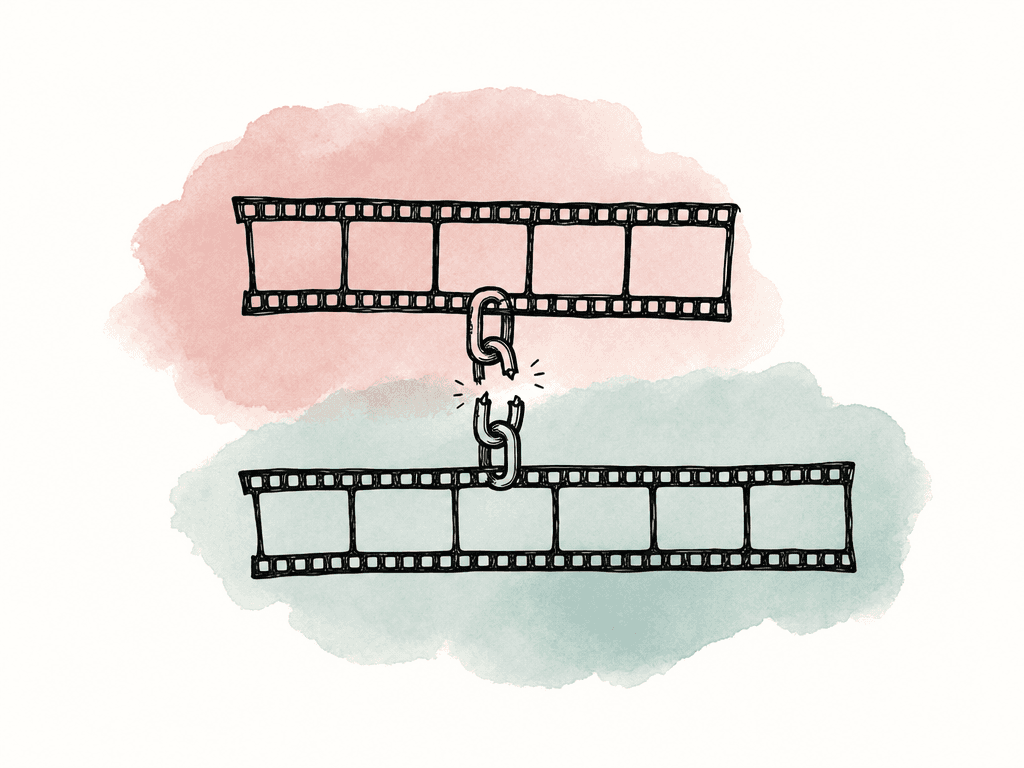
- Camera original R3D.
- Native slow-motion proxy or transcode.
- Real-time retimed proxy or transcode for multicam.
- Flattened or committed retimes.
- Color turnover media or XML/AAF references.
Failure modes that show up in the edit
Most frame-rate problems are visible if you know what to look for. They show up before finishing, but only if your assistants test the actual multicam workflow instead of only checking that files import. Common failure modes include:- A high-frame-rate angle drifts out of sync because it's playing native slow motion inside a real-time multicam.
- A slow-motion clip plays real-time because the NLE interpreted the capture frame rate instead of the intended playback rate.
- A clip becomes longer after relink because the proxy and R3D were conformed differently.
- Embedded camera audio disappears after a frame-rate override.
- A 23.976 to 29.97 conversion speeds up picture and audio instead of doing a proper frame-rate conversion.
What to tell the post team at handoff
For every RED roll or camera card, your editorial team should be able to answer four questions:- What was the project time base?
- What was the recording frame rate?
- Should the clip play real-time or slow?
- Where does sync audio come from?
A001_CamA_23.976_RTB014_CamB_96over23.976_NATIVE_SLOMOC022_CamC_120_REALTIME_FOR_MULTICAMD003_59.94_SOURCE_CONVERT_TO_23.976
FAQ
Usually no. Set the timeline to the editorial or delivery frame rate, such as 23.976, 25, or 29.97. A 120 fps RED clip is normally a high capture rate rather than the edit rate. Decide whether that clip should play as native slow motion or be retimed to real-time before adding it to a multicam.
A native slow-motion clip has a longer playback duration than the real-time event it recorded. For example, 96 fps captured for 23.976 playback runs about four times longer than real time. Place that angle in a real-time multicam without retiming it and it may line up at the slate but drift immediately, because it is no longer representing the same clock time as the other cameras.
Recording frame rate is how many frames the camera captures per second. Project time base is the rate at which those frames are intended to play back. If a RED camera records 96 fps with a 23.976 project time base, the clip is intended to play back as smooth slow motion at roughly 25 percent speed.
Don't assume it will be available or usable. Off-speed and varispeed recording can affect embedded camera audio, and some modes may not record audio as expected. For sync sound, use an external recorder, a real-time camera angle, or timecode sync, with a slate and waveform reference as backup. Treat overcranked picture as a visual source unless production confirms otherwise.
Proxies should match the timing intent of the source used in editorial. If the R3D plays as native 23.976 slow motion, the proxy should have the same slow-motion duration and timecode relationship. If you make a separate real-time version for multicam sync, label it clearly as a derived retimed version so it isn't confused with the native slow-motion source.
Don't rely on fps alone. Use naming, bin columns, and shared metadata fields to record the intent: native slow motion, real-time for multicam, or standards conversion needed. Aspect can help teams carry those intent labels with custom metadata so assistants, editors, and post supervisors are reading the same timing story.