Pick the timeline rate from the master, not the camera bin
The most common source frame rate matters, but only after you know the master requirement. Take a documentary with interviews at 23.976, archival at 29.97 and drone at 59.94. Add phone footage at a variable frame rate, plus screen recordings at odd rates. If the delivery is a 23.976 streaming master, build the editorial timeline at 23.976. The 29.97 archive then needs cadence handling. The 59.94 drone footage either plays real time with frame dropping, or gets interpreted for slow motion. The VFR material probably needs a transcode. None of that turns the timeline into 59.94 just because someone dropped the first beautiful drone shot into the sequence. The timeline decision comes from the project’s technical spec. At minimum, lock these early:- Master frame rate
- Raster and aspect ratio
- Progressive or interlaced delivery
- Audio sample rate, usually 48 kHz for production workflows
- Timecode convention, including drop-frame or non-drop-frame where relevant
- Color pipeline and offline or online media plan
- VFX pull requirements, if plates need a different handling path
Know what your NLE is doing when rates don't match
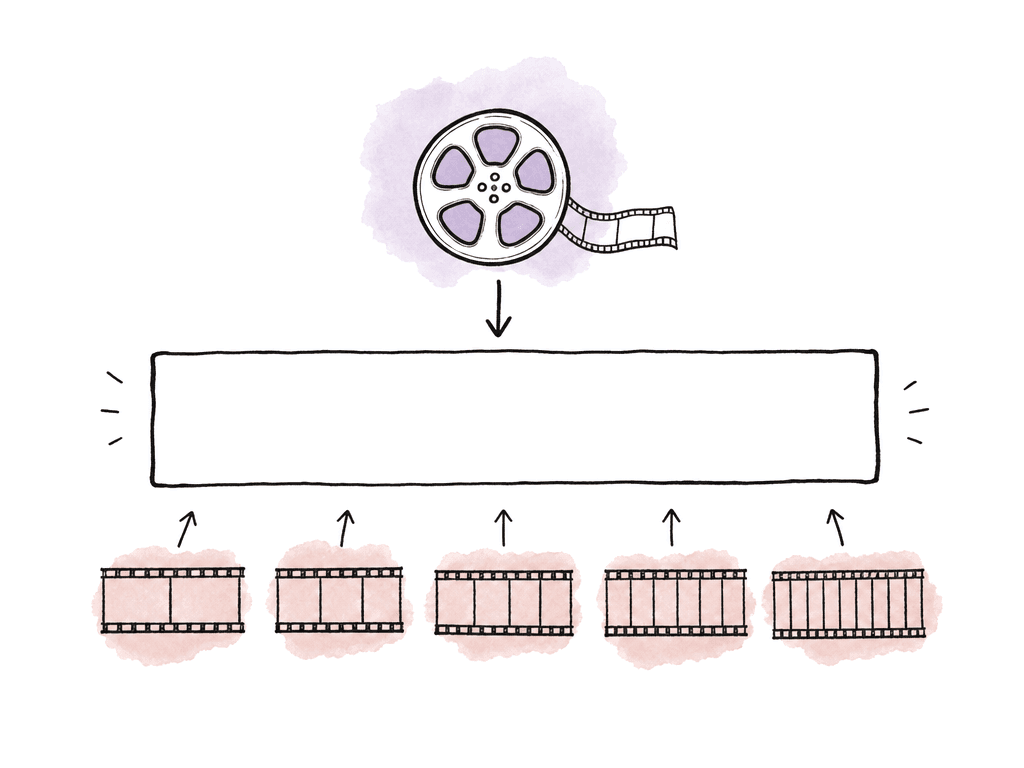
When you put a mismatched clip into a timeline, the NLE has to make the source frames fit the sequence clock. It can do that in several ways, and each one creates a different visual result.| Method | Duration behavior | Best use | Main risk |
|---|---|---|---|
| Frame sampling | Preserves real-time duration by dropping or repeating frames | Simple conversions, edits with limited motion, cases where artifacts must stay predictable | Judder, repeated motion bumps, or uneven cadence |
| Frame blending | Preserves real-time duration by mixing adjacent frames | Mild mismatches where a softer look is acceptable | Ghosting, soft edges, smeared motion |
| Optical flow or motion estimation | Preserves real-time duration by generating new frames | Shots with clean motion where smoother cadence matters | Warping around limbs, wheels, water, flashes, or compression noise |
| Pulldown or cadence conversion | Preserves real-time duration while mapping one cadence to another | Film-to-video or video-to-film family conversions such as 23.976 and 29.97 workflows | Incorrect cadence, hard-to-spot motion rhythm problems |
| Clip interpretation or conforming | Changes playback speed so original frames play at the new rate | Intentional slow motion, speed normalization, MOS shots where duration can change | Sync drift, duration changes, audio pitch or timing problems |
Decide which clips are real-time and which are overcrank
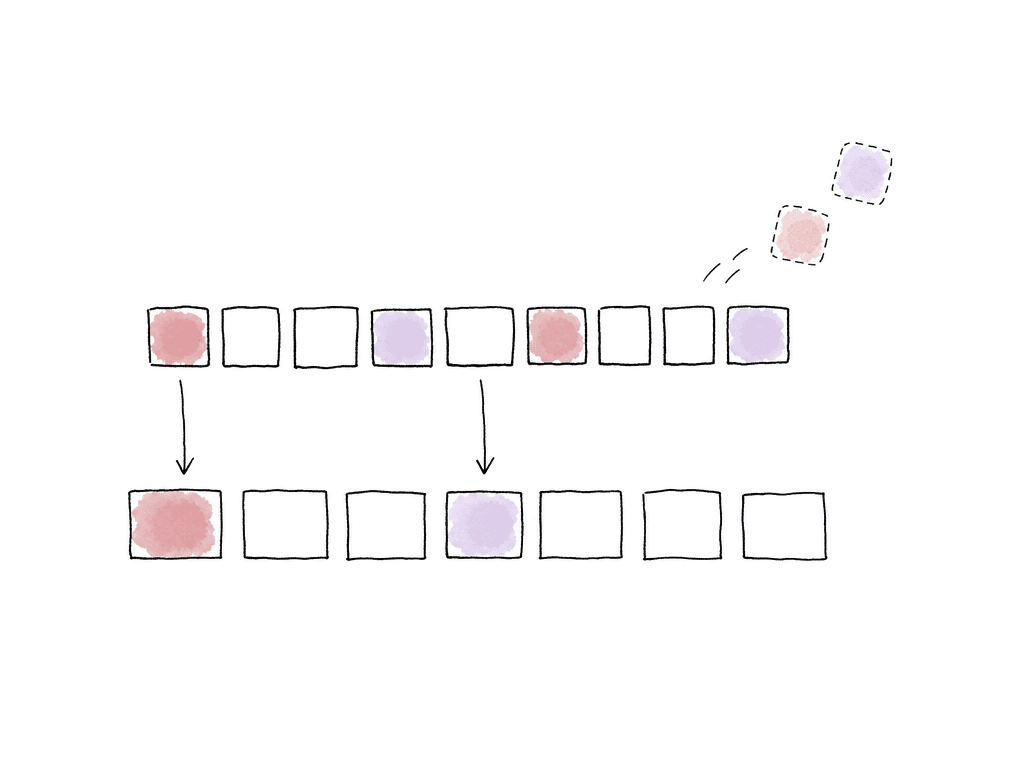
Camera teams shoot high-frame-rate footage for slow motion, but not always. A camera may record 59.94p because the operator wanted smoother handheld motion, because the sports delivery is 59.94, because the camera default was never changed, or because someone planned to slow it down later. Editorial needs to know which one it was. For high-frame-rate media in a lower-frame-rate timeline, there are two normal paths:- Preserve real-time speed when the action should happen at normal duration
- Interpret or conform the clip to the timeline rate when the camera team shot it as overcrank for slow motion
Watch cadence, especially across 24, 25, and 29.97 families
Cadence is the visible rhythm of motion after the NLE repeats, drops, blends, or synthesizes frames. Bad cadence is the "why does this pan feel stuttery?" problem. It shows up first on slow camera moves, scrolling graphics and sports. Car shots and handheld footage with fine detail expose it too. Some combinations are easy. A 50 fps clip in a 25p timeline has a clean 2:1 relationship. A 60 fps clip in a 30p timeline has the same clean 2:1 relationship. A 120 fps clip in a 24p timeline has a clean 5:1 relationship when the exact rates line up. You can predict all of these. Other combinations are messier. 29.97 into 23.976 needs a cadence decision. 25 into 23.976 involves either a speed change, if you want every frame preserved, or frame interpolation, if you need real-time duration. 24.000 and 23.976 look almost identical on a short clip, but they are not the same rate. Over a long program, that 0.1 percent difference matters for sync, duration and timecode. Common cadence problems show up as:- Repeating motion bumps on pans or tilts
- Ghosted edges from frame blending
- Warping around limbs, wheels, water, or flashing lights from optical flow
- Micro-stutters from phone or screen-recording material
- Inconsistent motion between A-cam and B-cam angles in a multicam edit
Treat variable frame rate as a different kind of problem
Variable frame rate footage does not maintain a constant frame interval throughout the file. Phones, action cameras and webcams create VFR media. So do meeting recordings, game captures and screen recordings. VFR looks harmless in a bin, because the NLE might report something close to 29.97, 30, 59.94 or 60. Inside the file, the frame timing shifts. That causes audio drift and random stutter. It also causes exports that don't match the edit, and clips that behave differently after render. For professional editorial, normalize VFR before it spreads through the cut. Transcode it to a constant-frame-rate mezzanine codec, either at the intended working rate or at a rate that preserves the source timing cleanly. For SDR editorial, ProRes 422 or DNxHR is easier to manage than a long-GOP phone original, as is any other house-approved mezzanine format. For HDR or log sources, confirm the transcode preserves the required color metadata and bit depth.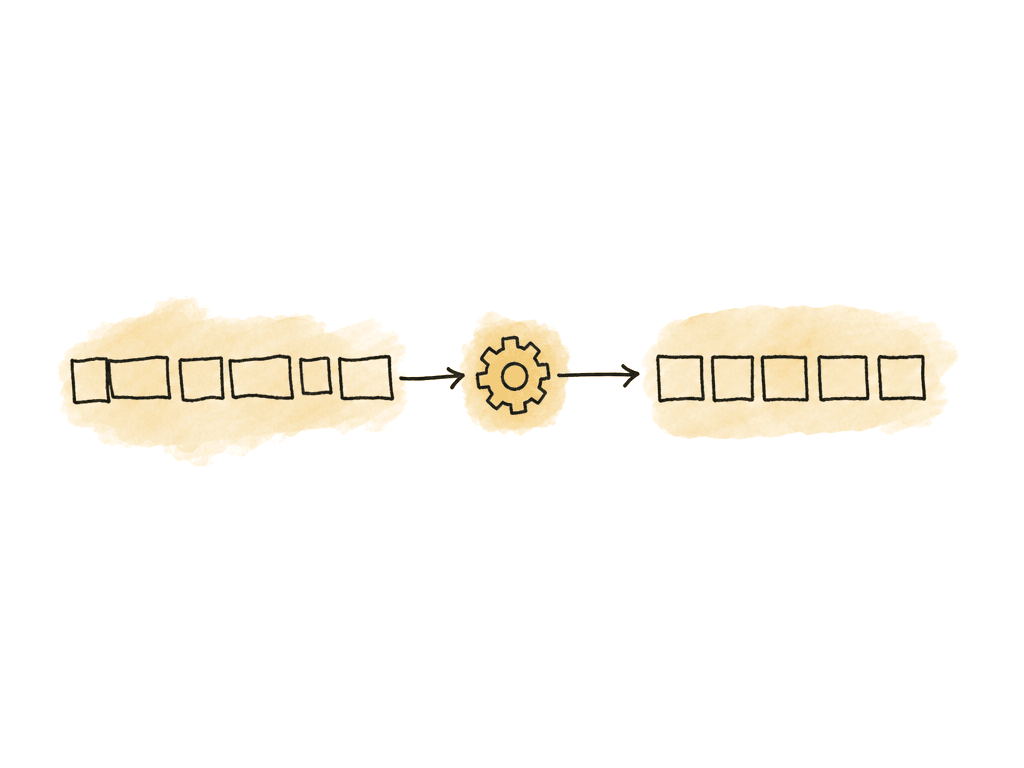
Set up Premiere and Resolve so they don't surprise you
Premiere Pro and DaVinci Resolve can both mix frame rates. Their gotcha moments are different. In Premiere Pro, adding clips to a sequence with a mismatched frame rate conforms them to the sequence while maintaining playback speed. A 30p clip in a 24p sequence plays for the same real-world duration unless you explicitly interpret the footage or apply a speed change. Check original frame rate and frame size in the Source Monitor or project metadata. Use interpretation settings when you intentionally want a clip to play back at a different rate. That behavior is useful, and it is also how an editor accidentally cuts a high-frame-rate slow-motion clip as real-time footage: Premiere is preserving duration. If the camera team shot a 120 fps clip for slow motion, interpret or retime it deliberately. The NLE does not know the creative intent. In Resolve, project and timeline frame-rate settings deserve attention at project creation. Resolve supports mixed frame rates, and you control its mixed frame rate handling through project settings and import settings for workflows such as AAF or XML. The mistake to avoid is letting the first imported or edited clip define the project frame rate when that clip is not the master rate. Accept Resolve's prompt to change project settings to match incoming media only when that media truly represents the intended timeline format. Resolve also has timeline-level options, retime controls, optical flow settings and clip attributes that all affect how clips play. Those controls are useful, and they cause confusion when one editor interprets footage at the media-pool level while another applies speed changes in the timeline. Agree where the decision lives. A clean team workflow keeps these layers separate:- Project or timeline settings define the master edit rate
- Clip attributes or interpretation define intended playback rate for source media
- Timeline speed effects define creative retimes
- Render or export settings define deliverable-specific output
Keep audio sync tied to speed decisions
Audio sync is where frame-rate choices stop being cosmetic. When a clip's playback speed changes, its production audio changes duration with it, unless you detach, replace, or process that audio separately. Real-time frame-rate conversion preserves duration. A 25 fps interview in a 23.976 timeline can be converted to the timeline cadence and still last the same number of seconds, though the motion may need attention. Conform that 25 fps picture to 23.976 instead, playing every frame at the slower rate, and the clip becomes about 4 percent longer. Production audio no longer syncs unless you slow it by the same amount. Slow it, and pitch drops unless you apply pitch correction.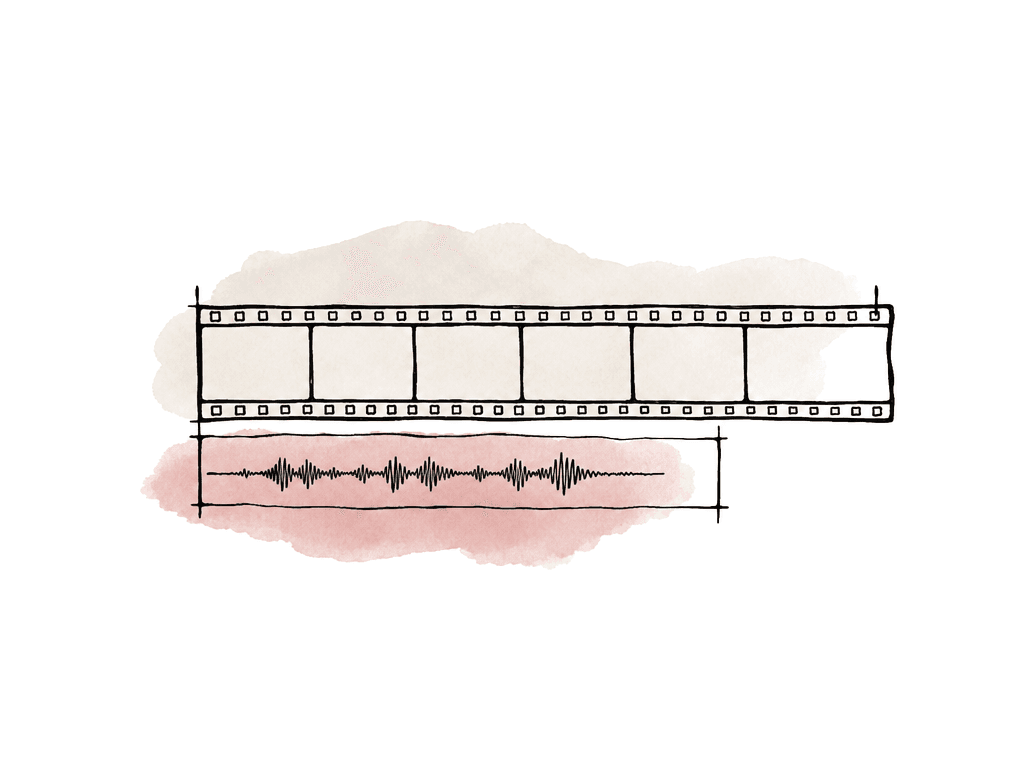
- Dialog slowly drifting against picture over a long take
- Scratch audio matching but external WAV files drifting
- Music performance footage losing sync after a 24 to 25 or 25 to 24 conform
- Pitch changes after speed conversion
- Drop-frame and non-drop-frame timecode confusion in 29.97 workflows
Use separate paths for editorial, VFX, archive, and deliverables
Not every source in a mixed-frame-rate timeline needs the same treatment. A clean edit carries several frame-rate strategies at once. An editorial timeline might keep interview footage real time, interpret high-speed B-roll for slow motion, and transcode VFR phone clips to constant frame rate. Archival 29.97 material goes through a proper standards conversion. VFX plates may need source-native frame ranges while the offline timeline needs converted proxies. Social cutdowns may need 29.97, 30, 50 or 60 fps exports even when the hero master is 23.976. The important part is to keep accidental conversions out of the wrong asset. When a VFX vendor needs the original 59.94 plate, don't send a 23.976 editorial render unless both sides agreed that render is the plate. When finishing needs to relink to camera originals, your documentation of retimes, interpreted clips, and mixed-rate decisions has to be good enough to reproduce them. For dailies and proxies, decide whether each source is preserved at source speed or normalized to the edit rate. The answer differs by show. On scripted production, the dailies team usually builds dailies around the show’s base frame rate so editorial can cut immediately. On sports, live events and documentary, retaining source-rate information matters for later slow motion, replay, or archival handling.Make the timeline predictable on purpose
The best mixed-frame-rate workflow is the one where every mismatched clip has an obvious reason for behaving the way it does. That comes down to seven habits:- Set the timeline from the master.
- Inspect source rates during ingest.
- Label high-frame-rate intent while you still know it.
- Normalize VFR before it spreads.
- Use interpretation only when you mean to change playback speed.
- Choose frame sampling, blending, optical flow or standards conversion by what the shot contains.
- Keep audio sync tied to duration and timecode.
FAQ
In most professional workflows, the timeline frame rate should match the primary delivery spec, not the first clip imported or the most common camera rate. If the master is 23.976, 25p, 29.97, or 59.94, build the main edit timeline at that rate and decide how each mismatched source should be handled inside it.
Letting footage play in real time preserves its duration and makes the NLE drop, repeat, blend, or synthesize frames to fit the timeline. Interpreting or conforming footage changes the playback rate of the clip itself. A 60 fps clip interpreted as 24 fps plays slower and longer, which is useful for slow motion but wrong for synced dialogue unless the audio is handled accordingly.
Uneven motion comes from cadence problems. When source frames don't divide cleanly into the timeline rate, the NLE must repeat, drop, blend, or generate frames. That creates visible bumps on pans, ghosting from frame blending, warping from optical flow, or micro-stutters from phone and screen-recording footage. The best fix depends on the shot, not just the frame-rate numbers.
Transcode variable frame rate footage to a constant-frame-rate mezzanine file before serious editorial work. Phones, webcams, meeting recordings, game captures, and screen recordings can report a familiar rate such as 29.97 or 30 while still changing frame timing inside the file. Normalizing early avoids audio drift, random stutter, relink problems, and exports that don't match the edit.
Yes. Real-time frame-rate conversion should preserve clip duration, but interpreting footage to a different rate changes duration. Conforming 25 fps picture to 23.976 makes it about 4 percent longer, so production audio will drift unless it's slowed by the same amount and pitch is managed. Sync workflows should keep audio at 48 kHz, use correct timecode or slate references, and document any intentional speed changes.
Log that decision at ingest rather than guessing later in the edit. Aspect can hold clip-level notes and fields for intent, camera rate, interpreted rate, and sync status using custom metadata.