How timecode behaves on KOMODO
KOMODO records timecode metadata into the R3D. RED separates two concepts that get blurred on set:- Time of Day, usually called TOD, records clock time as the timecode value for each clip.
- Edgecode records elapsed time for media and resets when you insert new media.
Pick the sync method based on the job
There are three common ways to run KOMODO timecode on set. They all work. They do not carry the same operational risk.| Sync method | Best fit | Camera connection | Main risk | Post impact |
|---|---|---|---|---|
| Continuous external LTC, one box per camera | Normal multicam interviews, documentary, commercial, reality, tabletop, and unit work | A dedicated generator stays connected to each KOMODO | Low, as long as boxes stay powered and cables stay seated | Most reliable grouping by shared TOD timecode |
| Jam-and-disconnect | Tight rigs, gimbals, vehicle mounts, short shoots, or limited generator count | A master generator is connected only long enough to jam the camera | Medium to high, because drift, power loss, and missed re-jams can break sync confidence | Usable when re-jam intervals and sync notes are well managed |
| Array workflow with timecode plus genlock/control | VFX arrays, stereo, LED volume work, plates, motion analysis, or sensor phase critical setups | Timecode plus genlock, EXT access, matched settings, and often networked camera control | Higher setup complexity and more strict matching requirements | Needed when cameras must expose in sync, not just line up in editorial |
Choose generators for the whole workflow, not just the camera port
Most modern timecode boxes can feed a KOMODO if you have the correct cable and output settings. Tentacle, Deity and Ambient are all viable, and so are Saramonic, Denecke and UltraSync-style systems. So is a recorder-based workflow. The differences that decide the day are practical ones. Useful selection criteria include:- Frame rate support for the project rates you actually shoot, including 23.976, 24, 25, 29.97, 30, and drop-frame or non-drop-frame needs.
- Stable holdover accuracy across a full shoot day.
- A clear display or app that shows frame rate, jam status, battery, and running code.
- Locking or low-profile cable options that survive camera handling.
- Battery life longer than your longest realistic day, with margin.
- Compatibility with the audio recorder, not just the camera.
- A workflow for multiple units where the sound mixer, DIT, and ACs can all identify which box belongs to which camera.
Match the camera and generator settings
Before you care about jamming, make sure the cameras agree about the project. In RED terminology, the project time base matters. The recording frame rate matters too, especially with genlock or array workflows. Even for normal sync, a mismatched time base is one of the fastest ways to create confusing metadata and warning states on the camera. Set the shared production values first:- Same project time base on every KOMODO.
- Same recording frame rate where you intend the cameras to sync directly.
- Same timecode frame rate on every generator and audio recorder.
- Same drop-frame or non-drop-frame convention where applicable.
- Same firmware version when cameras are part of a genlocked or array setup.
A clean wired setup for multiple KOMODOs
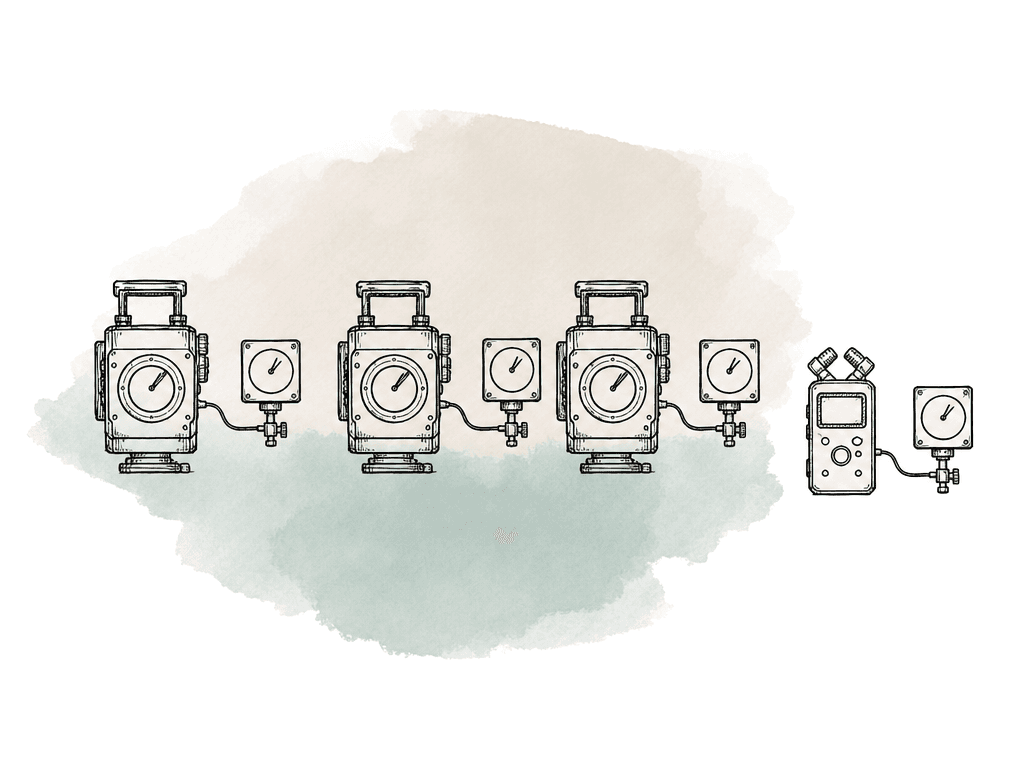
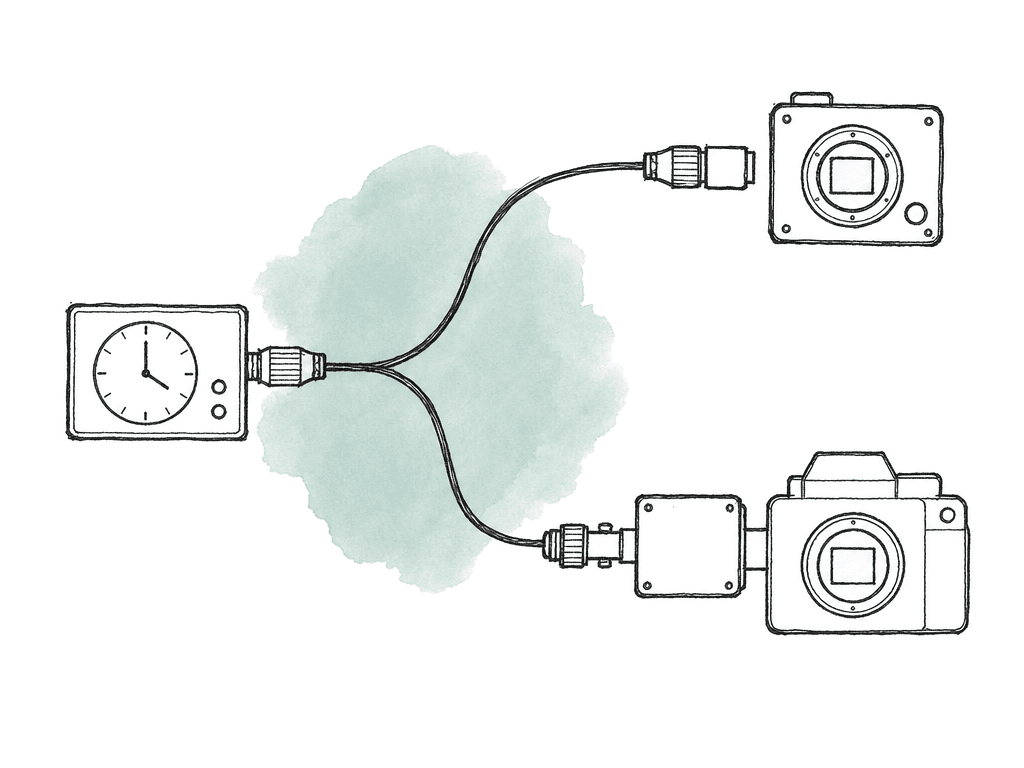
For a two or three camera shoot, the wired external workflow takes minutes:- Jam all timecode boxes from the master clock. In many crews the sound mixer’s recorder or master generator is the source of truth. In others, your team jams all boxes together from a phone app or one designated master box. Every box has to start with the same timecode value, frame rate and drop-frame setting.
- Mount one generator on each camera. Keep the box accessible enough to read battery and status, and keep the cable strain-relieved. Small timecode boxes are easy to hide until someone grabs the camera, yanks a cable, and the camera spends two hours recording internal code.
- Feed each KOMODO through the correct timecode cable. That might be a 3.5 mm TRS-to-RED 9-pin cable from a small generator, a BNC-to-RED cable from a larger generator, or a BNC cable into an expander module. Use the cable designed for that signal path.
- Set each KOMODO to External timecode and confirm the displayed TOD matches the generator. You do not need to stare at every digit. The hour, minute, second and frame behavior should be obviously identical and running.
- Watch the KOMODO status indicator. RED documents the timecode icon states by color: gray means no timecode generator signal detected, green means the source is connected and jammed, red means connected but not jammed, white means jammed and not connected, and yellow means cross-jammed at a different project time base. In a continuous external setup, green is the state you want.
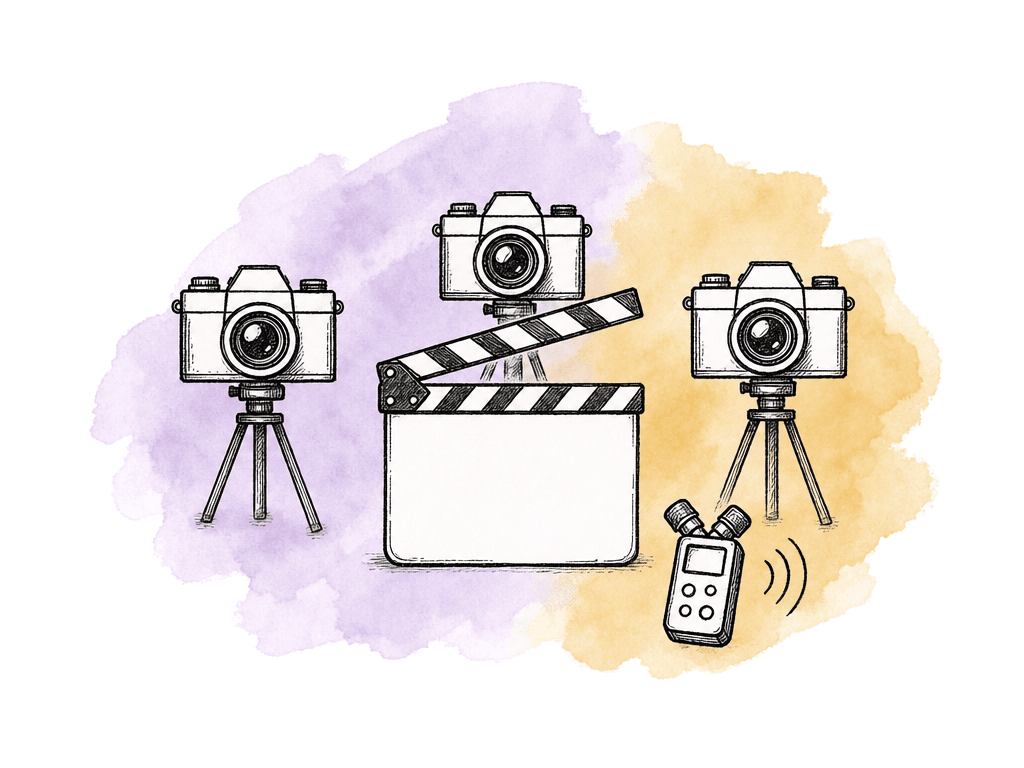
- Roll a short test clip on every camera and the audio recorder. Slate it, call out the camera IDs, and let it run long enough to capture a visible clap or verbal sync point.
When wireless sync is worth it
“Wireless timecode” means a few different things, so be precise about which one you are buying. Many small boxes use wireless or Bluetooth for setup, monitoring, or jamming boxes to each other, while the camera still receives LTC through a short physical cable. That is still a wired camera connection, and it is what you want on KOMODO. A fully wireless setup earns its place when cameras are spread across a location, when rigs cannot easily come back to sound, or when a crew needs to monitor timecode status centrally. The benefit is faster box management. It is not immunity from bad camera settings. Each camera still needs the right cable, the right timecode source setting, and the right frame rate. Wireless box-to-box jamming saves real time on large multicam days, because you can jam or verify the fleet without daisy-chaining every unit. Do not treat the app status screen as the only source of truth. The camera’s own status matters more. A generator can be perfectly healthy while the camera sits on Internal, connected through the wrong cable, or cross-jammed to a different project time base. On small controlled shoots, a simple wired jam from the audio bag to each box at call time beats adding another RF layer. On reality or multicam commercial work with many bodies, wireless monitoring pays for itself the first time an assistant catches a dead sync box before lunch.Jam-and-disconnect without making post hate you
Sometimes you cannot leave a box on the camera. The camera is going into a tight vehicle mount, the gimbal build has no space, or production has fewer generators than bodies. Treat jam-and-disconnect as a managed exception. Set the KOMODO timecode source for an internal TOD jam workflow, rather than expecting External to behave as if the source is still present. Jam the camera from a known good generator, confirm the displayed TOD, then disconnect. The camera status may show jammed but not connected, which is expected for a disconnected jammed source. Log the jam time. Re-jam at predictable moments: after lunch, after any camera power issue, after body swaps, after firmware or settings resets, and before important long takes. If cameras are split across units, each unit needs the same discipline or a designated master source. The question to answer out loud is how much drift this production can tolerate before post has to hand-fix groups. For quick pickups, the answer may be generous. For a full-day interview with three KOMODOs and separate audio, the tolerance is low. The whole point of timecode is to avoid spending assistant editor time repairing preventable sync problems.Timecode and genlock aren't substitutes
A common sync misunderstanding on multicam RED shoots is that matching timecode means the cameras are genlocked. It does not. Timecode labels frames. Genlock synchronizes the timing of image capture. For most editorial grouping, timecode is enough. If Camera A and Camera B both record 10:13:22:08, the NLE can align those clips around that shared code. The sensors may not have exposed at the same phase, but for interviews, dialogue and normal multicam cutting, that is fine. For sensor sync, RED’s camera array guidance applies. Cameras need the same firmware version, the same project time base, and the same recording frame rate. Access to genlock and timecode requires hardware that exposes the 9-pin EXT port, such as the KOMODO Expander Module or appropriate camera array accessories. For more than two cameras in an array workflow, RED describes networked setup requirements involving gigabit Ethernet infrastructure. So the decision splits three ways:- Use external timecode for editorial sync across cameras and audio.
- Add genlock when exposure timing between sensors matters.
- Use camera array tooling when you need synchronized control across multiple KOMODO bodies.
Verifying drift during a long day
Don't wait until the end of the shoot to learn whether the cameras stayed together. Weave verification into the day. At the start of the day, record a sync test across all cameras and the production audio recorder. Have someone call the camera letters and show a clap or slate that all cameras can see. If the cameras are not all pointed at the same thing, at least record simultaneous audio or a visible timecode display. During the day, compare camera display time against the mounted generator whenever cameras come back to base. If you set a KOMODO to External and the icon is green, the camera is seeing and using the source. If it is white, the camera may be jammed but no longer connected. If it is yellow, investigate a project time base mismatch immediately. If it is gray, the camera is not seeing the signal at all. Record another short test after long breaks, battery changes, crashes or rebuilds. This matters most after a camera comes off a gimbal, goes into a car mount, or gets stripped and rebuilt. Those are the moments when a timecode cable gets left in a pouch. If you are using jam-and-disconnect, compare all cameras against the master generator at set intervals. You do not need a lab measurement. You need to know whether the cameras are still close enough that post can trust the metadata. If drift is accumulating, re-jam and tell the script supervisor or DIT where the clean boundary is.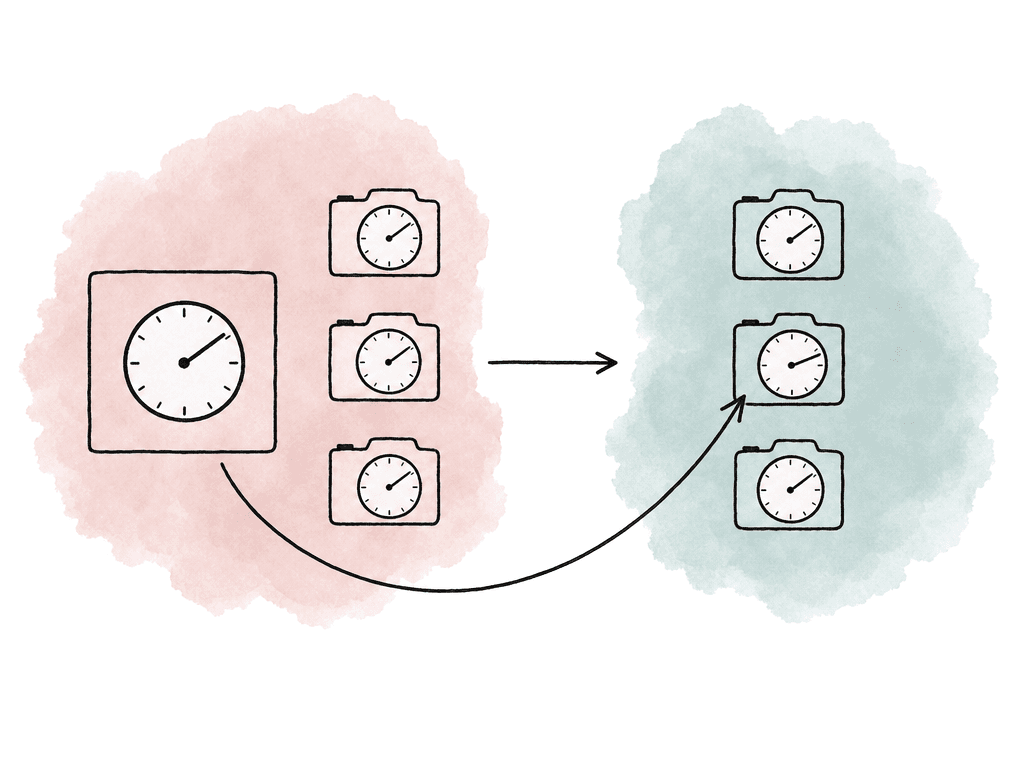
Common KOMODO sync failures and how to read them
Most failures trace back to the source setting, a frame-rate mismatch or the cabling. The fourth cause is a camera displaying internal code while everyone assumes it is jammed. These are the patterns worth recognizing on set:- Gray timecode icon: the camera doesn't detect a timecode generator signal. Check the box power, cable, connector path, and whether you're plugged into the correct timecode input.
- Green timecode icon: the source is connected and jammed. This is the desired state for continuous external timecode.
- Red timecode icon: the source is connected but not jammed. Re-jam and confirm the generator settings.
- White timecode icon: the camera is jammed but the source isn't connected. This may be fine for jam-and-disconnect, but it isn't the desired state if you intended continuous external timecode.
- Yellow timecode icon: the camera is cross-jammed at a different project time base. Check the KOMODO project time base and the generator frame rate before rolling more footage.
How this shows up in post
When the workflow is right, post receives R3D clips with usable TOD timecode and an audio recorder with matching code. In Premiere Pro, RED recommends importing R3D media through Media Browser so spanned 4 GB R3D portions come in as unified clips. In Final Cut Pro, RED workflows commonly involve importing R3D, syncing audio and video, then optionally creating optimized or proxy media. XML round-trips handle the rest when needed. The exact NLE matters less than preserving the camera metadata. A good on-set timecode workflow can still get wrecked in the first hour of post. Assistants import partial R3D folders, rename or separate clip components carelessly, or sync from proxies that don't carry the expected metadata. Keep the full card structure intact during offload and import, and make camera IDs and roll names obvious. If your team re-jammed, swapped cameras, or noticed sync incidents, pass those notes forward. A practical handoff note might say: “We jammed A/B/C KOMODOs and mixer at 07:12 to 23.976 NDF. Boxes stayed connected all day except C camera on gimbal from 14:10 to 15:05; we re-jammed C at 15:08.” That one sentence saves an assistant editor from guessing why one section behaves differently.The setup that avoids the most pain
For a normal multi-camera KOMODO shoot, the routine is fixed:- Matched generators, one per camera, left connected.
- The same project time base and timecode frame rate on every camera and every generator.
- KOMODO timecode source set to External, display set to TOD.
- A green icon confirming connected and jammed, plus a quick sync test.
- Another check after rebuilds and long breaks.
FAQ
Yes, that is the safest workflow for most multi-camera KOMODO shoots. Put one dedicated timecode generator on each camera, set the KOMODO timecode source to External, and leave the box connected. This reduces drift risk and protects you during battery swaps, long takes, and camera power cycles.
You can, but treat it as a managed exception. After disconnection, the camera is free-running on its internal clock, so drift can accumulate over time. If you use jam-and-disconnect, log the jam time and re-jam after lunch, power loss, camera rebuilds, body swaps, firmware resets, or before important long takes.
For normal editorial sync, use Time of Day timecode rather than Edgecode. TOD gives every camera and the audio recorder a shared running clock, which makes it easier for post to group clips by timecode. Edgecode is media-based elapsed code, so it is not the shared production clock most multicam workflows need.
No. Timecode labels frames with a shared time reference, but it does not synchronize sensor phase. For interviews, reality, documentary, and most multicam editorial work, timecode is enough. If the production needs frame-accurate sensor timing for VFX, stereo, LED volume work, or camera arrays, you need genlock or a RED camera array workflow in addition to timecode.
Green means the camera sees a connected and jammed timecode source, which is the desired state for continuous external timecode. Gray means no timecode generator signal is detected. Red means a source is connected but not jammed. White means the camera is jammed but the source is not connected. Yellow means the camera is cross-jammed at a different project time base, so check the KOMODO project time base and the generator frame rate.
Treat sync events as searchable production metadata rather than comments buried in a chat thread. In Aspect, a team can add fields for camera ID, jam time, timecode status, sound roll, gimbal exceptions, or drift notes, then filter and sort those values across the project with custom metadata.