- Choose the base look.
- Load and register any user LUTs.
- Assign the MLUT to specific outputs.
- Verify the signal path at the monitor and at the recorder.
What Sony means by MLUT
Sony uses MLUT to mean Monitor LUT. It is not a creative format separate from a LUT. It is a LUT used for monitoring, typically while the camera records a Log or RAW image intended for post. In Cine EI and related Log shooting modes, Sony cameras can apply a viewing transform such as s709, 709(800%), S-Log3, or a user-imported 3D LUT. On many bodies, you select these looks as Base Looks and then route them to outputs using LUT On/Off settings. Check which of these outputs and recordings receive the LUT:- Viewfinder or LCD
- SDI output
- HDMI output
- Streaming output
- Proxy recording
- Internal main recording
| Destination | Usual MLUT state | Why it matters |
|---|---|---|
| Viewfinder or LCD | On, unless the operator wants Log | Gives the operator a normalized image while the camera can still record clean. |
| SDI to video village | On | Lets producers, director, and crew judge a viewed image instead of flat Log. |
| SDI to DIT or external recorder | Off for Log backup, On only for reference recording | Prevents accidental baked-in LUTs on files meant to remain camera-original. |
| HDMI to onboard monitor | On if the monitor LUT is off, Off if the monitor applies the LUT | Avoids applying the same transform twice. |
| Proxy recording | Deliberate On or Off | Viewed proxies may help client review, while post-facing proxies usually need to match the Log workflow. |
| Internal main recording | Off for most Log or RAW workflows | Preserves the clean negative for dailies, editorial, and final color. |
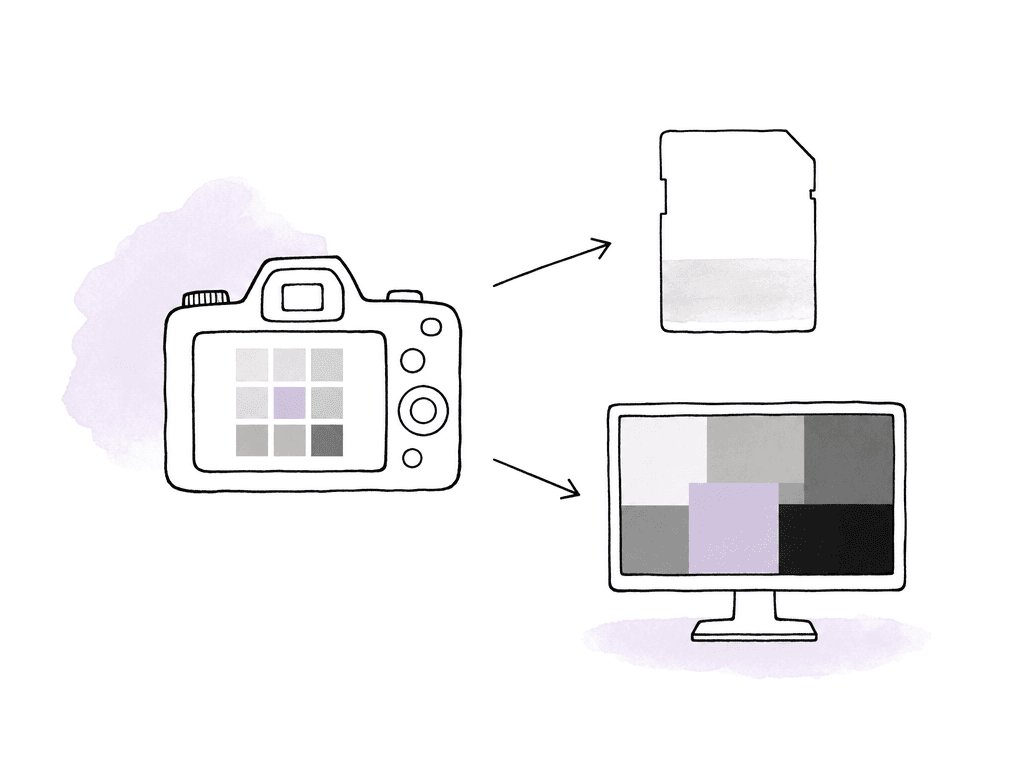
Start with the recording decision
Before routing anything, decide whether the LUT should be baked into recorded media. For most narrative, commercial, and high-end documentary workflows, the answer is no for the main camera original. The camera records S-Log3, X-OCN, RAW or XAVC without the monitoring LUT applied. The look then travels downstream on its own, as metadata — a LUT file, CDL values or a dailies recipe, and often all of them. A typical clean-record setup looks like this:- Internal Rec: MLUT Off
- SDI to video village: MLUT On
- SDI to DIT or recorder: depends on whether they need Log or viewed image
- HDMI to onboard monitor: MLUT On, unless the monitor is applying its own LUT
- Proxy: MLUT Off for post-facing proxies, MLUT On for quick client review proxies if your team has agreed
- Streaming: MLUT On for remote review unless the remote pipeline applies the LUT later
Load the MLUT correctly
Sony cameras generally support user 3D LUTs as .cube files, commonly 17-point or 33-point. Sony’s support material describes importing 3D LUT files created in tools such as Catalyst Browse, RAW Viewer, or DaVinci Resolve. Input color space and gamma should match S-Gamut3.Cine/S-Log3 or S-Gamut3/S-Log3. Many cameras allow up to 16 user LUTs in addition to built-in looks. The exact card folder and menu path vary by camera. The order of operations does not:- Format the card in the camera before copying LUTs.
- Use the camera-created folder structure rather than inventing one.
- Copy only the approved .cube files for that shoot.
- Register the LUTs into the camera’s user slots.
- Select the intended Base Look or MLUT in the camera menu.
- Confirm the selected LUT name on the camera status display or output status page.
Match the LUT to the camera color pipeline
A good LUT used against the wrong input causes most monitoring mistakes. If the LUT was built for S-Gamut3.Cine/S-Log3, set the camera to output that signal before the LUT is applied. If the camera sits in a different gamma or gamut, the same LUT will not land where it should. The same happens with a different base look, an HDR mode, or a display assist path in the chain. The image comes back too saturated, too contrasty, or washed out. The key settings to align are:- Shooting mode: Cine EI, Cine EI Quick, Flexible ISO, or another Log-capable mode supported by that model
- Gamma and gamut: usually S-Log3 with S-Gamut3.Cine or S-Gamut3, depending on the LUT design
- Base Look: built-in s709, 709(800%), S-Log3, or a registered user LUT
- EI and exposure method: especially if the LUT includes exposure compensation
- White balance and tint: camera settings still affect the signal before the LUT
- HDR/SDR monitoring mode: don't mix HDR output expectations with SDR monitoring LUTs
Route MLUT to SDI without contaminating the recording
On Sony cameras with professional outputs, SDI routing is the center of the monitoring plan. VENICE and VENICE 2 bodies include multiple SDI outputs and status indicators for LUT state across SDI output groups, Monitor output, and HDMI. FR7-style controls expose LUT On/Off items for SDI, HDMI/Stream, Proxy, and Internal Rec. BRC-AM7 works the same way, with separate handling for SDI1 and SDI2/HDMI/Stream. A clean SDI setup separates destinations by purpose:- Camera original recording: clean Log or RAW
- DIT feed: clean Log if the DIT is applying LUTs externally, MLUT On if the camera is the look source
- Video village: MLUT On
- Focus monitor: MLUT On or a high-contrast assist look, depending on the focus puller's preference
- Client stream: MLUT On, unless the streaming system applies a show LUT downstream
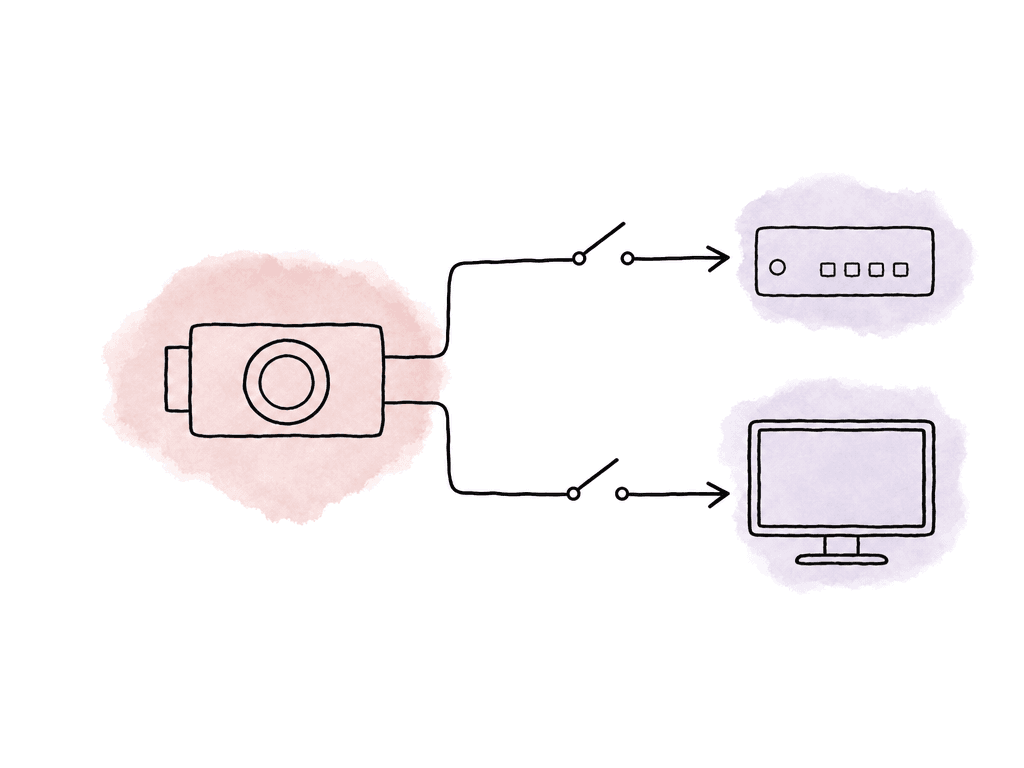
Don't double-LUT the monitor
Give the reference monitor one job. Either it receives a Log signal and applies the LUT internally, or it receives a LUTted signal from the camera and displays it clean. Never both.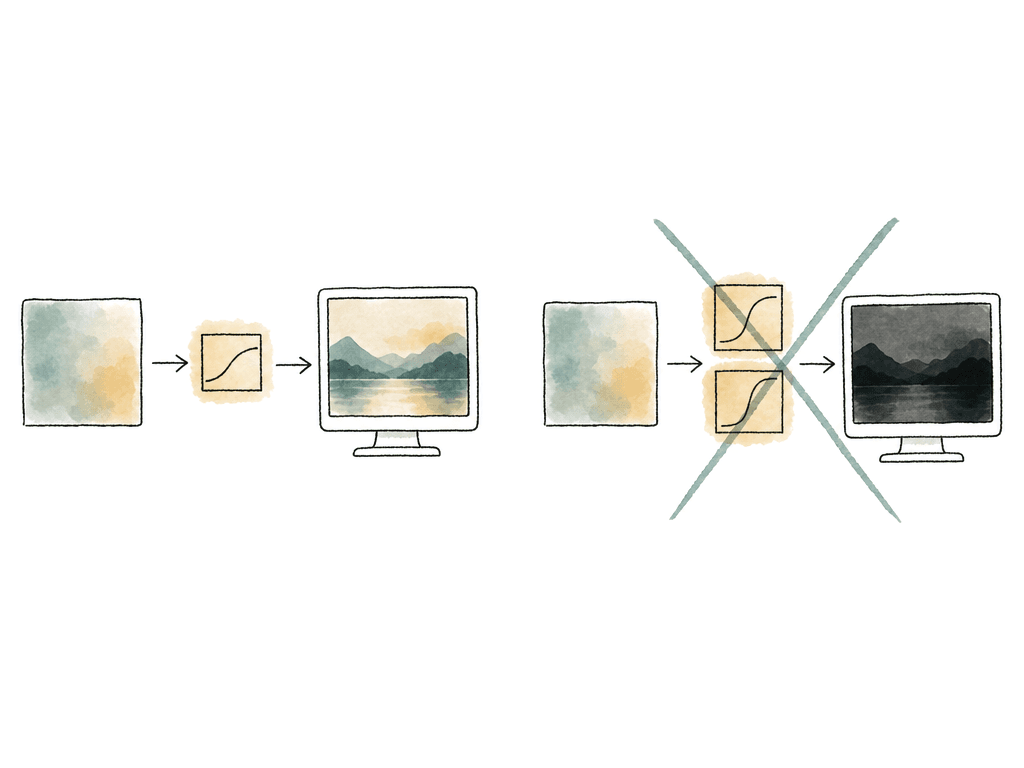
- Skin looks overly contrasty or crunchy.
- Saturation jumps in reds and blues.
- Shadows block up faster than expected.
- Highlights feel clipped even when exposure tools say they aren't.
- The same image looks acceptable in the viewfinder but wrong at video village.
Use the camera’s indicators, not memory
On a busy set, “I’m pretty sure SDI 2 is clean” is not good enough. Sony cameras show LUT state in status screens, viewfinder indicators, or web control panels. VENICE and VENICE 2 manuals identify LUT indicators for SDI output groups, Monitor output, and HDMI. FR7 and BRC-AM7 menus show LUT On/Off state for SDI, HDMI/Stream, Proxy, and sometimes Internal Rec. Fold verification into the setup while the camera is still on the cart:- Select the active Base Look and confirm the displayed name.
- Toggle the intended SDI or HDMI LUT setting and watch the monitor change.
- Confirm Internal Rec remains MLUT Off if the main recording must stay clean.
- Record a short clip, then inspect playback, proxy, and external recorder files for the expected state.
- Write the camera report entry: LUT name and version, EI, gamma and gamut, and the LUTted outputs.
Account for model-specific constraints
Sony’s LUT behavior is broadly consistent, but it is not identical across bodies and firmware. That gap shows up fast when a production mixes VENICE, FX9, FX6, FR7 and smaller cameras. Some constraints to plan for:- Certain LUT controls only appear in specific Log shooting modes such as Cine EI, Cine EI Quick, or Flexible ISO.
- Some cameras group outputs together, so HDMI and streaming may share a LUT state.
- Some cameras allow separate LUT routing for Internal Rec and Proxy, while others have fewer destinations.
- Firmware versions can add monitor output features, user 3D LUT support, de-squeeze options, CDL support, or SDI output changes.
- On some FX9 configurations, monitoring output behavior can be limited by recording format or picture cache settings.
Manage MLUT versions like camera media
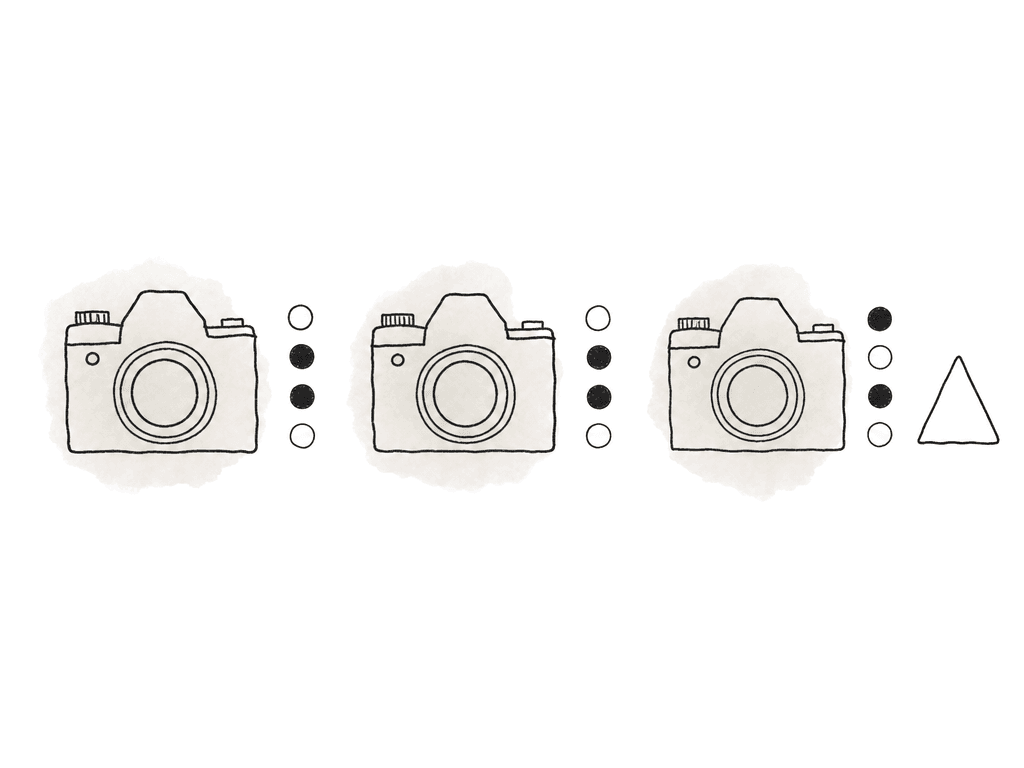
A show LUT is part of the color pipeline. On a multi-camera show, it needs version control that survives crew changes, camera swaps, and rushed morning reloads. A workable naming pattern carries six things: show, camera family, input transform, look name, version and date. For example:- SHOW_SG3C_SLog3_ShowLook_v03_2026-08-19.cube
- SHOW_VENICE2_SG3C_SLog3_DayExt_v02.cube
- SHOW_FX6_SG3C_SLog3_NightInt_v05.cube
- User 1: primary show LUT
- User 2: low-con contrast version
- User 3: day exterior version
- User 4: night interior version
- User 5: technical Rec.709 transform
- User 16: reserved for tests only
Keep dailies and editorial aligned
On-set look management is one link in a chain that runs from production through dailies, editorial, and final grading. The camera MLUT is one piece of that chain. If the look seen on set is supposed to carry into dailies, the dailies colorist needs the LUT file, CDL values if used, and the camera metadata required to apply it correctly. Include the following information in your handoff:- LUT filename and version
- Camera model and firmware family
- Recording format
- Gamma and gamut
- Base ISO and EI
- White balance and tint
- Whether proxies were recorded with MLUT On or Off
- Which outputs were LUTted on set
- Any CDL or live grade values used beyond the LUT
Common failure modes and fast fixes
Most MLUT problems fall into a few repeatable categories. Train the camera team to recognize these.- The monitor looks wrong but the camera viewfinder looks right: the monitor may be applying its own LUT on top of the camera MLUT, or it may be in the wrong color mode.
- The external recorder captured the viewed image: the team fed it from a LUTted output, or the recorder applied a LUT during recording.
- The LUT option is missing: the camera may not be in Cine EI, Cine EI Quick, Flexible ISO, or another supported Log mode.
- The LUT file won't import: the .cube may be the wrong size, wrong format, in the wrong folder, or on media the camera didn't prepare.
- Proxy doesn't match dailies: Proxy MLUT may be On while dailies are applying the LUT again, or Proxy MLUT may be Off while everyone expected viewed proxies.
The setup that holds up on set
For most Sony Log workflows, the dependable configuration is short to describe:- Clean camera originals, with Internal Rec MLUT Off.
- MLUT On only for the outputs people watch.
- Monitor LUTs disabled on any feed that arrives already LUTted.
- One documented LUT version shared across camera and post.
FAQ
Usually no. For most Log, RAW, X-OCN, and XAVC camera-original workflows, keep Internal Rec MLUT Off so the recorded image stays clean for post. Turn it on only if production has deliberately chosen to bake the viewing LUT into the recorded file.
Yes. On many Sony cameras you can route MLUT On to SDI, HDMI, monitor, stream, or proxy destinations while leaving Internal Rec MLUT Off. The exact output grouping depends on the camera model and firmware, so confirm the LUT state on the camera status page or output menu.
The monitor is probably applying its own LUT on top of the camera's MLUT. Use only one transform in the path. Either send clean Log to the monitor and apply the LUT there, or send a LUTted signal from the camera and turn off the monitor's LUT processing.
Many Sony Cinema Line and professional cameras support user 3D LUTs as .cube files, commonly 17-point or 33-point. The LUT should be built for the camera's actual input color space and gamma, such as S-Gamut3.Cine/S-Log3 or S-Gamut3/S-Log3. It must also be imported through the camera's supported folder and registration process.
Use controlled LUT filenames and consistent user slot assignments across every body. Back that with camera reports that record the LUT name, version, gamma, gamut, EI, and which outputs were LUTted. When a LUT changes, distribute the same file to all cameras, DIT, dailies, post, and remote review teams so everyone is using the same transform.
Treat the approved LUT package like production media. Store the .cube files, the slot map, the camera reports, and the change notes in one shared location where the whole team can see the current version. Aspect can keep those files together while preserving change and revision history, so post can confirm which LUT version was active for a given shoot day.