Start with sustained write speed, not card capacity
CFexpress cards are marketed on capacity and peak read speed. Neither number predicts how a card behaves during RAPTOR recording. Sustained write performance under heat does. Video capture is not a burst workload. The card has to accept a continuous stream until the take ends, then keep accepting it once the card has warmed up.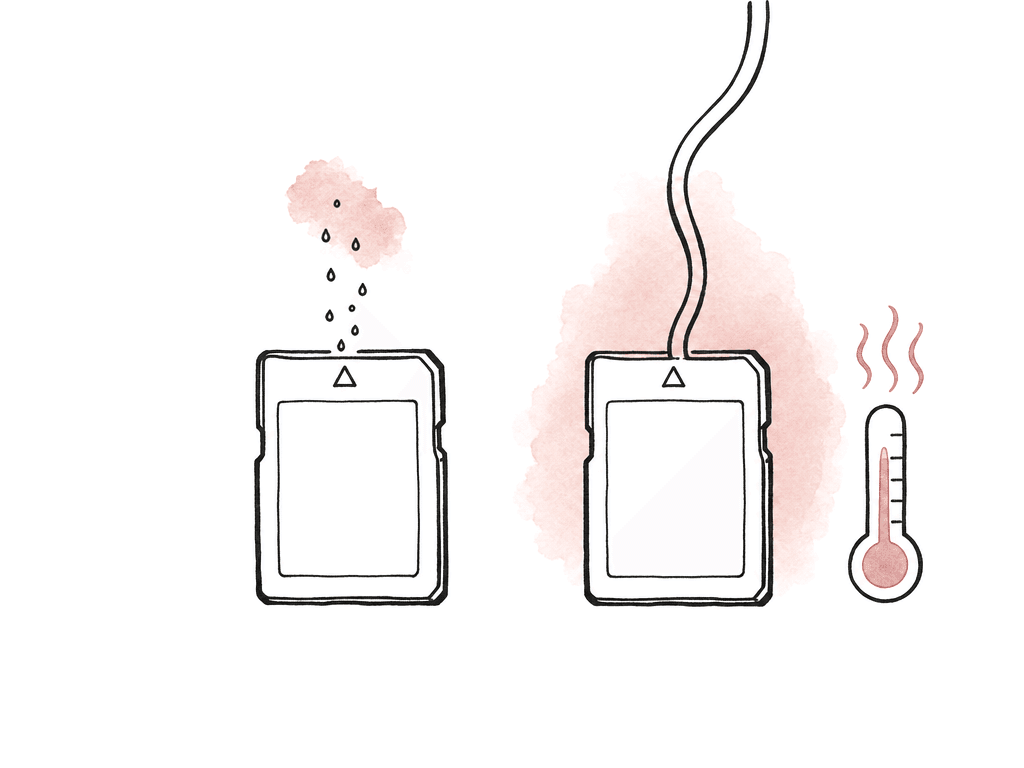
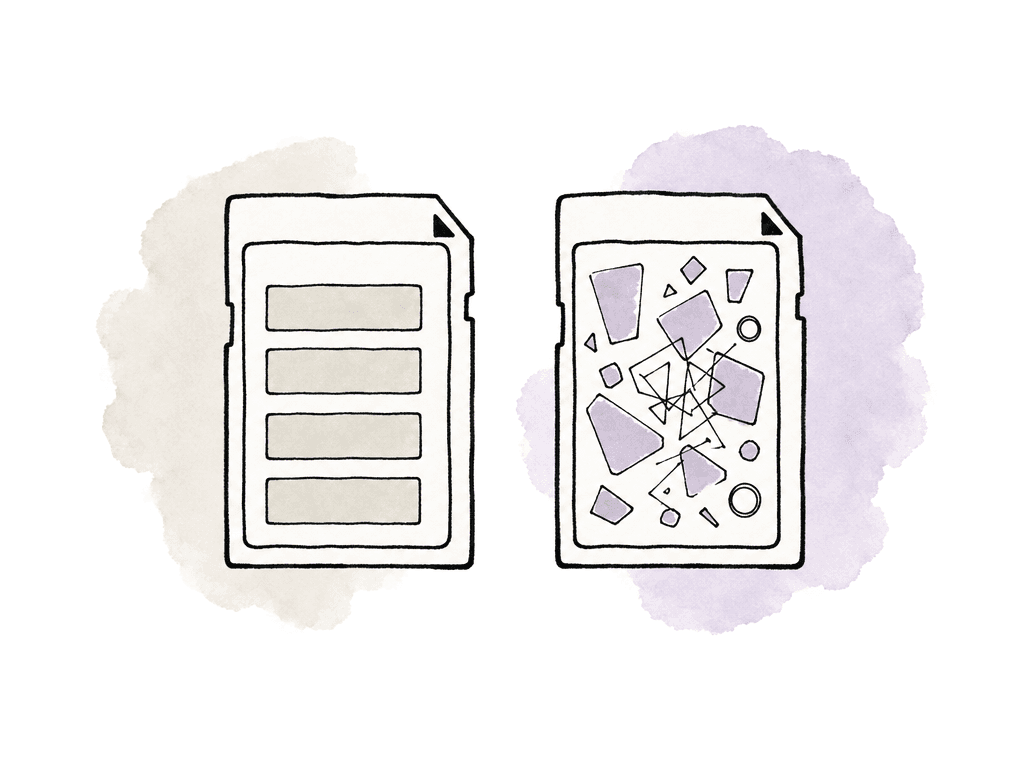
- 2 TB and 4 TB cards prioritize capacity while maintaining durability for normal production use.
- 660 GB and 1.3 TB cards are overprovisioned to prioritize extended write cycles and improved thermal performance during constant writing and rewriting.
- The high-endurance options are better suited to heavy daily cycling, repeated high-speed recording, and productions that turn cards around continuously.
Understand what pushes the write load up
Write load is not one setting. Several settings multiply together, and the card only ever sees the total. Change one and the card is probably still fine. Change three and a safe configuration turns marginal.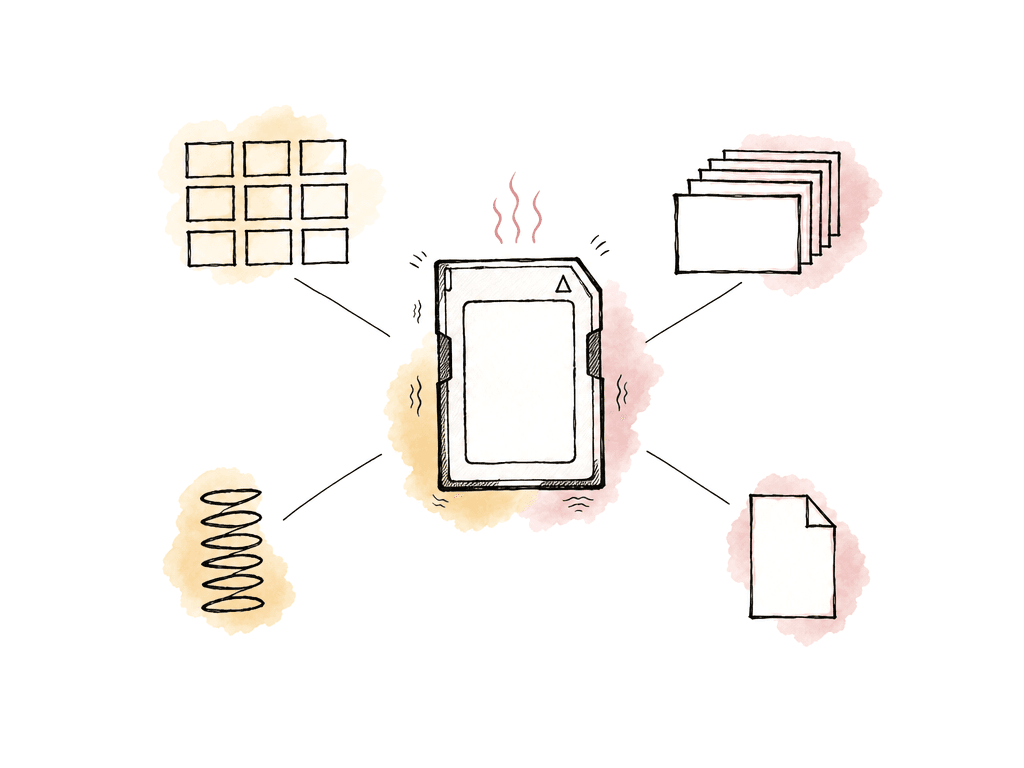
- Resolution: 8K writes much more data than 6K, 4K, or 2K at the same compression and frame rate.
- Recording frame rate: doubling the capture fps roughly doubles how many frames the camera has to write.
- REDCODE compression: lower compression means higher quality and higher data rate. Higher compression lowers data rate.
- Project format: R3D, R3D plus proxy, and ProRes modes have different media demands.
- Sensor format: lower resolutions may use a smaller area of the sensor, which can change field of view as well as data rate.
- ProRes proxy recording: proxies are helpful for editorial, but they add additional writes during capture.
Match recording settings to the card before the shoot day
RED cameras expose these choices through Project Settings and the Media menu. Menu labels vary a little by model and firmware, but the order of decisions does not:- Set the project format and the sensor format.
- Set the recording frame rate.
- Set the REDCODE compression ratio.
- Decide whether the camera also records proxies.
- Only then decide whether a given card is “approved” for the day.
| Risk tier | Typical configuration | Why it raises or lowers media risk | Safer operating response |
|---|---|---|---|
| Lower risk | Standard frame rates, moderate resolution, R3D at a more compressed setting, no simultaneous proxy | Sustained write demand stays well below the most demanding camera modes | Use approved media, format in-camera, and keep normal card rotation discipline |
| Medium risk | 8K at standard frame rates, lower REDCODE compression, or proxy recording alongside R3D | Resolution, compression, or extra proxy writes increase the sustained load | Test the exact card and mode before shoot day, especially for long takes |
| Higher risk | 8K high frame rate, low compression, repeated long takes, hot environments, or heavily cycled media | Multiple high-load factors combine and can expose thermal or endurance limits | Prefer high-endurance media, improve cooling, or reduce one write-load variable |
| Highest risk | Maximum camera modes, high ambient heat, long rolling takes, and cards selected mainly for capacity | The setup is operating close to the limits of the camera and media system | Run a stress test at the planned mode, reserve best media for these shots, and have a lower-data-rate fallback |
Choose compression with both post and the card in mind
When a card starts dropping frames, the first instinct is to lower resolution. On RED, that is rarely the best first move. REDCODE compression is the second lever, and it costs the picture less. R3D is RAW and stores many image decisions as metadata, so moving to a more compressed REDCODE setting is often a better compromise than losing resolution or changing framing. On most productions, the difference between two compression settings is less damaging than giving up reframing room, stabilization headroom and VFX plate resolution. It is also less damaging than a sensor crop nobody wanted. Compression is not free. Lower settings preserve more data and cost you card headroom and storage footprint. Higher settings reduce dropped-frame risk and shrink the offload. Clear the choice with the DP and the post supervisor before you commit. Pull in the colorist or VFX supervisor when the show has a heavy grade, green screen, beauty work or an archival requirement. A useful conversation before camera prep sounds like this:- Which shots actually require maximum resolution?
- Which shots require maximum frame rate?
- Which shots require the lowest available compression?
- Which shots need in-camera proxy recording?
- Which shots can safely use a lighter data-rate setting?
Format cards in-camera and keep them camera-only
Formatting discipline is one of the cheapest ways to avoid dropped frames. RED’s media guidance is direct: your team should format CFexpress media in-camera, and should not delete clips from the card using a computer. The camera uses exFAT to support large files and high data rates, but that does not make the card a portable SSD. The habits that ruin media are small ones:- Deleting selected clips on a laptop instead of formatting in-camera.
- Copying non-camera files, folders, or applications onto the card.
- Letting macOS use the card for Time Machine prompts or hidden system clutter.
- Pulling media without ejecting it properly.
- Mixing firmware states across cards.
Build a pre-flight that stresses the actual recording mode
A media test is only useful if it matches the hardest thing the camera will do. Rolling 8K 24 fps for ten seconds does not prove that the card will survive repeated high-speed takes in a hot car rig. Before the shoot, test the exact combination your team will use for the heaviest scene:- Camera body and firmware version.
- Media model, capacity, and media firmware where applicable.
- Project format and sensor format.
- Recording frame rate and project time base.
- REDCODE compression.
- Proxy recording enabled or disabled.
- Expected take length.
- Expected ambient temperature and camera build, including cages, plates, and airflow restrictions.
- Move to a faster or higher-endurance card.
- Increase REDCODE compression.
- Reduce the recording frame rate or the resolution.
- Disable simultaneous proxy recording.
- Shorten the take, improve cooling, or move that setup onto a different camera and media plan.
Plan card allocation by slot and by workload
On a single-slot RAPTOR body, allocation is simple but unforgiving. Each card is either safe for the current recording mode or it is not. Do not rotate in unknown cards because the approved cards are full. Label the card case rather than the card, and keep media separated by status: blank, exposed, offloaded, verified, cleared for format. On dual-slot RAPTOR XL-style workflows, do not treat both slots as interchangeable unless the media in both slots is identical in performance class and condition. If one slot has a high-endurance card and the other has a capacity-optimized card, the recording plan should reflect that.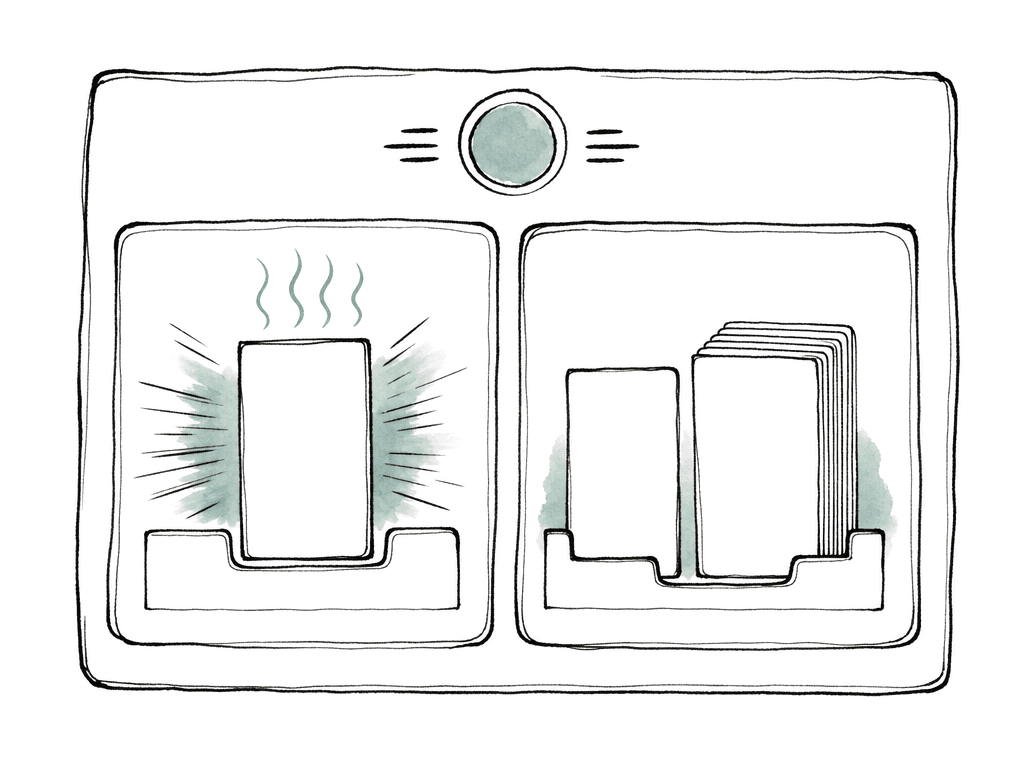
- Reserve high-speed cards for maximum frame rate, low compression, or long high-data-rate takes.
- Use general cards for standard frame rate dialogue, interviews, and controlled B-roll.
- Use capacity cards when runtime matters more than cycling intensity.
- Remove retired or suspect cards from camera rotation until tested or replaced.
Don’t let offload habits damage capture reliability
Dropped frames are a capture problem, but offload habits create the conditions for them. The moment a card leaves the camera, the media workflow has two jobs: preserve the footage, and preserve the card’s future reliability. RED’s media management guidance emphasizes ejecting media properly before removing it. That applies both in-camera and on the computer side. If you mount the card on a workstation, reader, or offload cart, eject it cleanly before pulling it. Sudden removal can create filesystem issues that stay invisible until the card goes back into the camera. For post, R3D files are widely supported, but RAW workflows still need setup. In Final Cut Pro, Apple notes that REDCODE RAW support requires the RED Apple Workflow Installer, and it recommends importing R3D files before generating optimized or proxy media if post will adjust RAW settings. That is a post-production detail with a production consequence. If post wants proxies, decide early who makes them. Either the camera records them in-camera, or post generates them after a verified offload. In-camera proxies speed up editorial handoff, but they are not free during acquisition. Post-generated proxies add time after offload and reduce camera-side write load. For high-risk recording modes, push proxy generation downstream.When dropped frames happen anyway
If a RAPTOR reports dropped frames or media errors, treat it as a system warning. The immediate fix is to protect the take and reduce write pressure. The follow-up is to isolate whether the problem is the card, the settings, the camera firmware, or the environment. Common causes include:- Unsupported or non-approved media.
- Heat buildup during long or repeated takes.
- Fragmented media from deleting files on a computer.
- Mixed card firmware or outdated media firmware.
- Simultaneous proxy recording pushing the write load over the edge.
The setting is safe when the whole chain is safe
Avoiding dropped frames on RED RAPTOR media means matching the recording mode to sustained card performance. Then it means keeping the media clean enough to deliver that performance all day. For most productions the reliable pattern is the same:- Approved CFexpress Type B media, with high-endurance cards on heavy write days.
- In-camera formatting, and no computer-side deletions.
- Current camera firmware and media firmware.
- A real test at the highest planned data rate.
- Card allocation by workload rather than by capacity.
FAQ
Use RED-approved CFexpress Type B media, and pick the card class from the workload rather than the capacity. High-endurance cards suit repeated high-data-rate recording, high-frame-rate work, and cards that get cycled heavily in a hot environment. Capacity-focused cards are appropriate for longer standard-speed recording where the data rate is less demanding.
Yes. Free capacity says nothing about sustained write performance. A card with plenty of available space is still a poor recording target if it is fragmented, overheated, or not approved for the mode. The same is true of a card that has been used like a general-purpose drive. Format in-camera, and avoid deleting individual clips or writing unrelated files from a computer.
The biggest factors are resolution, recording frame rate, REDCODE compression ratio, sensor format, codec or project format, and whether in-camera proxies are enabled. Higher resolution, a higher frame rate, lower compression, and simultaneous proxy recording each add sustained write load to the card.
Increase REDCODE compression first when the production needs full resolution for reframing, VFX, stabilization, or delivery. Lower the resolution instead when the shot does not need the larger sensor format or the full raster. Bring the DP, post supervisor, colorist, or VFX supervisor into the decision whenever image quality requirements are strict.
Stop treating that card and setting combination as safe. Protect the recorded material, switch to a freshly formatted approved card, then test again at the same recording mode. If the problem follows one card, quarantine that card. If it repeats across several approved cards, cut the data rate through compression, frame rate, resolution, or proxy settings, shorten the takes, improve cooling, and confirm that camera and media firmware are current.
If the recording mode is already high risk, post-generated proxies are safer because they remove extra writes from the CFexpress card during capture. Aspect can create proxies and previews after upload, which keeps acquisition focused on the camera original while still giving editorial lightweight media for fast access and review.