Prepare a small, defined task
Suppose you have a project called Workshop Film in a workspace called Studio. The editor wants several shots of equipment being repaired and a supporting interview quote. The project already has a single-select field called Selects status, with an option called Candidate. The first update will mark three reviewed assets with that value. Start with a project whose footage you know, so you can judge whether the search finds the moments you expect. Check that the relevant files have finished AI indexing before searching newly uploaded footage. Also confirm the exact field name and its meaning with the people who use the library. The connection follows your Aspect permissions. A prompt that says “use only Workshop Film” defines the requested scope; it doesn't create a separate access restriction. Use an Aspect account whose actual project permissions are appropriate for the work, and review the sign-in request before connecting it to the assistant.Connect the assistant to Aspect
Both clients use the same public server address:https://api.aspect.inc/mcp
Connect Claude
Follow Anthropic's current custom connector instructions. For an eligible individual account:- Open Customize, then Connectors.
- Select +, then Add custom connector.
- Enter the Aspect server URL and add the connector.
- Connect and complete the Aspect sign-in when prompted.
- In the conversation, use +, then Connectors, to enable the connection.
Connect ChatGPT
OpenAI's current MCP connection instructions describe this path:- Open Settings > Security and login and enable Developer mode.
- Open ChatGPT Plugins and select the plus button.
- Enter a name and description for the connection. Under Connection, use the public endpoint option and enter the Aspect server URL, including
/mcp. - Create the connection, complete Aspect authentication when prompted, and review the discovered tools.
- Start a new conversation and add the MCP connection from the tools menu.
Confirm the project before searching
Begin by asking the assistant to find the workspace and project without changing anything. Resource identifiers (IDs) distinguish projects or assets that have similar names.Use the Aspect connection to locate the Studio workspace and its Workshop Film project. Return their names and IDs, and ask me to choose if there is more than one match. Inspect the project's available search channels and metadata fields, including the options for Selects status. Do not change anything.Aspect's MCP tools read the project's search settings and custom field definitions. Fields belong to individual projects, so ask the assistant to use the names, options, and IDs it reads from Workshop Film. This keeps an update from using a similarly named field from another project. Confirm the selected project in the response before moving on. If the expected project is missing, check which Aspect account authenticated and whether it has access. Searching a different project to work around an access problem would change the task.
Search for repair footage and an interview quote
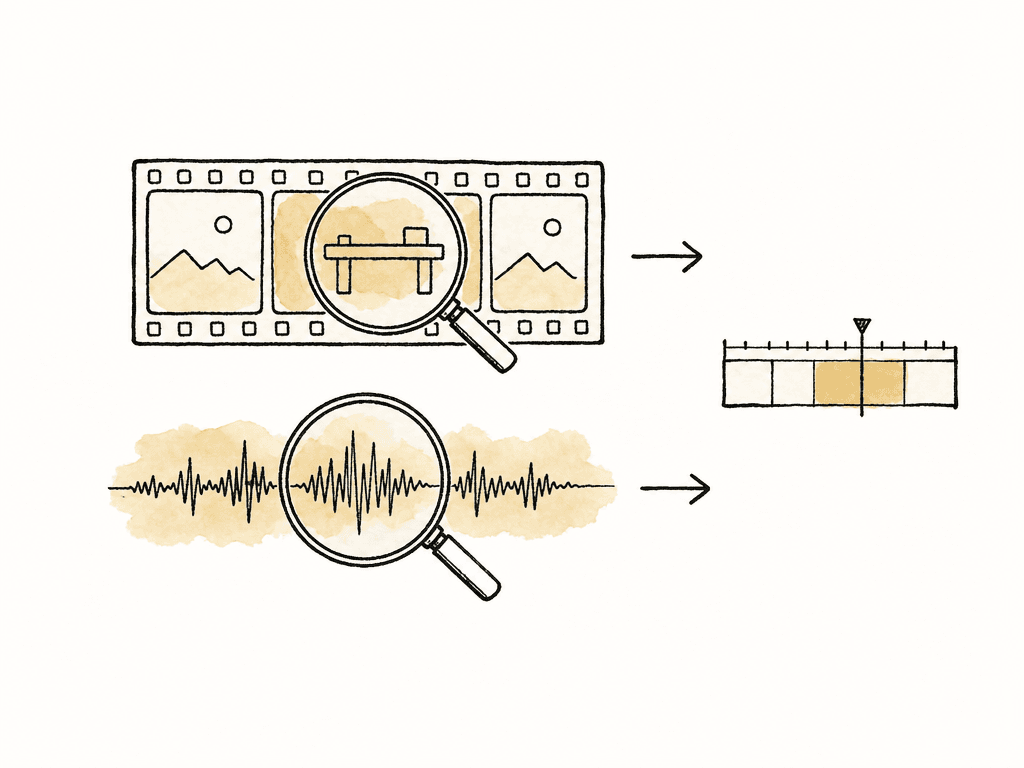
Start with the visual material. Ask for a limited result set so you can assess whether the assistant understood the scene before it expands the search.Within the confirmed Workshop Film project, find up to six video assets showing a technician repairing equipment at a workbench. Search the visual content. For each candidate, return its filename, asset ID, matched time range, and the indexed evidence for the match. Include the folder path if available, and identify missing information. Do not update the library.Then search for the interview separately:
In the same project, search spoken content for discussion of repairing equipment instead of replacing it. Return the relevant transcript wording and matched time ranges. Distinguish an exact phrase match from a passage that expresses a similar idea, and keep the results separate from the visual search.An interview about a repair may be recorded away from the workshop, and repair footage may have no spoken explanation. Aspect search can find both visual and spoken content. Searching them separately lets you review the pictures and the quote before deciding how to combine them in the edit.
Verify the source before choosing assets
Use the returned identifiers to locate each promising asset in Aspect. Open it in the viewer, play the matched range, and watch or listen to the surrounding material. Check the intended version when the asset belongs to a version stack. For an interview, ask the assistant to retrieve additional transcript context around the match. A sentence about avoiding replacement can change meaning when the next sentence explains an exception. For a visual result, play the footage to check the action, framing, continuity, and usable duration. The scene description helps explain the match, but the editor still needs to choose the shot. Keep elapsed time and source timecode distinct. A position 45 seconds into a file isn't necessarily the source timecode00:00:45:00. Aspect converts time positions using the recorded source start timecode and supports drop-frame timecode. Ask the assistant for source timecode when preparing editing notes. If a file has no usable frame rate, keep the elapsed playback position and check its timecode in the editing application.
Check the release or license for any material whose use is restricted. Keep the asset IDs and useful ranges for the shots you want to use, along with any rights question that still needs an answer.
Propose one metadata change for three assets
After reviewing the footage, select three assets for the first update. Paste their actual IDs into the request so the assistant doesn't treat every search result as selected.For these three reviewed asset IDs, read the current Selects status values and the field's allowed options. Propose setting that field to Candidate. Show one row per asset with filename, asset ID, current value, and proposed value. Do not write yet. If the field or option does not exist, report that instead of creating it.Read each row before approving the update. Leave a clip marked Selected at that status if it's already in the edit. Use Candidate for a reviewed clip you want to return to later. Remove any asset that should keep its existing status before authorizing the change. Custom metadata fields belong to the project. Creating or changing a field definition can affect other assets that use it, so this first exercise uses an existing field and option. Keep the existing field definition so the status means the same thing to the rest of the team.
Apply the reviewed change and read it back
Once the proposal contains the correct assets and values, give a separate instruction to apply it:Apply the reviewed Candidate value to Selects status for the approved asset IDs only. Re-read their current values first; if a value differs from the proposal, stop and show me the difference. Preserve other fields. After the updates, read the saved metadata again and report each asset's resulting value, plus any skipped or failed update.Reading the values again before writing helps catch a teammate's recent change. Reading them after the update confirms what was saved. If you're organizing the same assets as a teammate, agree on who will make the batch update so you do not overwrite each other's work. Keep any client confirmation requests in view and check that the operation matches the proposal. If one update fails, inspect its current value and the reported error before retrying. Retry only the assets that still need the update. Once the three assets show the intended values, you can apply the same process to a larger group.
Keep the results useful for the next person
A metadata value helps teammates find assets later. A collection can gather the chosen files into a review set without moving or copying their originals. If a collection would help, ask the assistant to propose its name and exact membership, review that proposal, then authorize its creation as a separate action. Adding a source recording to a collection leaves the recording intact. Keep the useful time ranges with the selection notes so the next editor can find the relevant moments. The MCP connection handles search and library changes. To bring the source media into an editing application, download the files in Aspect or open them from a mounted project. Save the search prompts with the project name and field definitions your team uses. For the next edit, change the shot description and review the matches before updating the library. The metadata then stays with the footage, where another editor can find it without needing access to your assistant conversation.FAQ
Add https://api.aspect.inc/mcp as a remote MCP connection in your assistant, then sign in to Aspect through the OAuth prompt. Claude uses custom connectors, while ChatGPT uses a developer-mode MCP connection through ChatGPT Plugins. The available setup controls depend on the client, account, and organization policy, so check the current client instructions before configuring the connection.
Aspect supports searches using indexed visual content and spoken content, as well as filenames, document text, and metadata filters. You can describe an action, setting, or interview topic and ask for matching assets and time ranges. Indexing must be ready for the relevant content, and you should play the returned footage before treating a result as a usable shot.
Aspect's MCP tools include reading custom field definitions and reading and setting asset metadata values. Start by asking the assistant to show the current and proposed values of an existing field for a few named assets. Review that table, then ask it to apply the change. Read the values back afterward to confirm what was saved, and keep choosing footage separate from approving its use or confirming rights.
Aspect checks each MCP operation against the authenticated user's permissions. The assistant can only access or change resources that user is allowed to access or change. Naming a project in a prompt narrows the requested task, but it does not reduce the account's underlying access permissions.
The MCP connection does not provide file uploads, direct download URLs, or storage tokens. Use Aspect's supported download or mounted-file workflow when you need the source media in an editing application. Finding an asset or adding it to a collection does not create an exported clip or an editing timeline.