
Start with the volumes that can stop work
Most post facilities and production teams have more than one kind of storage, even if people casually call all of it “the server.” Tie capacity alerts to the job each volume performs. The common buckets are:- Online working storage: fast shared storage for editorial, color, VFX pulls, audio, conform, or active finishing.
- Ingest staging storage: temporary or structured storage where camera cards, audio, dailies, screeners, or vendor deliveries first arrive.
- Nearline storage: lower-cost local NAS, object storage, or tiered storage for media that may come back soon but isn't actively being edited from.
- Archive storage: LTO, cold object storage, deep archive, or another long-term copy.
- Cloud production storage: object buckets, review platform storage, cloud workspaces, or transfer destinations.
- Application-generated storage: proxies, thumbnails, waveform caches, streaming derivatives, transcodes, and review copies.
| Storage area | Main capacity risk | Useful signals | First response |
|---|---|---|---|
| Online working storage | Editors, colorists, or finishing systems lose performance or cannot write new media | Percent used, free space, client bandwidth, failed writes, growth rate | Move inactive media to nearline, expand allocation, or pause nonessential renders |
| Ingest staging storage | New camera cards, audio, dailies, or vendor deliveries cannot land safely | Daily ingest rate, transfer status, verified copy status, free space | Clear completed transfers, move verified media downstream, or add temporary landing space |
| Nearline storage | Old projects and exports crowd out material that may need to return soon | Age, last access, project owner, archive status, snapshots | Archive older media, apply retention rules, or assign cleanup ownership |
| Archive storage | Long-term retention exceeds planned media, tape, or cold storage budget | Archive volume, job status, failed archive jobs, storage class cost | Approve more archive media, revise retention, or confirm which projects can be removed |
| Cloud production storage | Cost, object count, replication, or lifecycle rules grow beyond plan | Bytes stored, object count, ingress, egress, failed requests, monthly spend | Apply lifecycle policy, confirm replication intent, or notify the production owner |
| Application-generated storage | Proxies, thumbnails, cache files, and review derivatives consume space invisibly | Derivative size, cache age, transcode jobs, platform usage reports | Prune generated media, adjust retention, or explain usage difference to stakeholders |
Measure capacity, growth, activity, and errors
A capacity dashboard that only shows percent used is better than nothing, but it won't help you plan. You need at least four classes of signal. Capacity tells you how much is used, how much is available, and where the data lives. Cloud storage discovery tools often break this down by account and container, by bucket and region, or by project, folder, and asset. On-prem shared storage tools show usage by volume or workspace, by file system or pool, or by media pack. Growth tells you whether the current situation is stable. A volume at 70% used may be fine if it grows 200 GB per week, but it's a problem if it grows 8 TB per shoot day. Growth rate is the difference between “we should clean this up” and “we need to order new storage before episode three.” Activity tells you whether the data is still doing work. Transactions, ingress, and egress help here, along with client bandwidth, last access time, and upload history. Together they identify whether files are active, abandoned, or ready to move. This is especially important for expensive high-performance storage. Video media is dense, and leaving inactive content on the fastest storage wastes the tier that editors actually need. Errors tell you whether capacity pressure is already affecting the workflow. Failed writes and failed reads all look like “storage problems” to the user. So do permission failures and missing objects, network errors, and application-level transcode failures. Logs give you the evidence to separate a full volume from a deleted object, a permissions issue, or a client connectivity problem. A useful report combines these signals instead of forcing the post supervisor to compare five unrelated screens.Set thresholds by lead time
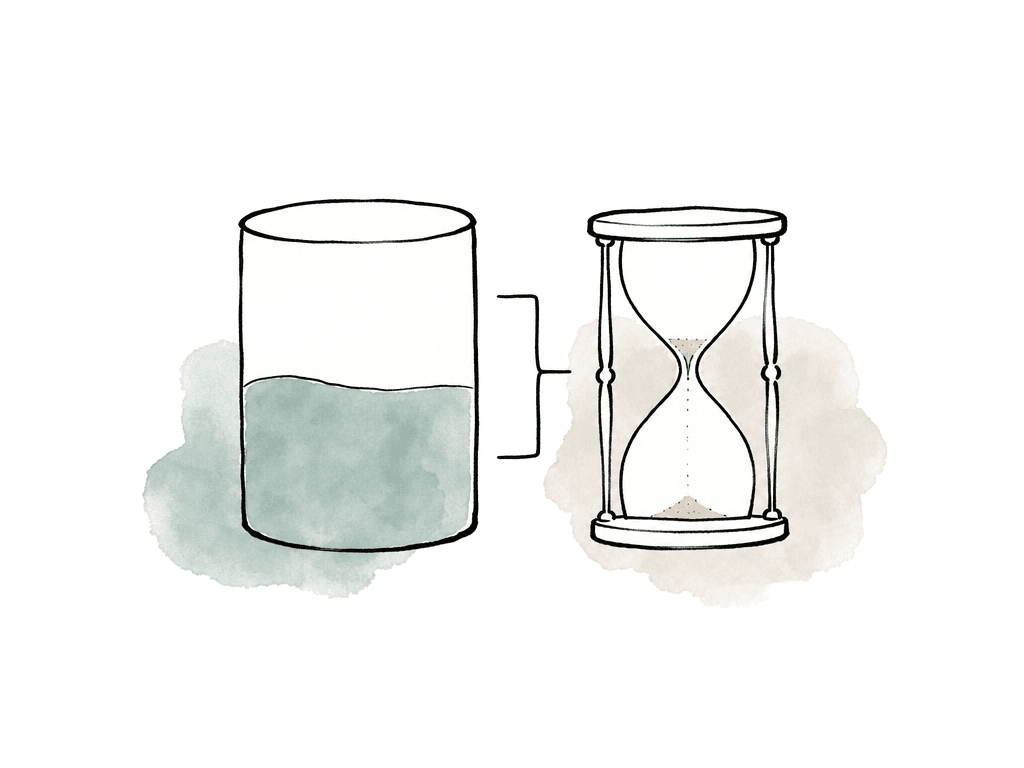
The classic alert pattern is warning at 80%, critical at 90%, emergency at 95%. That's a decent starting point for generic IT storage. Media workflows need thresholds based on how fast the volume fills and how long it takes to react. For each volume, estimate:- Average daily ingest or creation rate.
- Peak daily ingest during shoot, turnovers, or finishing.
- Time required to delete, move, archive, or expand capacity.
- Minimum free space required for safe application behavior.
- Whether performance degrades as the volume fills.
- Whether storage is shared across multiple productions or dedicated to one show.
Build reports for the questions people actually ask
Storage usage reports should answer the recurring production questions without requiring an admin to dig through raw logs. The most useful recurring reports include:- Total used, free, and allocated by storage system.
- Usage by production, project, workspace, bucket, folder, or department.
- Daily and weekly growth rate.
- Archive candidates by age, status, or last activity.
- Forecast date for reaching warning and critical levels.
Keep ingest and verification visible
Keep capacity reporting connected to ingest health. The place where media enters the system is where storage mistakes become expensive. Camera original and production audio workflows should already rely on checksum-verified copies instead of simple Finder, Explorer, or basic command-line copy. The reason is practical. If someone erases a card before anyone catches a missing or corrupt file, the storage report isn't going to save you. Your monitoring should show whether expected media arrived, whether the verified copy exists, and whether downstream storage has enough room for the next batch.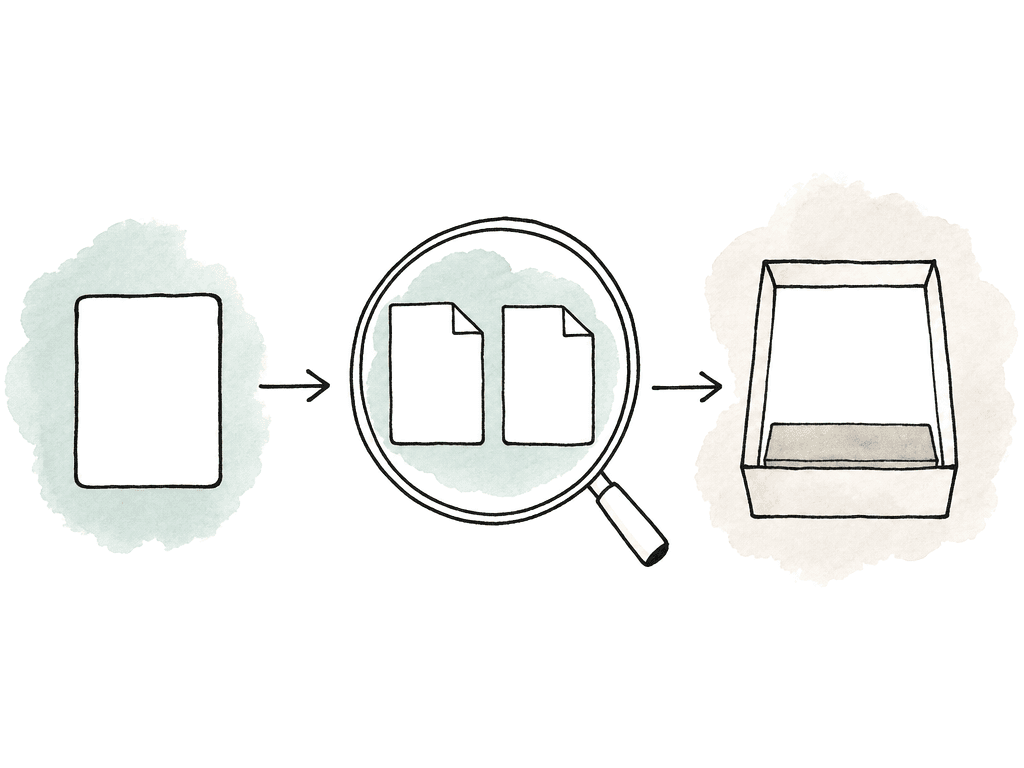
Choose tools by storage type
There's no single monitoring tool that fits every media environment. A facility may need vendor admin consoles and SNMP monitoring, cloud-native reporting, MAM reports, and chat alerts all working together. For on-prem shared storage, use the storage system’s own monitoring first. Systems such as editorial SAN and NAS platforms generally expose volume usage and client connections, bandwidth and logs, and sometimes SNMP. SNMP is useful because it lets a central monitoring system collect capacity and health signals without someone living inside the storage admin UI all day. For cloud object storage, use native metrics and inventory reports. Object storage tools can report total bytes, object counts, and transactions. They also report ingress and egress, plus failed requests. Inventory reports are especially useful when you need object-level attributes such as size and age, versions and immutability, or encryption state. For review and collaboration platforms, pay attention to how the platform defines storage. Some systems separate uploaded file size from total usage because they generate extra assets for playback and DRM, for streaming and proxy, and for thumbnails. A folder that appears to be using more storage than was uploaded may be behaving exactly as designed. For Microsoft 365, SharePoint, or similar collaboration storage, tenant reports can show total used, available, allocated, and growth over time. These are useful for production office documents and shared assets, but don't treat them like editorial performance storage. For media asset management or production asset systems, report by production and folder, by collection and status, and by owner. This is where storage reporting becomes actionable because the team can connect capacity back to creative context. The strongest setup combines system-level monitoring with workflow-level reporting. System tools know the disks, buckets, and logs. Media tools know the shows and folders, the deliverables, and the owners.Send alerts where decisions happen
Email-only alerts often fail in post environments because the people who need to act aren't always sitting in an admin inbox. Send capacity alerts to the channels where the team already coordinates work.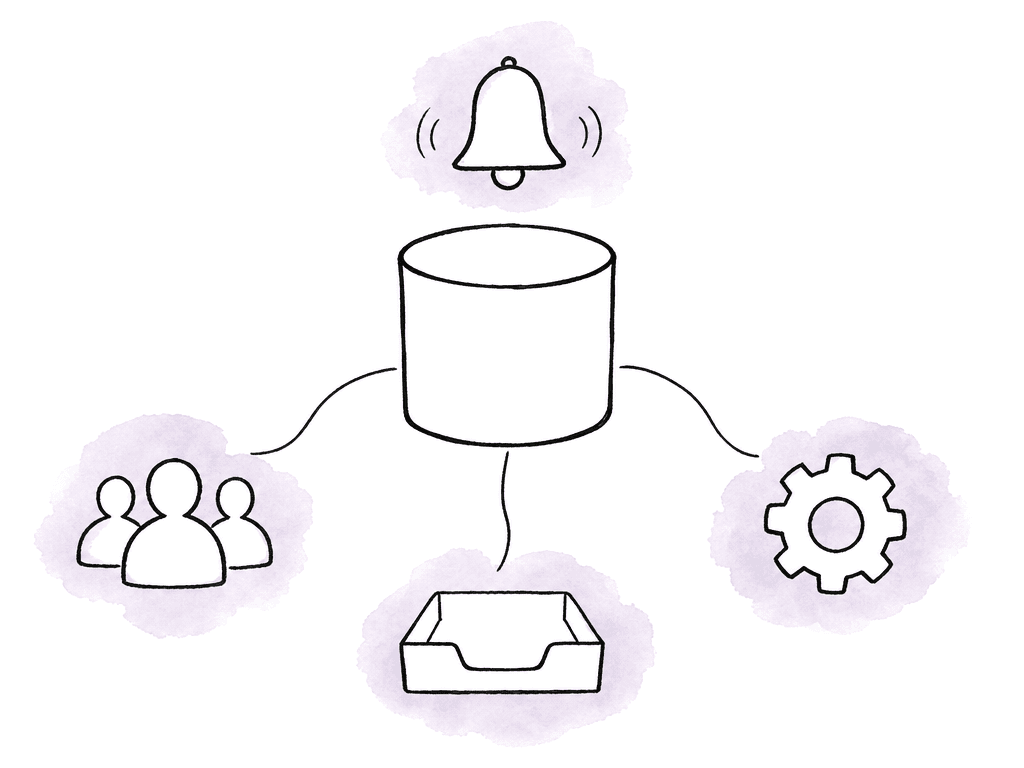
- A post engineering or support channel for technical response.
- A production-specific channel for storage ownership questions.
- A ticketing system for cleanup, expansion, or archive tasks.
- Email for formal escalation and vendor support trails.
- An on-call or paging route for critical infrastructure events.
Account for latency and stale data
Not all reports are real time. Some admin and usage tools refresh hourly. Others update remaining data within 24 hours. Cloud providers may generate inventory reports daily, and very large buckets may produce multiple report shards rather than a single file. That delay is fine for capacity planning, but it's dangerous for incident response. If you need to know whether tonight’s camera cards will fit, don't rely only on yesterday’s inventory report. Pair slower reports with live metrics from the storage platform, transfer system, or cloud monitoring service. There's also a logging reality: not every storage log is complete in the way people imagine. Some cloud storage services create logs only when requests hit a given service endpoint, and request logging may be best-effort. Logs are still essential for investigation, but don't assume that a missing log line always means nothing happened. This is where dashboards need labels. If a report is delayed, say so in the report title or description. If timestamps are UTC, say so. If usage includes generated derivatives, say so. Ambiguous reporting creates false alarms and bad cleanup decisions.Make cleanup safe, not heroic
A capacity alert shouldn't send an assistant editor into panic-delete mode. Media cleanup needs guardrails. Safe cleanup is based on status, ownership, and redundancy. Every folder should have a known state:- Active or delivered
- Superseded or archived
- Backed up, or pending confirmation
- Old exports left on online storage.
- Duplicate turnovers from vendors.
- Render caches and application caches that were never pruned.
- Versioned objects or snapshots retaining deleted data.
- Replication creating expected but unbudgeted second copies.
Forecast capacity during pre-production
The best time to set up storage usage reports is before the show starts. Once the shoot is underway, everyone is reacting. During pre-production, ask for enough information to build a first capacity model:- Shooting format, resolution, codec, frame rate, and expected shooting ratio.
- Number of cameras and shoot days.
- Audio recording expectations.
- Dailies, proxy, and editorial transcode formats.
- VFX pull and turnover patterns.
- Review platform usage.
- Remote editorial or cloud workspace requirements.
- Backup and archive targets.
- Delivery and finishing storage requirements.
Keep the alert rules maintained
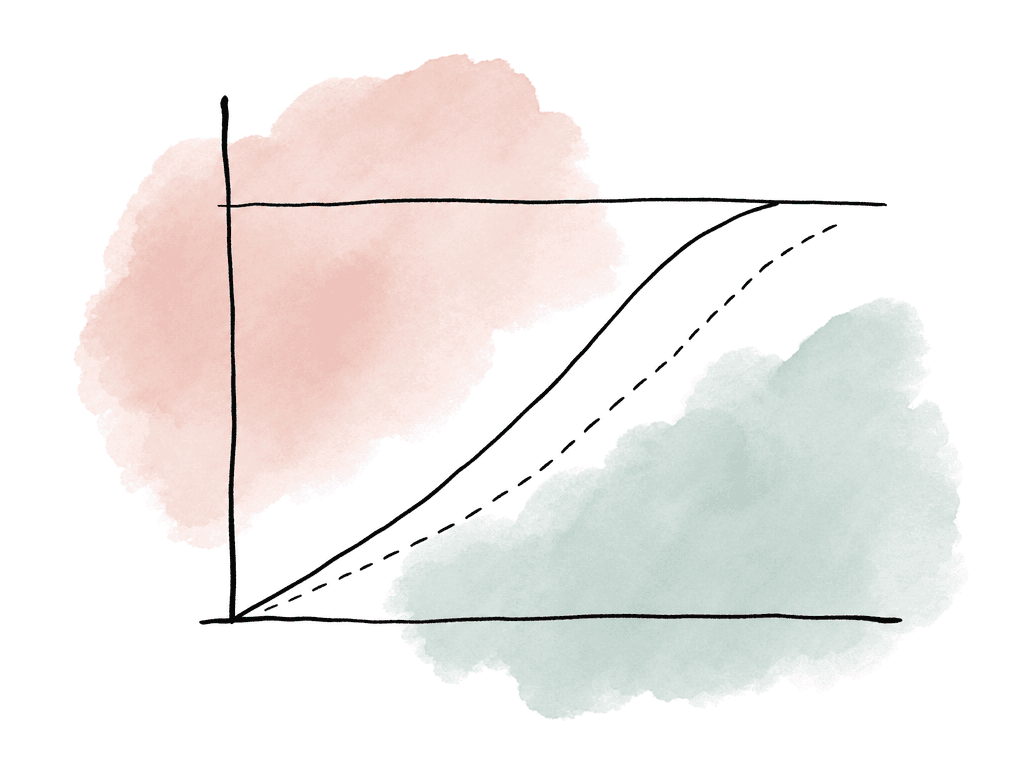
Storage monitoring requires ongoing maintenance. Productions wrap, buckets get renamed, and workspaces are reassigned. Cloud lifecycle policies change, and review platforms alter how generated media is counted. A report that was accurate last season can become misleading. Review the alert configuration whenever the workflow changes. New camera formats and HDR finishing can change the capacity curve. So can remote edit and cloud dailies, virtual production, and large VFX pulls. So can a new archive policy, or a shift from local review files to generated streaming derivatives. The goal is to give the team enough warning to make calm decisions. Archive this. Expand that. Pause ingest here, clean those folders, or change the retention rule. When alerts are tied to workflow ownership and reports show growth over time, storage stops being a surprise crisis and becomes part of production planning.FAQ
Track used and free capacity, daily and weekly growth rate, and client activity. Track ingress and egress, last access time, failed transfers, failed reads or writes, and application job errors. Percent used shows the current state, but growth and error trends show whether the team has enough time to act before production is affected.
Start with percent thresholds such as 80 percent warning and 90 percent critical, but adjust them based on days remaining. A better alert rule considers recent growth rate, peak ingest, time needed to archive or expand storage, and minimum free space needed for safe application behavior. For high-growth media volumes, a days-remaining threshold is often more useful than a fixed percentage.
For active productions, daily reports are useful for online, ingest, and cloud production storage. Weekly reports are usually enough for nearline, archive, and long-term capacity planning. During heavy ingest, finishing, or delivery periods, teams may also need live dashboards or intraday alerts because some inventory reports can lag by hours or a full day.
Send alerts to the places where the team already coordinates work, such as engineering chat channels, production-specific channels, ticketing systems, email escalation lists, or on-call paging systems. Warning alerts can go to storage owners and post management, while critical alerts should include engineering and anyone who can approve cleanup, expansion, archive movement, or ingest pauses.
Pre-production reports and estimates help set an initial storage model. Base it on shooting format and codec, camera count and shoot days, and audio. Add dailies and proxy creation, VFX turnovers, review usage, cloud workspaces, backup, archive, and delivery needs. Once real ingest begins, actual growth can be compared against the estimate so thresholds and purchasing plans can be adjusted early.
Wrapped projects should usually move off expensive online storage without disappearing from the team’s working memory. Aspect can archive projects for long-term storage while preserving previews, metadata, and AI access, which helps teams free active capacity while keeping the archive usable later.