Turn the editing brief into a visible action
The film runs one minute. An interview explains how mechanics check every bike before handing it back to the customer. The producer needs a wide workshop view, a close-up of an adjustment, and a shot of a finished bicycle leaving the shop.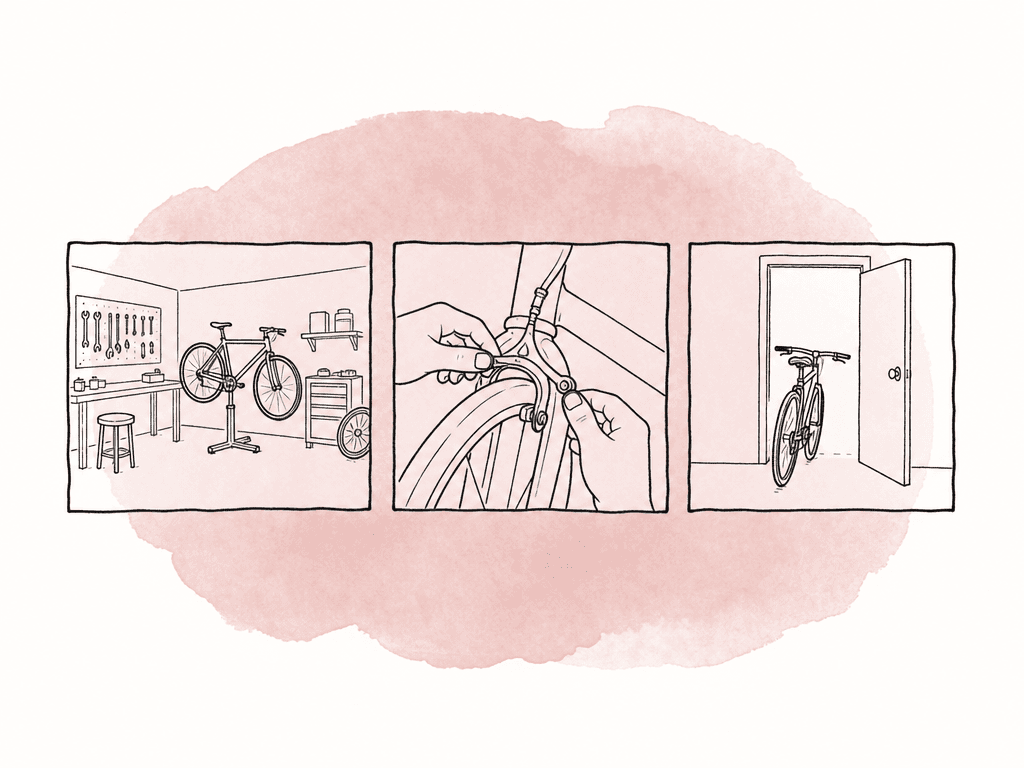
hands adjusting a bicycle brake. That gives the search a concrete object and something happening to it.
Separate details you need from details you would prefer. The shot must show brake work on a bicycle. A close-up may be preferable because the preceding interview is a medium shot. An exact tool, sleeve color, or camera movement should become a requirement only if the edit depends on it. Adding every remembered detail at once makes it harder to understand why a search fails.
Keep your delivery requirements beside the editing brief. You might need several uninterrupted seconds, a horizontal composition that can survive a vertical crop, and permission to reuse the footage in the current campaign. Some of these requirements can guide a query or metadata filter; others need a person to watch the shot.
Check that you're searching the intended footage
Open the project that contains the relevant production and confirm that newly uploaded footage has finished processing. Aspect indexes footage for search after upload. A transcript can appear before the rest of the indexing is ready, so wait for visual indexing to finish before searching the new footage by scene or action. Suppose your project has anAutumn Service folder containing camera-day subfolders. If you know the footage came from that shoot, filter to that folder. Check whether it includes the subfolders; searching only the assets directly inside the parent could leave out the camera originals you want.
If you expect a particular file to be present, find it by its known filename or folder and inspect its processing status. Also confirm that the folder hasn't been excluded from AI indexing. If indexing has not finished or the folder is excluded, changing the query won't bring that file into visual search results.
Start with the scene, then refine the results
Enterhands adjusting a bicycle brake in Search. Aspect can search visual subjects, actions, settings, and composition, alongside speech and file information. Its asset search capabilities also expose the filters created from a plain-language request, so you can see how the request was interpreted.
Review those filters before judging the result list. Remove a restriction that doesn't match your intention. If the relevant production spans several days, for example, a narrow date range can exclude the shot even when the visual description is useful.
Search results identify matching time ranges within files. Open a result at its matching moment and play the surrounding footage. A long camera recording may contain several different actions, and the thumbnail alone may not explain why the result appeared.
When the results show the wrong activity
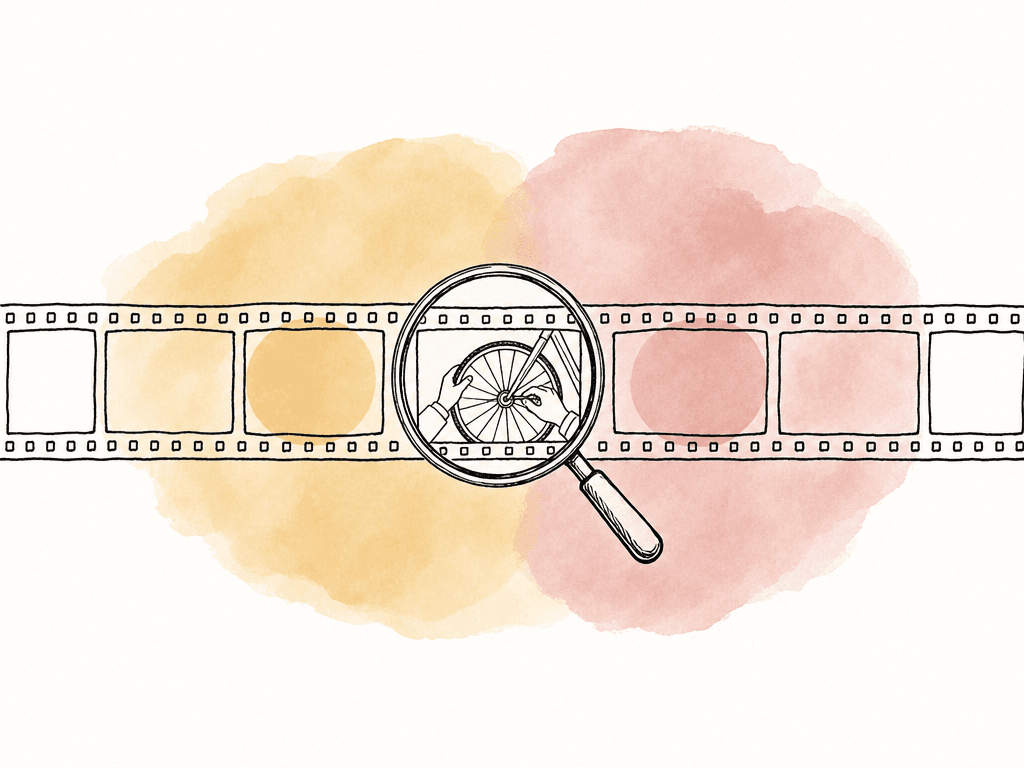
Suppose the first results include people riding bicycles or holding tools without working on a brake. Refine the visible action toclose-up of hands tightening a bolt on a bicycle brake. The extra detail tells the search which part of the bicycle and which movement you need.
If the matches still cover general workshop activity, try mechanic using a tool on a bicycle brake. Describing the tool's relationship to the bicycle may be more useful than adding a subjective adjective such as “professional.” Change one meaningful detail at a time and compare the returned moments. Otherwise, you can't tell which change helped.
When a detailed query returns nothing useful
Reverse the process if you get no useful shots. Remove details you're least certain about, such as the exact tool or framing, and return tobicycle brake adjustment. Then check the folder, date, and technical filters again.
Leave the frame-rate filter off unless the edit requires slow motion. Restricting the search to high-frame-rate footage could hide a take that otherwise works. Broaden the search and assess the movement in the viewer before deciding that the library lacks coverage.
Aspect labels stronger matches green, possible matches yellow, and weaker matches red. These colors describe the search match. Watch the footage to decide whether it fits the edit, including yellow or red results when the action is difficult to distinguish. A green result can still show the wrong bicycle model or lack enough usable footage.
Use spoken words to find context and related material
The interview provides a second route into the production. Search forinterview about checking bicycle brakes before a customer leaves. If you remember wording, try the remembered phrase, such as we check every brake before it leaves the shop.
Aspect's transcription workflow distinguishes searching speech across a project from searching inside the file currently open. Use AI Search to locate the interview. Then open its Transcript tab, search within the transcript, and select a match to jump to the relevant moment.
Listen to the full explanation before selecting coverage. The speaker might be describing a final safety check while a visually similar shot shows an earlier assembly step. Both contain a brake, but the second image could misrepresent what the narration is explaining.
You can combine spoken and visual details in one request, but do so when the desired recording should contain both. Silent B-roll may have no transcript match for the interview's wording. In this example, searching separately for the quote and the adjustment shot lets you choose the interview passage and compare possible coverage against it in the edit.
Narrow by production facts, then inspect the shot
Once the visual search produces plausible footage, use reliable metadata to remove material that can't belong in the film. Aspect supports technical properties and project-specific custom fields, including campaign, status, and usage-rights information. If your project already has a Campaign field, select the relevant value. If it has a verified shoot-date field, use that when the production date matters. Check what a date filter represents rather than assuming that an upload date is the shoot date. Review extracted resolution and frame rate in the asset details when they affect delivery or playback choices. Use a rights field to filter for footage that has been cleared, and keep the supporting permission with the record. Before reusing an older shot, confirm that the recorded permission covers this film's intended use. Check customer releases, visible brands, and location licenses where they affect the planned use. Watch the full passage around the matching moment. Look for a continuous usable action, enough footage before and after it to adjust the cut, acceptable focus, and unwanted objects at the edges of the frame. For the workshop close-up, make sure the hands don't obscure the adjustment for the entire moment. Play the shot with the proposed interview audio to check whether the picture supports the statement. The Aspect viewer lets you play the surrounding media and step through frames. Its browser preview leaves the original source unchanged. Use the preview to make a selection, then check the original in the editing application for decisions that depend on source quality.Keep the selected moment attached to its source
Gather promising files into a collection such asAutumn Service — B-roll Selects. Aspect's collections reference existing assets without moving or duplicating them, so the camera-folder structure stays usable for the rest of the team.
When you hand a collection to an editor, include enough context for them to find the moments you selected. Leave a time-linked comment or prepare an edit note with the source filename, selected time range, and intended use. For example, a note might say that the brake adjustment belongs under the safety-check statement and needs a little lead-in before the tool turns.
A collection contains the source files, so include the selected time ranges when a recording contains several useful actions. Also distinguish player elapsed time from the camera's source timecode when passing notes into an editing application; verify the corresponding frame rather than assuming the displayed numbers use the same starting point.
Open the original in your editing application
Open the Aspect desktop app on macOS or Windows and sign in. In the drive view, choose Mount for the source project. It appears in Finder on a Mac or File Explorer on Windows. Return to the search result, right-click it, and choose Open in mount. This reveals the original source file on the mounted drive. Import that file from the drive into your editing application. Use the time range in your notes to set the in and out points, ready to cut the shot into the sequence.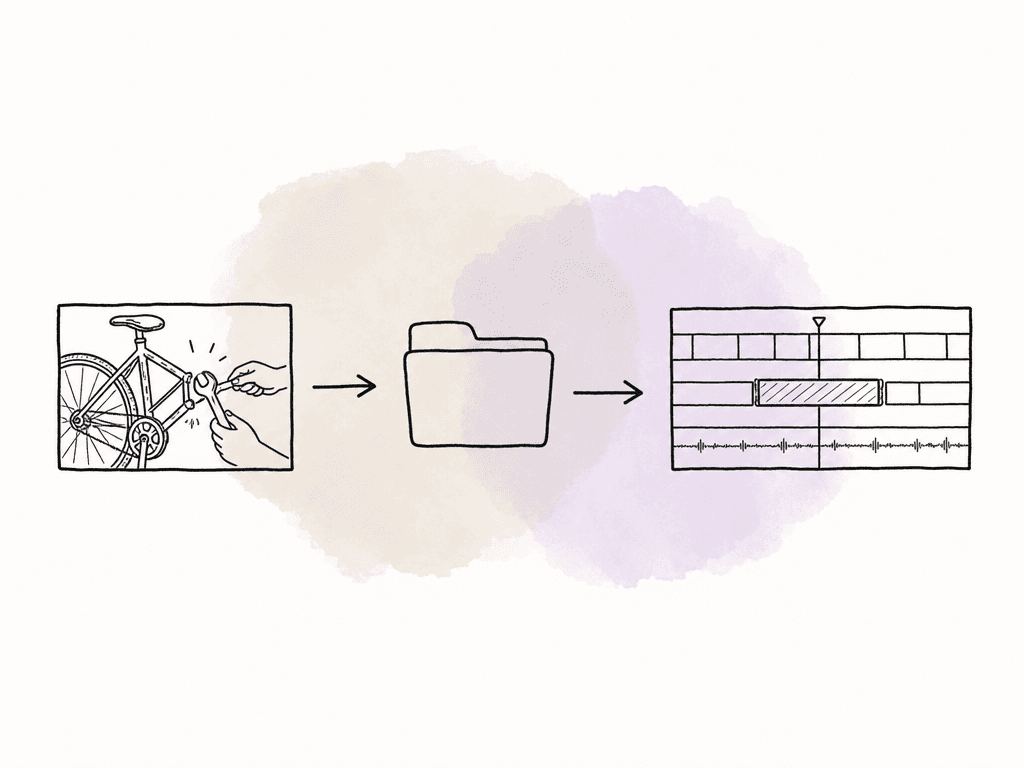
Finish with a handoff another editor can follow
Before handing off the selects, include the following for each shot:- The source filename and its location in the project.
- The intended moment, with the time reference made clear.
- A short explanation of where the shot belongs in the sequence.
- Any confirmed technical or usage requirements that affect the choice.
- Access to the original, or a clearly identified action needed to obtain it.
FAQ
Yes, visual search can find footage by the subjects, actions, settings, and composition it contains after the file has been indexed. In Aspect, you can combine that description with filenames, transcripts, technical properties, and custom metadata. Manual tags aren't a prerequisite for visual search, although reliable project metadata helps narrow the results.
Begin with the subject and visible action, such as hands adjusting a bicycle brake. Add the setting or framing if the results are too broad. Use the details you remember, then inspect any generated filters before adding dates, frame rates, or campaign restrictions that could exclude useful footage.
First confirm that the upload and AI indexing have completed. A transcript can be ready while other processing is still underway. Then check the project, folder filters, inclusion of subfolders, and any restrictive metadata filters. Aspect administrators can also exclude folders or projects from AI indexing, so stored footage may not have AI search results.
Aspect AI Search can combine spoken content, visual details, and metadata in one request. However, a useful B-roll shot may contain no relevant speech, so requiring both can make a search too restrictive. Search the interview and visual coverage separately when they serve different parts of the edit, then check the relationship between them yourself.
Open in mount reveals the original source file on the mounted Aspect drive. Keep the selected time range with the source filename, import the original, and set the in and out points in your editing application.
Yes. Archived Aspect projects remain searchable. Find the shot in the archived project, use Open in mount to reveal the original, and import it into your edit. Keep the selected time range with your notes so the editor knows which part of the file to use.