

Where multiple GPUs actually help
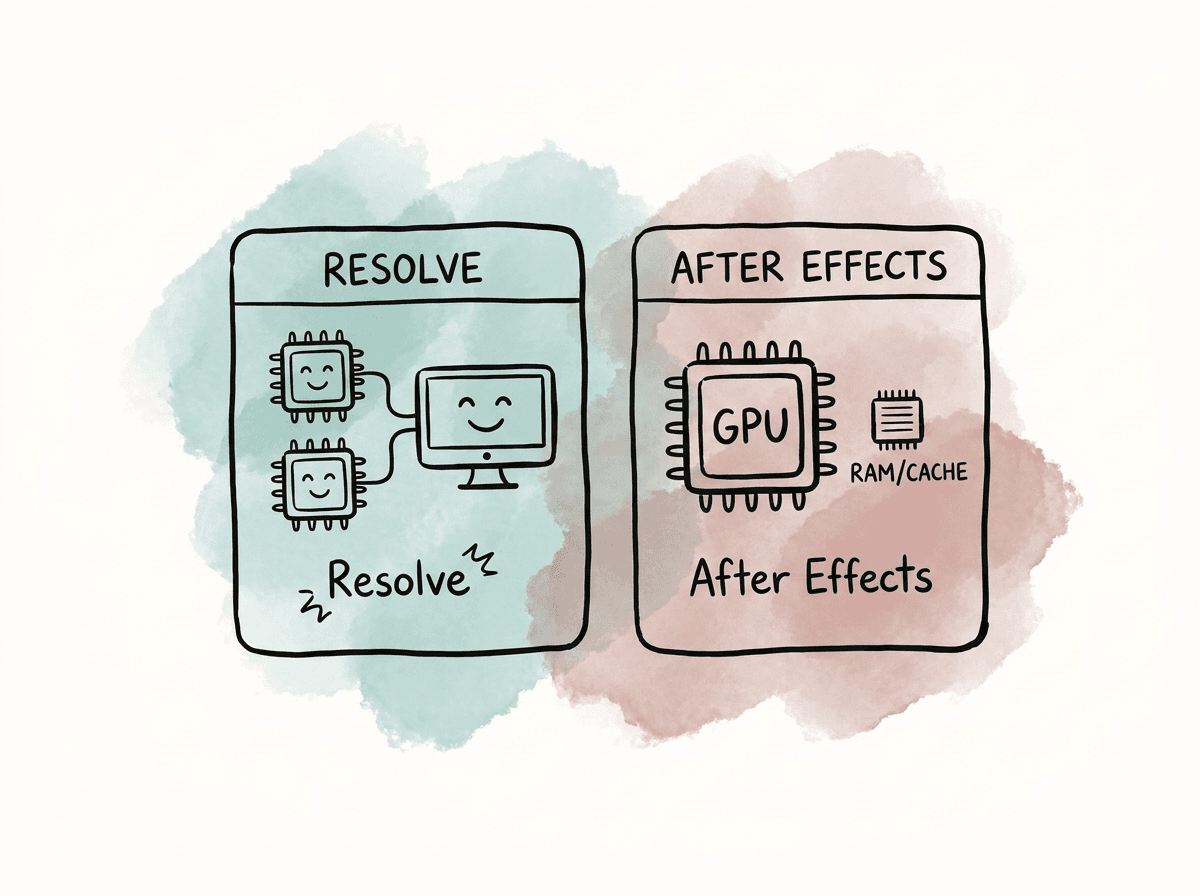
Resolve is the main application in this group where multi-GPU workstations still make operational sense. Blackmagic’s configuration guidance treats Resolve as a GPU-based image processing application, and Resolve exposes GPU selection controls for that reason. Color correction, temporal noise reduction, optical flow, GPU effects, high-resolution debayering, and some AI-assisted operations can all benefit from more GPU resources. The benefit depends on the workload. You will gain little from a simple ProRes 422 HD timeline with a few primaries. A 6K or 8K grade with temporal noise reduction, OFX, heavy nodes, spatial resizing, and high-quality debayer settings is a much better candidate. After Effects uses the GPU for specific features and effects, while CPU speed, RAM, cache performance, project structure, and Multi-Frame Rendering behavior still shape overall performance. A second GPU is usually a weak After Effects upgrade. If AE is the main workload, choose one strong supported GPU with enough VRAM, plenty of system RAM, a fast CPU, and fast local cache storage. Premiere Pro sits between those two. It uses GPU acceleration for effects, scaling, color operations, transitions, and parts of the export path, while multi-GPU returns are inconsistent compared with Resolve. Premiere can benefit from a strong GPU, and some export workflows may use more than one GPU. Mixed-card systems can run no faster, or even slower, than a single faster card if the work balances poorly. Media Composer gives you the least compelling reason to build a multi-GPU workstation. Build for qualified hardware, stable drivers, proper I/O, fast storage, and enough CPU/RAM for the codec and project type. Media Composer is usually a stability and file-throughput workload rather than a multi-GPU scaling workload, which means shared edit rooms should prioritize reliability and qualification over additional GPUs. Here is the practical comparison for common workloads:| Application | Multi-GPU value | Best hardware emphasis | Practical rule |
|---|---|---|---|
| DaVinci Resolve Studio | High for grading, GPU effects, noise reduction, AI, high-res render workloads | GPU count, VRAM per GPU, cooling, PCIe lanes, storage | Multi-GPU can be worth it when the timeline is GPU-bound |
| After Effects | Low for most users | CPU, RAM, cache SSD, one strong GPU | Buy one better GPU before buying two |
| Premiere Pro | Moderate to low, workload-dependent | CPU, one strong GPU, hardware decode/encode, RAM, storage | Test your actual exports before assuming a second GPU helps |
| Media Composer | Low | Qualified CPU/GPU, I/O hardware, storage, stability | Build for supportability and file throughput, not GPU count |
VRAM does not pool the way teams wish it did
The most common multi-GPU mistake is treating VRAM like system RAM. Two 24 GB GPUs do not behave like one 48 GB GPU in Resolve or After Effects. In most workflows, each GPU needs access to the frame data, textures, buffers, and processing state required for the task it handles, which means your usable VRAM ceiling is usually closer to the VRAM on one card. In mixed-card systems, the smallest selected GPU may constrain it.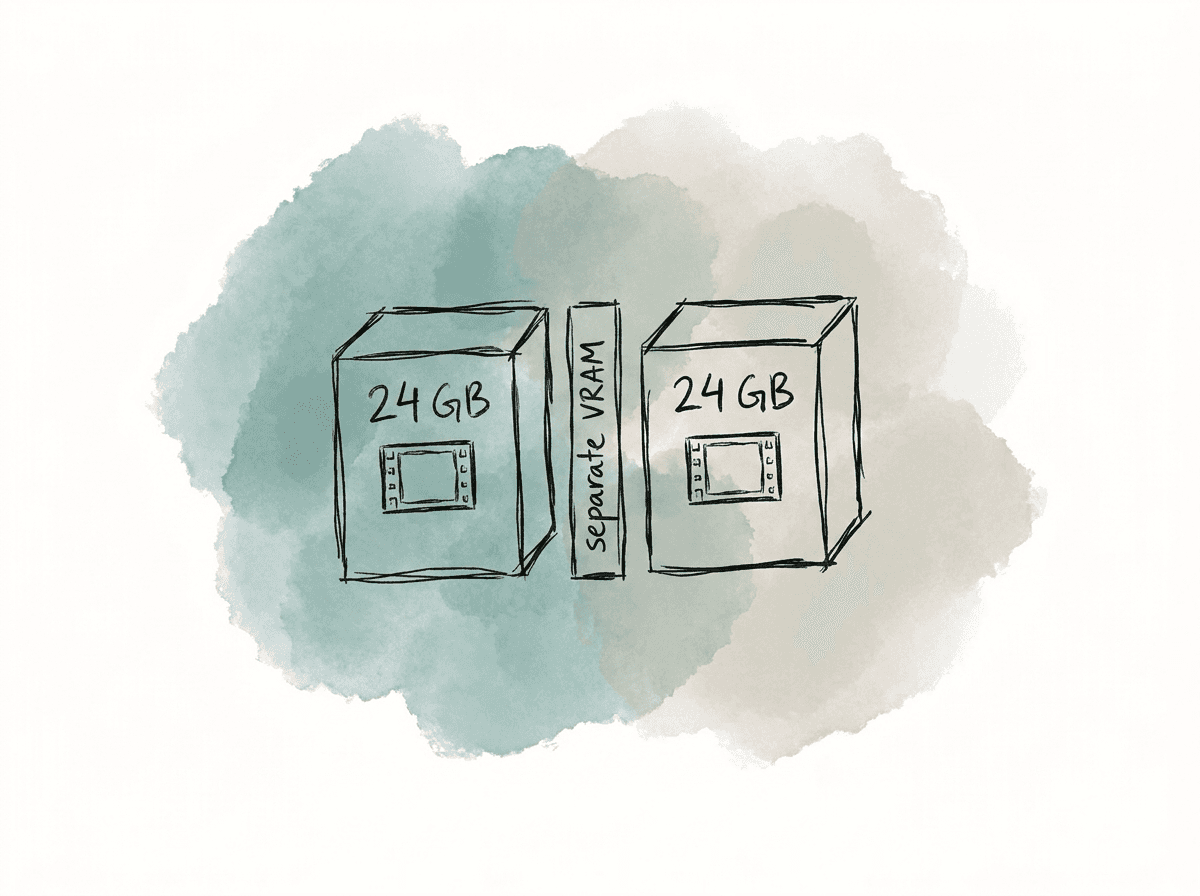
Matching GPUs is usually safer than mixing them
Mixed-GPU systems are tempting when you have spare cards from previous builds. Sometimes they work, but they are also harder to diagnose, harder to cool, and more likely to create uneven performance. For Resolve workstations, choose matching GPUs when you can. Use the same model, same VRAM capacity, same driver branch, and similar thermal behavior. Resolve lets you choose which GPUs it uses, but if one card is materially slower or has less VRAM, the system may behave like a compromise instead of an upgrade. Common mixed-GPU patterns have different risk profiles:- A strong compute GPU paired with a smaller GUI display GPU can work, especially in older Resolve configurations. This is less common now because modern high-end GPUs can usually handle both display and compute.
- Two different NVIDIA GPUs may work, but selecting both for processing can reduce the benefit if one card is slower or has less VRAM.
- Mixing NVIDIA and AMD in the same workstation usually adds driver and troubleshooting burden for professional rooms.
- An integrated GPU can sometimes drive displays while discrete GPUs handle compute, depending on BIOS options, motherboard routing, and application behavior.
Platform design is as important as GPU count
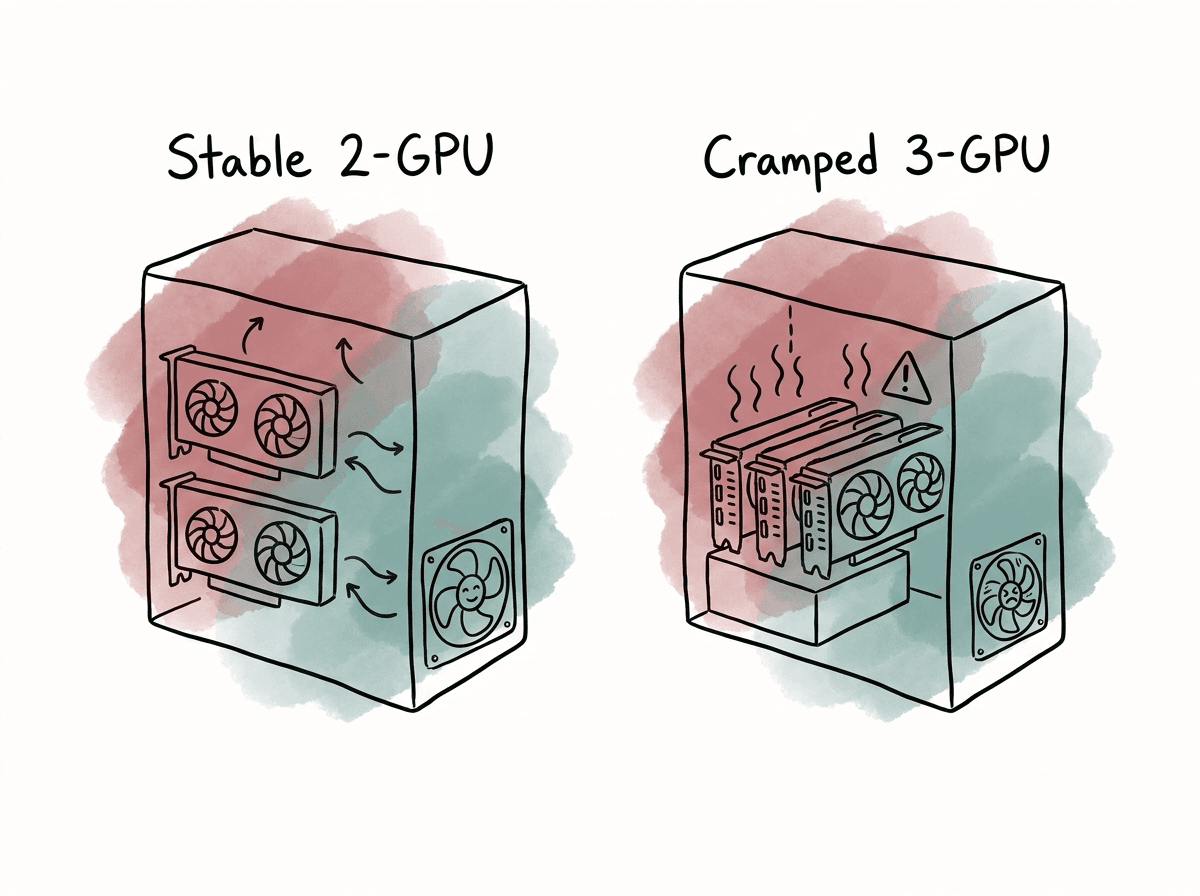
A multi-GPU workstation needs more than extra PCIe slots. You need the motherboard, CPU platform, power supply, chassis, and cooling layout to let the GPUs run at full speed for long renders without throttling or instability. The system needs enough PCIe lanes, slot spacing, power, and airflow. A motherboard may technically accept three double-slot GPUs and still make a poor finishing workstation if all three cards sit against each other and run at thermal limits under temporal noise reduction. When you specify the platform, evaluate the conditions that determine whether the GPUs can sustain performance:- Confirm how many PCIe lanes each slot gets when you populate multiple slots.
- Leave physical breathing room where possible, especially with open-air consumer cooler designs.
- Size the power supply for the CPU, GPU transient loads, storage, I/O cards, and headroom instead of adding only listed TDP values.
- Prioritize front-to-back airflow, exhaust capacity, and unobstructed intake.
- Choose blower-style or workstation-oriented cards in dense multi-GPU systems when they fit the thermal design better than open-air gaming cards.
- Make sure DeckLink, audio, storage, and network cards also have lanes and airflow.
- Consider the room itself. A machine that benchmarks well but sounds like a server may not belong in a client-supervised suite.
BIOS settings that matter
BIOS setup is where many multi-GPU workstations fail quietly. The OS may see all cards while the system allocates lanes poorly, disables devices, or behaves unpredictably under load. The exact labels differ by motherboard vendor, but the usual BIOS areas are consistent. On a workstation or high-end desktop board, review the settings that control PCIe behavior and device initialization:| BIOS area | Typical production choice | Why it matters | How to verify |
|---|---|---|---|
| Motherboard BIOS version | Stable release approved for the CPU and GPU generation | Improves PCIe initialization, device compatibility, and memory mapping | All GPUs and I/O cards appear consistently after cold boots and restarts |
| PCIe slot generation | Auto if stable, otherwise manually set the tested generation | Prevents link training issues between newer slots and older or sensitive cards | Confirm negotiated PCIe generation under a light GPU load |
| Above 4G Decoding | Enabled for multi-GPU systems | Allows resource allocation for multiple high-memory PCIe devices | OS and applications see all intended GPUs and I/O cards |
| Resizable BAR | Enable only after testing | Can help some workloads, but is not a universal post-production performance setting | Compare playback, render timing, and stability before and after enabling |
| Primary display adapter | Set deliberately to iGPU, GUI GPU, or main GPU | Avoids displays and compute workloads landing on the wrong device | Displays initialize correctly and application GPU preferences show the expected cards |
| M.2 and slot lane sharing | Configure storage and cards around the intended slot layout | Some M.2 slots reduce GPU slot width or disable PCIe slots | Slot widths match the motherboard manual when all devices are installed |
| CPU and memory overclocking | Conservative or disabled | Marginal overclocks can fail during long renders even if the desktop feels stable | Sustained render tests complete repeatedly without driver resets or reboots |
- Update the motherboard BIOS to a stable, production-ready version approved for your CPU and GPU generation.
- Set PCIe slots to the correct generation manually if auto-negotiation is unstable. For example, a Gen 4 card in a Gen 5-capable slot may be more reliable when you set it explicitly.
- Enable Above 4G Decoding for systems with multiple high-memory PCIe devices.
- Enable Resizable BAR only if your platform, driver, and application testing show stable behavior. Do not treat it as a universal performance switch.
- Set the primary display adapter deliberately, especially if you use an integrated GPU or a separate GUI GPU.
- Disable unused onboard devices only if you need to free resources or simplify troubleshooting.
- Confirm that M.2 slots do not steal lanes from GPU slots in a way that changes the intended x16/x16 or x16/x8/x8 layout.
- Keep CPU and memory overclocks conservative or disabled on production machines.
Driver configuration for NVIDIA and AMD systems
Keep driver configuration predictable. In production systems, use stable studio or professional driver branches instead of the newest gaming driver unless you have a specific tested reason to use it. For NVIDIA systems running Adobe applications, Adobe recommends current Studio drivers for supported GeForce RTX/GTX and RTX/Quadro class cards. Use that as the starting point for mixed Adobe and Resolve workstations as well. For professional NVIDIA cards, use the appropriate production or enterprise branch where facility policy requires it. For AMD systems, use the recommended professional driver branch for Radeon Pro cards and a stable current driver for supported Radeon cards. Do not combine driver experiments with application upgrades during active jobs. Updating Resolve, After Effects, and the GPU driver on the same day makes it difficult to identify which change caused a failure. Use a practical driver process for facility machines:- Standardize one driver version per workstation class.
- Test it with current Resolve, After Effects, Premiere Pro, Media Composer, plugins, I/O hardware, and monitoring.
- Keep the installer for the known-good version.
- Disable automatic driver updates where possible.
- Update only between jobs or after you create an image or rollback path.
Configuring Resolve for multiple GPUs
Resolve gives you the most useful control over GPU use. In Resolve preferences, the GPU processing mode and GPU selection determine how the application uses available cards. The exact UI changes across versions, but the operating principle is the same: choose the processing API, decide whether GPU selection is automatic or manual, and select the cards Resolve should use. For Windows and Linux finishing workstations with NVIDIA GPUs, CUDA is often the expected choice. OpenCL and Metal apply in other hardware and OS contexts. On Apple silicon Macs, think about GPU resources differently because they are integrated into the system architecture rather than discrete multi-card PCIe workstations. On a Windows or Linux multi-GPU Resolve Studio system, configure the system deliberately:- Use Resolve Studio for serious multi-GPU deployments.
- Set the GPU processing mode appropriate to the hardware, commonly CUDA for NVIDIA systems.
- Start with automatic GPU selection only if all selected GPUs are identical.
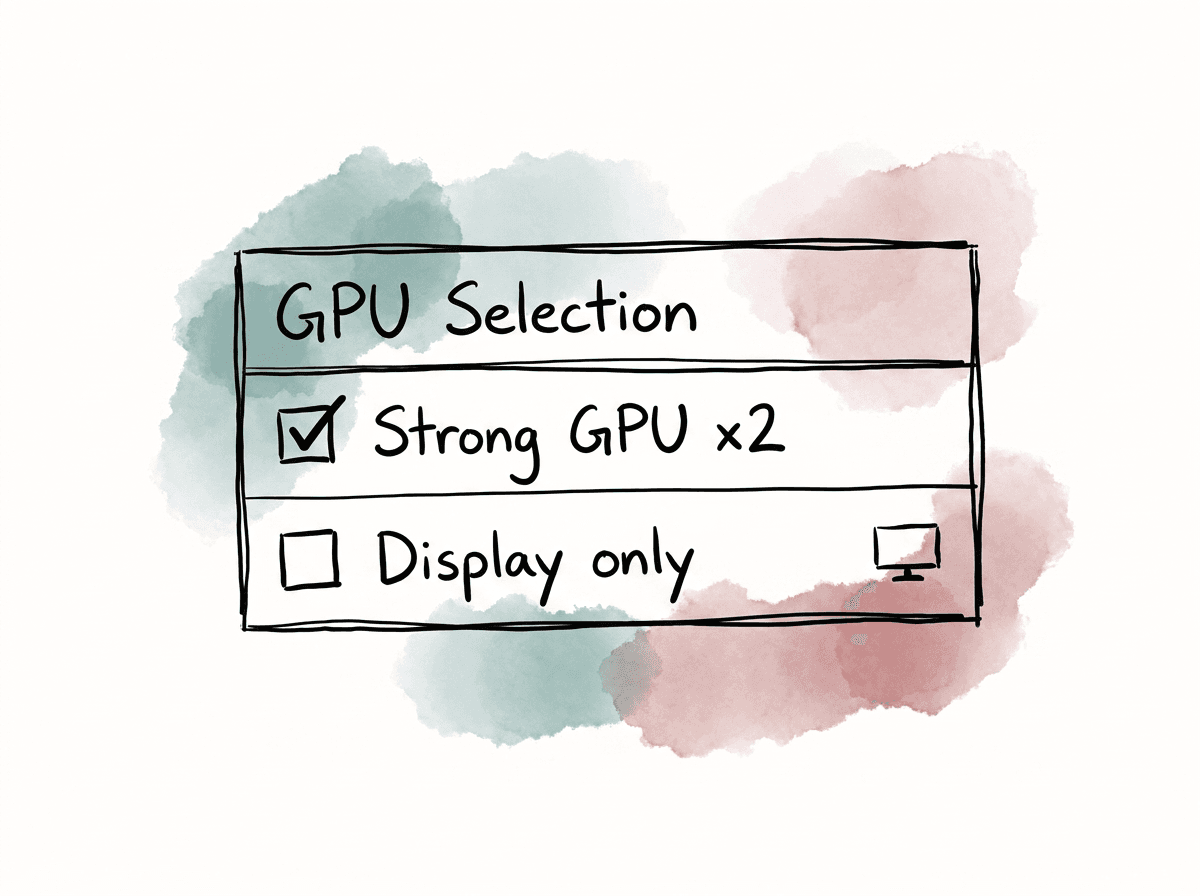
- Use manual GPU selection when testing, when excluding a display-only GPU, or when diagnosing instability.
- Do not select a weak or low-VRAM GPU just because it is present.
- Restart Resolve after changing GPU preferences.
- Test both playback and render behavior, because one can succeed while the other exposes instability.
Configuring After Effects on a multi-GPU workstation
After Effects usually needs little special multi-GPU configuration because it generally will not scale across GPUs the way Resolve does. For a better AE setup, make sure the application uses the intended high-performance GPU and build the rest of the system around AE’s actual bottlenecks. On Windows, set After Effects to use the high-performance GPU in the OS graphics settings and the GPU vendor control panel if needed. In AE, confirm GPU acceleration is enabled where applicable. Focus most tuning on RAM allocation, disk cache location, plugin behavior, and project cleanup. AE workstations benefit from a few concrete choices:- Use one supported high-performance GPU with enough VRAM for the comps and plugins in use.
- Put the disk cache on a fast local NVMe SSD, separate from slow shared storage when possible.
- Install enough RAM for Multi-Frame Rendering to keep frames in memory.
- Avoid starving other Adobe apps if users run Premiere, Media Encoder, Photoshop, and AE at the same time.
- Keep GPU-accelerated third-party plugins on versions qualified for the driver and AE release.
Premiere Pro and Media Encoder expectations
Premiere Pro’s GPU acceleration is real, but it does not make every export GPU-bound. A timeline may be limited by CPU decoding, long-GOP files, storage throughput, software-only effects, audio processing, third-party plugins, or hardware encoder availability. In those cases, an extra GPU will sit underused. Media Encoder can sometimes show activity on more than one GPU, especially in systems with multiple cards, but that does not guarantee a faster export. If Premiere spreads work inefficiently across mismatched GPUs, the slower card can drag down the job or create inconsistent use. For Premiere systems, test exports with the exact codecs and effects your team uses. For Premiere, choose one strong GPU as the safe default. Justify a second GPU with testing. If you have a Resolve finishing room that also runs Premiere, the multi-GPU hardware may be useful. If the room is primarily for editing, Premiere alone usually does not justify the extra card.Media Composer expectations
Build Media Composer workstations around qualification, stability, storage performance, video I/O, and the codec workload. GPU choice still matters, especially for supported displays, effects, and overall system responsiveness, but multi-GPU scaling is not usually the lever that changes the day. For Media Composer rooms, spend time on supported driver versions, shared storage behavior, project/bin workflows, Nexis or other storage integration, monitoring hardware, and codec strategy. A second GPU is rarely the first answer to poor playback or sluggish edit response. Media Composer has a different performance profile from Resolve, and its strength in many facilities is reliable edit operation at scale.Cooling and power problems that look like software problems
Many multi-GPU failures are thermal or power issues that look like application bugs. You may see Resolve crash during render, audio stutter during playback, GPU use bounce unpredictably, or the system pass a short test but fail after twenty minutes. Those symptoms often appear only under sustained load. Open-air GPUs can be especially problematic when you install them side by side. They dump heat into the chassis and depend on space around the card. In a single-GPU gaming tower, that may be acceptable. In a three-GPU finishing workstation, the middle card may run hot enough to throttle or destabilize the system. Watch for these failure modes during real work:- The second or third GPU runs much hotter than the first.
- Render speed starts high and drops after several minutes.
- Resolve becomes unstable only on heavy grades or AI features.
- Playback stutters appear when all GPUs are selected but disappear when one GPU is disabled.
- The machine reboots or driver-resets under render load.
- Fans ramp constantly in a way that makes the workstation unsuitable for the room.
- PCIe cards next to GPUs, such as capture or network cards, become unreliable due to heat.
Realistic performance gains
Resolve Studio can improve when multiple GPUs are applied to GPU-bound workloads, but the gain varies by task. Timelines that use temporal noise reduction, heavy OFX, high-resolution processing, or AI features are better candidates than simple editorial timelines. Other timelines barely change because the bottleneck is decode, storage, CPU processing, encoding, or VRAM capacity. In practice, scaling varies by workload:| Workload | Multi-GPU expectation |
|---|---|
| Temporal noise reduction | Often strong benefit if VRAM is sufficient |
| Heavy OFX stacks | Often benefits, plugin-dependent |
| High-resolution grading | Can benefit, especially with complex nodes |
| AI features | Can benefit, but depends on feature and GPU support |
| Simple editorial playback | Usually limited benefit |
| Long-GOP decode-heavy timelines | Often CPU/hardware decode limited |
| ProRes/DNx editorial timelines | Usually not a multi-GPU problem |
| H.264/H.265 exports | May be encoder, CPU, or effects limited |
| After Effects comps | Usually low multi-GPU benefit |
| Media Composer editing | Usually low multi-GPU benefit |
A practical build strategy
For a new Resolve finishing workstation, start with the project requirements instead of the maximum GPU count. UHD broadcast grading and 8K HDR finishing with noise reduction and AI tools can require different builds. Define the workload in concrete terms:- Source formats such as RED, ARRIRAW, BRAW, ProRes, X-OCN, H.264/H.265, or image sequences.
- Timeline resolution, including HD, UHD, 4K DCI, 6K, or 8K.
- Delivery formats such as SDR, HDR, IMF, ProRes masters, or H.264/H.265 review files.
- Effects profile, including noise reduction, optical flow, Fusion, third-party OFX, and AI tools.
- Playback requirement, whether that means real-time supervised playback or acceptable cached playback.
- Room type, such as a client-attended grading suite, machine room, render node, or edit bay.
- Software mix, including Resolve-only, Adobe-heavy, Media Composer edit, or hybrid workflow.
Testing with the work the machine will actually do
Test a multi-GPU system with a known project, not just a generic stress test. Synthetic GPU tests are useful for finding obvious hardware faults, but production workloads stress decode, cache, storage, GPU memory, OFX, monitoring, and render paths together. Build a repeatable Resolve test timeline from real show footage. Include the effects and resolutions that made the team want the workstation in the first place. Test with one GPU selected, then two, then three if applicable. Compare playback FPS, render FPS, GPU memory use, GPU use, temperatures, and stability. In Resolve, the intended GPUs should appear in application preferences, sustain heavy renders without thermal collapse, and produce repeatable timing across runs. GPU memory use should stay within the capacity of each card on the hardest timeline. If one card constantly shows a different use level or temperature than the others, investigate slot placement, cooling, and whether the workload is actually balancing. For After Effects, use representative comps with the actual plugins and source formats. Measure preview generation, RAM preview behavior, render time, and cache reuse. If adding or enabling another GPU does not improve those numbers, keep AE focused on the best single GPU and system memory/cache tuning. AE should use the high-performance GPU without being limited by disk cache or RAM exhaustion. If AE is the priority, a quiet, stable single-GPU configuration may be the better endpoint even inside a multi-GPU chassis. For Premiere Pro, test the team’s standard exports from real sequences. Include multicam, captions, Lumetri, scaling, denoise plugins, third-party transitions, and the actual delivery codecs. Watch whether the export is CPU-bound, GPU-bound, encode-bound, or storage-bound. Compare export times with one GPU enabled versus multiple GPUs where possible, and keep the configuration that is faster and more stable rather than the one that looks better in a utilization graph. For Media Composer, test playback responsiveness, multicam, background transcodes, shared storage behavior, I/O output, and timeline effects. Multi-GPU use matters less than whether editors can work reliably all day. If a driver that improves Resolve performance creates Media Composer instability in a shared room, separate those workstation roles or standardize on the driver required by the more critical workflow.When to skip multi-GPU
Do not build multi-GPU just because the chassis has empty slots. Extra cards add cost, heat, noise, driver complexity, and troubleshooting time, while also increasing the chance that a future software or OS update affects the workstation in a way that is harder to diagnose. Avoid multi-GPU builds when these conditions describe the work or platform:- The main workload is After Effects motion graphics.
- The room is primarily Media Composer offline edit.
- The team works mostly in HD or UHD ProRes/DNx with light effects.
- The chassis cannot cool multiple GPUs with space between them.
- The power supply is marginal.
- The motherboard drops slot bandwidth or disables needed devices when populated.
- The budget forces two low-VRAM cards instead of one high-VRAM card.
- The facility cannot support driver testing and rollback.
The decision rule
For Resolve finishing, multiple matching high-VRAM GPUs can help when the work is GPU-bound and you build the workstation to support them. For After Effects, prioritize one strong GPU, CPU performance, RAM, and cache. For Premiere Pro, test the exact timelines and exports before you buy based on multi-GPU assumptions. For Media Composer, build for qualified stability and file throughput. The best multi-GPU configuration is the one where every selected GPU has enough VRAM, enough cooling, enough PCIe bandwidth, stable drivers, and a workload that can actually use it.FAQ
Usually no. Two 24 GB GPUs should not be treated as one 48 GB GPU. In most post-production workflows, each GPU needs its own copy of the frame data, textures, buffers, and processing state. Usable VRAM is usually limited by the VRAM on one card, and mixed-GPU systems may be constrained by the smallest selected GPU.
For most After Effects users, no. After Effects can use the GPU for specific effects and features, but overall performance is usually driven more by CPU speed, system RAM, disk cache performance, source media, plugins, and Multi-Frame Rendering. A single faster GPU with enough VRAM is usually a better investment than two weaker GPUs.
DaVinci Resolve Studio is the clearest candidate for multi-GPU workstations, especially for heavy grading, temporal noise reduction, optical flow, GPU OFX, AI features, high-resolution timelines, and render-heavy finishing. Premiere Pro can benefit in some workflows, but scaling is inconsistent. After Effects and Media Composer usually see limited benefit from multiple GPUs.
Matching GPUs are usually safer and easier to support. Ideally, the cards should be the same model, have the same VRAM capacity, use the same driver branch, and have similar thermal behavior. Mixed GPUs can work in some cases, but they are more likely to create uneven performance, cooling issues, VRAM limits, and troubleshooting complexity.
Important BIOS areas include PCIe lane allocation, PCIe generation settings, Above 4G Decoding, primary display adapter selection, M.2 slot lane sharing, and conservative CPU and memory settings. Resizable BAR should be enabled only after testing confirms stability. After configuration, confirm the actual PCIe link width and generation in the operating system while the GPUs are under light load.
Multi-GPU troubleshooting often creates many outputs: one-GPU tests, two-GPU tests, different driver runs, revised OFX passes, and final graded renders. A version history system helps preserve who uploaded each file, what changed, and which version received comments or approval. That matters when a render looks different after a driver or Resolve update because the team can compare versions instead of relying on filenames like final_v7_new_new. Aspect includes change and revision history as part of its review workflow.


