

Start with the delivery spec
Before you configure an NLE or DAW, get the actual delivery requirements for the destination. Define “surround” precisely, because the spec should identify the required mix formats, such as stereo, 5.1, 7.1, Atmos, M&E, stems, audio description, or dubbed versions. It should also define the container format, such as discrete WAV/BWAV, interleaved WAV, QuickTime, IMF, ADM BWF, IAB, or another package format. Channel order matters as much as channel count. A six-channel file is not automatically a correct 5.1 master. The delivery spec should also cover sample rate, bit depth, loudness target, true peak limit, stem requirements, and sync references such as head and tail pops or leader. If stereo and 5.1 are both required, clarify whether they are separate mixes, fold-downs, or renderer re-renders. For broadcast and streaming specs that do not state otherwise, 48 kHz / 24-bit WAV or BWAV is a practical baseline. Loudness requirements vary by platform and region. Broadcast may require ATSC A/85 or EBU R 128 compliance, while streamers publish their own targets. For theatrical work, you usually mix to calibrated playback level rather than a streaming loudness target. If you need a 5.1 master, configure the sequence or session for 5.1 in the required channel order from the start. Do not assume that six audio channels in an edit automatically define a 5.1 deliverable.The channel layouts you are most likely to deliver
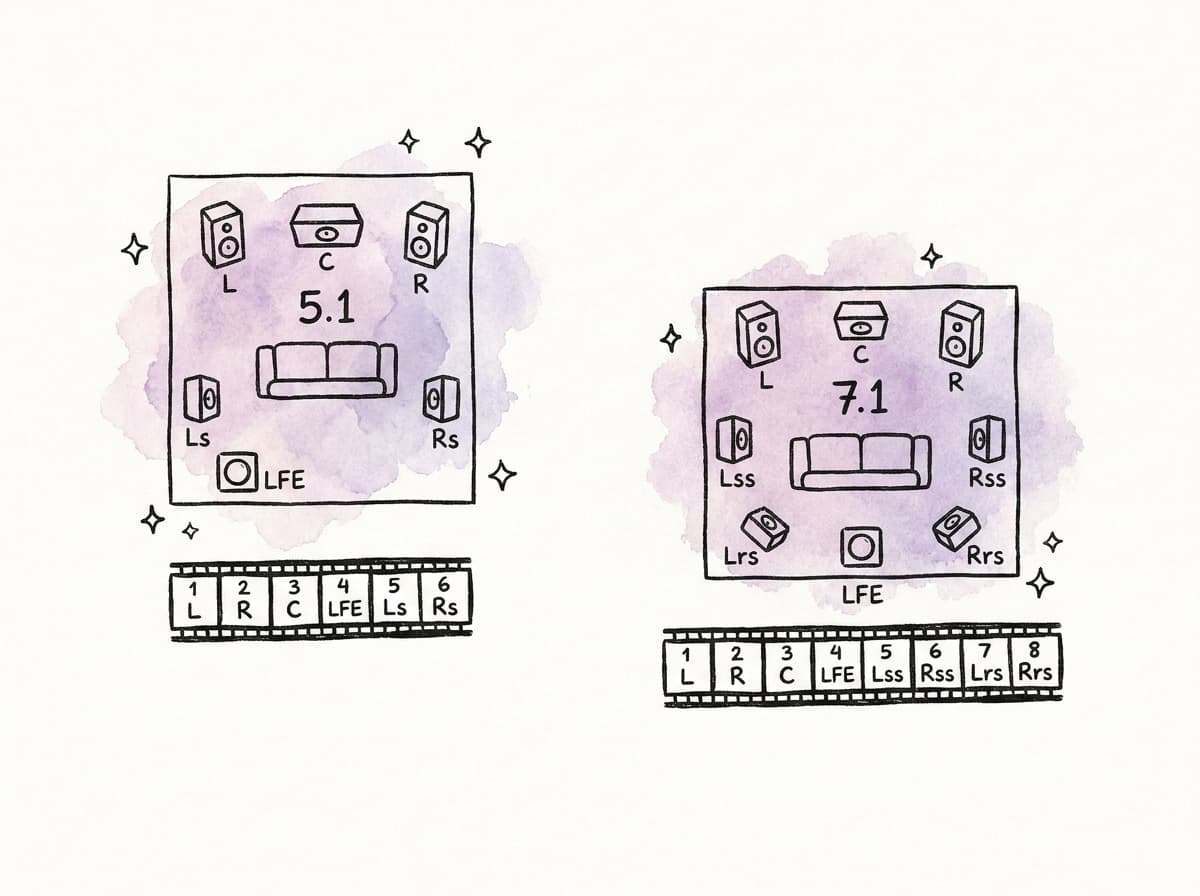
5.1 surround
A standard 5.1 layout contains:| Channel | Speaker |
|---|---|
| L | Left |
| R | Right |
| C | Center |
| LFE | Low Frequency Effects |
| Ls | Left Surround |
| Rs | Right Surround |
| File channel | Assignment |
|---|---|
| 1 | L |
| 2 | R |
| 3 | C |
| 4 | LFE |
| 5 | Ls |
| 6 | Rs |
7.1 surround
A typical 7.1 layout expands 5.1 by splitting the surround field into side and rear surrounds:| Channel | Speaker |
|---|---|
| L | Left |
| R | Right |
| C | Center |
| LFE | Low Frequency Effects |
| Lss or Ls | Left Side Surround |
| Rss or Rs | Right Side Surround |
| Lrs or Lsr | Left Rear Surround |
| Rrs or Rsr | Right Rear Surround |
| File channel | Assignment |
|---|---|
| 1 | L |
| 2 | R |
| 3 | C |
| 4 | LFE |
| 5 | Lss / Ls |
| 6 | Rss / Rs |
| 7 | Lrs / Lsr |
| 8 | Rrs / Rsr |
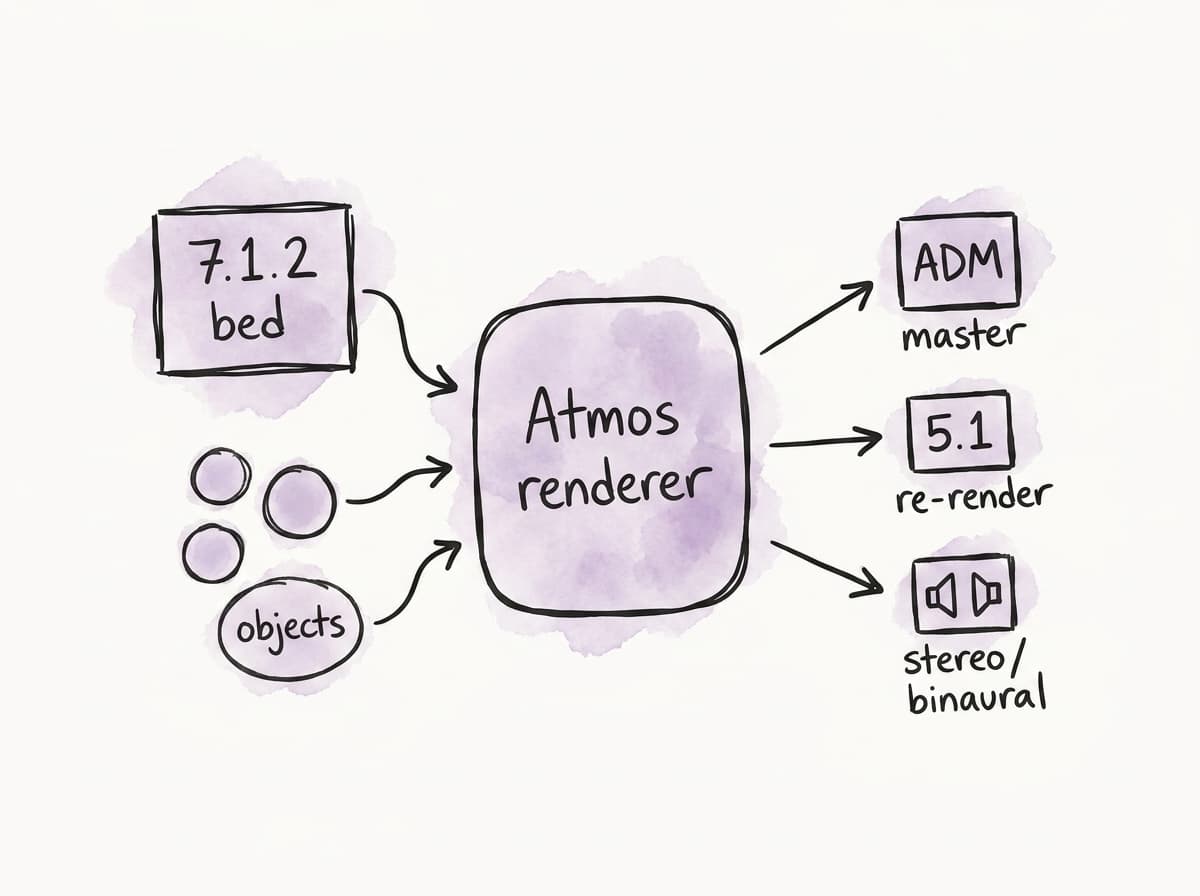
Dolby Atmos bed and objects
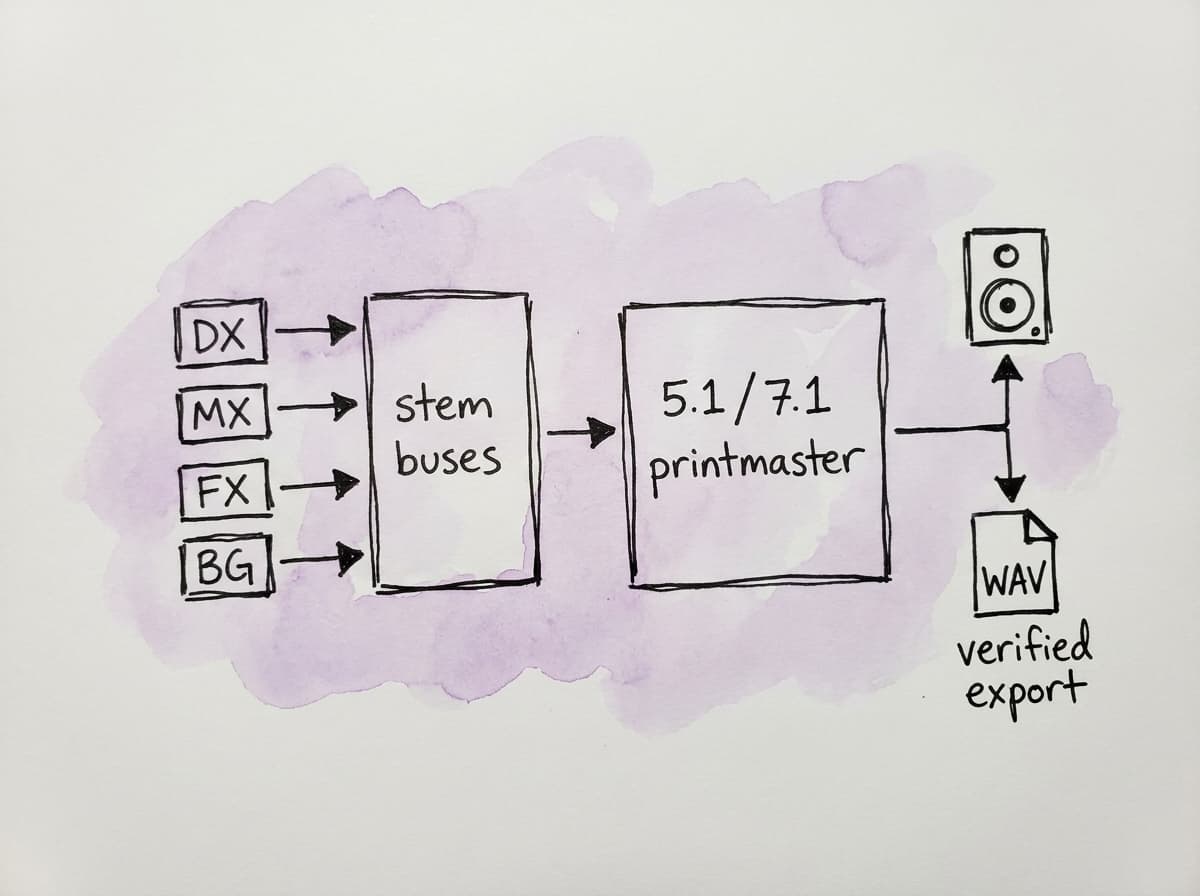
Build the routing around the final deliverable
Configure monitoring before judging the mix
Use a monitoring environment that matches the deliverable you are making. For surround and Atmos, monitoring has to prove that the software bus order is correct and that the physical speaker output order is correct. Send channel ID tones or spoken channel identifiers through the full signal path before serious mixing begins. The left surround identifier should come from the left surround speaker only. For 7.1, spend extra time on side versus rear assignment. For Atmos, confirm the renderer output mapping and the speaker layout, including height channels when you monitor 7.1.4 or another immersive configuration. The monitor layout does not have to match every consumer playback configuration, but it must be valid for the mix you are creating. A 7.1.4 Atmos room can monitor Atmos and can also audition 7.1, 5.1, and stereo re-renders. A 5.1 room can produce a 5.1 deliverable. For a full Atmos mix room, you need an immersive monitoring setup and a valid renderer workflow, even when the software can open an ADM elsewhere. Speaker calibration affects routing decisions and mix decisions. A low center channel can lead you to make incorrect dialogue choices, while hot surrounds can make a downmix collapse awkwardly. Bass management can hide an LFE routing problem, so a file might pass a casual listen and then fail in QC.Downmix compatibility belongs in the mix
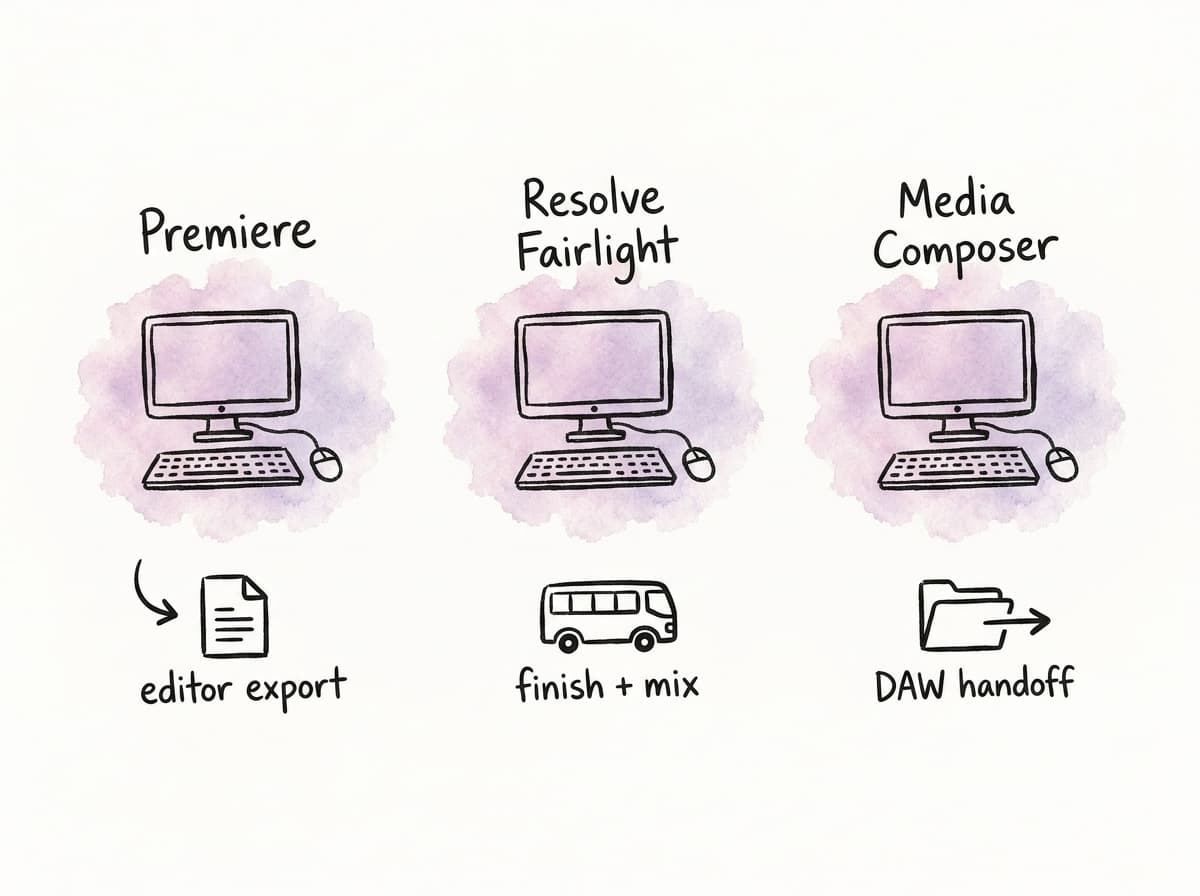
A surround mix may be heard in stereo. An Atmos mix may be heard as 5.1, stereo, or binaural headphone playback, so monitor those versions during the mix. For 5.1 to stereo, center content usually folds into left and right at a reduced level. Surrounds also fold down according to a coefficient chosen by the standard, platform, or metadata. LFE is often excluded from stereo fold-downs unless a specific workflow says otherwise. The exact coefficients are not universal, so follow the delivery spec. Downmix problems often appear as dialogue that becomes too loud or too soft in stereo, music vocals or lead instruments that shift image because they were spread across L/R and C, surround effects that become distracting in stereo, or phase cancellation from decorrelated ambience and stereo wideners. LFE-dependent moments can disappear when the main channels do not carry enough low-frequency energy. In Atmos, objects can mask dialogue in a 5.1 or stereo re-render even when the immersive version feels balanced. For Atmos, use renderer re-renders to audition 5.1 and stereo compatibility. When the platform requires 5.1 from the Atmos renderer, the renderer’s re-render is usually the correct source. When the platform requires a separately mixed 5.1 nearfield master, treat it as a mix pass rather than a file conversion. Do not fix a bad downmix by randomly lowering stems after approval. When the stereo version fails, identify whether the issue is center fold-down, surround fold-down, object rendering, LFE dependence, or dynamics. Then fix the mix or metadata at the source.Premiere Pro, DaVinci Resolve, and Media Composer handle this differently
Premiere Pro
Premiere Pro is practical for edit timelines, temp mixes, and straightforward channel-based exports. It can work with multichannel audio, 5.1 tracks, adaptive tracks, and sequence audio configurations. It is used in commercial, social, documentary, and corporate workflows where the finishing path may stay inside the NLE. In Premiere, you can map source channels, create multichannel sequences, route tracks to a 5.1 master, and export files with discrete channels. For teams cutting picture and handling basic surround deliverables in one application, that can be enough. Premiere is less suited to final immersive audio authoring than a dedicated Atmos mastering workflow. For Atmos ADM or IAB delivery, usually treat Premiere as a picture edit and turnover tool. Send a clean AAF/OMF or other agreed turnover to the audio department, then bring back approved printmasters or stems. Premiere failure modes include source clips interpreted as stereo when they are actually discrete multichannel, a sequence master set to stereo when the export is expected to be 5.1, and track routing that sends mono dialogue or effects to L/R instead of C or surround buses. Export presets can also change channel count or codec settings. QuickTime exports may show a visible track layout that does not match the required discrete WAV order. Do not assume 5.1 channel order from meters alone, and confirm it in the exported file. For a reliable Premiere workflow, set the sequence audio format correctly, map source channels deliberately, and export a short channel-identification test before the full master. Continue only after the test file returns as L, R, C, LFE, Ls, Rs in the receiving system. Fix incorrect mapping before mixing continues.DaVinci Resolve
DaVinci Resolve, through Fairlight, can support audio finishing workflows that go beyond basic edit audio. It supports advanced bus routing, surround formats, immersive monitoring options, and, in Studio versions, Dolby Atmos workflows depending on version and licensing. For teams already finishing picture in Resolve, Fairlight can reduce round trips. Resolve can keep picture conform, color, audio routing, loudness measurement, and export in the same project. This is useful when one post team owns the process and the delivery is channel-based 5.1, 7.1, or an Atmos workflow supported by the installed Resolve Studio environment. Set up Resolve projects with clear buses. The Fairlight page has detailed routing controls, and a timeline that began as a stereo edit can become confusing when you add surround buses late. Main buses, sub buses, track formats, patching, and deliver-page audio settings all have to agree. Resolve problems often come from timeline tracks left as stereo when the material should be mono, 5.1, or adaptive. A Fairlight bus may be created correctly while the wrong bus is selected on export. Patch I/O mapping can differ between the mix room and another workstation. Surround stems may feed the monitor bus but not the print/export bus, and deliver-page settings can export a stereo mix instead of discrete surround channels. Atmos monitoring or export assumptions can also fail when they do not match the installed Studio version and renderer configuration. For a reliable Resolve workflow, define the audio bus format early, use Fairlight patching to confirm monitor outputs, and export from the correct bus rather than relying on whatever is audible in the room. For Atmos, confirm the exact Resolve Studio capabilities, Dolby integration, and required master format before you commit to the deliverable.Media Composer
Media Composer is built around edit reliability, shared projects, and turnover control. It can manage multichannel source audio, surround monitoring, and exports, and it is often part of a larger Avid audio workflow where Pro Tools handles final mix and Atmos mastering. Use Media Composer for organization and turnover when that is its role in the workflow. In scripted, episodic, and feature workflows, prioritize getting production sound, temp effects, music, markers, metadata, and timeline structure cleanly to the sound team. A well-built AAF from Media Composer is often more useful than an ambitious temp surround mix. For immersive work, usually treat Media Composer as a turnover and reference tool. For 5.1 edit screening outputs or temp surround references, it can be effective. For final Atmos, send the session to a DAW and renderer workflow designed for immersive mastering. Media Composer failure modes include mono production channels grouped or panned incorrectly before AAF export, track layouts that make edit sense while misaligning with mix stems, and temp mix automation that does not translate as expected. AAF exports can also miss media, handles, or rendered effects needed by audio post. Surround monitoring in the edit room may mask incorrect AAF organization, and edit track order can be confused with final deliverable channel order. For a reliable Media Composer workflow, keep production channels discrete, use clear track naming, avoid unnecessary audio flattening before turnover, and confirm with the mixer how you should export AAFs. Treat a surround reference exported from Media Composer as a guide unless it has gone through the same channel-order and loudness checks as the final master.Practical comparison
| Workflow need | Premiere Pro | DaVinci Resolve | Media Composer |
|---|---|---|---|
| Editorial temp mix | Works for timeline-based temp mixes | Works for timeline-based temp mixes and Fairlight audio work | Works for editorial temp mixes and shared editorial projects |
| Simple stereo delivery | Can export directly from the sequence | Can export directly from the timeline or Fairlight bus | Can export directly from the sequence |
| 5.1 channel-based delivery | Capable with careful sequence and export setup | Capable with Fairlight bus setup and export from the correct bus | Capable, often used for reference or turnover |
| 7.1 channel-based delivery | Possible, but verify mapping carefully | Capable with detailed Fairlight routing | Possible in facility workflow, often sent to Pro Tools |
| Atmos authoring | Not the usual final mastering tool | Possible in supported Studio/Fairlight workflows | Not the usual final mastering tool |
| AAF turnover to audio post | Common | Possible, but workflow-dependent | Standard in many longform Avid-to-Pro Tools workflows |
| Best fit | Editor-led finishing and straightforward deliverables | Integrated picture/audio finishing | Shared editorial workflows and Pro Tools turnover |
Exporting 5.1 and 7.1 masters
For discrete surround WAV delivery, export interleaved or split mono exactly as the spec requests. Interleaved files are common for platform delivery, while split mono may still appear in legacy broadcast, theatrical, or facility-to-facility workflows. For a 5.1 interleaved WAV, the file should normally be:| Channel | Assignment |
|---|---|
| 1 | L |
| 2 | R |
| 3 | C |
| 4 | LFE |
| 5 | Ls |
| 6 | Rs |
| Channel | Assignment |
|---|---|
| 1 | L |
| 2 | R |
| 3 | C |
| 4 | LFE |
| 5 | Lss / Ls |
| 6 | Rss / Rs |
| 7 | Lrs / Lsr |
| 8 | Rrs / Rsr |
Exporting Atmos masters and re-renders
Atmos export depends on the mastering environment and the requested container. For home entertainment workflows, the deliverable may be an ADM BWF. For some IMF workflows, immersive audio may be carried as IAB. Follow the platform’s delivery document. A typical Atmos finishing path includes a DAW session with bed and object routing, a Dolby Atmos renderer or integrated renderer workflow, and a renderer input configuration that matches the DAW template. The monitoring layout might be 7.1.4, with valid downmix and re-render monitoring. The final export may be an ADM BWF or IAB master, with 5.1 and stereo re-renders if required by the platform or localization workflow. Do not assume “I can hear it, so the bounce is correct.” Atmos monitoring is rendered. Objects may be absent from a normal bus bounce unless you explicitly export the renderer output or a renderer re-render. In Pro Tools Atmos workflows, use the Dolby Atmos bounce/re-render path for channel-based outputs derived from the Atmos mix. When 5.1 is required alongside Atmos, clarify whether it is a renderer re-render from the Atmos master, a separate 5.1 nearfield mix, a 5.1 reference for dubbing or localization, or a 5.1 streaming file. Those are different deliverables. Some platforms require a 5.1 version for reference even when the streaming package uses the Atmos master. Others may require channel-based versions inside or outside an IMF package, so treat the platform language literally.| Requested 5.1 asset | Usual source | What to verify | Main risk |
|---|---|---|---|
| Renderer re-render from Atmos | Dolby Atmos renderer re-render output | Object balance, dialogue level, surround translation, loudness | Bouncing a normal monitor or mix bus and missing object content |
| Separate 5.1 nearfield mix | Dedicated 5.1 mix pass from approved elements | Creative balance in a 5.1 room, stereo fold-down, loudness | Treating the Atmos re-render as a finished nearfield mix |
| 5.1 reference for dubbing or localization | Approved printmaster or approved renderer re-render | Sync, channel order, version match, relationship to stems | A reference file being mistaken for the final deliverable |
| 5.1 streaming asset | Platform-specified 5.1 master or renderer re-render | Container, channel order, loudness, true peak, metadata | Correct audio exported in the wrong layout or package |
Handling stems, M&E, and localization versions
Surround deliverables often extend beyond the full mix. Longform and streaming projects may require stems and M&E versions, while commercial and branded projects may require multiple shorter edits and regional versions. Keep the same layout control for each version that you use for the main master. For a 5.1 M&E, keep the file as 5.1. It is a six-channel M&E in the specified order unless the spec asks for stereo music and effects stems. When you remove dialogue, add fill where necessary so the international version does not collapse into silence under production effects that were tied to dialogue edits. For Atmos, agree on stem strategy early. You may need printmaster, M&E, DX, MX, FX, optional objects, or re-rendered stems. Some object-based elements do not translate neatly into a traditional stem deliverable. When the localization team expects 5.1 stems, provide 5.1 stems from the approved mix path with the renderer output included in the result. Naming matters because channel layout mistakes often hide inside filenames. A file calledShow_Final_51.wav should actually be six-channel 5.1 in the required order. Split mono filenames should identify each channel unambiguously.
Common delivery failures
Wrong channel order is one of the most common preventable failures. The safest way to catch it is to export a short channel ID file from the exact same path as the master, then re-import it or play it in the receiving system. That gives you evidence that the full export path is mapped correctly. Another common failure is a stereo export from a surround timeline. This usually happens when the sequence, bus, or deliver-page output is still set to stereo. The mixer hears surround through monitoring, while the export source is a stereo downmix or stereo master bus. Route the print bus explicitly and export that bus. Missing center dialogue usually comes from editorial routing. Dialogue may have been placed on a stereo track, panned center in the edit room, then exported as L/R instead of C. For final 5.1 narrative work, route dialogue intentionally. Document phantom-center dialogue when it is a creative choice. Otherwise, anchor dialogue in the center through the mix bus. LFE mistakes also need direct attention. The LFE channel may be empty when the spec expects intentional effects, or overloaded because someone treated it as a subwoofer feed. The subwoofer in the room may reproduce bass-managed content from all channels, so keep the LFE file channel separate. Atmos adds object-routing failures. Objects can be offline, assigned to the wrong renderer input, excluded from a bounce, or present in the ADM while behaving incorrectly in re-renders. Make renderer input configuration part of the session template.Keep the export path controlled
A reliable surround or Atmos workflow starts with the required deliverables, then sets project sample rate, frame rate, and bit depth. The session or sequence should be created with the final channel layout in mind. Source channel interpretation, buses, stems, monitoring, and export paths should all follow that layout. Once the routing is proven, keep checking downmixes or re-renders during the mix. Stereo fold-downs, 5.1 re-renders, and object behavior should be reviewed early enough that problems can be fixed in the mix rather than patched at the end. At export, choose the actual print bus, renderer master, or renderer re-render required by the spec. Re-import the exported file into a clean session and confirm channel count, order, sync, loudness, true peak, and audible content before upload or turnover. Surround and Atmos delivery gets complicated because every tool gives you multiple places to make the same routing decision. Make those decisions once, document them in the template, and judge the exported file rather than the timeline. That is what keeps a good mix from failing delivery for a preventable channel-layout error.FAQ
A common 5.1 delivery order is L, R, C, LFE, Ls, Rs on channels 1 through 6. Always confirm the platform or broadcaster spec, because some legacy or application-specific workflows may use a different order.
Not necessarily. Atmos monitoring is rendered, and object audio may not be included in a normal bus bounce unless the software is specifically exporting the renderer output or a renderer re-render. If a 5.1 or stereo version is required from Atmos, generate it through the approved renderer re-render path and listen to the result.
No. The LFE channel is for intentional low-frequency effects, not general bass management. Main channels should still carry appropriate low-frequency content. Bass management is handled by the playback or monitoring system and should not be confused with the LFE file channel.
Re-importing the exported file into a clean session helps confirm that the actual rendered file has the correct channel count, channel order, sync, loudness, true peak, and audible content. This catches problems that may not be visible in the original timeline or mix session.
Usually, yes. If the printmaster is 5.1, dialogue, music, effects, and M&E stems are often also delivered as 5.1 unless the delivery spec says otherwise. Stereo stems for a surround master should not be assumed acceptable without explicit approval.
Treat deliverables as searchable assets with clear metadata, not just filenames in folders. Track fields such as mix format, channel order, sample rate, loudness target, language, approval status, stem type, and delivery destination. Aspect supports custom metadata in a spreadsheet-like asset view alongside automatic transcription and searchable project organization, which makes it easier to distinguish a 5.1 M&E from a stereo reference or an Atmos ADM master before upload.


