.sidecar file next to the .braw file and move them together. If you want the original camera interpretation, remove or ignore the sidecar and let the application read the embedded metadata inside the BRAW file.
What makes this fragile is ordinary file management. The sidecar has to be in the same folder, matched to the right clip, and readable by the software in use. The team also needs one agreed answer about whether that sidecar is authoritative or just someone’s local experiment.
What the BRAW sidecar actually does
Blackmagic RAW stores camera metadata inside the.braw file. That embedded metadata includes the camera’s capture settings and enough image processing information for compatible software to decode the clip consistently. A sidecar adds an override layer. When you change metadata or image processing values after capture, you can save those changes into a .sidecar file instead of writing them back into the original .braw.
The camera file remains the original camera negative. The sidecar becomes a portable set of RAW interpretation decisions.
- ISO or gain interpretation
- White balance temperature
- Tint, especially green/magenta correction
- Color space and gamma choices
- Exposure, contrast, saturation, and related RAW image controls where supported
- Iris, focus, and focal length metadata
- Project name, take number, and other production metadata
- Frame-by-frame metadata, which is important when lens data changes during a shot
Embedded metadata, sidecar metadata, and timeline grades are different layers
A lot of workflow mistakes happen because people call everything “metadata” or “the grade.” In BRAW work, it helps to separate three layers.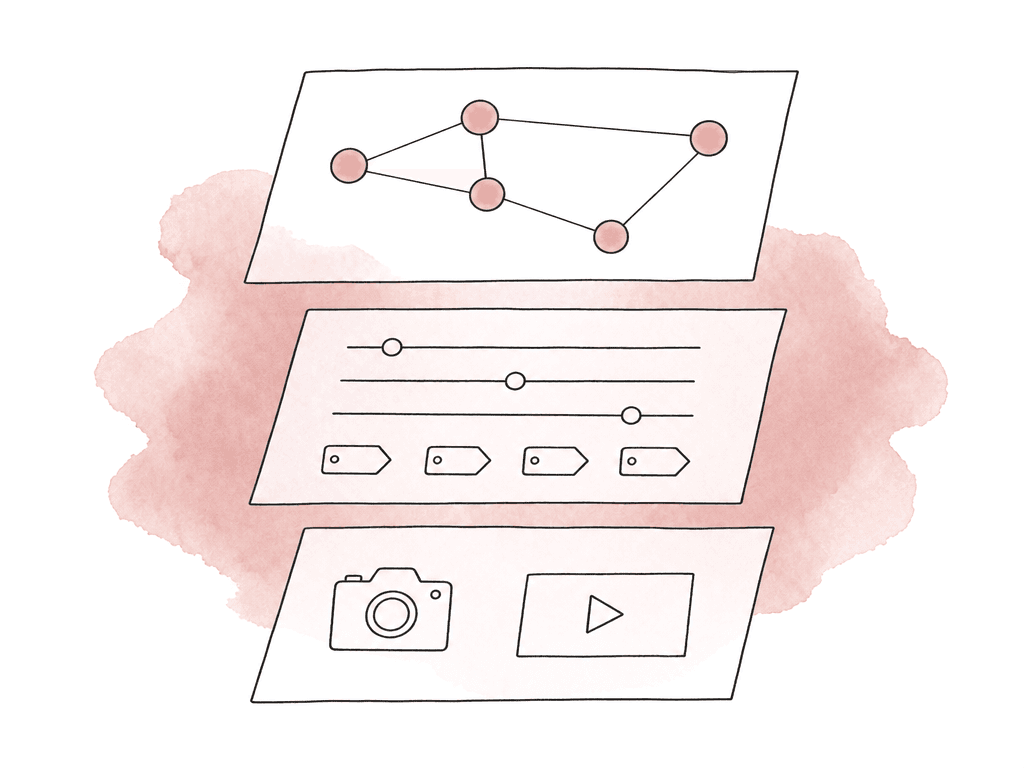
.braw file. It reflects how the camera was set at capture. That covers ISO, white balance, and tint, plus color science choices and lens information where available. Timecode, clip information, and other camera-side values sit there too. If no sidecar exists, compatible software can use this embedded metadata as the starting point.
The second layer is the sidecar. This is the portable override, and it can sit next to the .braw file and tell compatible software to use different RAW settings than the embedded defaults. Delete or move the sidecar away, and the clip can fall back to the original embedded metadata.
The third layer is the NLE or grading application’s project data. A color grade in a Resolve timeline is not a BRAW sidecar. Neither is an adjustment layer in Premiere, a LUT applied on an edit, or a color managed timeline transform. Those choices live in the project file, the database, or an XML, and sometimes only in rendered media. They stay there unless you intentionally save RAW metadata changes into a sidecar or bake them into a new file.
This is why two people can open the same .braw and see different images. One may be viewing camera metadata. One may have a sidecar override. One may have project-level Camera RAW settings. One may have a node tree or LUT on top. Before blaming color management, first identify which layer is changing the image.
| Layer | Where it lives | Main effect | How it travels | Common trap |
|---|---|---|---|---|
| Embedded camera metadata | Inside the .braw file | Supplies the original camera interpretation: capture ISO, white balance, tint, lens data, timecode, and clip metadata | Always travels with the BRAW file | Assuming the embedded look is still active when a sidecar or project setting is overriding it |
| Sidecar metadata | In the matching .sidecar file next to the .braw file | Overrides RAW decode settings such as ISO, white balance, tint, color space, gamma, and supported production metadata | Travels only if the sidecar is copied and kept with the matching BRAW file | Treating the sidecar as a harmless temp file when it may change every downstream decode |
| NLE or grading project data | In the application project, database, XML, cache, or rendered derivative | Adds clip RAW settings, grades, LUTs, timeline color management, and export transforms | Travels through project exchange, database sharing, XML, AAF, EDL, or rendered files | Expecting project grades or timeline transforms to appear on another system just because the sidecar was copied |
How changes propagate into the NLE
In the clean version of the workflow, the NLE or grading application loads a BRAW clip and checks for a matching sidecar next to it. If a sidecar is present, the application applies that metadata. If not, it falls back to the embedded camera metadata. Blackmagic’s SDK is designed so applications can decode BRAW consistently across platforms, and software using that SDK can read the same RAW settings. DaVinci Resolve is the reference environment for most BRAW workflows. On the Media page and Color page, Resolve can read BRAW metadata, expose RAW controls, and let you choose how clips are decoded. Depending on project setup, you may be decoding from camera metadata, project settings, or clip-specific settings. Say you make clip-level RAW adjustments and need those decisions to travel outside the Resolve project. You then have to save or generate sidecar metadata. The Resolve database will not communicate those choices to another workstation on its own. The general propagation path looks like this:- The
.brawfile contains embedded capture metadata. - A matching
.sidecarfile placed beside it can override that metadata. - The NLE reads the BRAW through native support or a Blackmagic RAW SDK-based component.
- The decoded image updates according to the active RAW settings.
- Any grading, LUTs, timeline color management, or export transforms happen after that decode stage.
When sidecar edits are non-destructive
Sidecar edits are non-destructive while they remain external metadata overrides. In that state, you haven't altered the original.braw file. You can remove the sidecar and return to the original embedded metadata. You can create a different sidecar and reinterpret the clip another way. You can send the same OCN to finishing with or without the editorial sidecar, depending on the conform plan.
This is a common use case for sidecars:
- Normalizing dailies or editorial viewing without modifying camera originals
- Correcting an obviously wrong camera white balance for the offline edit
- Passing a camera RAW starting point from DIT to editorial
- Keeping clip metadata consistent across Resolve systems
- Letting a colorist see the intended decode while preserving freedom to reset
.braw, but it can disrupt the team.
So don't treat sidecars like invisible temp files. Treat them as source-adjacent metadata. They may affect every thumbnail, proxy transcode, and review export. Every conform and finishing session that reads from that folder is affected too.
When settings become baked
BRAW sidecar settings become baked when your team renders, transcodes, or writes the image into a new file in a way that no longer preserves RAW control. If you transcode BRAW to ProRes, DNxHR, H.264, H.265, or another non-RAW editing format, the derivative file will bake in the current RAW interpretation. The transcoded file won't carry the same RAW flexibility. You can still color correct it, but you're grading pixels that a specific ISO, white balance, and tint already decoded. The color space and transform are locked in too.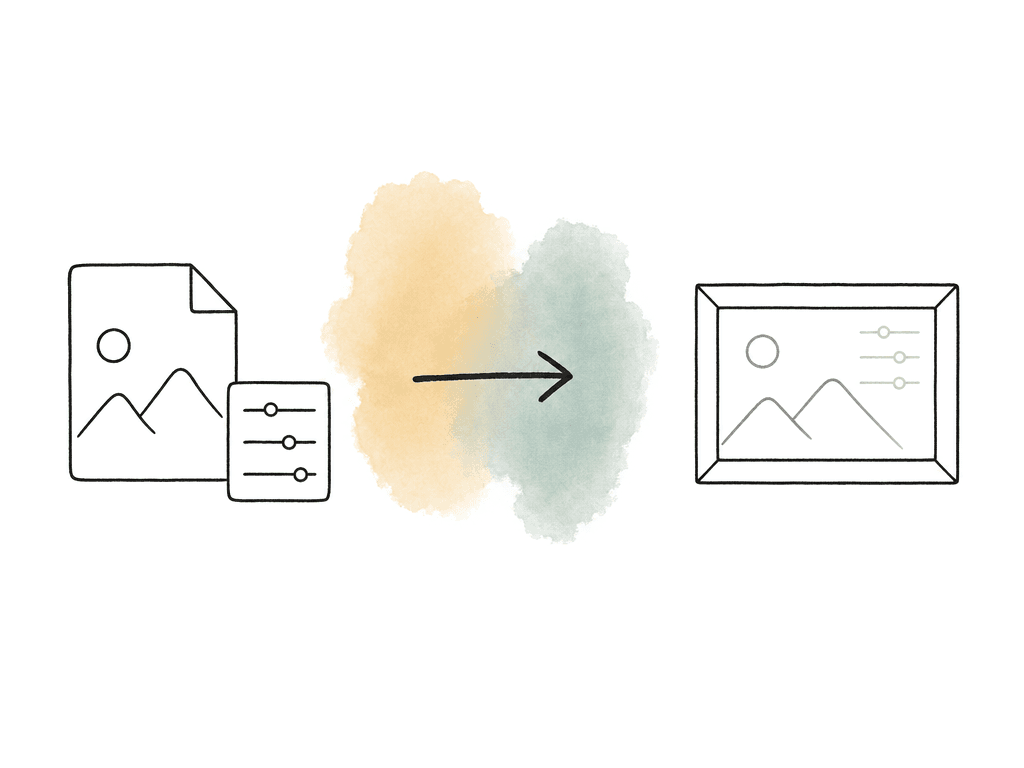
.braw file that incorporates sidecar changes into that newly created BRAW. That's different from changing the original camera file. The original remains untouched, but the new BRAW has those metadata decisions incorporated.
Common bake points include:
- Creating editorial proxies or dailies from BRAW
- Rendering review files
- Exporting VFX pulls to EXR, ProRes, or image sequences
- Creating a trimmed BRAW file with sidecar changes incorporated
- Archiving only the transcodes and not the original
.brawplus sidecar
ISO, white balance, tint, and color space aren't all the same kind of decision
The sidecar can carry multiple image settings, but they don't have the same creative or technical weight. ISO in BRAW is a decode interpretation of gain. It's useful for adjusting image brightness and highlight placement within the RAW processing model, but it can't recover data that was clipped at capture. In post, changing ISO is a good first-stage RAW adjustment when the shot was exposed with enough sensor information intact. White balance is often the most forgiving and useful sidecar correction. Say a camera was set to tungsten in daylight, or left at a previous scene’s setting. Changing BRAW white balance in post can produce a much cleaner starting point than pushing color wheels later. This is one practical reason for keeping RAW control through the edit and into finishing. Tint handles the green/magenta axis. It's especially useful under fluorescent, LED, and mixed-source light. Practical lighting environments benefit too, because Kelvin alone doesn't correct the color cast. Tint corrections in the RAW stage can make downstream grading easier, because the image enters the grade in a more balanced state. Color space and gamma choices define the working interpretation of the image. Some productions want a fast video-style look for editorial. Others want log-style viewing that preserves grading flexibility. There's no universal correct setting. The right choice depends on the sidecar's job: editorial viewing, dailies, VFX plates, or final grade preparation. That's the decision to make early. Is the sidecar carrying a viewing intent or a finishing starting point? Those aren't always the same thing.How to manage sidecars across teams
A reliable team workflow starts by deciding who is allowed to create or change sidecars. If everyone can write them, no one knows which image interpretation is official. On most productions, sidecar authority sits with the DIT or the post supervisor. On others it sits with the lead assistant editor or the color department, depending on when the correction is made. Keep each sidecar with its matching BRAW clip whenever the sidecar is meant to travel. If your team clones camera cards, clone the sidecars too. If your team moves media into a shared storage structure, move the sidecars into the same clip folders. If editorial receives only proxies, document whether those proxies came from camera metadata or sidecar-adjusted metadata.
- Keep the
.brawand matching.sidecaradjacent unless your pipeline has a tested alternative. - Avoid renaming BRAW files after your team has created sidecars.
- Preserve original camera folder structure during ingest when possible.
- Archive sidecars with the OCN, not only with project files.
- If you replace a sidecar, keep the previous version somewhere traceable.
Sidecars in proxy and offline workflows
Offline workflows introduce another layer of confusion, because editors may never touch the BRAW directly. They may cut H.264, H.265, ProRes Proxy, DNxHR LB, or camera-generated HD proxies while the original BRAW stays on shared storage or nearline. If your team generated the proxy from BRAW, it reflects whatever RAW interpretation was active at the time of transcode. That could be embedded camera metadata, project RAW defaults, or a clip-level adjustment. It could also be sidecar metadata. Once the proxy exists, later sidecar changes don't update the proxy’s pixels. Your team has to regenerate the proxy if the viewing transform matters. This is why your team should generate dailies and proxies after setting the intended BRAW decode. The team should know whether editorial is seeing:- Camera-original BRAW metadata
- DIT-adjusted sidecar metadata
- A Resolve project-level Camera RAW setting
- A dailies LUT or color managed transform on top of the RAW decode
- A combination of RAW metadata and creative grade
.braw media and the intended sidecars if those sidecars represent approved RAW adjustments. If the colorist prefers to start from embedded camera metadata, exclude or disable the sidecars on purpose rather than losing them by accident.
Common failure modes
Most BRAW sidecar problems are normal post problems with small files and unclear ownership. The failures usually fall into a few buckets:- Your team didn't copy the sidecar with the
.braw. - Someone renamed the clip and the sidecar no longer matches.
- The project is set to override camera metadata with project RAW settings.
- A receiving application doesn't support the same BRAW SDK behavior or version.
- A render baked the sidecar look into a derivative file, but the team expected RAW flexibility later.
The decision that keeps the workflow sane
Use sidecars when you need portable, non-destructive RAW interpretation changes. Don't use them as an untracked place for creative grades, temporary experiments, or private fixes on shared media. For a small team, the rule can be simple. The sidecar next to the BRAW is the approved starting point unless the handoff says otherwise. A larger production needs versioning, ownership, and clear turnover notes. Either way, the sidecar shouldn't be a mystery file that may or may not matter. If you're sending BRAW to editorial, include the sidecars only if editorial should see those RAW adjustments. If you're sending BRAW to color, include the sidecars if they represent approved technical corrections or intended starting points. If you're archiving the show, keep the original.braw, the final approved sidecars, and notes describing where those sidecars were used.
So name an owner, keep the pair adjacent, and log which sidecar produced each output. Handled that way, sidecars let you fix metadata-level image settings, keep the OCN untouched, and move consistent RAW interpretation between systems. Handled casually, they become the tiny files that explain why the same shot looks different on every machine.FAQ
A BRAW sidecar can override RAW interpretation metadata such as ISO, white balance, and tint. It can also override color space, gamma, exposure-related controls, and some production or lens metadata where supported. It doesn't change the original sensor capture or restore clipped highlights. It tells compatible software how to decode the existing .braw file.
Usually one system is reading a sidecar and the other isn't. The other common causes are project-level Camera RAW settings overriding clip metadata, cached metadata that hasn't refreshed, or a LUT, grade, or color management transform being applied differently. Test the clip with no grade or LUT, then compare it with and without the sidecar present.
They're non-destructive as long as they remain external metadata overrides. The original .braw file isn't rewritten, and the sidecar can be removed or replaced. The changes become baked when you render, transcode, create proxies, export plates, or create a new BRAW file that incorporates the sidecar changes.
No. A proxy reflects the RAW interpretation that was active when the proxy was generated. If a sidecar is changed later, existing ProRes, DNxHR, H.264, H.265, or other proxy files won't update automatically. They must be regenerated if the new RAW interpretation needs to appear in editorial.
Yes, if they represent approved technical corrections or intended decode settings. Archive the original .braw files and the relevant .sidecar files. Include notes describing which sidecar versions were used for dailies, proxies, VFX pulls, turnovers, or final conform. This helps future users understand why a clip decodes a certain way.
Keep the .braw file and its matching .sidecar file adjacent in the same managed folder. Then have editors work from that shared location instead of making private media copies. Aspect lets remote editors mount one shared cloud filespace, which helps the team preserve the intended folder structure and sidecar pairing.