
What a mounted Aspect project looks like in Finder
Once a project or folder is mounted, Finder treats it like a drive or shared file location. The user sees familiar folders and files, not a separate “media portal” UI. Normal Finder habits still apply:- List view, column view, and gallery view
- Quick Look, and drag into an NLE
- Right-click actions, file open dialogs, and path-based relinking
Make the Aspect drive one click away
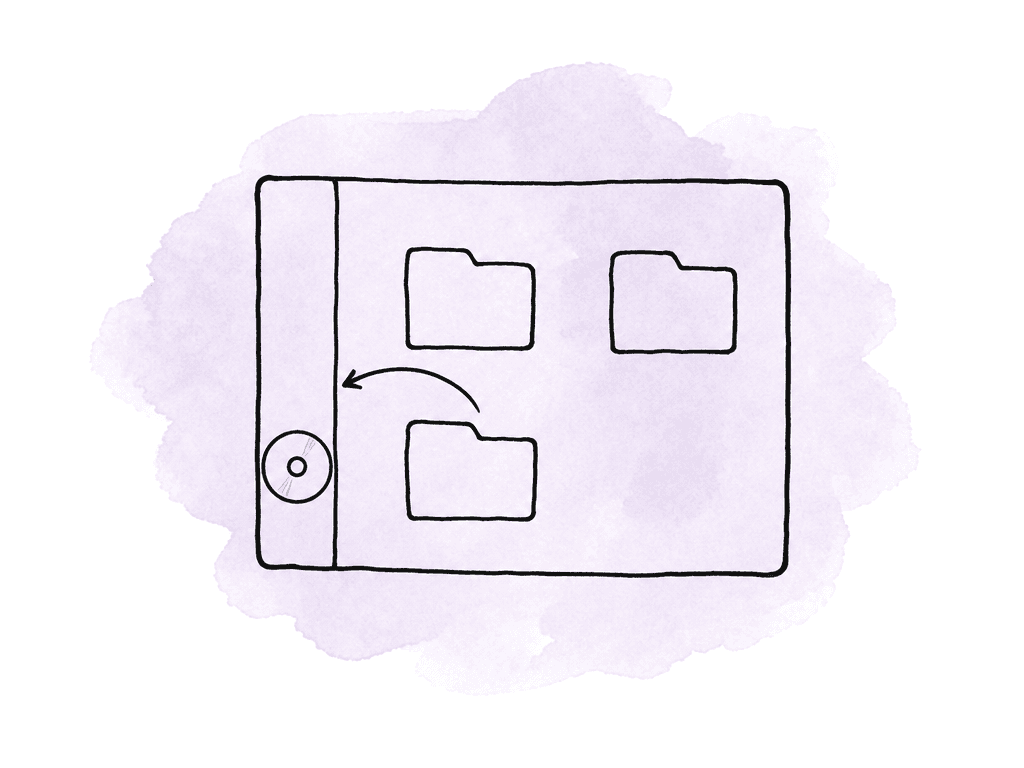
If a mounted Aspect project is something a user opens every day, put it in the Finder sidebar. Apple’s Finder documentation describes the sidebar as a place to add frequently used items for faster access. Adding an item there creates a shortcut rather than moving the original. For an Aspect workflow, that means the post supervisor can make the mount feel like a normal studio drive:- The Aspect drive or mounted project appears in Finder.
- The user drags it into the Finder sidebar under Favorites or the appropriate sidebar section.
- The sidebar item becomes the one-click entry point for that project.
- The underlying Aspect mount stays where it is. The sidebar entry is just a shortcut.
Cache settings decide how local storage gets used
Aspect streams files instead of requiring a full download before work starts. When an editor opens a large clip, Aspect serves the bytes being requested. Local cache keeps playback and repeated access from constantly re-pulling the same data. Aspect also prefetches data ahead of what the user is likely to need, which helps reduce waiting during normal media work.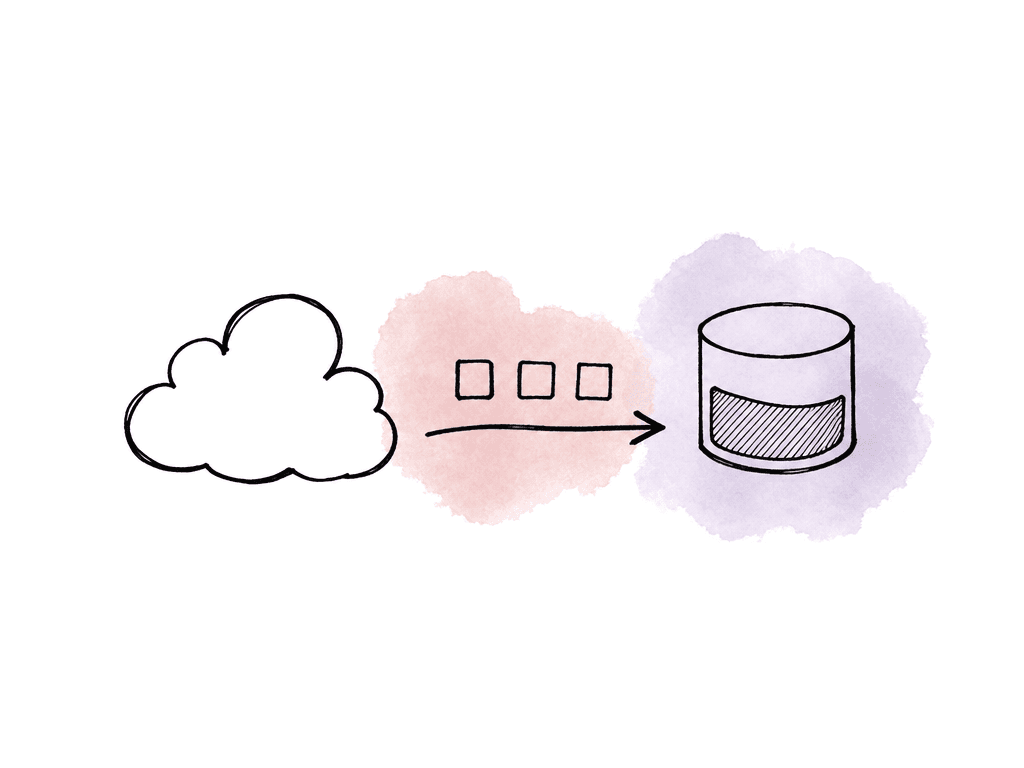
- Where Aspect stores cached data on the Mac or attached storage.
- How much local space Aspect can use for cache.
| Workstation pattern | Cache location to consider | Cache size posture | Operational note |
|---|---|---|---|
| Edit bay with a fast internal SSD and plenty of free space | Internal SSD | Medium to large, based on active project size | Simple for users, but leave room for macOS, applications, renders, and exports. |
| Laptop with limited internal storage | Dedicated external SSD | Sized for current jobs and expected travel use | Keeps the system disk from filling up. Confirm the SSD is connected before starting heavy work. |
| Facility workstation with support staff | Standard local media cache volume | Consistent size across similar rooms | Easier to monitor, document, and support across edit bays. |
| Short-form team using compressed media | Internal SSD or shared workstation cache volume | Smaller limit may be enough | Repeated access still benefits from cache, but the working set is usually smaller. |
| Longform, multicam, RAW, or interview-heavy workflow | Fast SSD with generous free space | Larger limit | Gives Aspect more room to retain commonly accessed file ranges between sessions. |
| Travel or field work that must survive disconnection | Cache location is not enough | Use offline pinning, not just cache | Cache is opportunistic. Pin required files or folders before leaving the network. |
Use Finder for file work, use Aspect for asset context
Finder is excellent at file navigation. Apple’s own Finder guidance focuses on viewing, accessing, and organizing files. It covers sorting and arranging them. It also covers previewing and searching them on the Mac. That makes Finder the right surface for a lot of daily post-production work. Finder is a good fit for tasks like:- Importing clips into Premiere Pro, Final Cut Pro, DaVinci Resolve, After Effects, Audition, Pro Tools, or another local app.
- Relinking a timeline to media paths on the mounted Aspect drive.
- Opening stills, audio files, scripts, XMLs, project files, and reference folders.
- Using Quick Look to confirm the file before dragging it into another app.
- Browsing folder structure when the user already knows where the asset lives.
Open in mount closes the gap from app to file
Sometimes the user starts in the Aspect app. They searched for an asset, reviewed comments, or checked metadata. Maybe they found a clip through AI search. Once they have the right asset, the next move may be file-based. Open it in Finder, or drag it into an NLE. Reveal nearby files, or confirm the exact mounted path. That's what open in mount is for. From an asset in the Aspect app, open in mount jumps directly to the corresponding file on the mounted Aspect drive.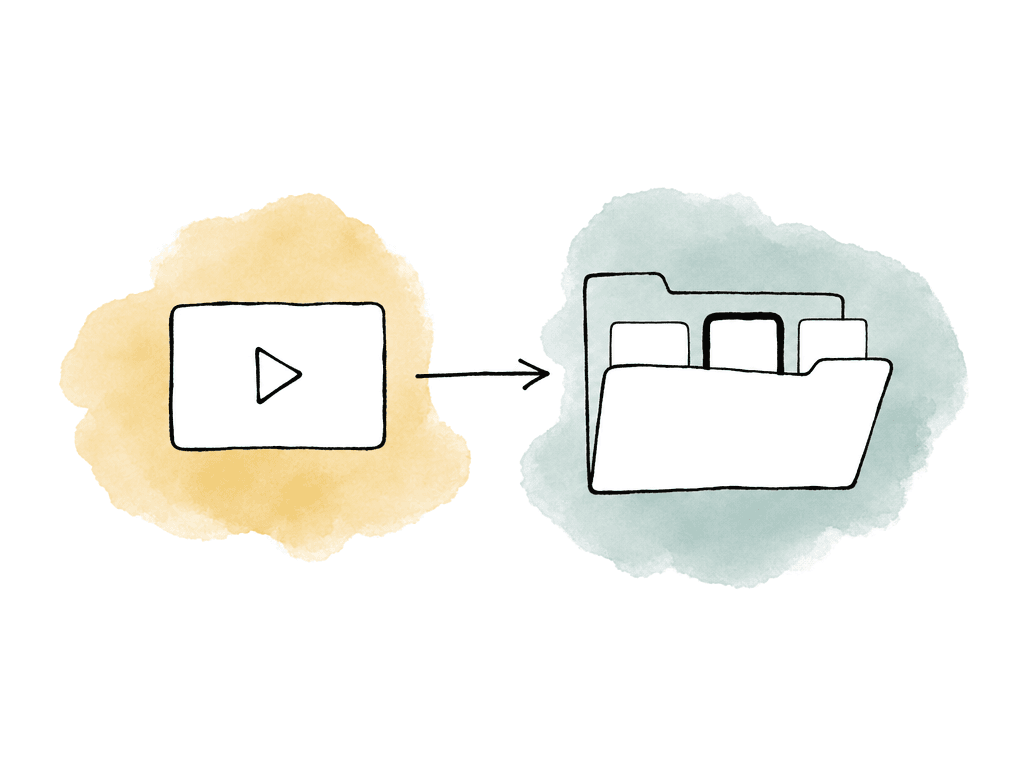
- Producer or assistant finds the asset in Aspect using metadata, transcript, or visual search.
- They use open in mount to reveal the file in Finder.
- Finder shows the asset in its folder context on the mounted drive.
- The editor drags that file into the NLE or uses the path for relinking.
The Finder extension keeps common actions in context
Aspect’s Finder extension adds Aspect-aware actions directly inside Finder. This is the inverse of open in mount. Instead of starting in the Aspect app and jumping to Finder, the user can start in Finder and jump back into Aspect context. The Finder extension supports two especially useful actions for post supervisors:- Pin assets for offline use without leaving Finder.
- Open any file in the Aspect desktop app to switch context.
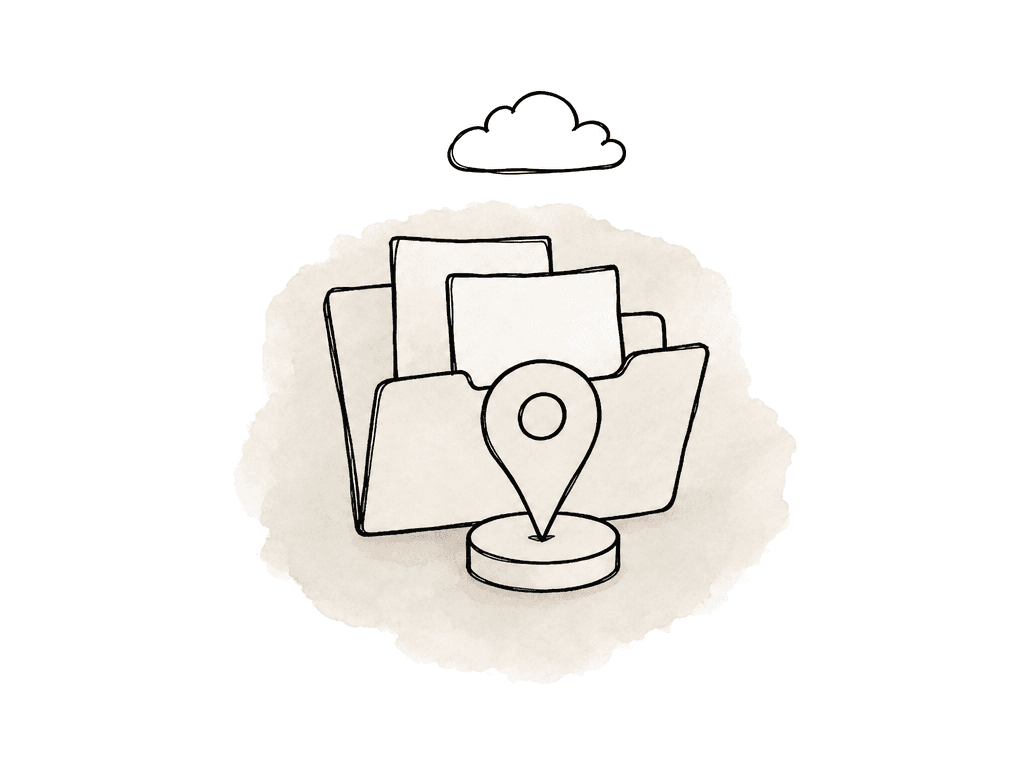
EXPORT_V12_FINAL_final2.mov in Finder and needs to know whether that's actually the approved edit, Finder alone may not answer the question. Opening the file in Aspect brings them to the asset context. That's where versions, comments, and approvals live, together with metadata and history.
The extension is also a useful training tool. It teaches the team that Finder and Aspect have complementary roles. Finder is for file work. Aspect is for asset context. The extension lets users cross that boundary without losing the object they were looking at.
Where this touches editing, review, metadata, access, and archive
The Finder integration is most visible in editing, but post supervisors should think about it across the whole workflow. For editing, the mount gives NLEs a normal file path. Editors can import and relink from Finder. They can open project files and browse bins of media the same way. Because Aspect streams and caches bytes as needed, the user doesn't need to wait for a full file download before starting work. For review, Finder is not where decisions should live. A user can open a file from Finder, but the team should keep comments and annotations connected to the asset in Aspect, along with approvals and versions. If someone finds an edit in Finder and needs to inspect feedback, the Finder extension can open it in the Aspect desktop app. For metadata, Finder filenames and folders aren't enough for most media libraries. Aspect can use custom metadata fields for things like campaigns and clients, approval status, or regions and SKUs. Other production-specific attributes work the same way. Finder can help a user locate a path, but Aspect is the place where your team governs the descriptive layer that makes assets reusable. For access, Finder reflects what the mounted user can reach. Post supervisors shouldn't use local Finder habits as a substitute for permission design. Manage project, folder, and asset access in Aspect, so users only see and work with what they're allowed to use. For archive, Finder shouldn't become a shadow archive process. Aspect supports archiving assets and projects for long-term storage while preserving previews, metadata, and AI access. If a project is done, decide its archive state in Aspect. Don't leave old folders mounted forever on editor machines.Boundaries to make clear to the team
The Finder mount is intentionally familiar, but it still has cloud-backed behavior. Teams avoid confusion when post supervisors explain the boundaries up front. The main boundaries are:- A mounted file isn't necessarily fully downloaded.
- Cache isn't the same as offline pinning.
- Finder search isn't the same as Aspect AI search.
- Finder folders don't replace Aspect permissions or metadata.
- A sidebar shortcut doesn't mount a project by itself if the mount isn't active.
Signals that the workflow is working
A healthy Aspect plus Finder setup is easy to recognize. The mount is visible, and the sidebar entry is obvious. NLEs can browse the path. Cache storage isn't crowding the system drive. Users can cross between Finder and the Aspect app without searching twice. Look for these signals during rollout:- The expected Aspect drive or mounted project appears in Finder.
- Opening a file from the mount starts quickly enough for the media type and connection.
- Cache location and size match the workstation storage plan.
- Users pin offline-required files, not merely open them once.
- Review notes, approvals, metadata, and versions remain in Aspect rather than drifting into filenames.
FAQ
A mounted Aspect project appears like a normal drive or shared file location in Finder. Users see folders and files in familiar Finder views. Common macOS actions still work, including Quick Look, drag and drop, right-click menus, open dialogs, and path-based relinking in editing tools.
No. Adding the mount to the Finder sidebar creates a shortcut for faster access. It doesn't download files, pin files for offline use, or mount the project by itself if the mount is inactive. Offline availability requires deliberate pinning. The sidebar is useful because it gives editors a stable one-click entry point, but it shouldn't be treated as an offline or sync guarantee.
Choose a cache location based on the workstation storage plan. A fast internal SSD may work well on an edit bay with plenty of space. A laptop may need a dedicated external SSD to avoid filling the system drive. Size should match the media workload. Short compressed files may need less cache, while longform, multicam, RAW, or interview workflows usually benefit from more room. Cache improves repeated and nearby access, but it isn't the same as offline pinning.
Open in mount lets a user start from an asset in the Aspect app and jump directly to the corresponding file on the mounted drive in Finder. It's useful when someone finds an asset through metadata, transcript, review context, or AI search, and then needs the actual file path for import, relink, drag and drop, or nearby folder context. It depends on the relevant project or folder being mounted and on the user having permission to access the asset.
The Aspect Finder extension adds Aspect-aware actions inside Finder. Users can pin files or folders for offline use without switching back to the Aspect app. They can also open a selected file in the Aspect desktop app to see review notes, metadata, versions, approvals, and other asset context. If the extension isn't visible, the exact place to enable or inspect Finder extensions varies by macOS version. Operators should check the Mac's System Settings for Extensions or Login Items and Extensions, then confirm the file is inside the mounted Aspect area.
Finder can show the file path and filename, but approval state, comments, versions, metadata, and history should live with the asset record. The Aspect Finder extension lets a user open the selected file in the desktop app so they can inspect the asset context, including version stacking and the broader review workflow.